The May 2026 cumulative update for Windows 11, KB5089549, refuses to install on a slice of machines running version 24H2 and 25H2. The download and staging look normal, but during the reboot phase the progress bar stalls near 35–36%, then Windows backs out with the message “Something didn’t go as planned. Undoing changes.” When you return to the desktop, Windows Update history shows the failure with error code 0x800f0922 (some PCs also report 0x80240069 or 0x80240031).
Why KB5089549 fails with error 0x800f0922
The failure traces back to a single cause. The EFI System Partition (ESP) is too full to finish the boot-file changes the update needs to write. The ESP is a small hidden partition, usually around 100MB, that stores the files your PC uses to start Windows. KB5089549 includes boot-related and Secure Boot servicing work, and that step needs a little free space on the ESP to complete.
Devices with 10MB or less of free space on the ESP are the ones that fail. The install proceeds through the early phases, then hits the boot-file step during reboot and cannot finish, so Windows rolls everything back to keep the system bootable. This affects Windows 11 24H2 and 25H2, but not Windows Server editions.
If you open the servicing log at C:\Windows\Logs\CBS\CBS.log, you’ll see entries that confirm the space problem:
SpaceCheck: Insufficient free space
ServicingBootFiles failed. Error = 0x70
SpaceCheck:  used by third-party/OEM files outside of Microsoft boot directories
The ESP usually fills up over time when OEM firmware updates leave large files behind, or when a PC has had multiple Windows installs or a Linux dual-boot setup added to the same drive.
Check your EFI System Partition free space
You can’t open the ESP in File Explorer because Windows hides it for safety, but PowerShell can read it. Open PowerShell as administrator and run this command to see the partition’s total size and remaining free space:
Get-Partition | Where-Object GptType -eq '{c12a7328-f81f-11d2-ba4b-00a0c93ec93b}' | Get-Volume | Format-List Size, SizeRemaining
The values come back in bytes. Windows Update needs at least 11MB free on the ESP to apply boot-file changes. If SizeRemaining is below 10MB, that is why the update keeps rolling back. As a reference point, a healthy ESP might report 268,435,456 bytes total (256MB) with around 121MB free, which is far more than the update requires.
Fix 1: Let Known Issue Rollback apply, then retry
Microsoft addressed the failure with Known Issue Rollback (KIR), which is a server-side change that disables the problematic part of the update without you uninstalling anything. The resolution has already propagated automatically to consumer devices and non-managed business PCs.
Fix 2: Install the KB5089573 preview update
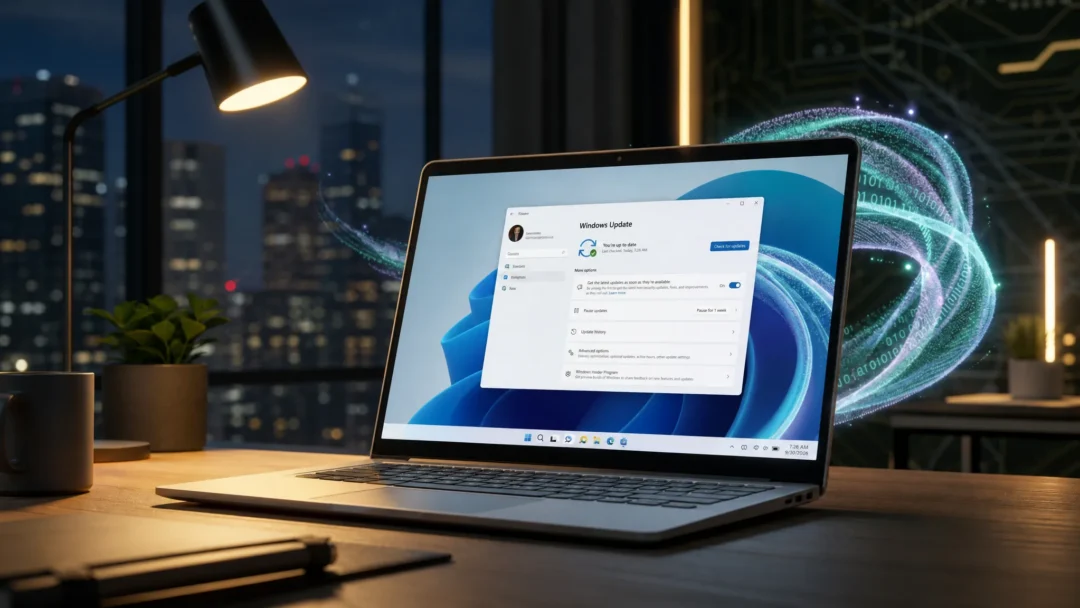
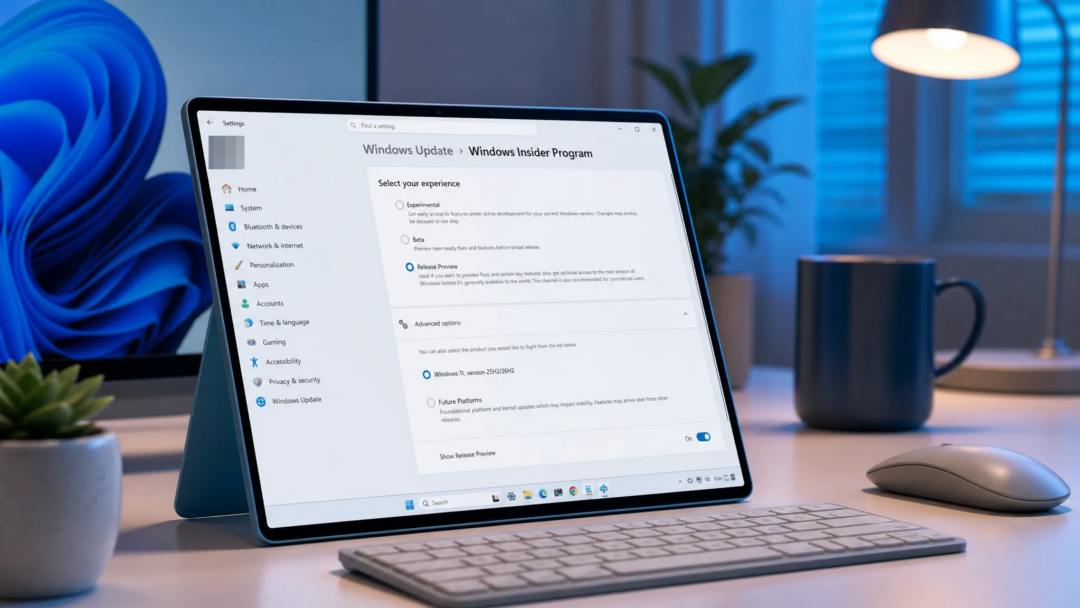
If the update still fails after restarting, the cleanest fix is KB5089573, a non-security preview update that resolves the install problem directly. After it’s installed, you don’t need any registry edit or manual workaround.
KB5089573 is an optional preview release, so it won’t push itself onto your PC automatically. You’ll find it under Settings, Windows Update, where optional updates appear, or you can pull KB5089549 itself manually from the Microsoft Update Catalog. Because KB5089573 is still a preview, some people prefer to wait for the broader rollout instead.
Fix 3: Registry tweak for advanced users
If you have admin rights and want the update on now without the preview, you can tell Windows to pad the ESP differently so the boot-file step has room. This edits the Windows Registry, so only use it if you’re comfortable with the risk of incorrect registry changes.
reg add "HKLM\SYSTEM\CurrentControlSet\Control\Bfsvc" /v EspPaddingPercent /t REG_DWORD /d 0 /f
For IT admins: apply the Group Policy mitigation
Managed business devices don’t receive Known Issue Rollback automatically. To disable the problematic change across a fleet, install and configure the Known Issue Rollback Group Policy that matches your Windows 11 version, then restart the affected devices. This temporarily turns off the change that triggers the boot-file space check until the permanent fix arrives in a cumulative update.
When the permanent fix reaches everyone
If you don’t install preview updates manually, you don’t need to do anything special. The fix is expected to fold into the regular cumulative update that becomes generally available during the June 9 Patch Tuesday rollout, so PCs on automatic updates will pick it up then.
Other quirks you may notice after KB5089549
Two extra behaviors are not failures, so don’t troubleshoot them as if they were. They’re tied to how this particular update was built and rolled out.
The first is that Windows 11 may reboot two or three times to finish KB5089549, which is unusual for a monthly cumulative update that normally needs one restart. This happens because Secure Boot certificate updates are still rolling out in phases. The longer install and extra reboots are expected.
The second is that the smooth taskbar animations for app previews and app group auto-hide can revert to the older, choppier style after the update. That’s a regression in the animation, not a sign your install is broken. Full installation details and the support write-up live on Microsoft’s KB5089549 support page.
For most PCs, the rollback you saw was the safety net doing its job rather than damage. Once Known Issue Rollback applies or KB5089573 is installed, KB5089549 should install on the next attempt and your device will land on the correct build with the May security fixes in place.