

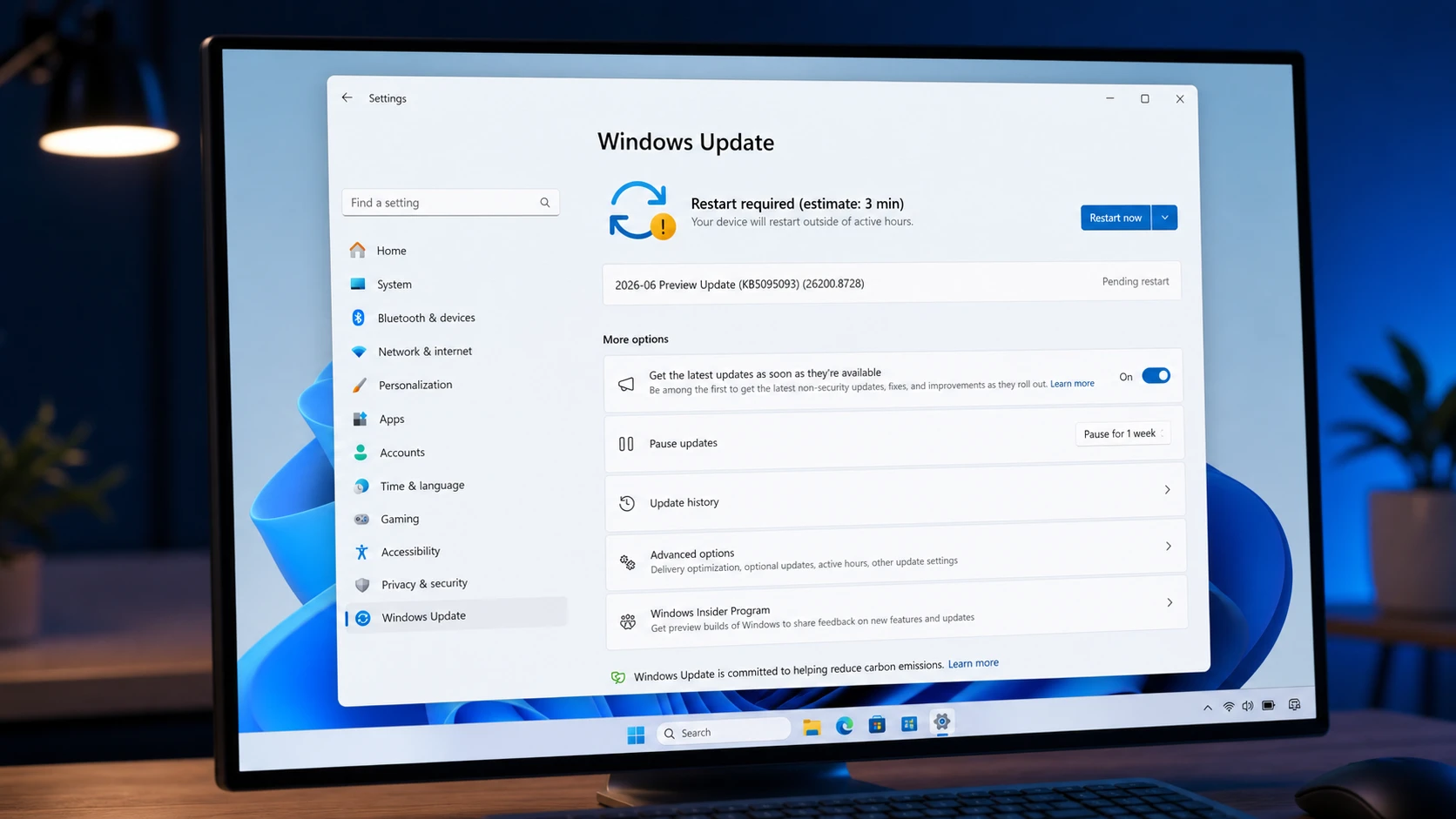
Windows 11 builds 26200.8728 (25H2) and 26100.8728 (24H2), shipped as KB5095093, give an early look at the features arriving with the July 2026 Security Update. The headline additions are Point-in-time Restore, a calendar-based pause system for Windows Update, and a redesigned Widgets experience built to interrupt you less. A long list of fixes also lands across File Explorer, Bluetooth, networking, printing, and the Windows shell.
Quick answer: Builds 26200.8728 and 26100.8728 (KB5095093) are available now in the Release Preview channel as a non-security preview. The same changes reach everyone as the stable July 2026 Patch Tuesday update on July 14, 2026.
KB5095093 builds, versions, and rollout dates
The preview applies to Windows 11 version 25H2 and version 24H2, which share the same 8728 build number. Windows 11 23H2 receives security fixes only in this cycle, with no new features, since that release has reached the end of support. New features arrive through Controlled Feature Rollout, so the exact timing you see can vary by region, hardware, and configuration, and some features take longer to appear in Europe due to regulatory requirements.
| Stage | Build | Date |
|---|---|---|
| Release Preview (25H2 / 24H2) | 26200.8728 / 26100.8728 | June 12, 2026 |
| Optional install (Stable) | 26200.xxxx / 26100.xxxx | TBD |
| Patch Tuesday (Stable, 25H2 / 24H2) | 26200.xxxx / 26100.xxxx | July 14, 2026 |
| Patch Tuesday (Stable, 23H2) | 22631.xxxx | July 14, 2026 |
Microsoft typically begins the Patch Tuesday rollout at 1 PM Eastern Time. A separate package, KB5093998 (build 22631.7219), covers Windows 11 23H2 with fixes only.
Point-in-time Restore for Windows 11
Point-in-time Restore is a recovery feature that returns a system to an earlier working state without long troubleshooting. It captures automatic snapshots that include apps, settings, and personal files, so you can roll back to a known-good configuration when something breaks. The goal is to cut downtime during instability or a bad configuration change.
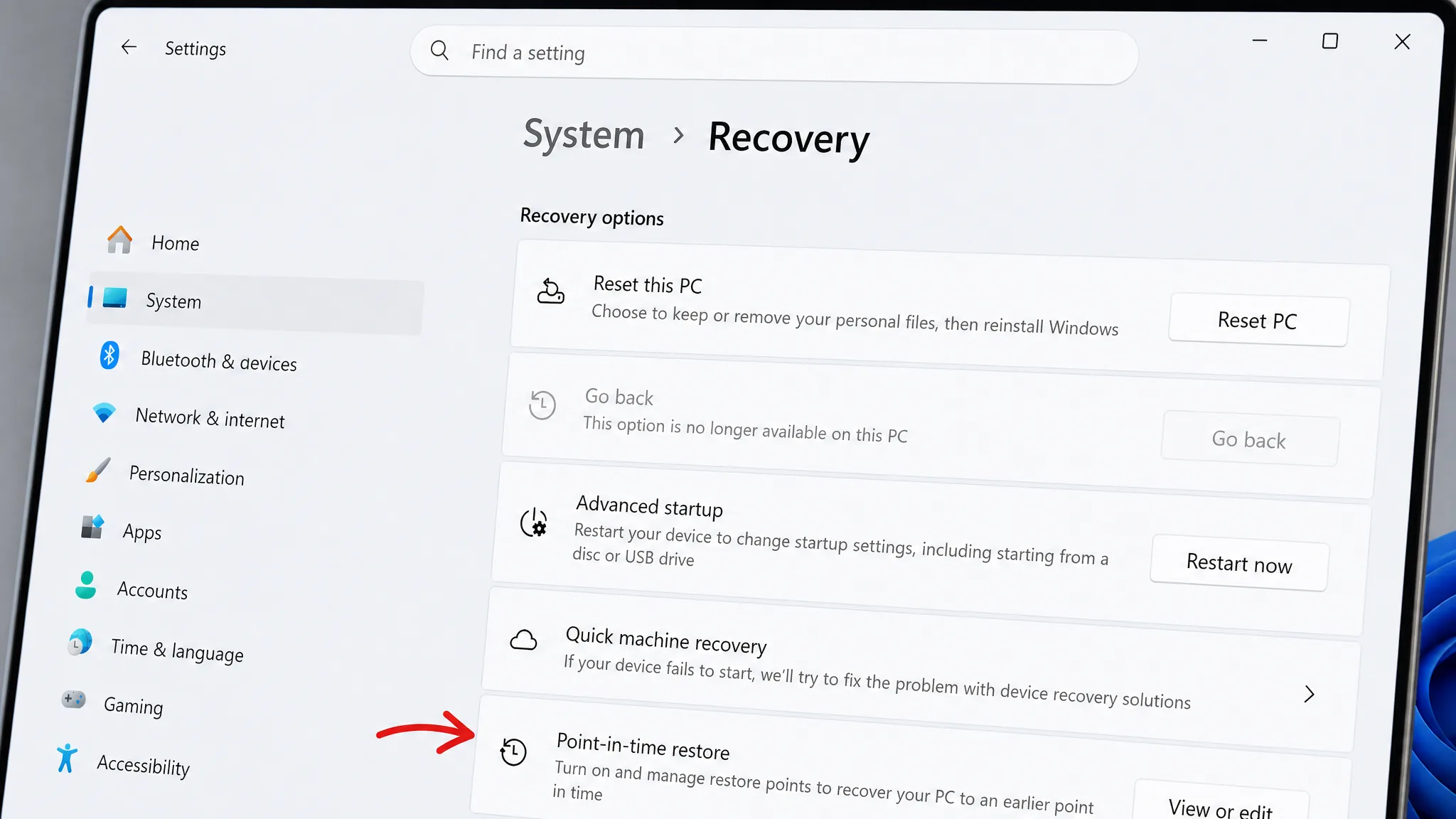
Note: Because the feature changes how recovery works, treat it as something to test in a real scenario before relying on it for a critical machine.
New Windows Update pause controls
Windows Update moves to a calendar-based pause model. Instead of fixed intervals, you pick a specific end date when pausing updates, with control extending up to 35 days. You can change that date at any time by choosing a new one, which keeps update timing predictable without removing your ability to defer installations temporarily.
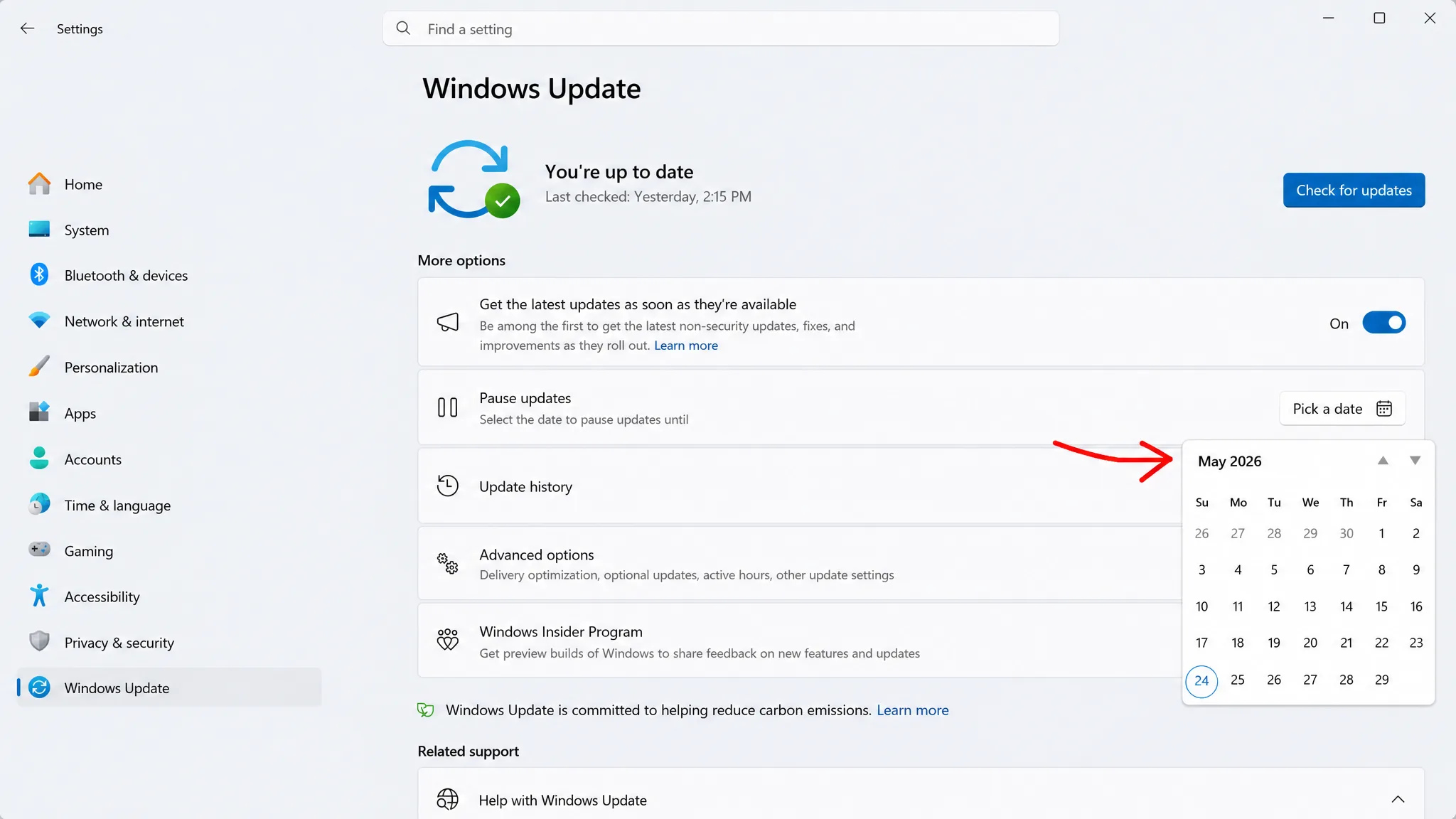
This is not a full disable switch, but it pushes Windows closer to a near-indefinite pause and gives far more control over update timing than before.
Quieter Widgets experience
The Widgets experience shifts toward a less intrusive design. Widgets no longer expand automatically on hover, and both notifications and Taskbar badges are minimized by default, using accent-matching colors for a subtler look.
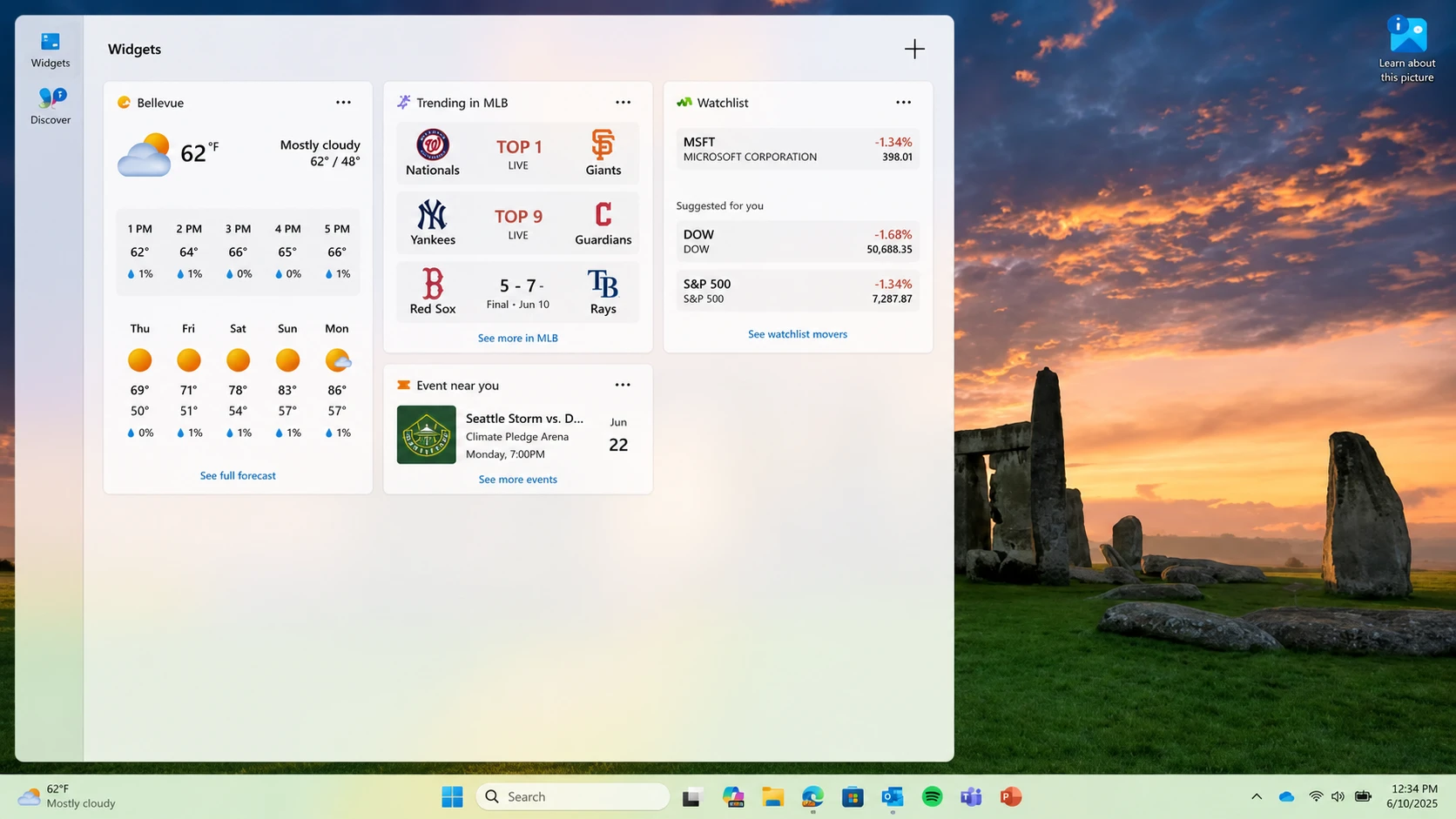
On first use, the dashboard opens in a simplified state, and lock screen access defaults to a single Weather widget. Settings are reachable directly from the navigation bar, and notification counters clear automatically when you leave the dashboard. The experience also gains reliability and responsiveness improvements under the hood.
Accessibility changes: Screen tint and Magnifier
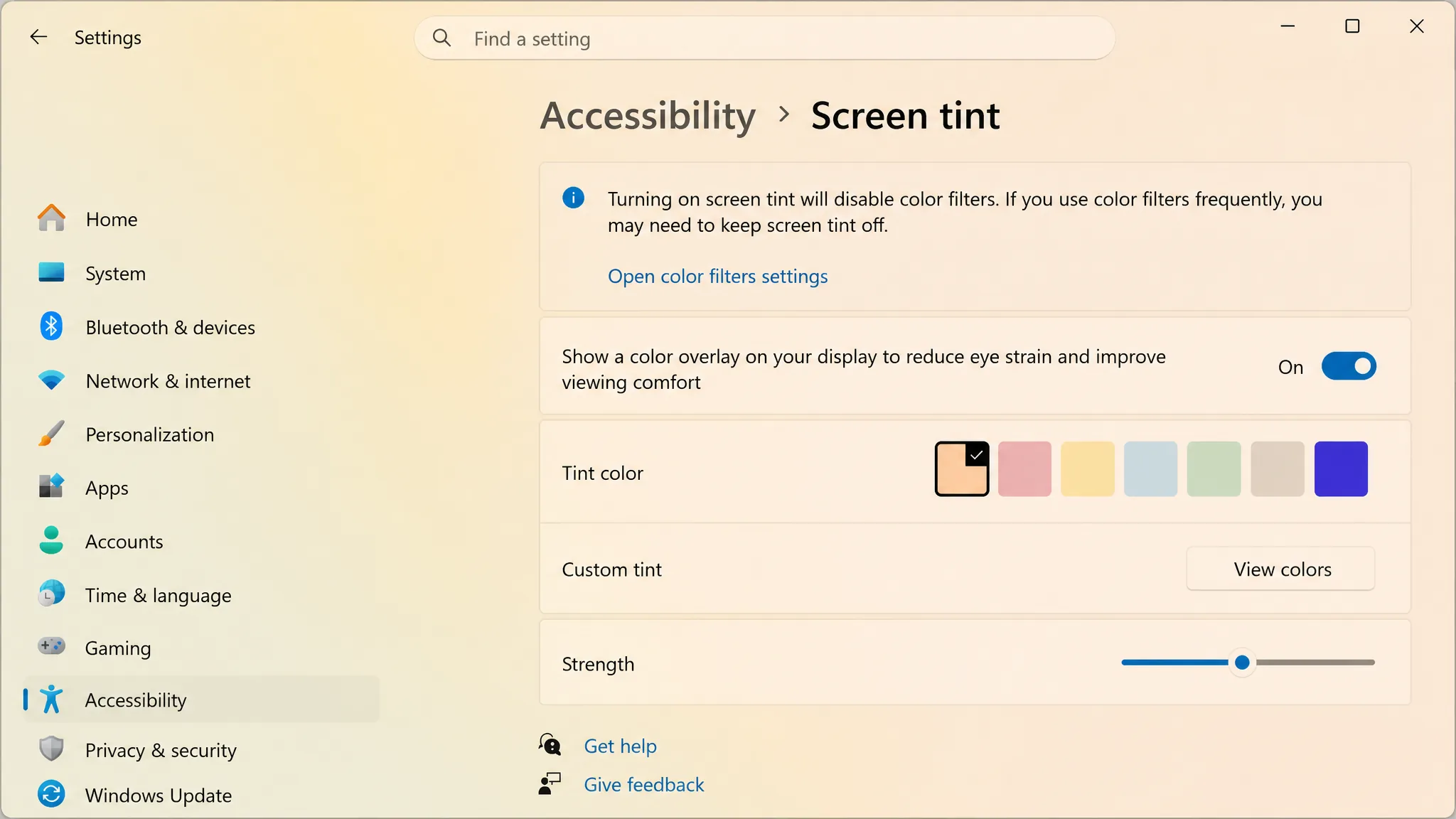
A new Screen tint option applies a full-display color overlay to reduce eye strain, with adjustable intensity and presets available under Settings > Accessibility. It is meant for comfort during long sessions rather than color correction alone.
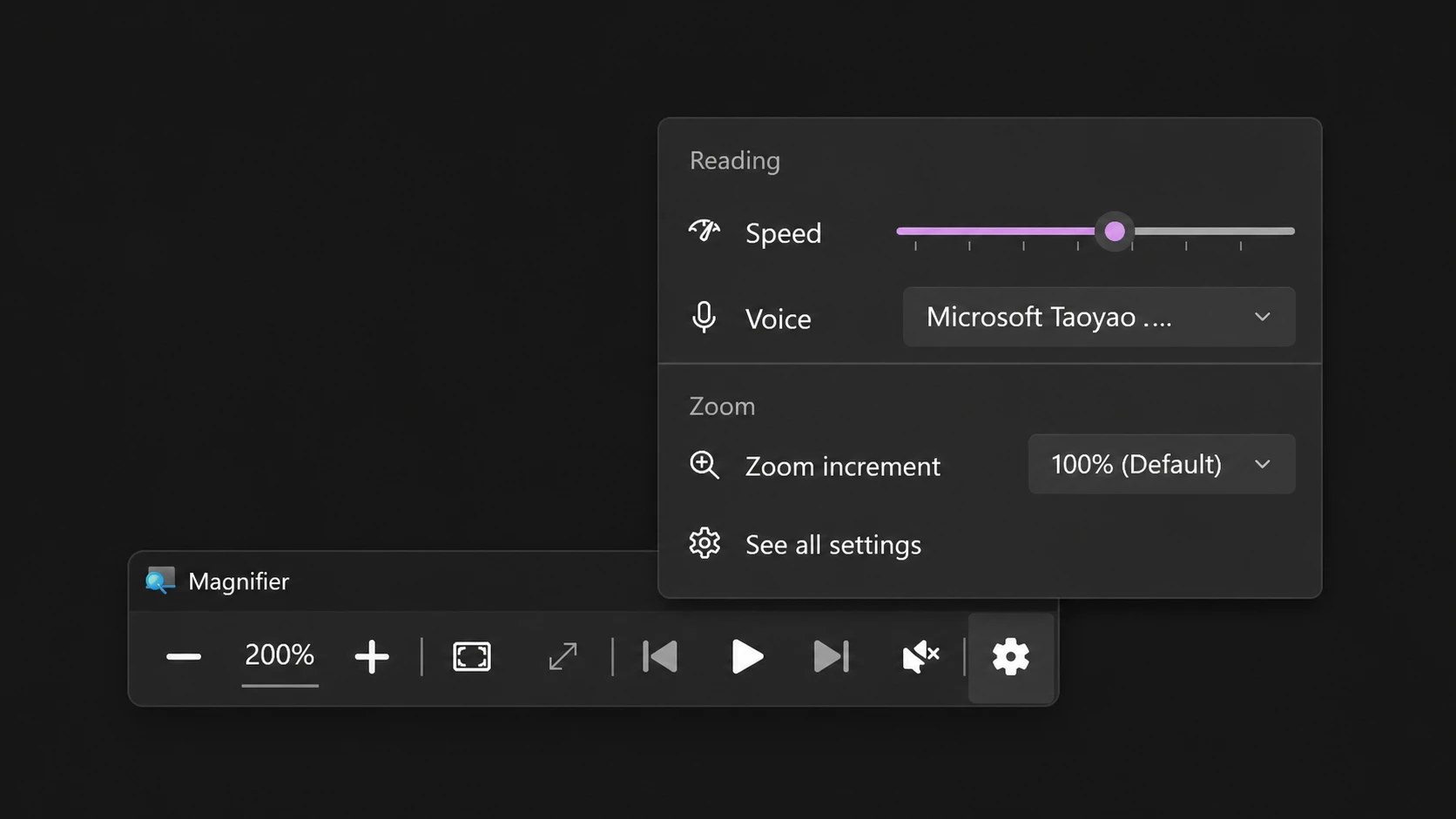
Magnifier adds more precise zoom control. You can type an exact percentage instead of relying only on step-based increments, and you can adjust the zoom step directly from the Magnifier toolbar without switching to system settings.
File Explorer improvements
Hover actions in File Explorer Home now work for work and school accounts (Entra ID), not only personal accounts, adding quick options such as Open file location and Ask Copilot. That feature remains unavailable in the European Economic Area.
The address bar is more flexible and accepts paths with double backslashes or quotation marks, so pasting folder paths from different sources is less error-prone. Search suggestions in the address bar are more stable and close properly after you pick an option, and a bug that created duplicate OneDrive entries in Favorites is fixed. Renaming is steadier too, with text no longer reselecting during edits and letter-case-only changes applying instantly to local and cloud files.
Bluetooth and Phone Link fixes
Bluetooth gets a broad reliability pass covering audio stability, device compatibility, and connection behavior. Windows now keeps the microphone mute state in sync between the audio mixer and the Hands-Free Profile (HFP), which helps headphones with physical mute controls.
- Faster pairing detection for devices like AirPods and steadier microphone performance on the Beats Studio Pro.
- LE Audio recovers better after disconnects and starts faster when the microphone is active.
- Classic Bluetooth devices reconnect more quickly after hibernation.
- Fewer “Remove failed” errors during unpairing, and a steadier “Bluetooth & devices” settings page.
For Phone Link, call audio routing is more predictable. Outgoing calls stay on the phone during ringing and switch to the PC only once answered on Windows 11. Incoming calls also behave better when Do Not Disturb is on, preventing unwanted audio on the PC when calls are handled on the phone.
Voice, networking, printing, and shell changes
Voice Access and Voice Typing now support French, German, and Spanish. As you speak, the system corrects grammar, punctuation, and recognition errors in real time and adapts better to background noise. This real-time refinement is available on Copilot+ PCs.
| Area | Change |
|---|---|
| Networking | Confidential VMs default to SR-IOV acceleration; a nested Hyper-V provisioning bug is fixed; fewer Wi-Fi bug checks; better cellular and IPv6 VPN support; settings preserved across OS upgrades. |
| Printing | New printers use Internet Printing Protocol (IPP) by default when supported, with a toggle at Settings > Bluetooth & devices > Printers & scanners > Default install printers using Windows Ready Print. |
| Location | Privacy & security location settings are clearer when location is off; Default location and override are auto-disabled. |
| Touchpad | New control over the right-click zone size; improved Japanese handwriting recognition of English characters. |
| Shell (explorer.exe) | Fixes for third-party credential providers at login and lock, fewer blank Taskbar icons, steadier File Explorer Home during OneDrive sync, and resolved acrylic blur glitches in Start, Settings, and lock screen. |
Other changes include a more reliable inbox HD Audio driver, a fix for clicking the left edge of a left-aligned taskbar to open Start, a switch from Tenor to GIPHY in the emoji panel’s GIF browser, steadier WSL in mirrored networking mode over VPN, better multi-monitor scrolling and color profile persistence, and Start menu entries that update without a sign-out when apps are added or removed. Microsoft is also refining the rollout of updated Secure Boot certificates, adding higher-confidence signals to identify devices ready to receive them automatically.
How to install the KB5095093 preview
You will know it worked when the build number in the lower-right desktop watermark and in Settings reads 26200.8728 (25H2) or 26100.8728 (24H2). If the device has trouble afterward, uninstall the update from Windows Update history, or use recovery steps if the uninstall option is unavailable.
The value here is in the volume of refinement rather than one standout feature. Point-in-time Restore and the new update pause controls are the changes most people will feel, while the Bluetooth, File Explorer, and explorer.exe fixes quietly remove rough edges that add up over time. If you prefer to wait, all of it lands in the stable July 14, 2026 release without enrolling in the Release Preview channel.



