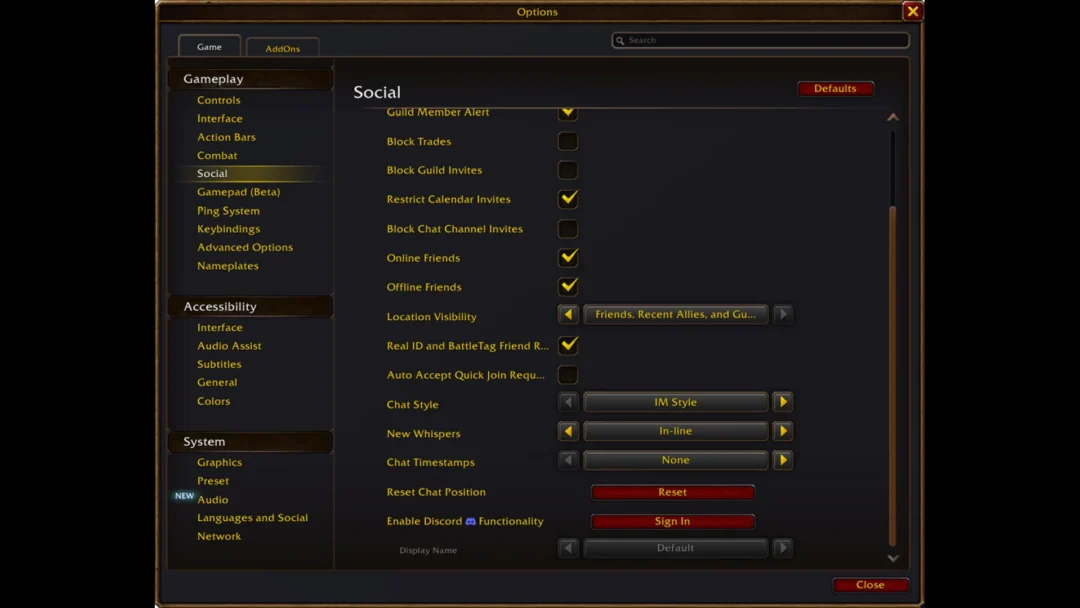

Quick answer: Press Escape, open Options, and choose Gamepad under Gameplay. Any XInput-compatible controller works.
World of Warcraft: Forever runs fine on a controller. The setting is a little hidden, and the button layout works differently from a keyboard hotbar, because triggers and bumpers act as modifiers rather than as single actions.
Which controllers work with WoW Forever
If your controller has supported lighting, the game sets the color by faction. The light turns red when you play a Horde character and blue when you play an Alliance character.
How to turn on gamepad controls
Connect your controller first. Then switch the game from keyboard-and-mouse input to gamepad input.
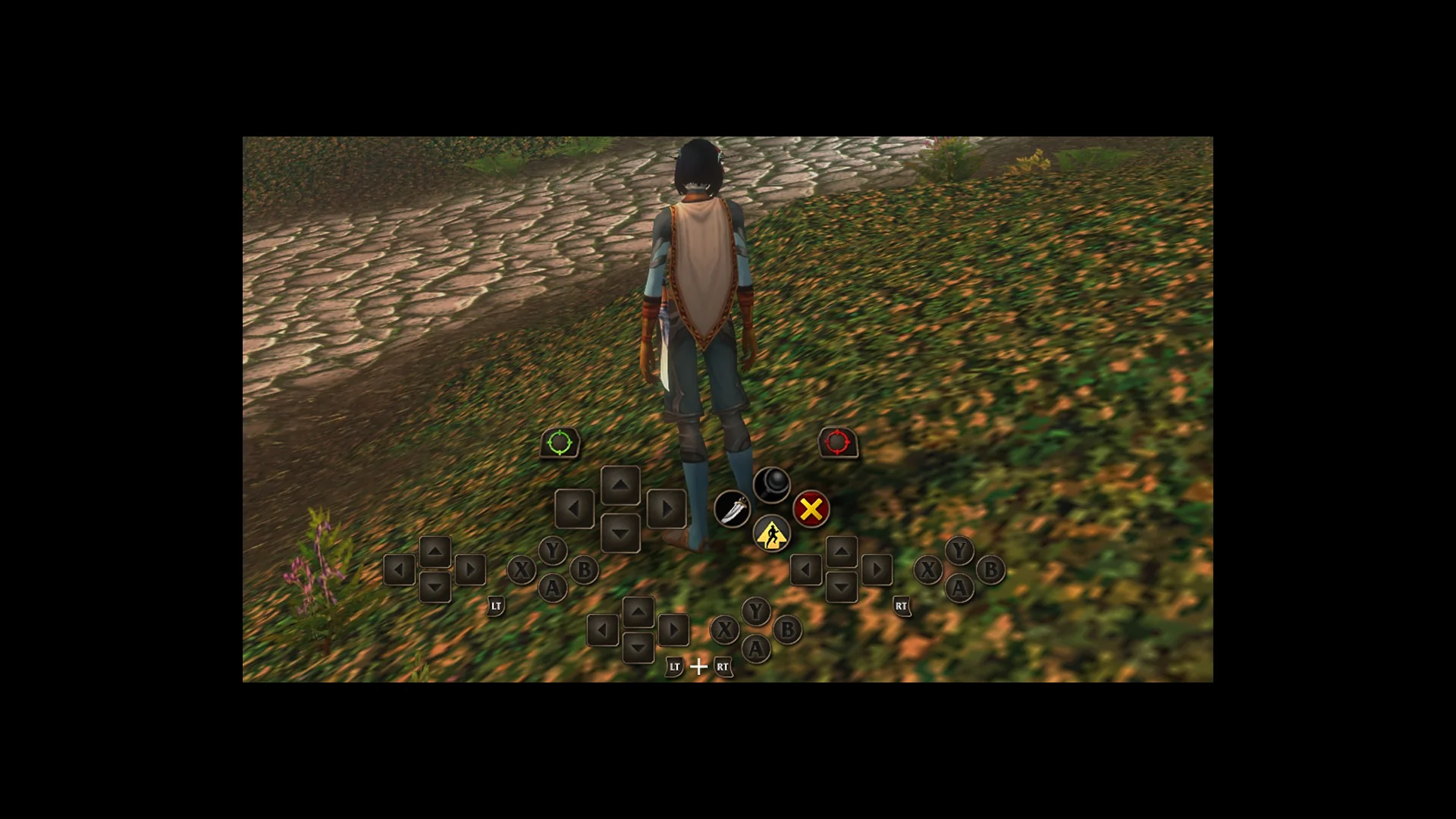
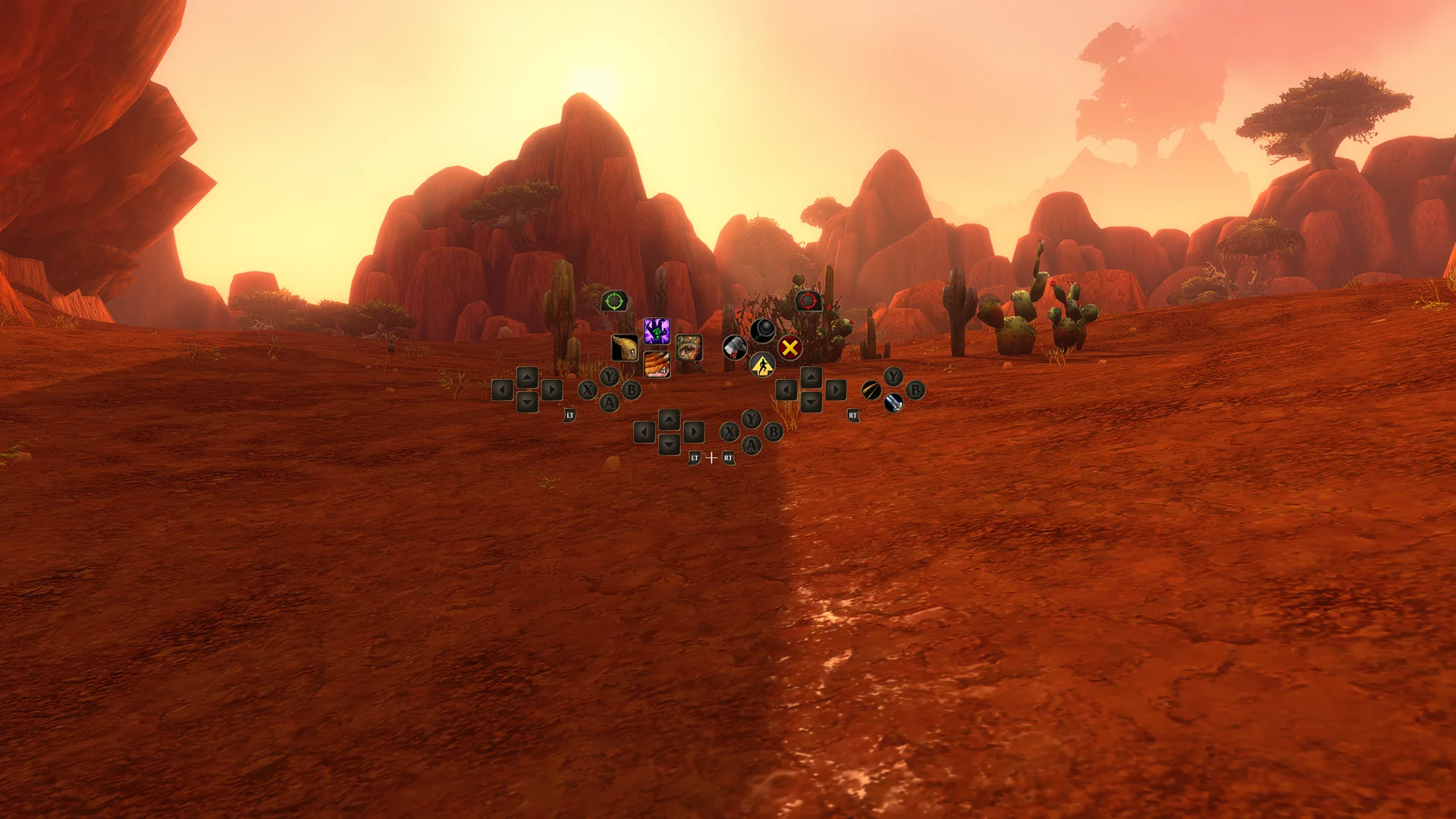
A successful setup is visible in the HUD: the gamepad legend appears at the main screen’s upper-left, and the action bars adopt their controller layout. Certain actions reveal extra choices in the legend. Most panels also include a footer with that screen’s available interactions, though some screens still lack one.
Gamepad settings you can change
The gamepad options include these settings:
- Camera
- HUD Modifier
- Frame Focus Style
- Action Bars
- Targeting
- Raid Targeting Options
Build your layout around the abilities you use most, and rework it as your character learns new spells.
WoW Forever basic controller controls
| Action | Button |
|---|---|
| Move | Left stick |
| Camera | Right stick |
| Friendly target | LB |
| Hostile target | RB |
| Interact | X |
| Jump | A |
| Back | B |
| Inspect | Y |
| Switch action bars | Hold LT, RT, or both |
| Main Menu | Menu button |
| Change Focus Frame | View button (overlapping squares) |
| Zoom camera | Hold LB + RB, right stick forward or back |
X, A, B, and Y have spell functions too, in addition to Interact, Jump, Back, and Inspect. The on-screen legend also lists Ping, where holding opens the Ping Menu, and Auto-Run.
Targeting while holding LB or RB
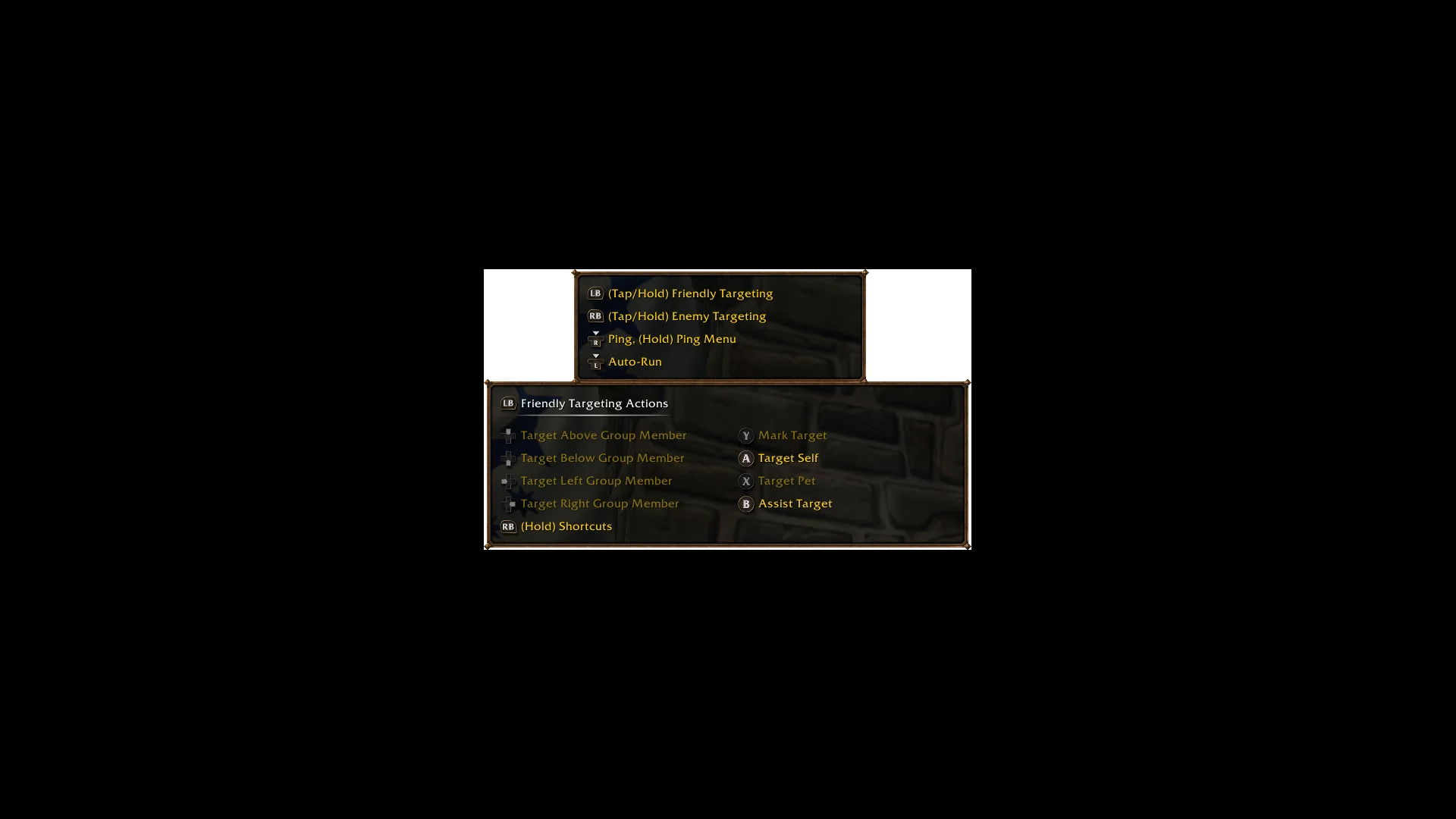
Tap or hold LB for friendly targeting, and tap or hold RB for enemy targeting. While you hold either bumper, the face buttons and D-pad change to targeting actions.
| Button | Holding LB (friendly) | Holding RB (enemy) |
|---|---|---|
| D-pad | Target Above / Below / Left / Right Group Member | |
| Y | Mark Target | Mark Target |
| A | Target Self | Target Last Hostile |
| X | Target Pet | Ranged Attack |
| B | Assist Target | Assist Target |
Action bars and action bar sets on a gamepad
The controller HUD contains four action bars, all using the same button arrangement but holding different spells. Triggers determine the active bar: keep LT, RT, or LT + RT held to select one, then release to return to the default. The HUD indicates which bar is active.
In practice, one D-pad direction can fire four different spells. Here’s a sample Mage setup on Up. It’s a suggestion, not a fixed binding:
| Input | Spell |
|---|---|
| Up | Polymorph (Sheep) |
| LT + Up | Fireball |
| RT + Up | Frostbolt |
| LT + RT + Up | Blizzard |
The game also gives you three action-bar configurations. To cycle between them, hold LB + RB and use the D-pad to press Left or Right. Each configuration contains four bars totaling 28 slots; across all three, that gives you 84 customizable slots.
HUD shortcuts with LB + RB
Hold LB + RB, then press one of these buttons:
| Button | Shortcut |
|---|---|
| B | Open Backpack |
| D-pad Up | Access Quest Tracker |
| D-pad Down | Access Chat |
| Y | Manage Buffs |
You can also reach the same features from the main radial menu.
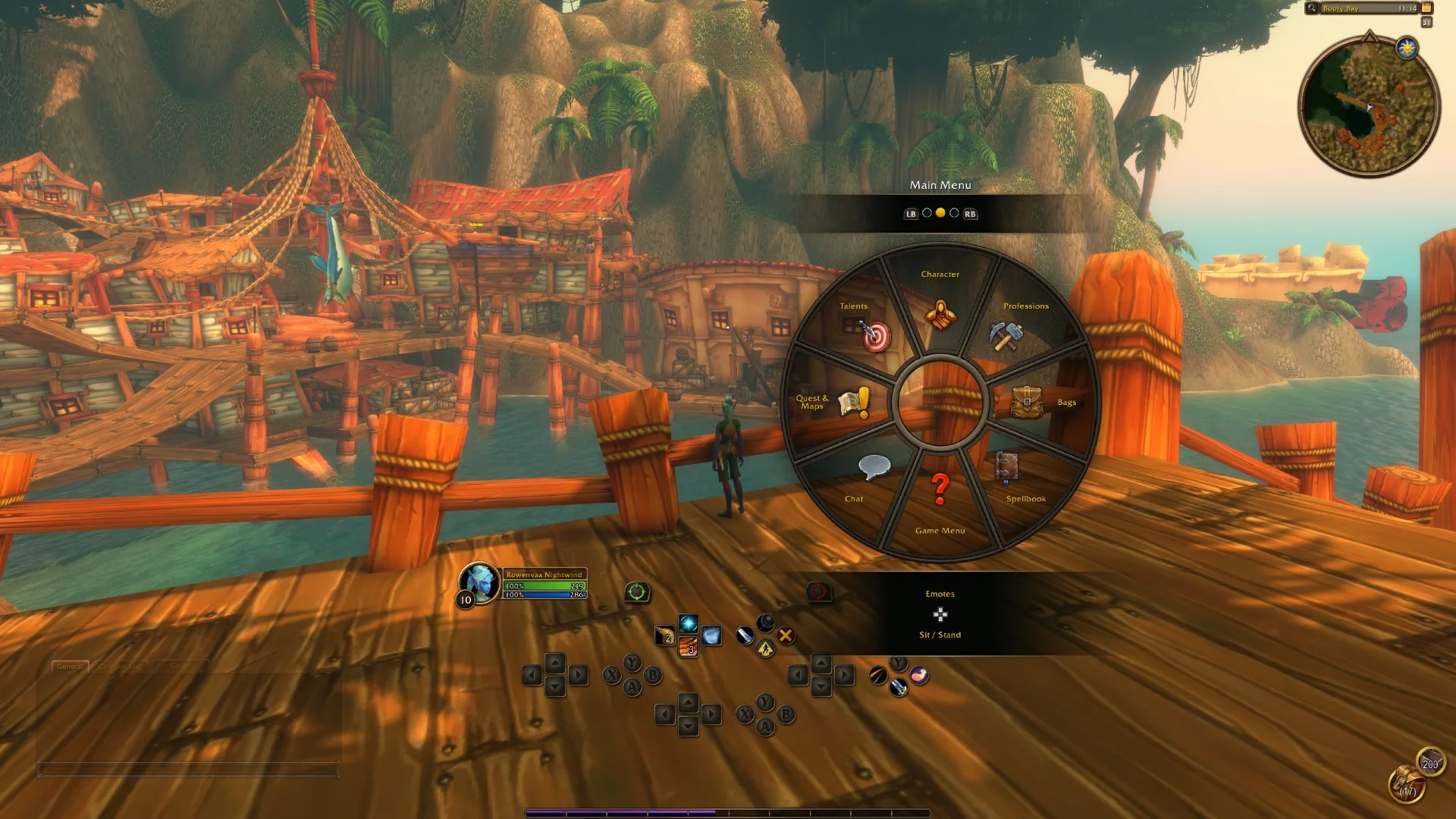
Access Chat opens the chat window, but you still need a keyboard to type messages.
Known gamepad issues
As of 5 November, two gamepad issues in WoW Forever are tracked for a fix. An error can appear when you try to delete more than one rare or epic item. Separately, instructions for the push-to-talk keyboard button can show up by mistake when you join a voice channel.
Console and keyboard-free play
World of Warcraft: Forever is available on Windows and macOS, with a native Apple silicon client on Mac. Gamepad support covers those PC and Mac versions. Blizzard has not named a console version.
Controller support remains in a working beta. Bag and menu interfaces are still being updated, with additional refinements ahead; playing entirely without a keyboard is a longer-term aim. Until then, use a controller to play and keep a keyboard handy for chat.