
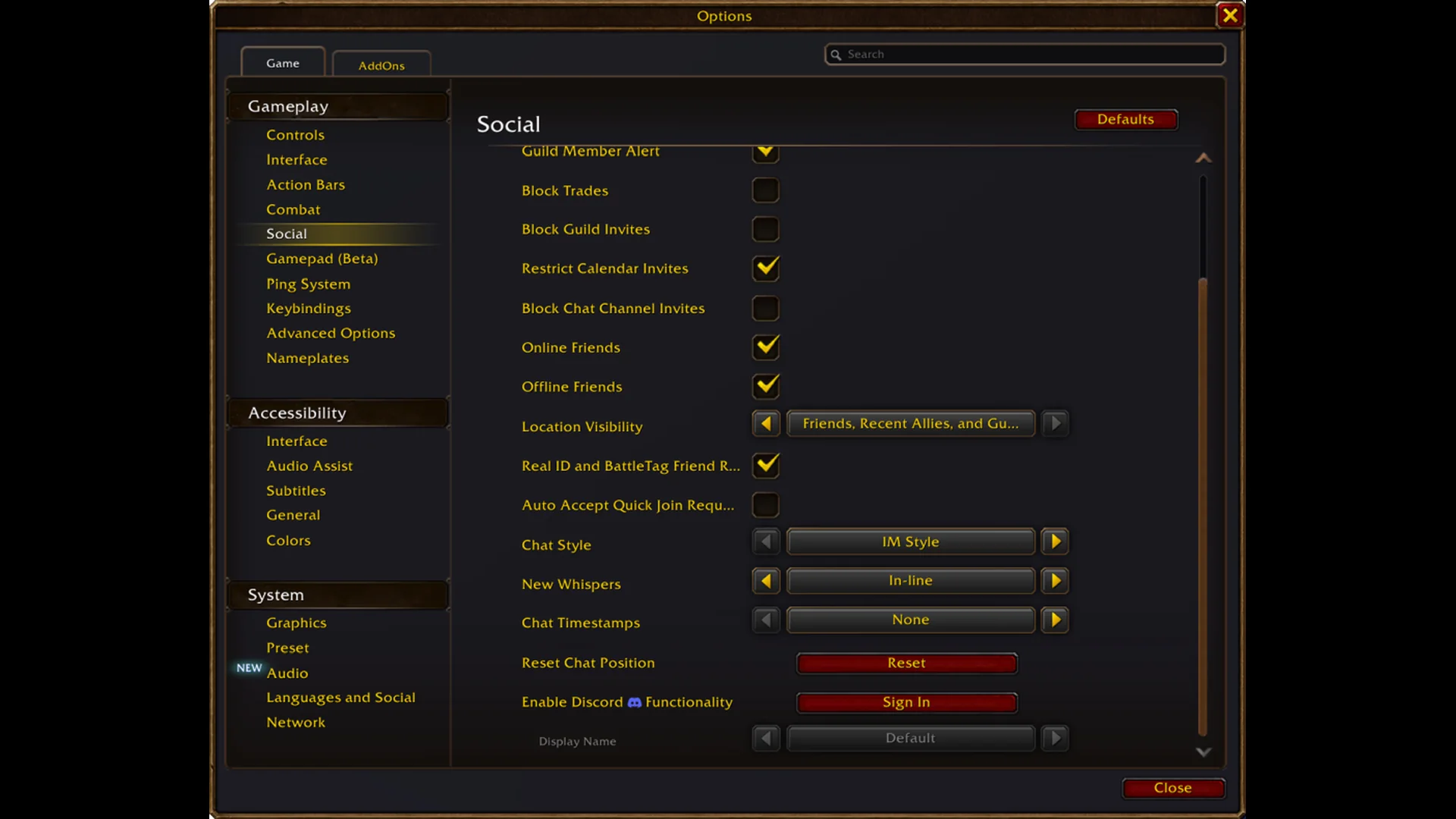
Quick answer: Press Escape, open Options, go to Social, use Enable Discord Functionality, and confirm in the browser. A guild leader or officer then links a channel in Guild Control > Discord Settings.
World of Warcraft: Forever can mirror guild chat into a Discord channel, so guildmates can talk to each other whether they’re in the game or not. Setup has two parts. Every player links their own Battle.net account to Discord. A guild leader or officer then picks the Discord channel that guild chat flows into. The same system works in modern World of Warcraft too.
Link your Discord account in WoW Forever
Each guild member does this once. Without it, your in-game guild messages won’t reach the Discord channel.
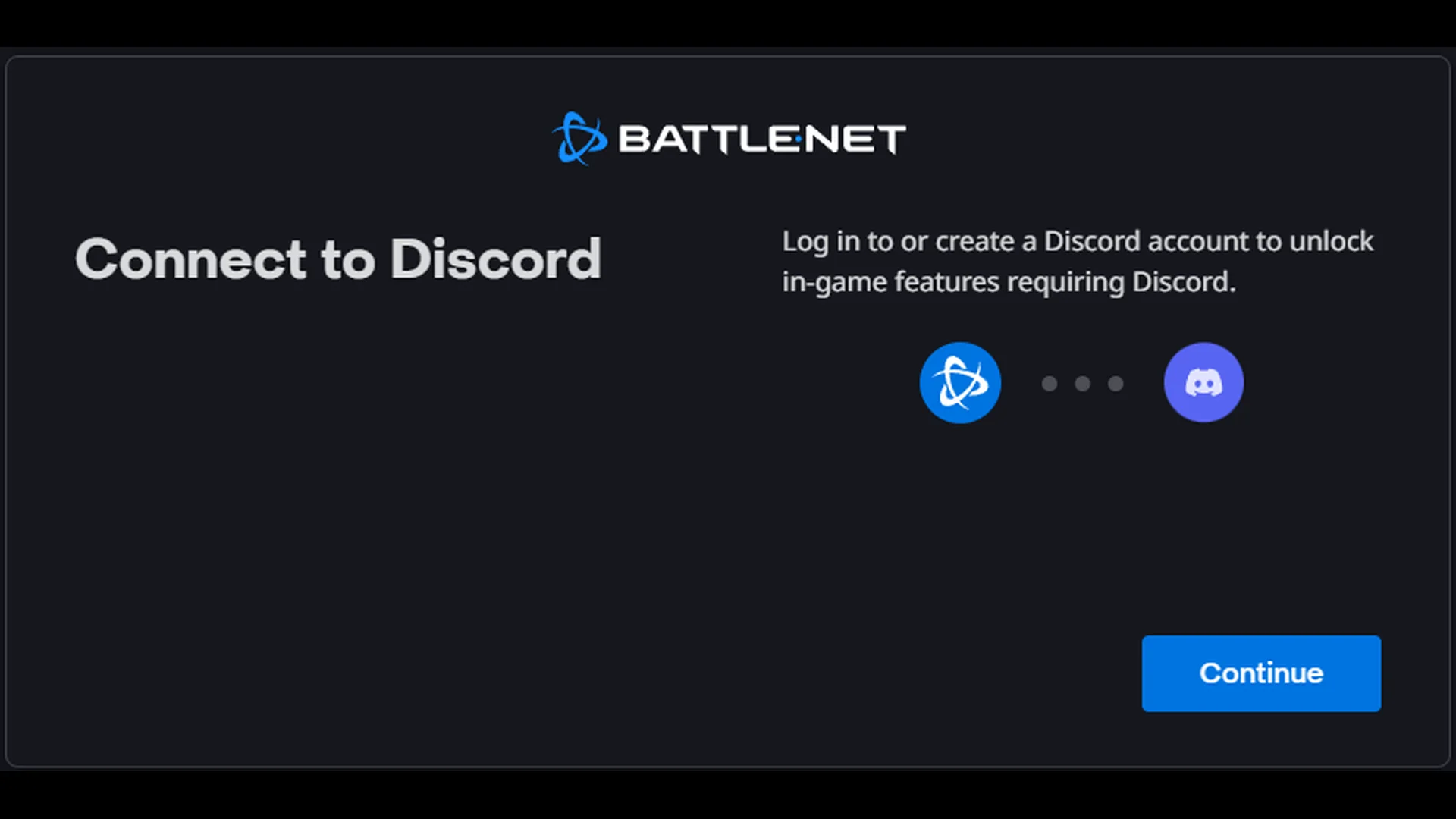
Within any 30-day period, you may connect up to five different Discord accounts. Account Settings lets you disconnect an account whenever you like.
Discord server permissions for the guild chat channel
Before anything happens in the game, an administrator of the Discord server has to give the chosen channel three permissions:
- Manage Channels lets the channel’s settings be edited
- View Channel lets the channel be seen and read
- Send Messages lets messages be posted in the channel
Once those are set, the rest happens in the game. Only the guild leader or officers with the correct permissions can do it.
Connect guild chat to a Discord channel in Guild Control
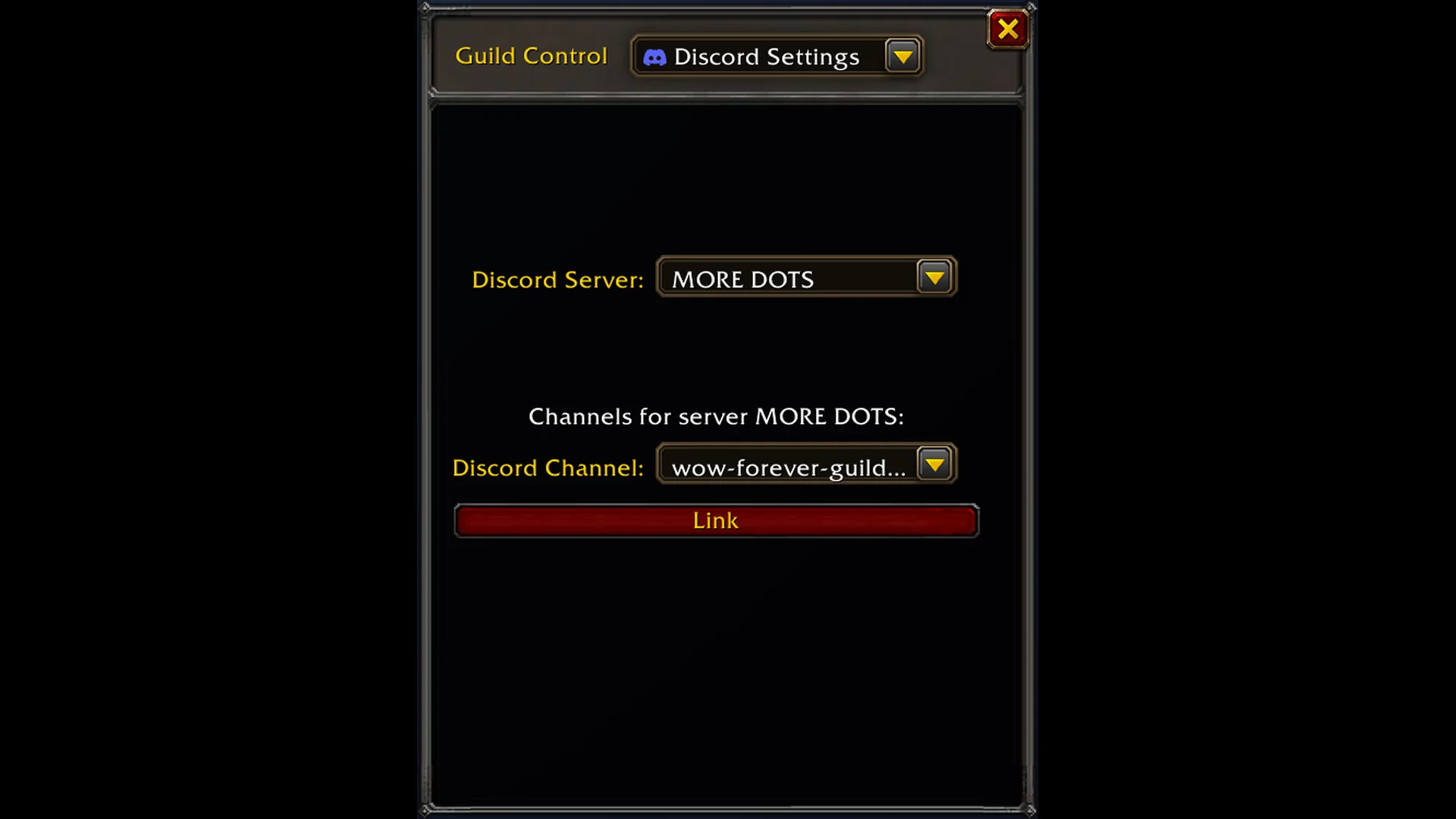
The window switches to “Discord Linked” and shows the server and channel. It also has a “Separate Discord chat from Guild chat” option and an Unlink button for removing the connection later.
How Discord messages appear in WoW Forever guild chat
Messages sent from Discord show a Discord icon next to the sender’s name in the game, so you can always tell which lines came from Discord and which came from the game. You can adjust your chat tabs to follow guild chat either way.
Mirroring has one exception: messages from a guild member who hasn’t connected an account to Discord won’t appear in the channel. Discord instead displays a notice that the player posted in guild chat and still needs to link a Discord account.
Display Name options
The Display Name dropdown in Options > Social sets which name appears on your messages when they come in from Discord.
| Option | What it shows |
|---|---|
| Default | The game’s default, currently Last Online Character |
| Last Online Character Name | Your last online character in this guild |
| Discord Global Name | Your Global Name from Discord |
Last Online Character Name uses whichever character on your Battle.net account was most recently online in that guild.
Move Discord traffic to a separate /discord channel
Guild leaders can change where Discord messages land at any time from the guild’s Discord settings. Discord traffic can go into the regular /guild chat channel. It can also go into a dedicated /discord channel, which shows up in chat as a “Guild Discord” tab. That keeps Discord chatter out of the main guild feed if your guild would rather keep the two apart.