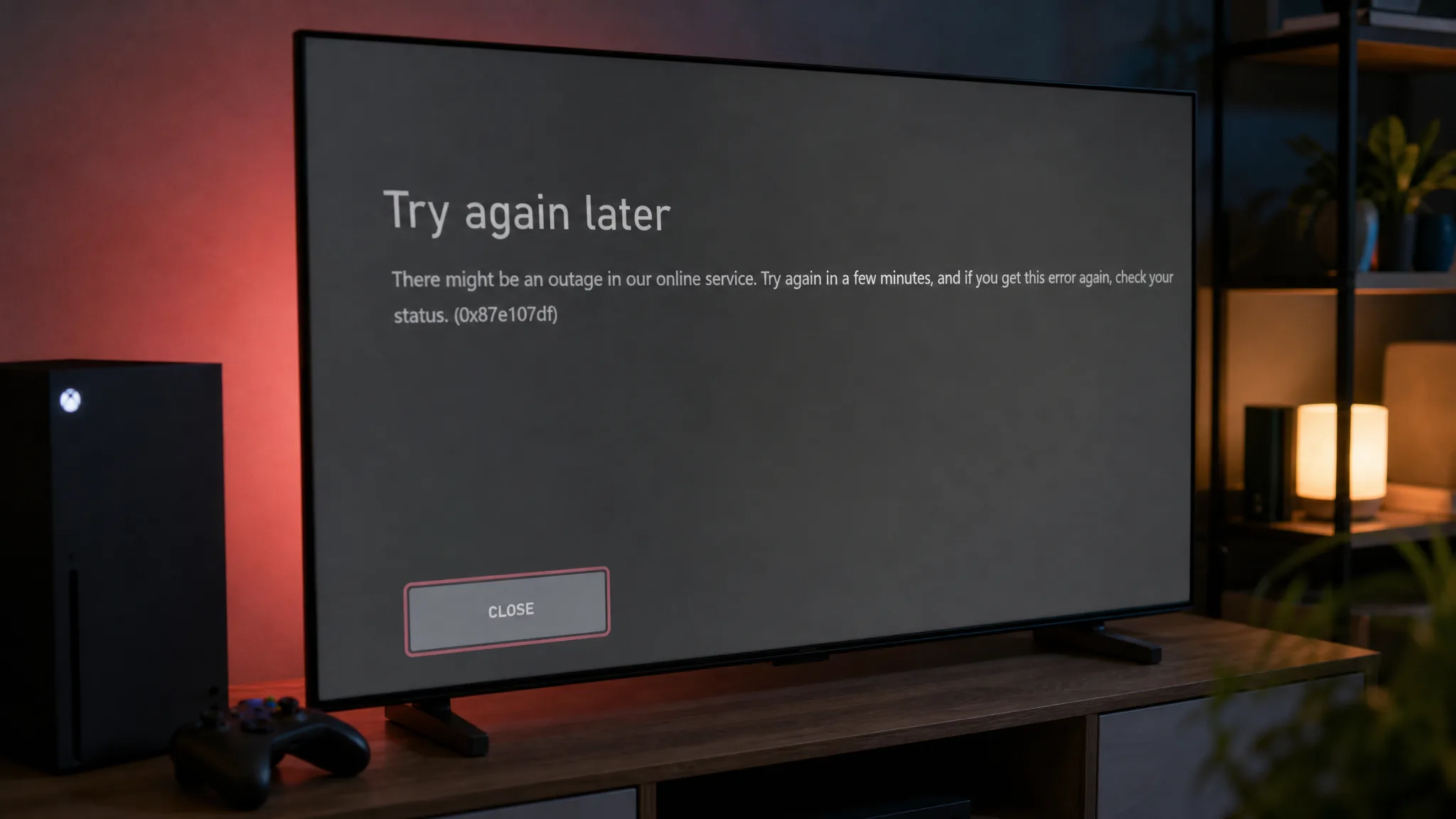
Error 0x87E107DF appears the moment you try to launch a game on Xbox One or Xbox Series X|S and the console cannot confirm that you own the digital license. The title was purchased and installed correctly, but the ownership check between your console and Xbox Live fails, so the game refuses to open. In most cases this is a temporary problem on Microsoft’s side rather than a fault with your console, account, or game files.
Quick answer: Check the Xbox status page for a licensing or Purchase and Content Usage outage. If services are up, restart the console, then power cycle it. If the outage is confirmed, wait for Microsoft to restore service. Your game launches normally once the license check succeeds.
Why error 0x87E107DF shows up
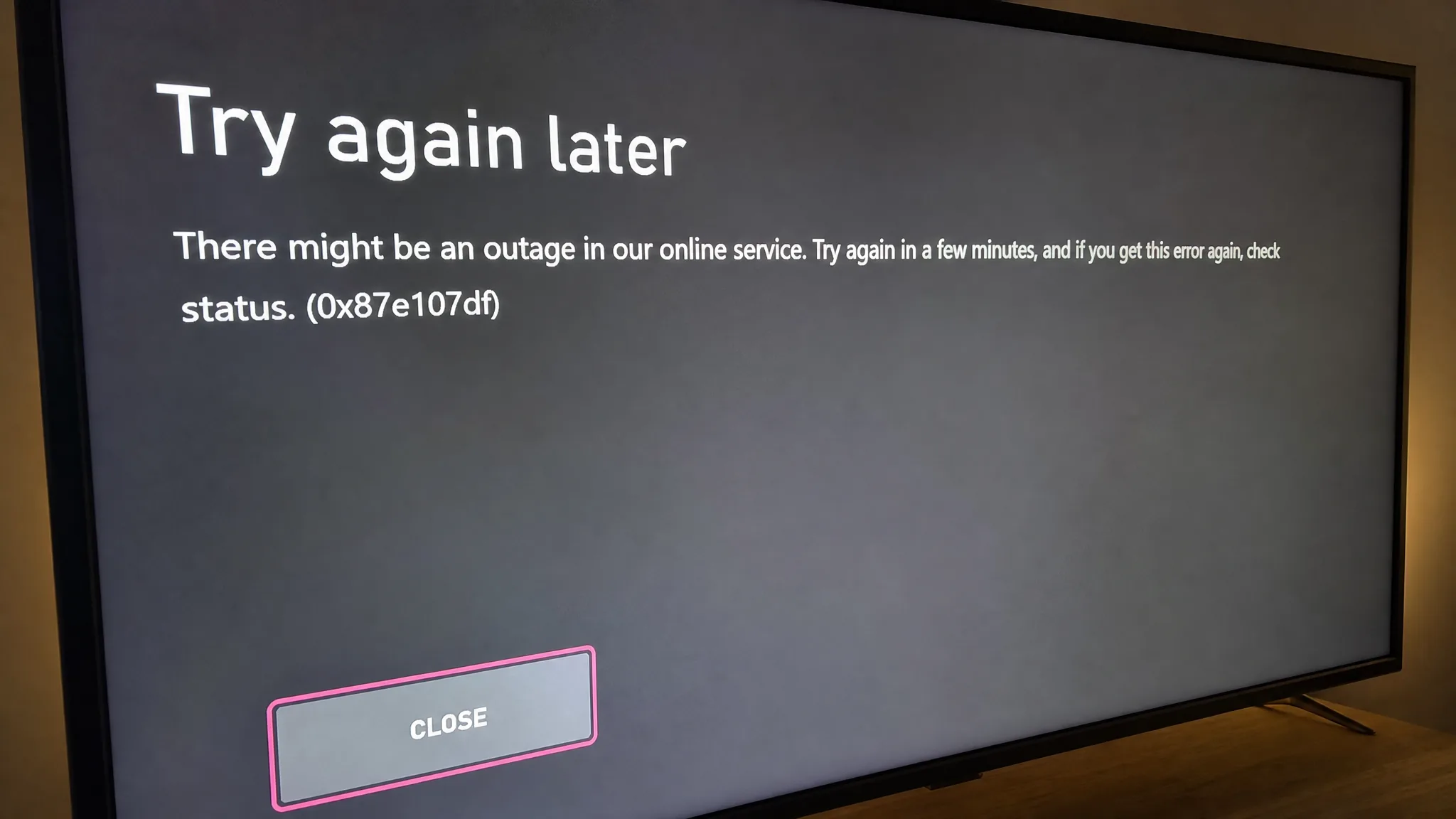
The error is tied directly to Xbox’s licensing validation system. When you open a digitally purchased game, the console contacts Xbox Live to verify that the license is valid and linked to your account. If that verification is interrupted or fails, the console returns 0x87E107DF and sends you back to the home screen instead of loading the game. Because the problem sits with license verification and not the installed files, reinstalling the game is rarely needed.
These are the situations that most often trigger it:
| Cause | What happens |
|---|---|
| Server-side outage | Xbox Live’s Purchase and Content Usage service is down, so license checks fail for many players at once. |
| Cached or temporary data | Corrupted data on the console interferes with the license handshake. |
| Network problem | The console cannot reliably reach Xbox’s authentication servers. |
| Account sign-in issue | A disrupted authentication token breaks the validation between console and server. |
The error is most closely associated with digital titles, since disc-based games do not rely on the same online license check. It only blocks the game from launching and has no effect on your saved progress.
Check the Xbox network status first
Before touching any console settings, confirm whether the issue is yours alone or part of a wider disruption. Because 0x87E107DF is linked to Xbox Live’s licensing servers, a known outage on the Purchase and Content Usage service will produce this error for large numbers of players at the same time. Microsoft’s official Xbox status page shows real-time service health and is the most reliable place to check.
Look for any service marked with an alert. Expand that service, scroll to the Notifications area, and sign in to be alerted when it comes back online. If every service reads as operational, the problem is likely isolated to your console, account, or network, and the fixes below apply.
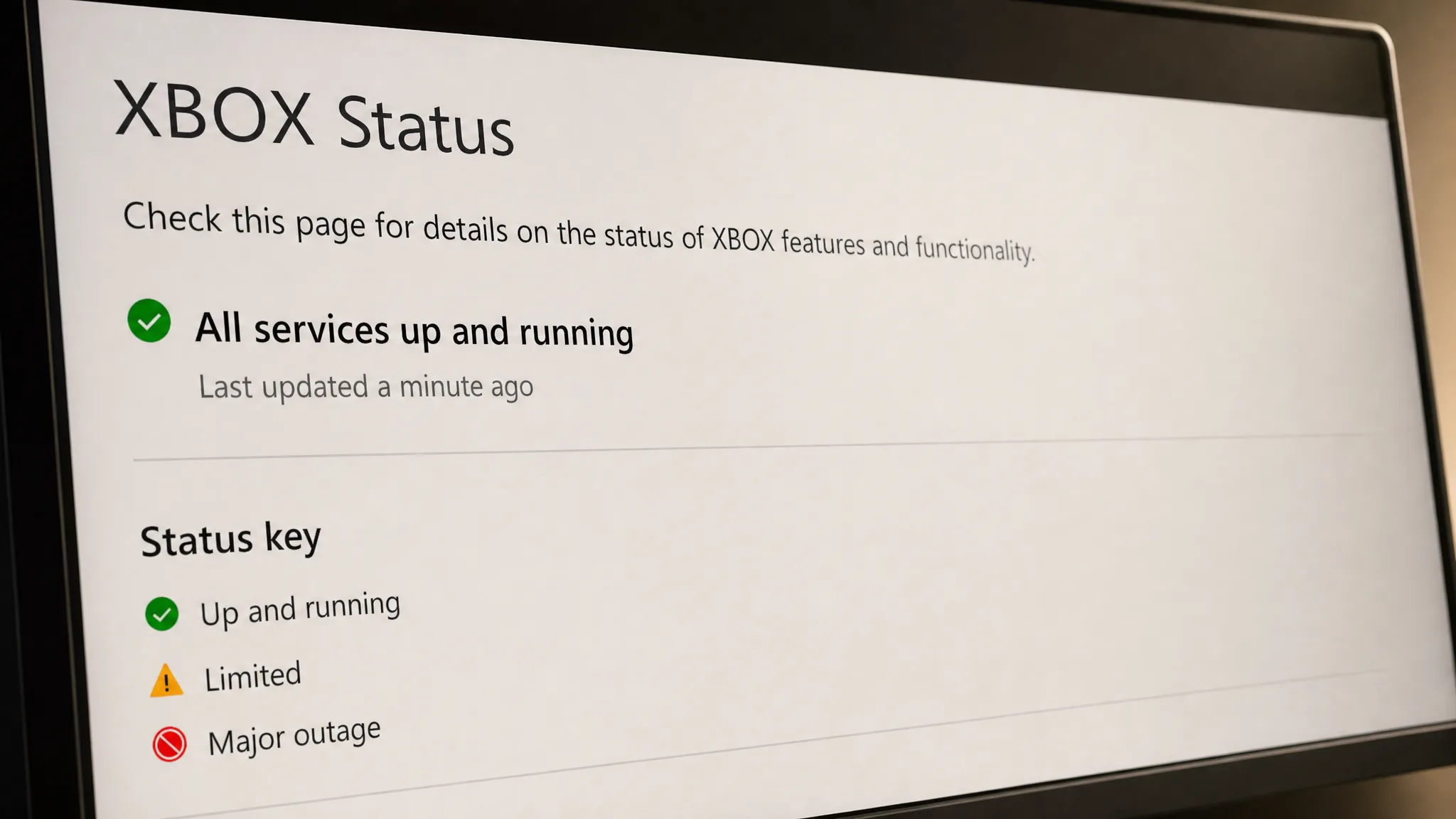
If an outage is confirmed, there is nothing to fix on your end. The error clears itself once Microsoft restores the service, so waiting is the correct move rather than repeated restarts.
Restart the console
When services show as normal, a standard restart is the fastest fix. It clears minor communication glitches between the console and Xbox Live without touching your saved data or installed games.
Power cycle the console
If a standard restart does not help, a full power cycle goes further by clearing temporary system data that can interfere with license validation.
Switch to offline mode as a temporary workaround
When the error stems from a disruption in the Purchase and Content Usage service, offline mode can get you into a game by bypassing certain ownership verification steps. Treat this as a workaround, not a permanent fix, and switch back to online once the service recovers so your achievements and saves sync.
Depending on your connection status, some features may be limited in offline mode, and titles that require an online connection may still refuse to launch.
Check your network and account sign-in
License verification needs a stable connection to reach Xbox’s servers. Make sure the console is online and the connection holds steady. If you are on Wi-Fi, move closer to the router or switch to a wired connection, then try the game again. The network test built into the Xbox settings can confirm whether the connection is stable enough to complete the handshake.
If the error is tied to a disrupted authentication token rather than a wider outage, signing out of your account and back in refreshes its link to Xbox Live and can clear the verification problem.
How to know it worked
The fix has succeeded when the game launches straight into its title screen instead of dropping you back to the home page with the error. If a restart or power cycle resolved it, no further action is needed. If an outage was the cause, the game starts working again once the status page shows the affected service back to normal.
Most instances of 0x87E107DF come down to a temporary licensing hiccup between your console and Microsoft’s servers. Check the status page first, run through a restart and power cycle if services are up, and in the vast majority of cases you will be back in your game within minutes.