

Reordering rows and columns in Excel spreadsheets is often necessary when adjusting data layout or correcting input mistakes. Knowing how to efficiently move rows and columns can streamline your workflow and ensure your data is organized effectively. There are several methods to accomplish this in Excel, including drag-and-drop techniques, using cut and paste, and utilizing the Data Sort feature. This guide will explore these methods in detail.
Move Rows and Columns by Dragging and Dropping in Excel
One of the quickest ways to rearrange rows or columns in Excel is by using the drag-and-drop method. This technique allows you to move data seamlessly within your worksheet. There are different variations of this method, such as replacing existing data, moving data without overwriting, and copying data to a new location.
Drag and Replace Row
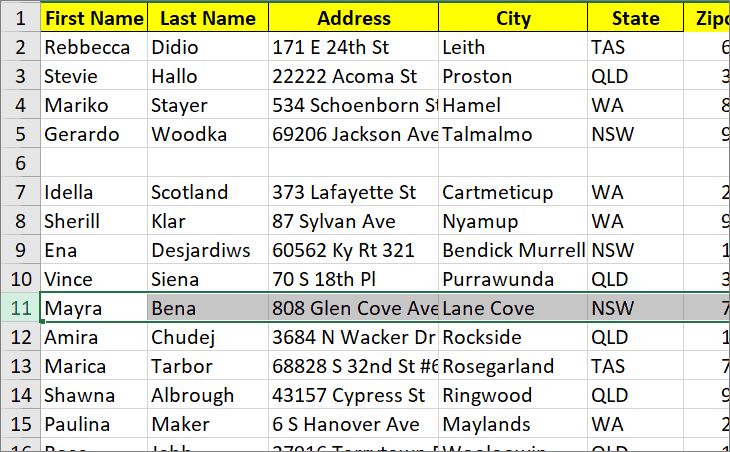
This approach lets you move a row to a new location, replacing any data that is already there.
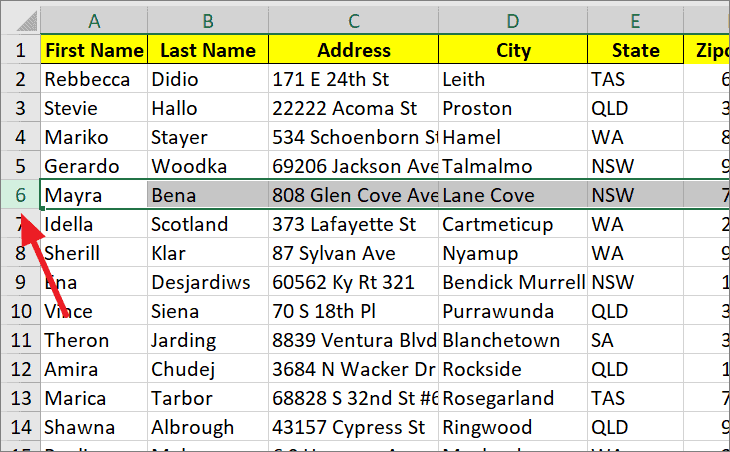
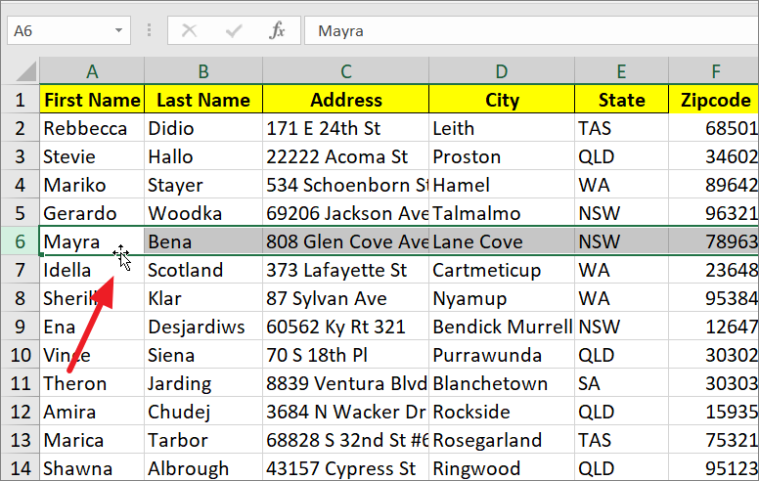
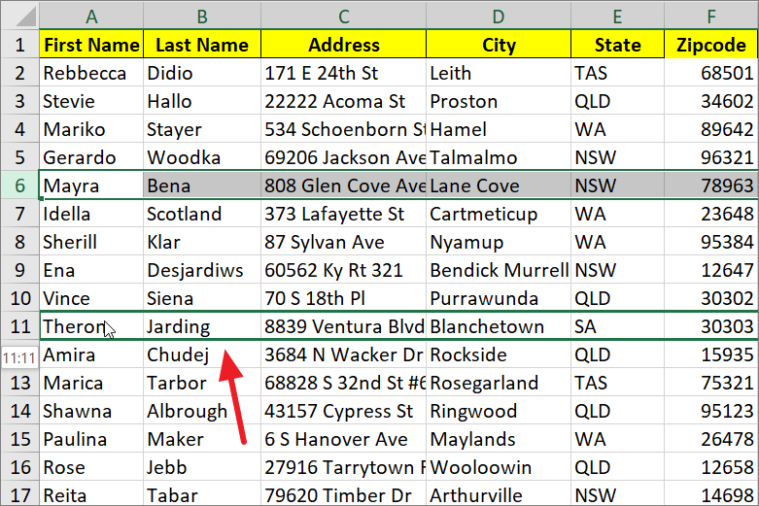
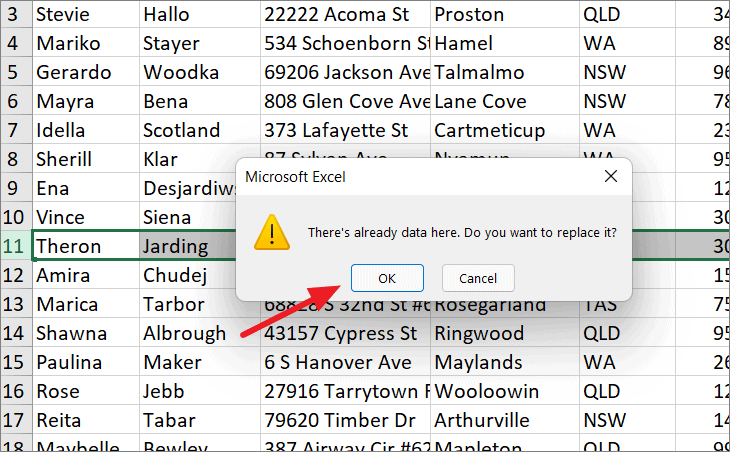
If you’re moving the row to an empty row, it will transfer without any prompts.
After the move, the original data in the destination row will be replaced with the data from the row you moved.
Drag and Move or Swap Row
To move a row without overwriting existing data, you can use the drag-and-drop method while holding the Shift key.
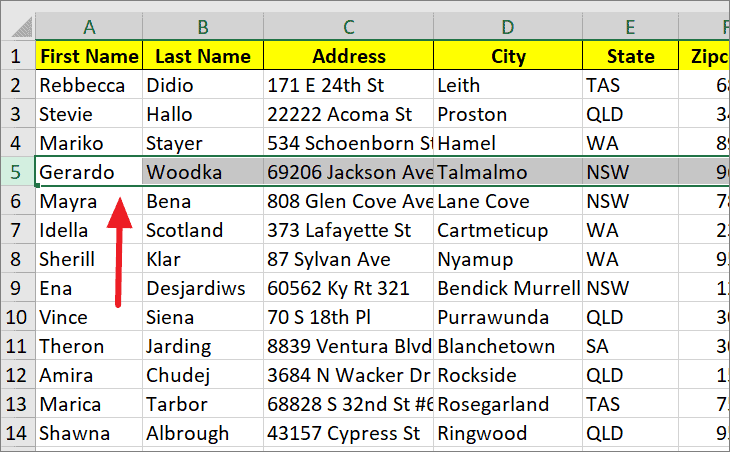
Shift key. Hover over the edge of the selected row until the cursor becomes a move pointer.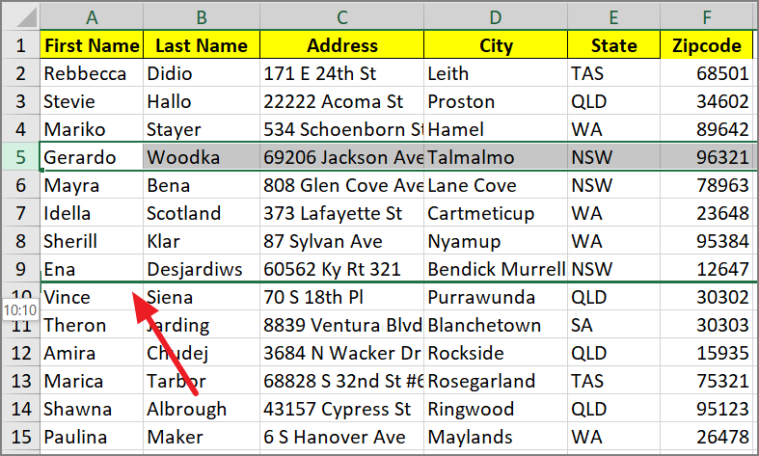
Shift key. The selected row will be inserted at the new location, and the existing rows will shift accordingly.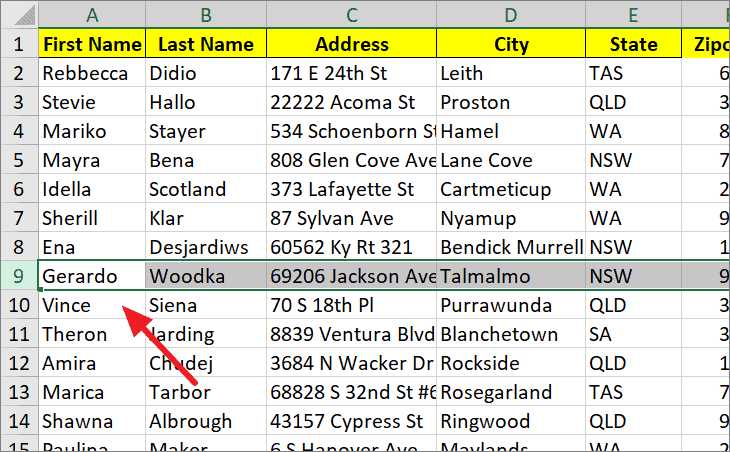
This method moves the row and inserts it without overwriting any data.
Drag and Copy Row
If you want to copy a row to a new location while keeping the original, you can use the drag-and-drop method with the Ctrl key.
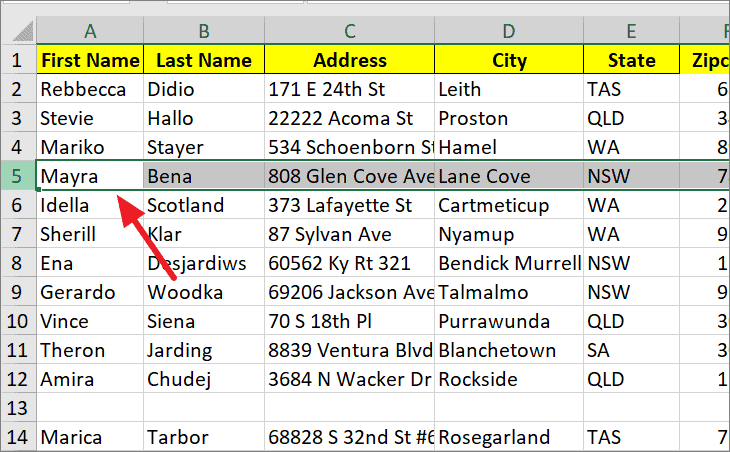
Ctrl key. Hover over the edge of the row until the cursor changes to the move pointer.Ctrl key, the row will be copied to the new location, overwriting any existing data there.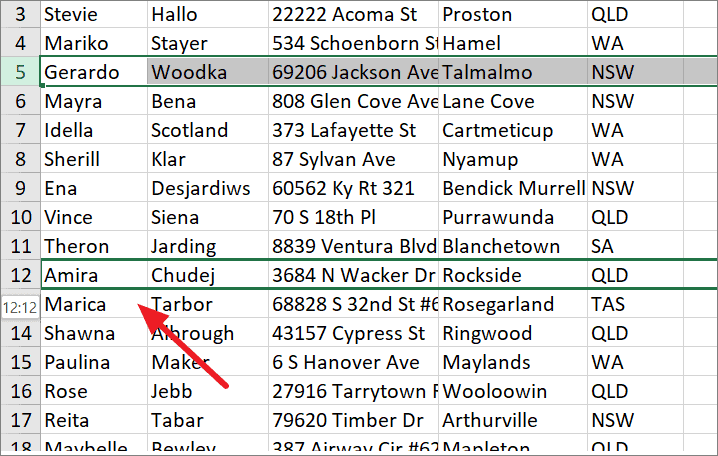
This method duplicates the row, placing a copy at the new location while leaving the original row unchanged.
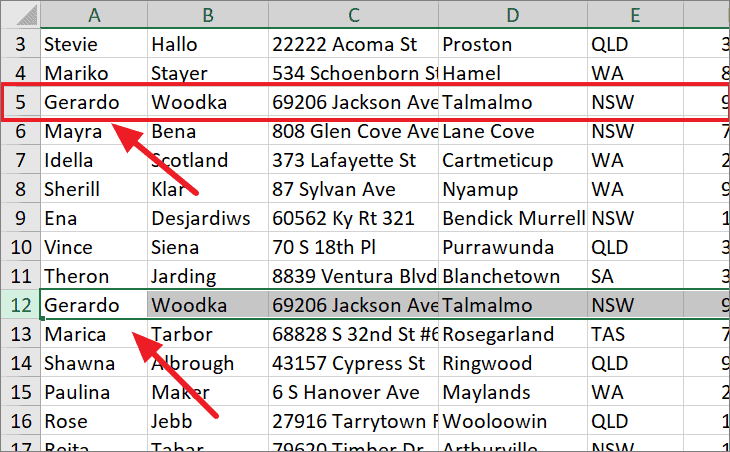
Move Multiple Rows at Once by Dragging
You can also move several adjacent rows simultaneously using the drag-and-drop method.
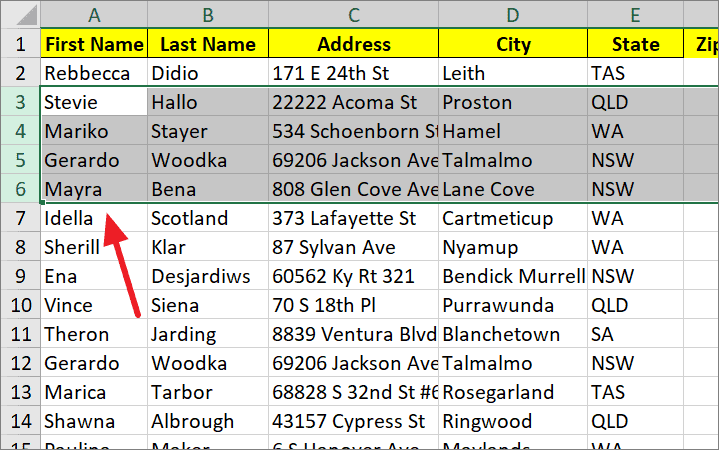
Shift or Ctrl keys, to move the selected rows to a new location. In this example, hold the Shift key to move the rows without overwriting data.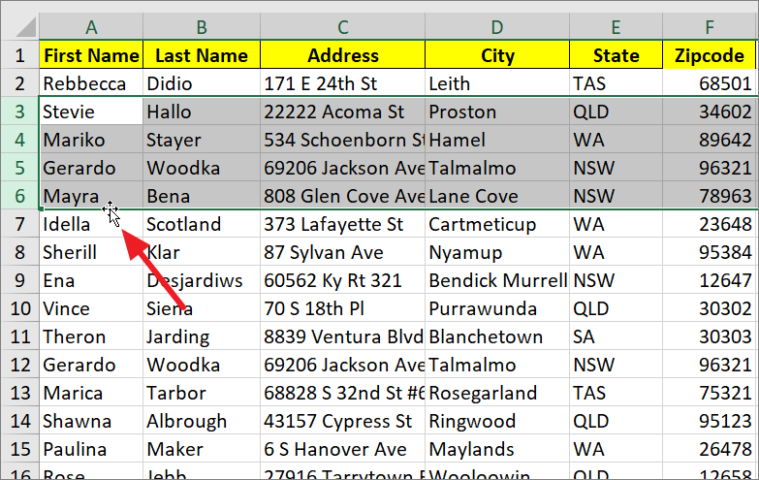
Shift key. The selected rows will be inserted at the new location.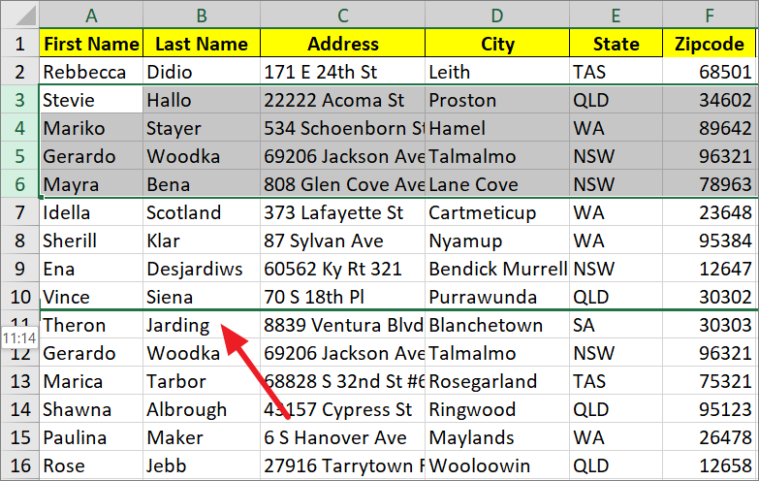
The selected rows are now moved to the new location, and any existing rows have shifted accordingly.
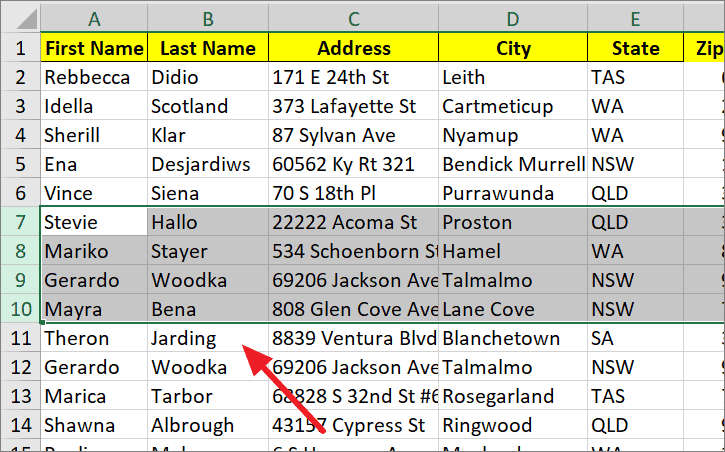
Move Columns Using Mouse Drag
The drag-and-drop method can also be applied to columns.
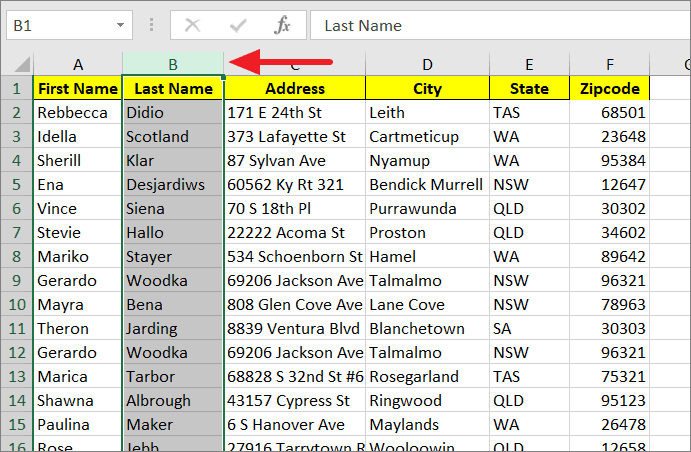
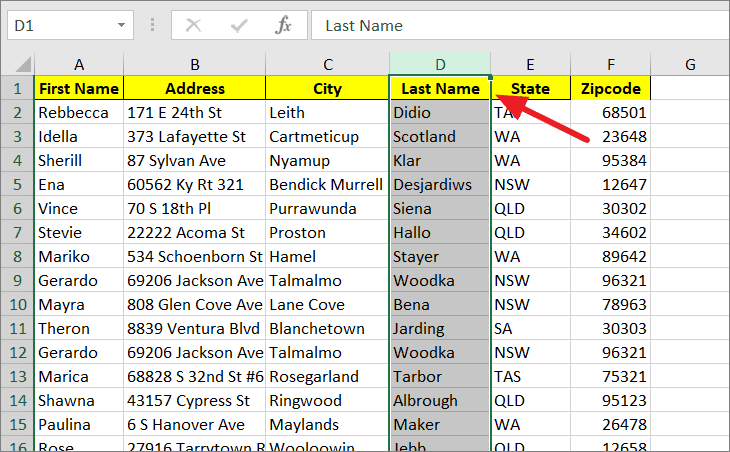
Shift key. Hover over the edge of the selected column until the cursor becomes a move pointer.Shift key when the bold green line appears between the target columns (between columns D and E in this case).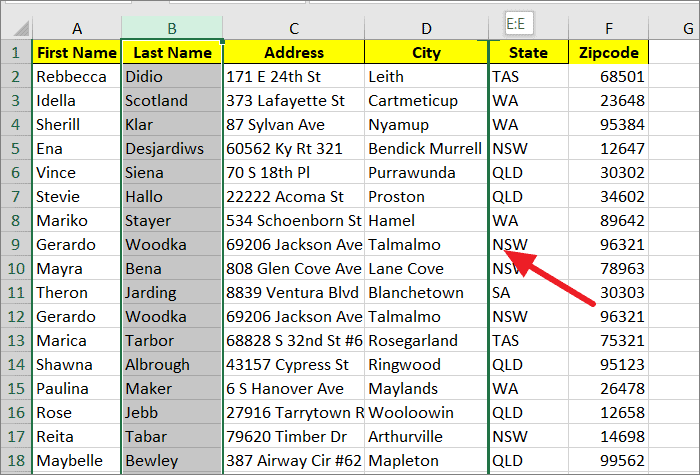
The selected column will be moved to the new location, and existing columns will shift accordingly.
You can also use the drag-and-drop method without holding the Shift key to replace existing columns, or hold the Ctrl key to copy the column.
Move Rows and Columns Using Cut and Paste
The cut and paste method is a straightforward way to move rows or columns without dragging.
Ctrl+X to cut the selected rows. A dotted border (marching ants) will appear around the selection.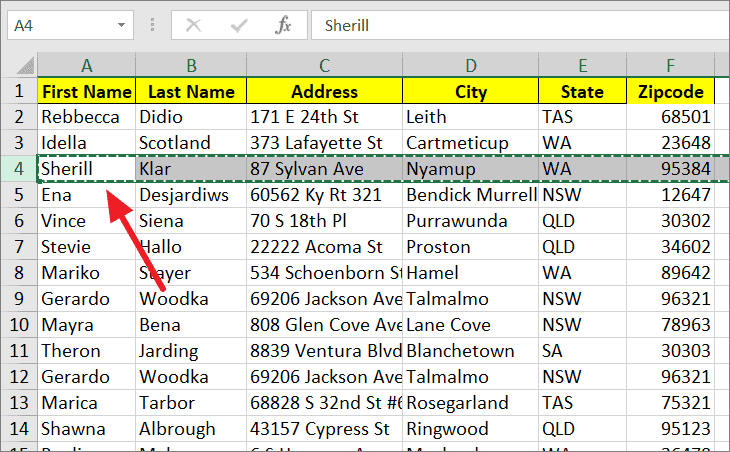
Ctrl+V to paste the cut rows. This will replace any data in the destination rows with the cut data.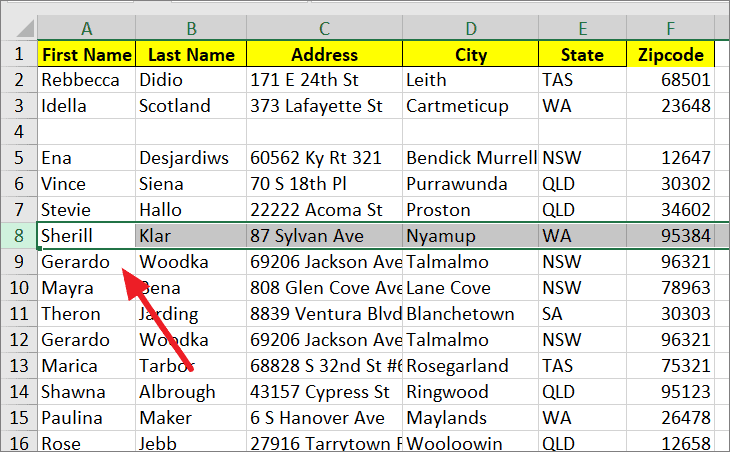
If you prefer not to overwrite existing data, you can insert the cut rows instead.
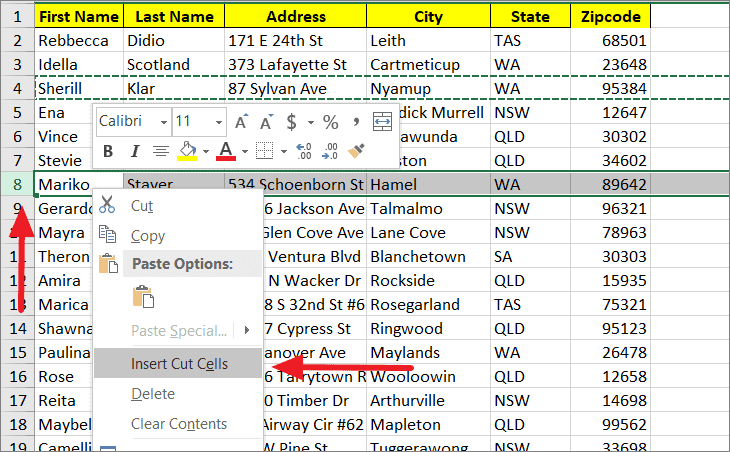
The cut rows will be inserted at the new location, and existing rows will shift down.
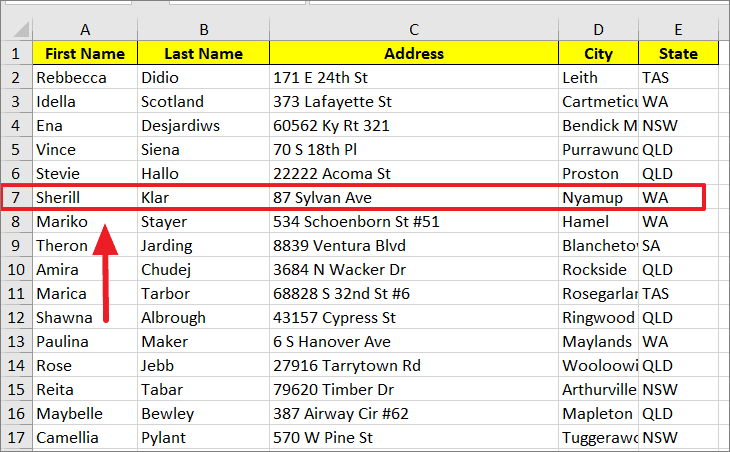
To copy rows instead of moving them, use Ctrl+C to copy and then paste them at the desired location.
The same method applies to moving columns. Select the columns you want to move, cut them using Ctrl+X, then paste or insert them at the new location.
Cut and Insert Multiple Rows
You can also move a range of cells from multiple adjacent rows.
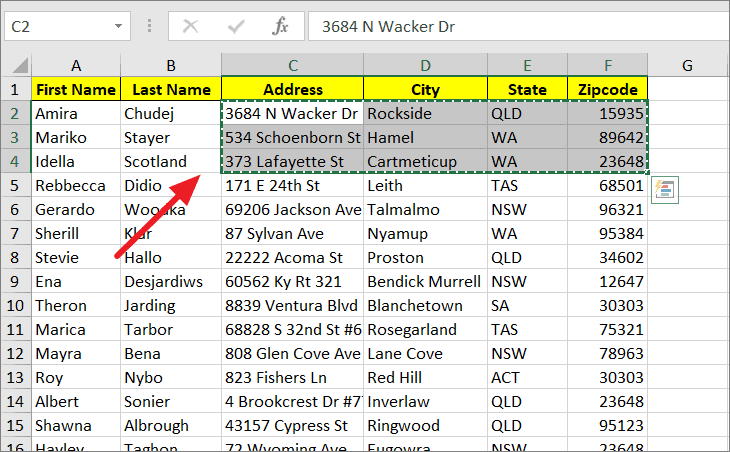
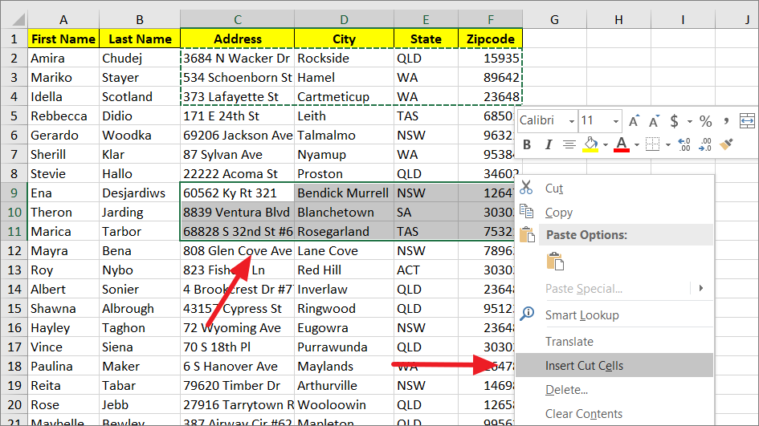
The selected cells will be inserted at the new location.
Move Rows Using the Data Sort Feature
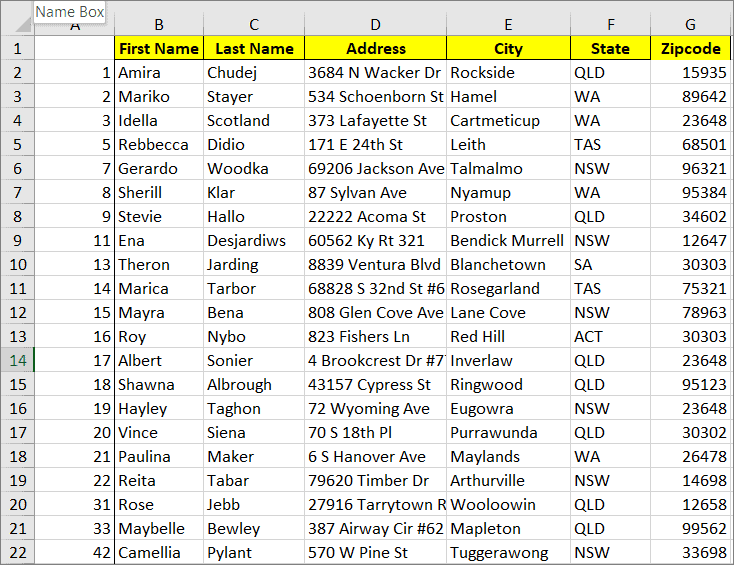
When working with large datasets, the Data Sort feature is useful for rearranging multiple rows based on custom criteria.
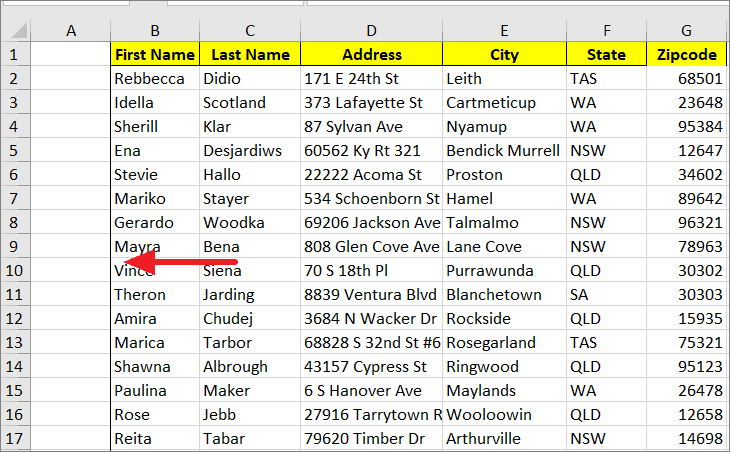
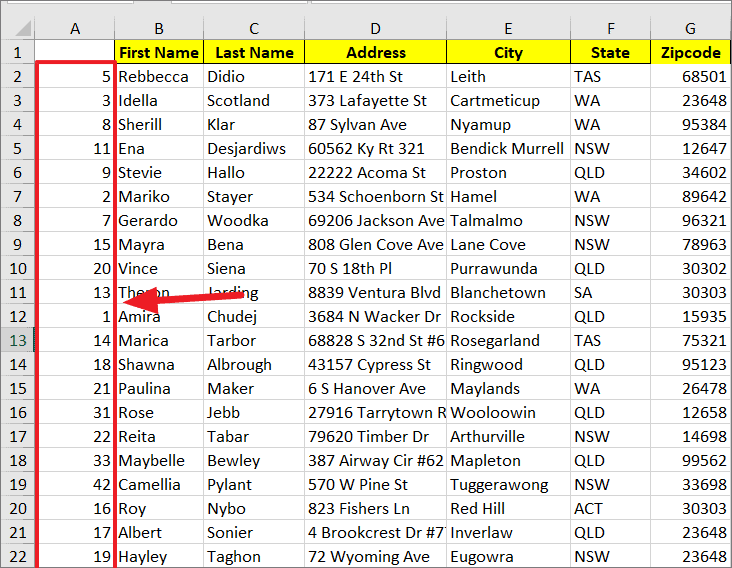
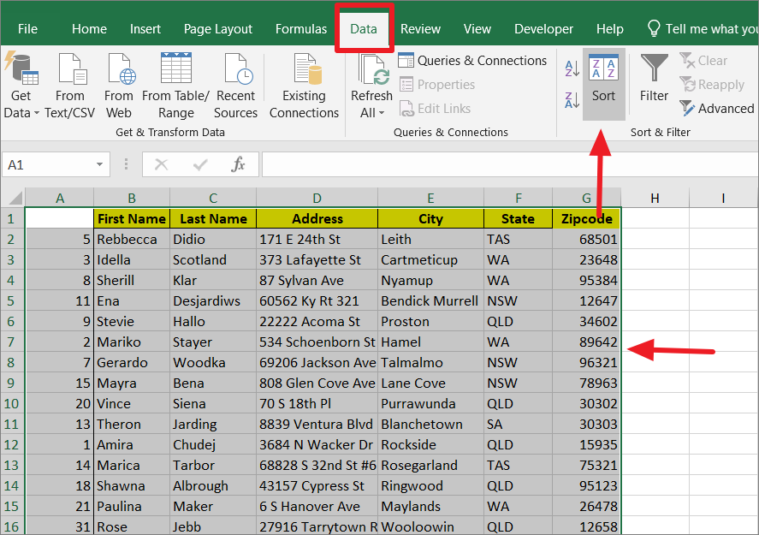
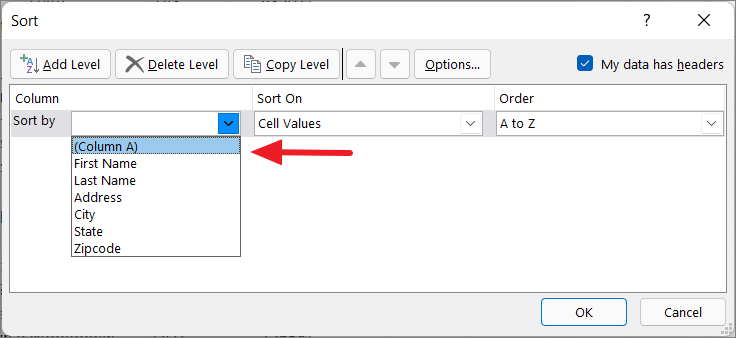
The rows will rearrange according to the numbers you’ve assigned. Once sorted, you can delete the temporary numbering column.
Move Columns Using the Data Sort Feature
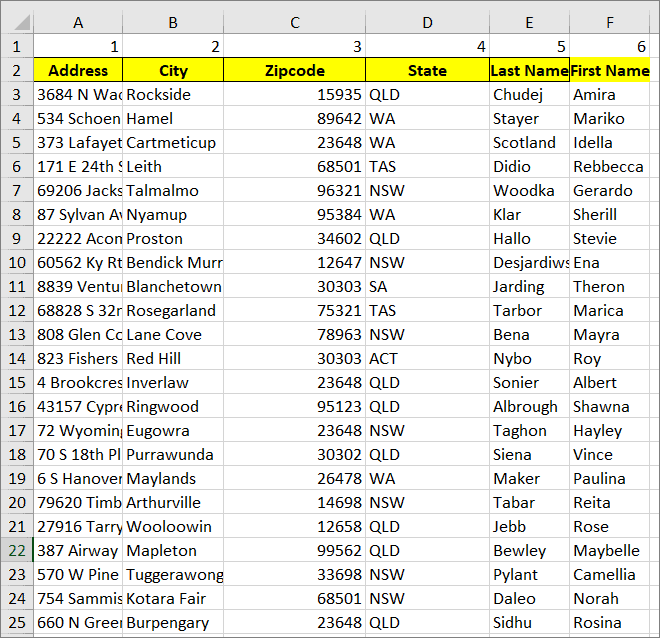
Similarly, you can rearrange columns using the Data Sort feature.
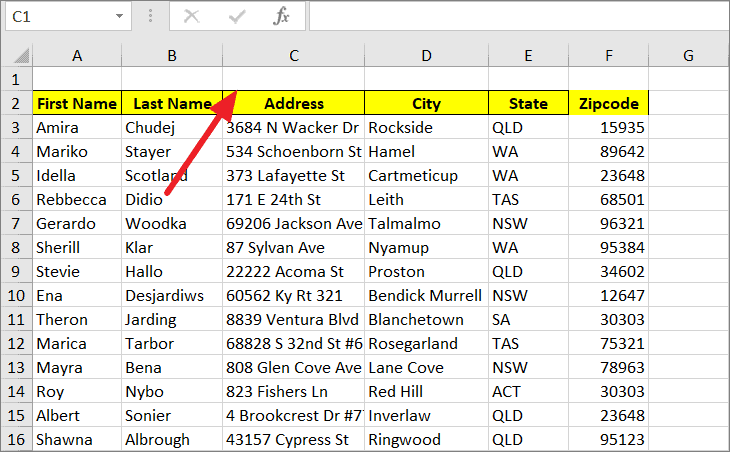
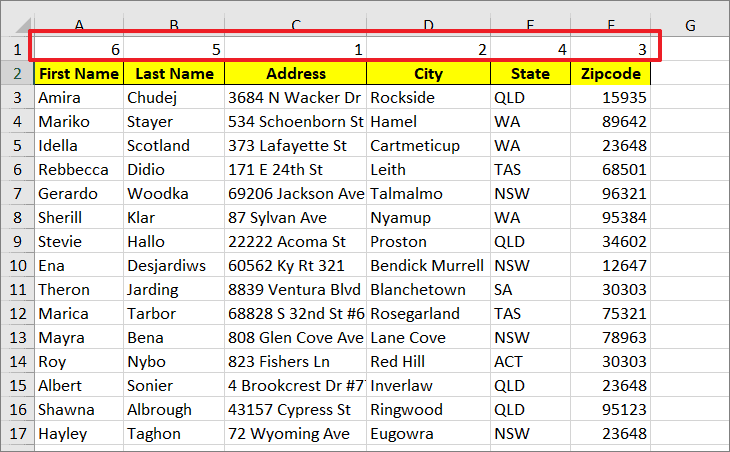
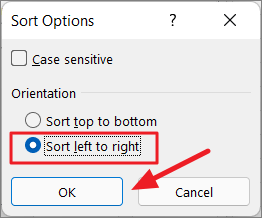
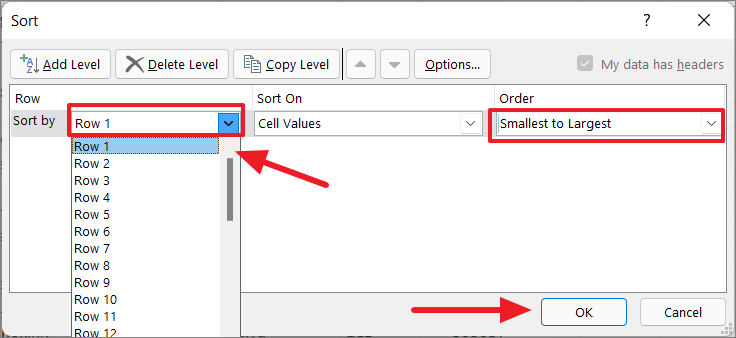
The columns will rearrange according to the numbers you’ve assigned. After sorting, you can delete the temporary numbering row.
Mastering these methods for moving rows and columns in Excel enhances your ability to manage and organize data efficiently.





