Looking for a way to edit or update already saved passwords in Chrome? Or you just want to have a quick look at the features available? Look no further!
Looking for a way to edit or update already saved passwords in Chrome? Or you just want to have a quick look at the features available? Look no further!
by Parth Sawhney
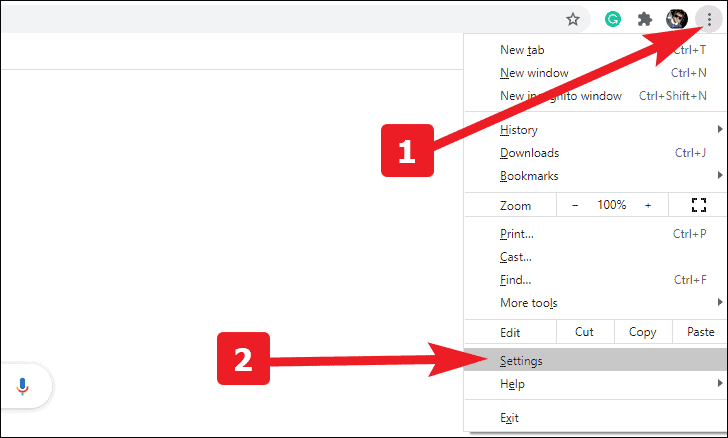
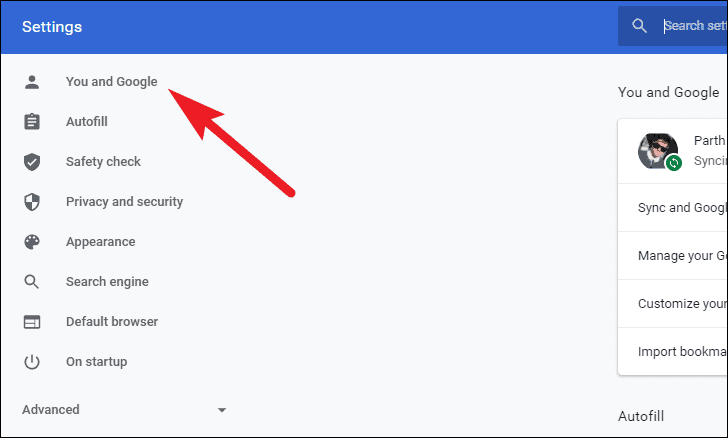
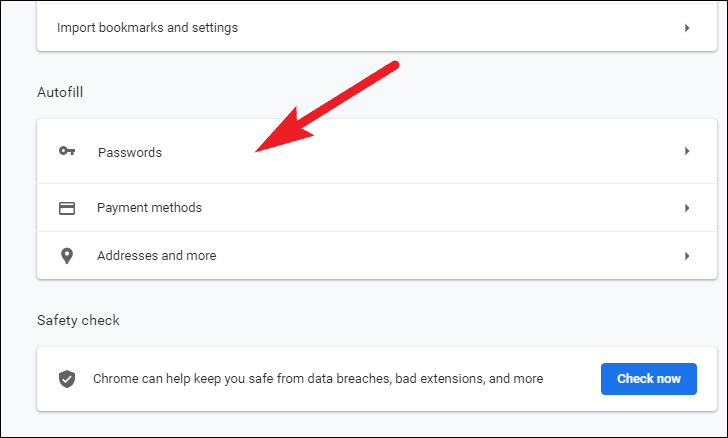
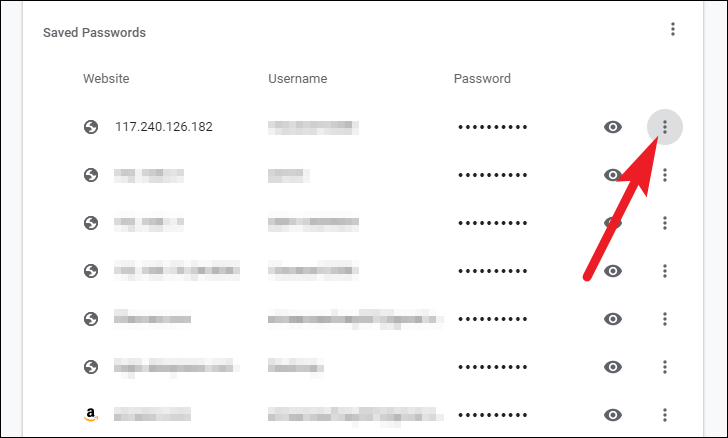
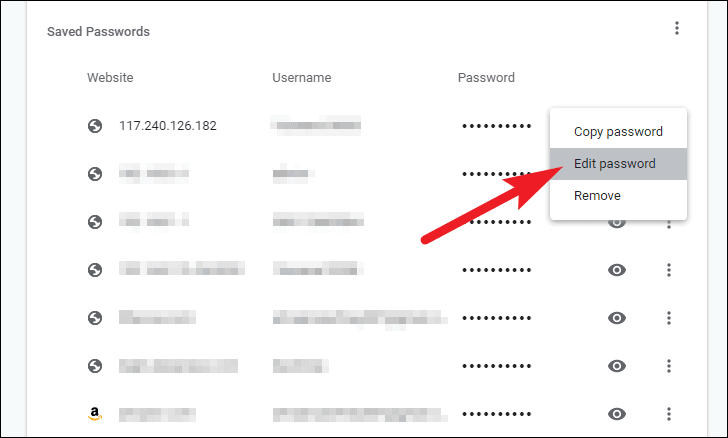
Chrome users can manage their saved passwords either directly within the browser or through the Google Password Manager website, allowing for easy updates and edits whenever necessary.
Using the Google Password Manager Website
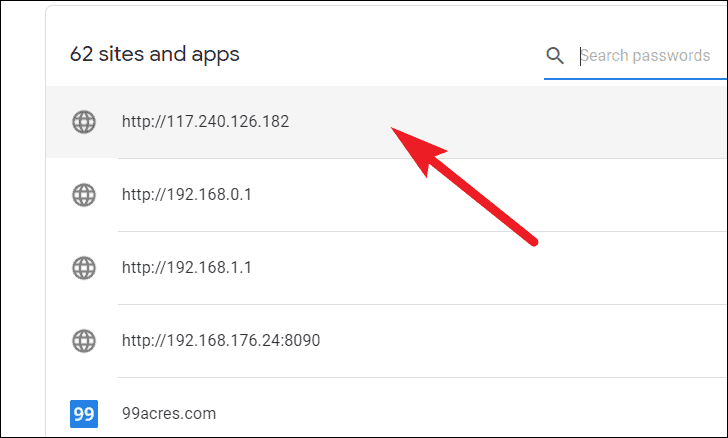
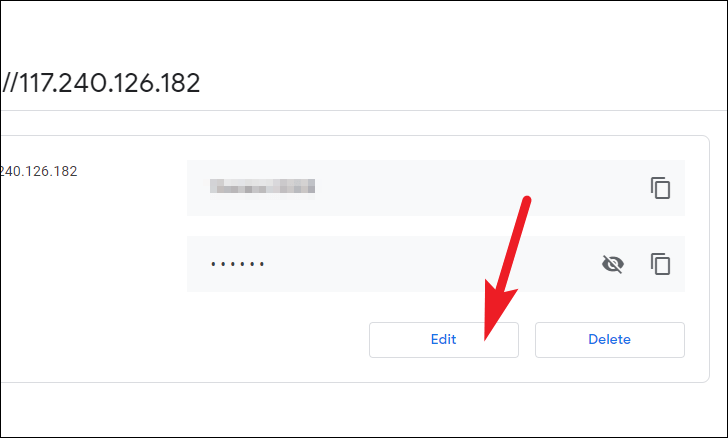
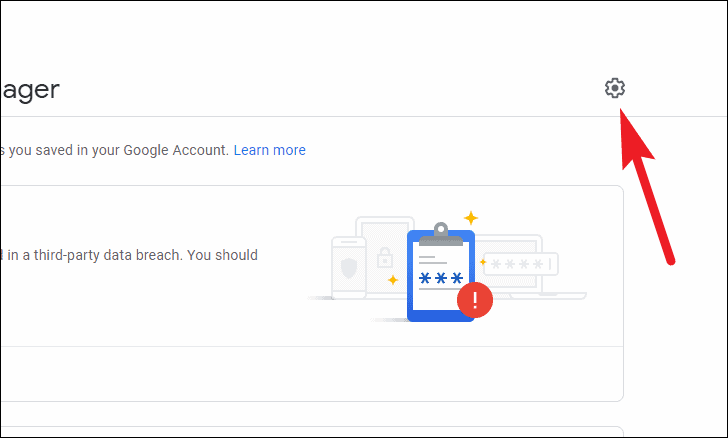
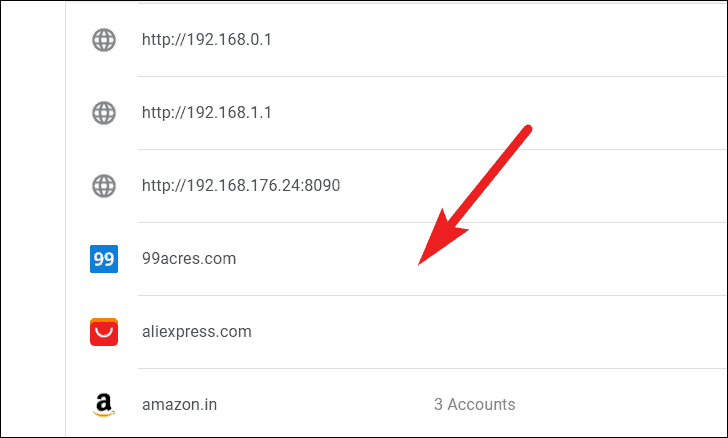
The Google Password Manager website provides a centralized location to access and modify your saved passwords from any device and any web browser.
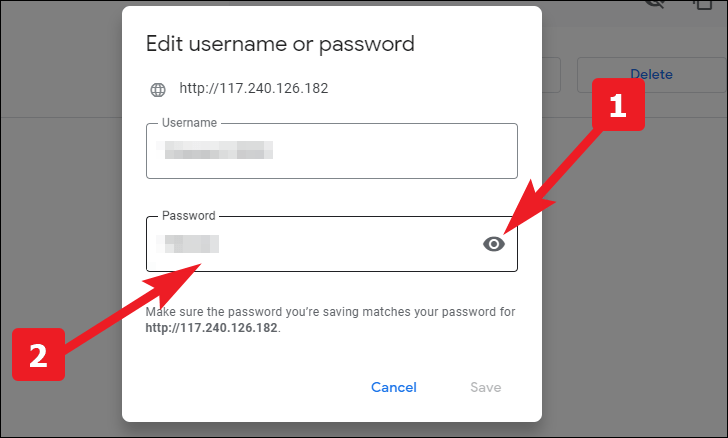
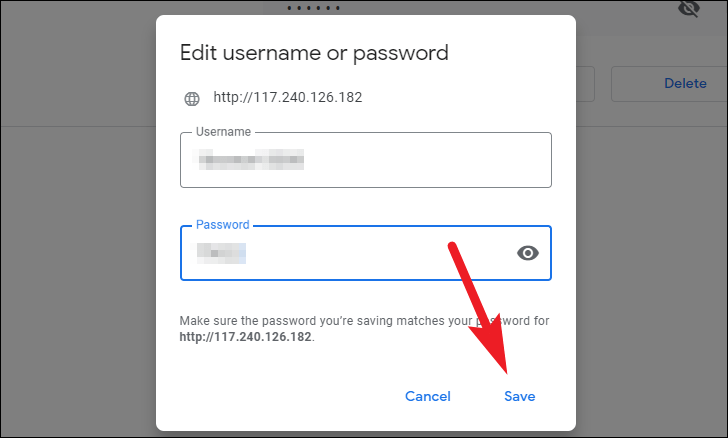
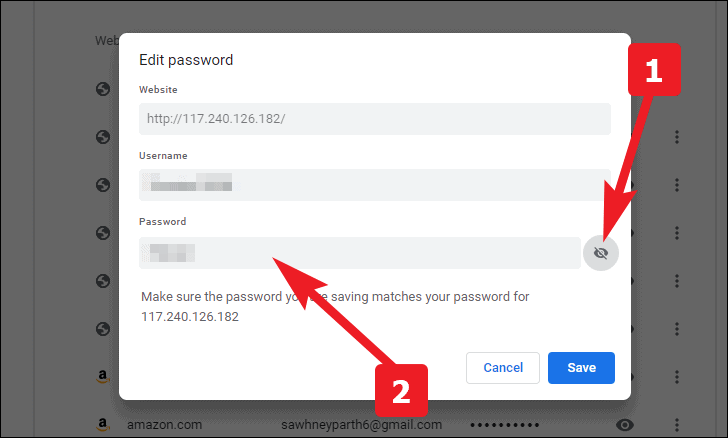
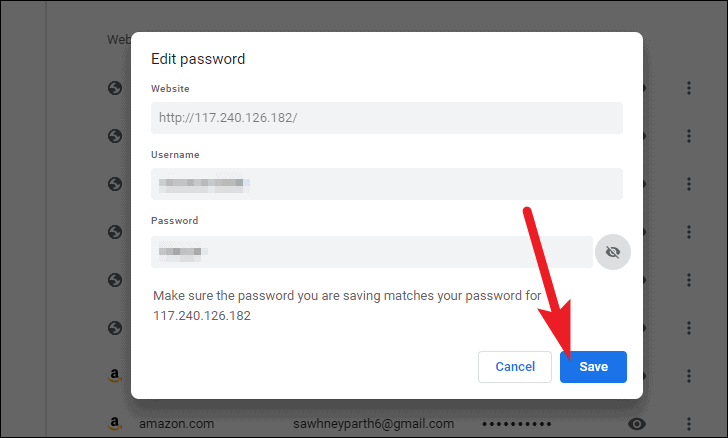
Click ‘Save’ to apply the changes to your saved password.
Additional Tips for Managing Passwords in Chrome
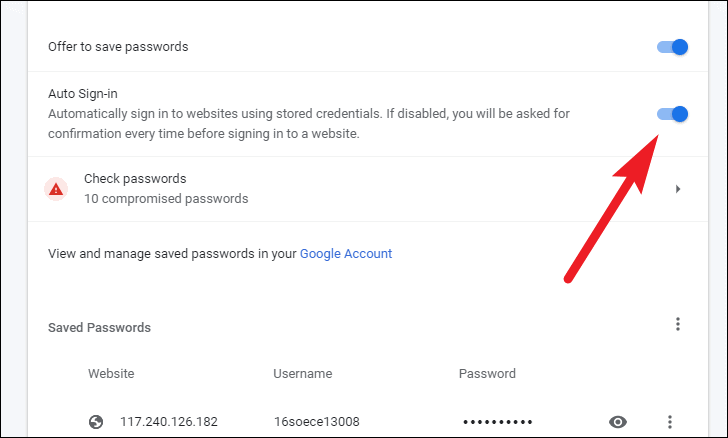
Here are some extra features to help you manage your passwords more effectively using Google’s password management tools.
Check Passwords for Security
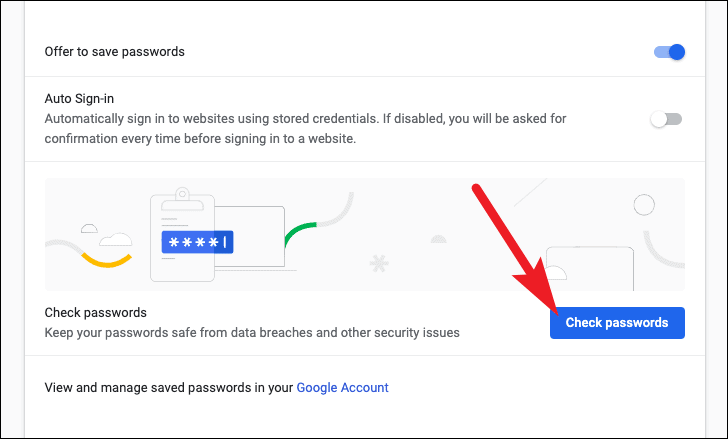
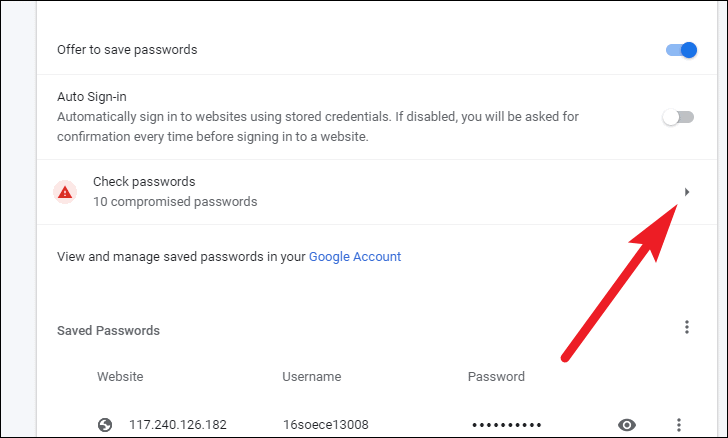
Google’s Password Checkup can analyze your saved passwords to identify weak or compromised passwords and provide recommendations for strengthening them.
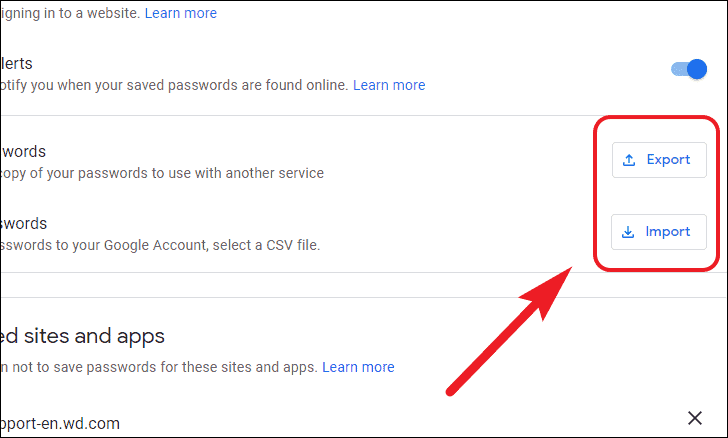
Choose ‘Export passwords’ or ‘Import passwords’ as needed, and follow the prompts to complete the process.
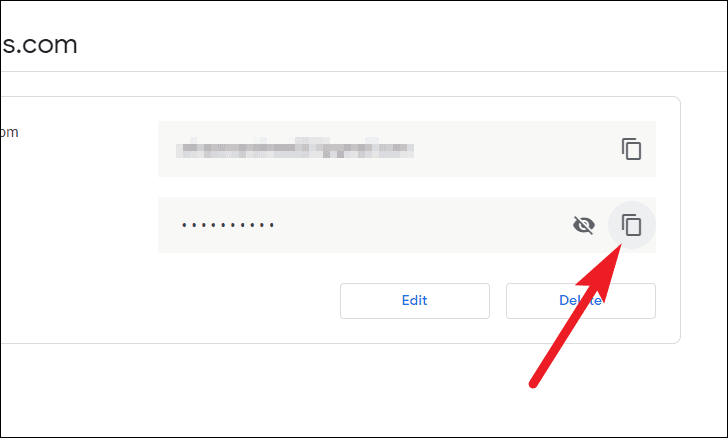
Copy Passwords Securely
If you need to log in on an unfamiliar machine, you can securely copy your login credentials from the Google Password Manager to avoid typing passwords on potentially compromised devices.
Click on the ‘copy’ icon next to the password or username field to copy it to your clipboard, which you can then paste as needed.
By utilizing these methods, you can efficiently edit, update, and manage your saved passwords in Chrome and the Google Password Manager, enhancing both convenience and security.