
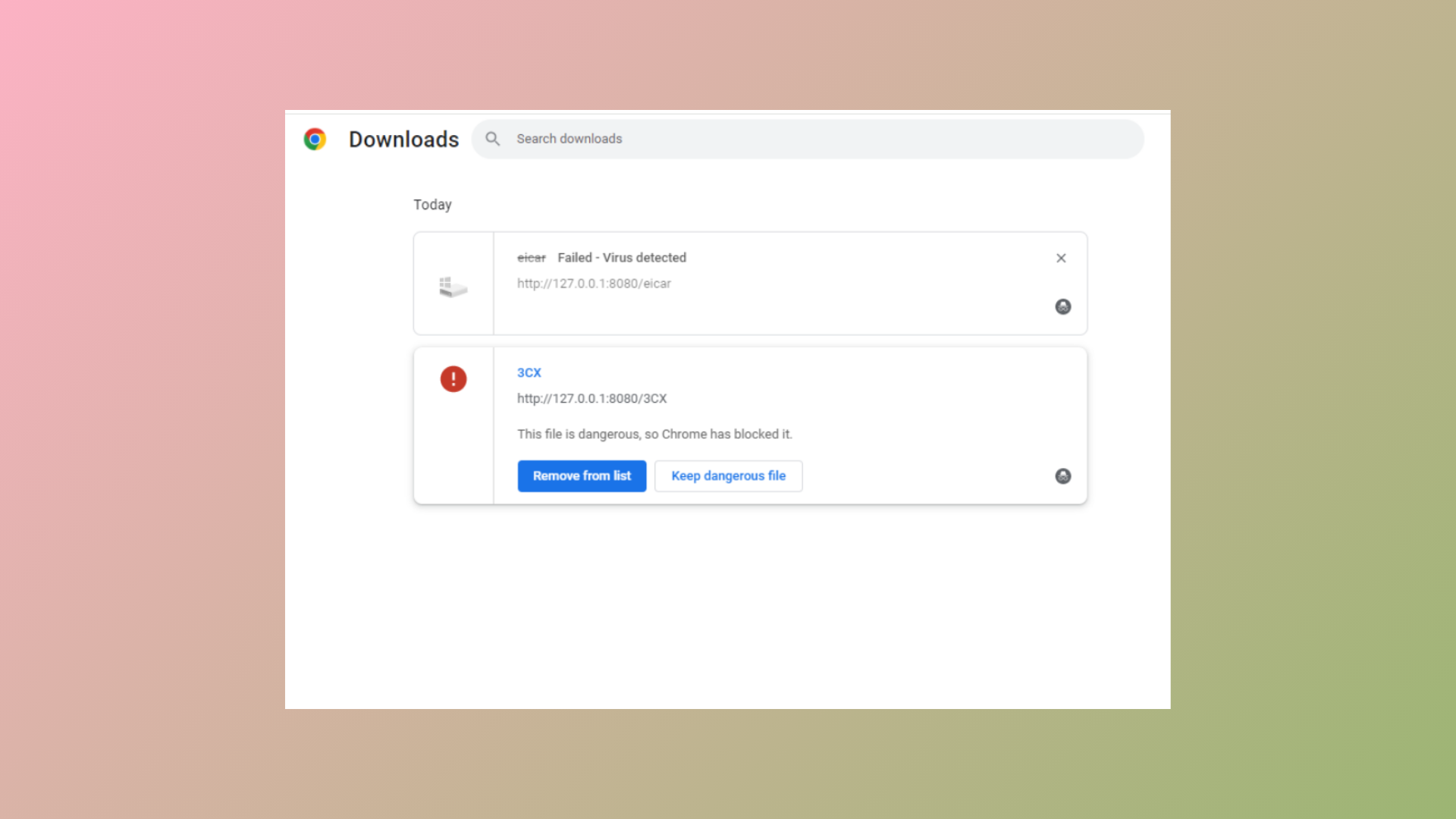
Chrome’s built-in security features often identify EXE files as potentially unsafe, resulting in the message: This file is dangerous, so Chrome has blocked it. This security measure prevents accidental installation of malicious software, but it can also block legitimate files, such as trusted installers or drivers. Understanding how to bypass or adjust these settings allows you to download necessary files without compromising your system’s safety.
Method 1: Bypass Chrome’s Warning and Keep the EXE File
Keep or Keep dangerous file from the menu. Chrome may prompt you with a warning about potential risks. Confirm your choice by clicking Keep anyway.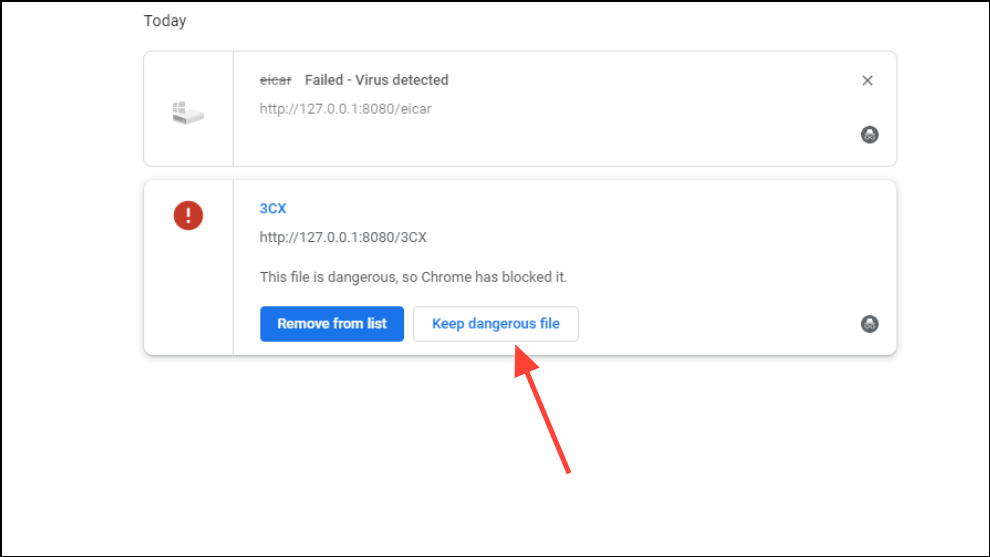
Method 2: Temporarily Disable Chrome Safe Browsing Protection
Safe Browsing in Chrome scans downloads for threats. Disabling it may reduce the number of blocked files, but it also lowers your protection against malicious sites and downloads. Only use this method if you fully trust the sources of your downloads, and remember to re-enable protection when finished.
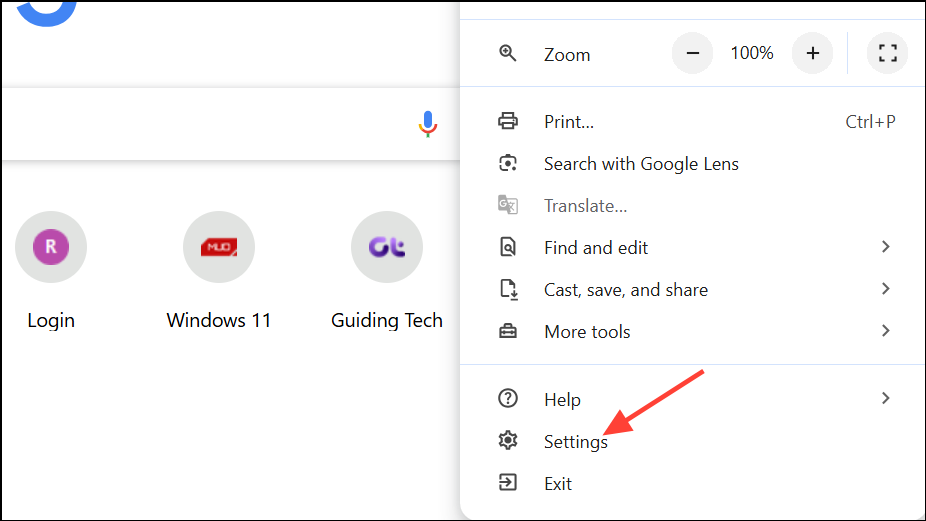
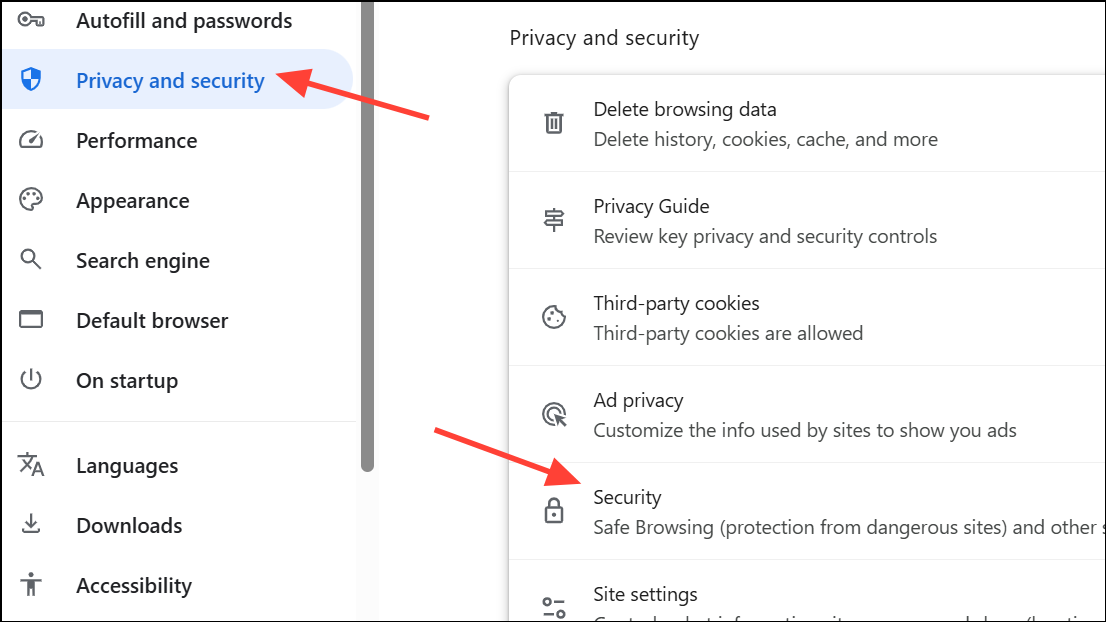
No protection (not recommended). Chrome will warn you about the risks—acknowledge the warning to proceed.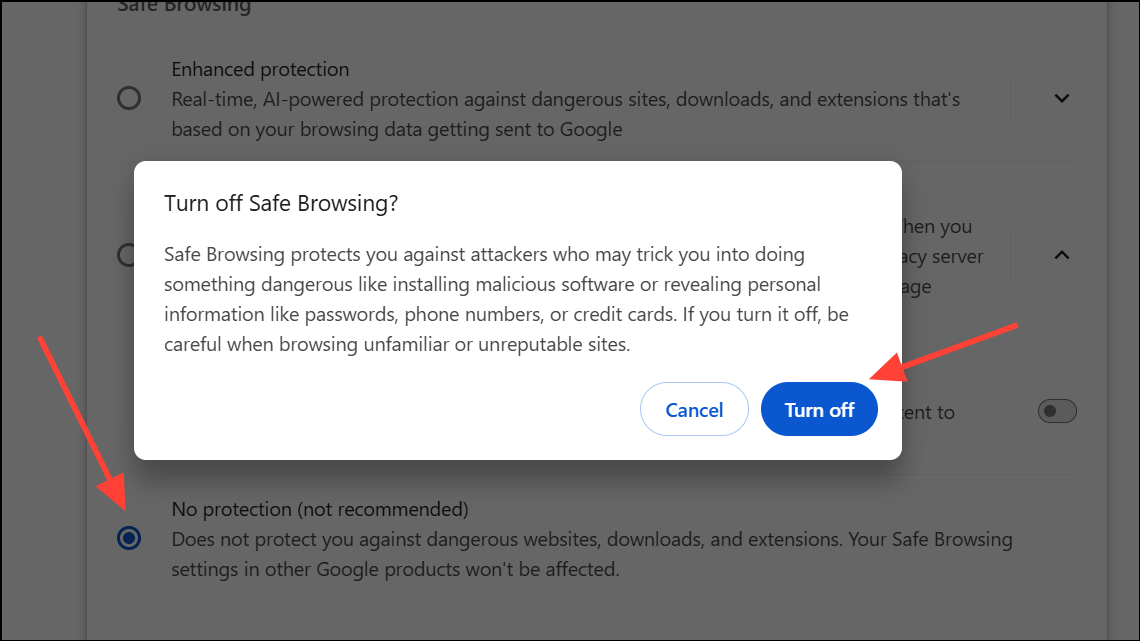
Standard protection or Enhanced protection to restore your security level.Method 3: Adjust Sync and Google Services Settings
Some users report that Chrome’s Sync and Google Services features contribute to aggressive download blocking, even when Safe Browsing is off. Disabling certain services can revert Chrome to showing a standard warning instead of outright blocking downloads.
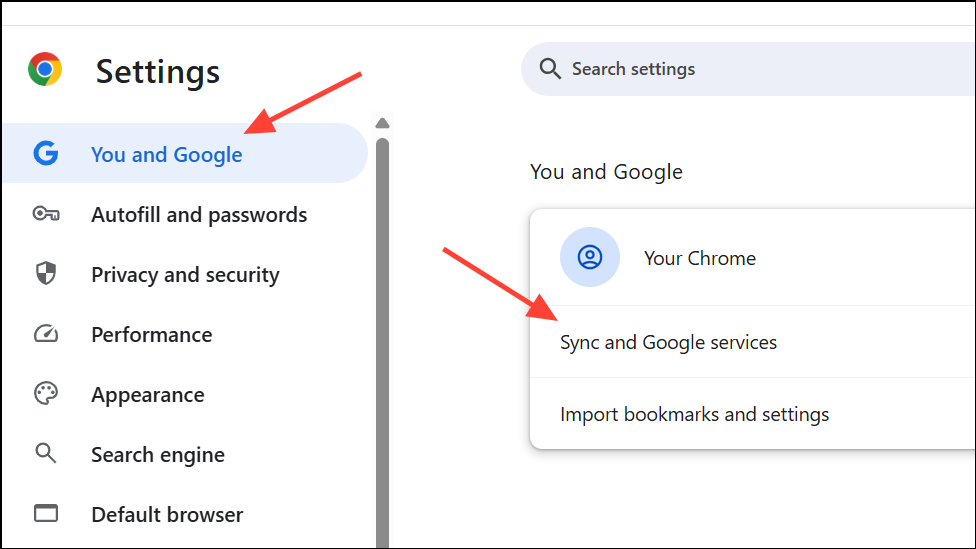
Help improve Chrome’s features and performance and Make searches and browsing better. These settings may affect Chrome’s download behavior by limiting data sent to Google for analysis.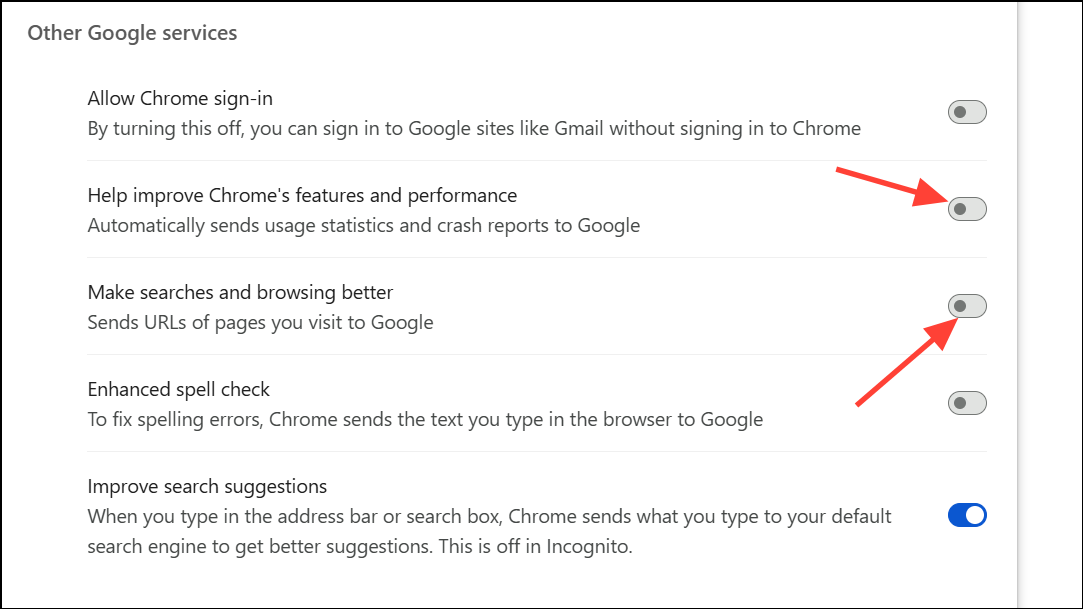
Method 4: Check for Antivirus or Security Software Interference
Sometimes, the issue is not with Chrome, but with third-party antivirus or built-in Windows Defender settings. These programs can flag EXE files as threats and prevent their download or execution.
Additional Tips and Cautions
- Always verify the source of any EXE file before bypassing security warnings. Download only from official websites or reputable vendors.
- Be cautious when disabling security features, even temporarily. Restore them as soon as your download is complete.
- If you repeatedly encounter issues with files from trusted sources (such as drivers from HP or Microsoft), consider reporting false positives to both Chrome and your antivirus vendor.
- If Chrome blocks even legitimate files after all adjustments, try using another browser temporarily, but keep security risks in mind.
By following these steps, you can regain control over your downloads while maintaining a strong security posture. Adjust settings carefully and always prioritize your device’s safety when working around browser protections.





