

Blank rows in Excel spreadsheets can disrupt data continuity and interfere with functions such as sorting and filtering. Removing these empty rows enhances data integrity and ensures that Excel’s features work as intended. This guide outlines several methods to efficiently delete blank rows in Excel.
Quickly Removing Blank Rows Using ‘Go To Special’
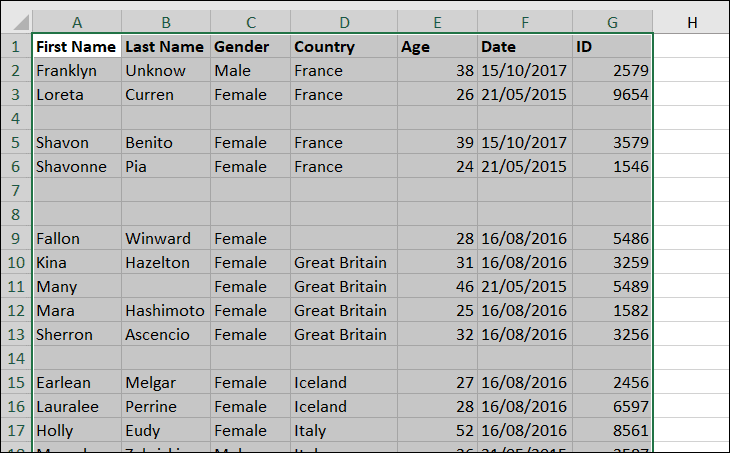
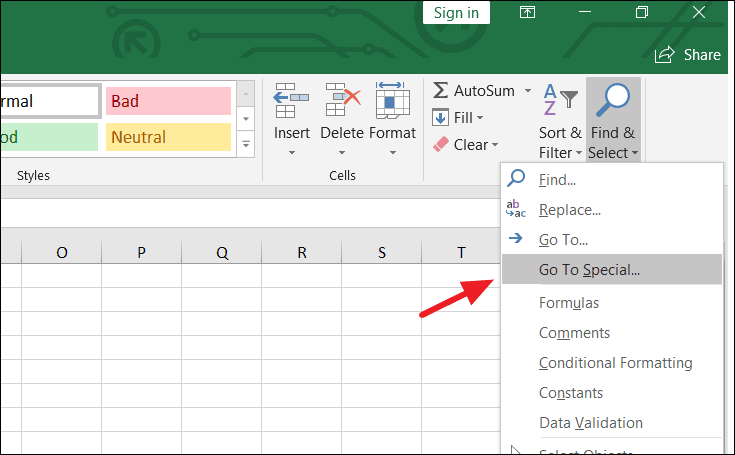
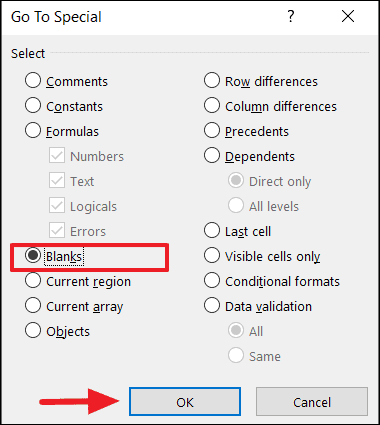
All blank cells within the selected range will now be highlighted.
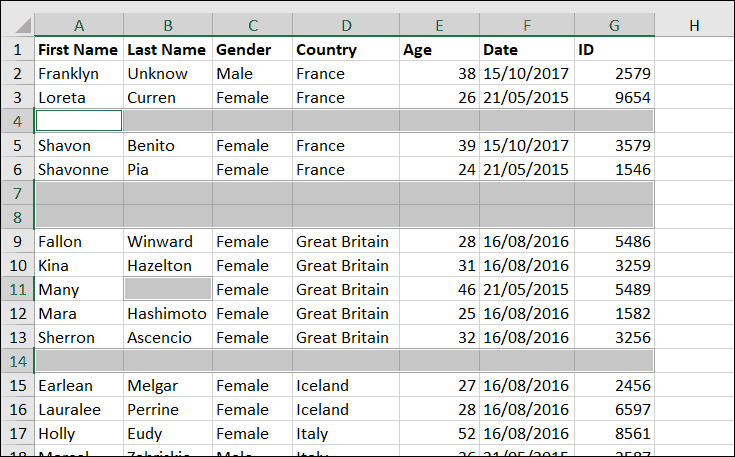
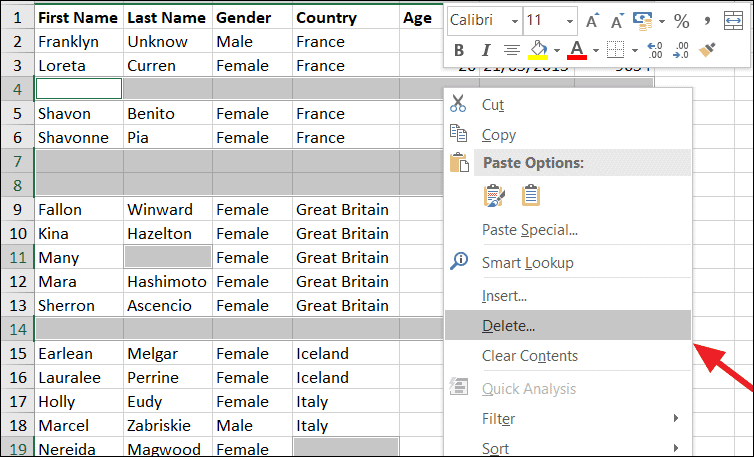
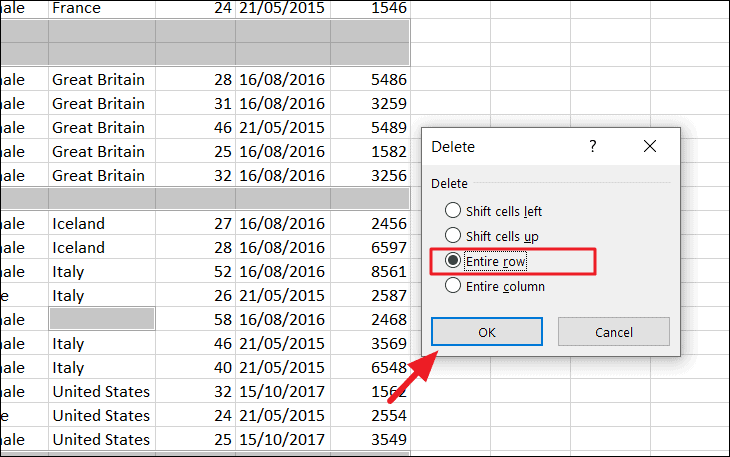
All blank rows within the selected data range will be removed.
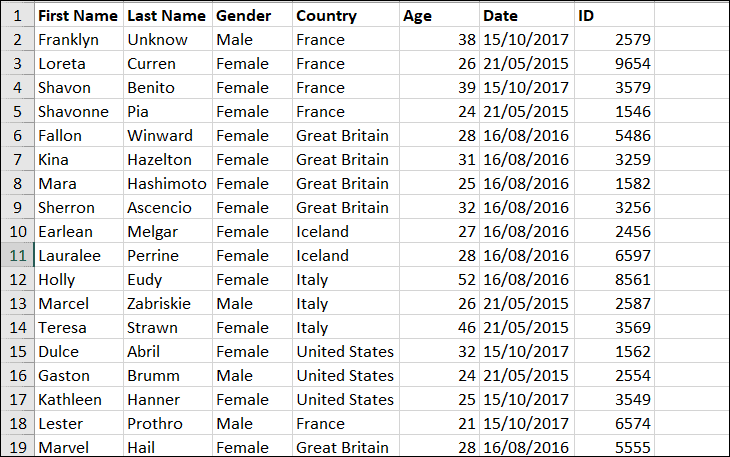
Alternatively, you can go to Home > Delete > Delete Sheet Rows after selecting the blank cells to achieve the same result.
Removing Blank Rows Using Filter Functionality
If your dataset contains rows where some cells are empty but others contain data, you can use Excel’s filtering feature to remove only completely blank rows.
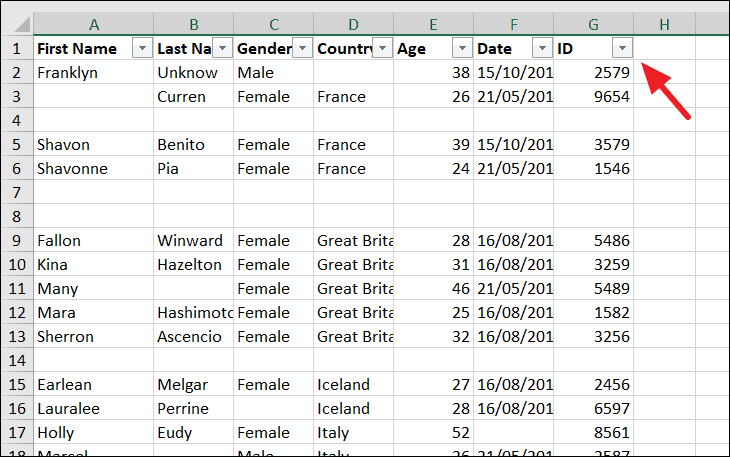
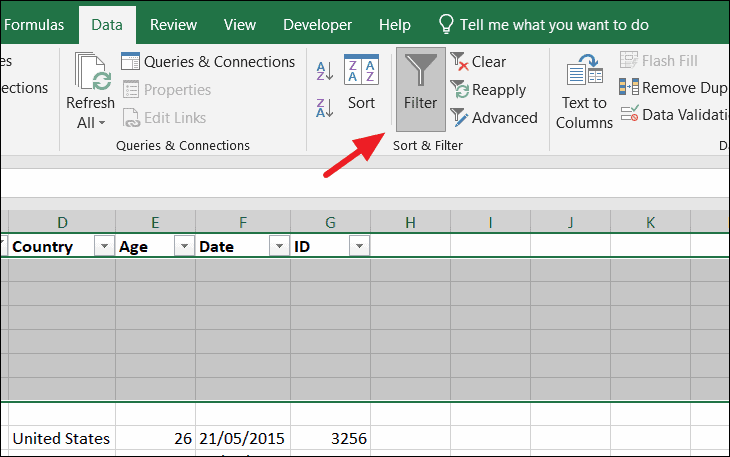
Ctrl+Shift+L to apply filters.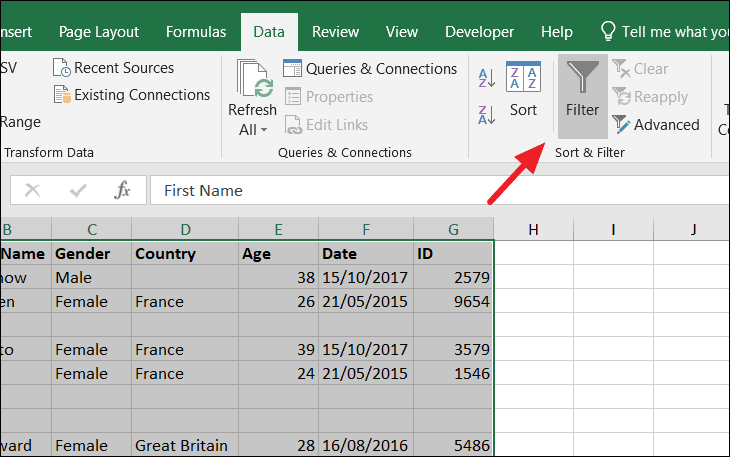
Filter arrows will appear in the header cells of each column.
Select All option. Then, scroll down and check the Blanks option. Click OK.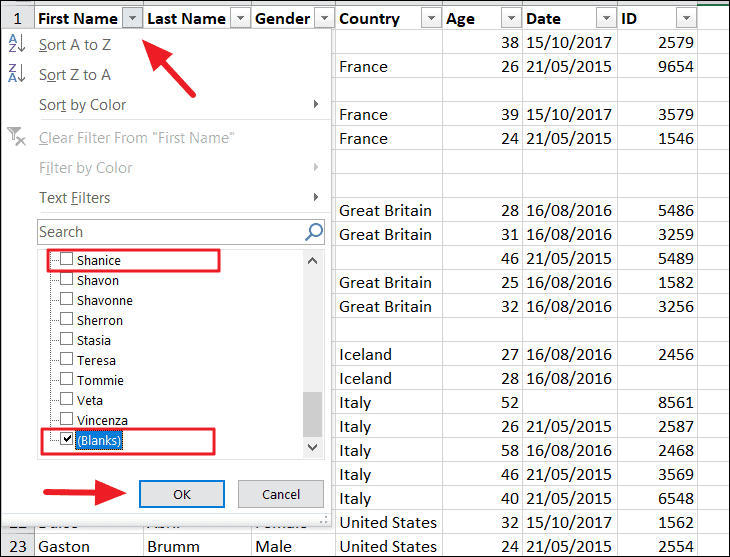
Repeat this step for each column to ensure all completely blank rows are displayed.
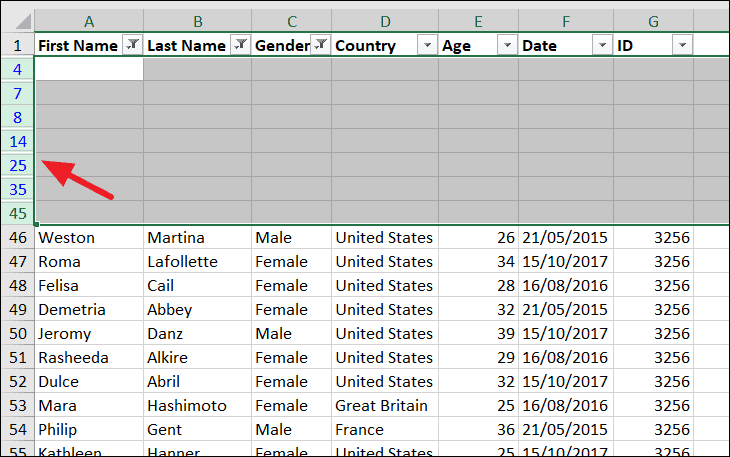
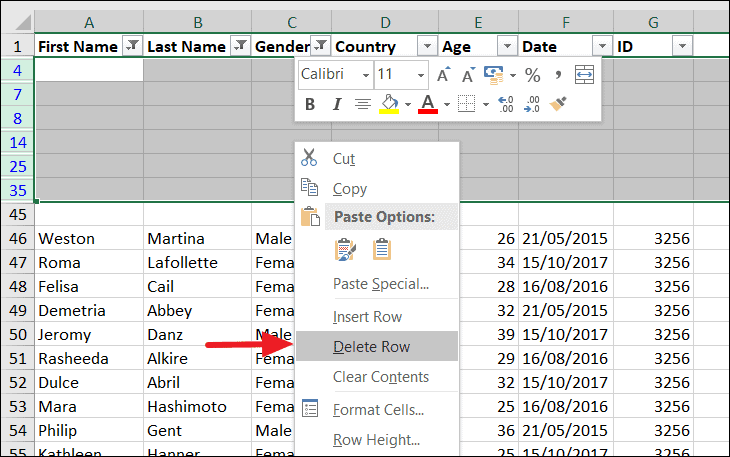
The blank rows have now been deleted, while rows with data remain intact.
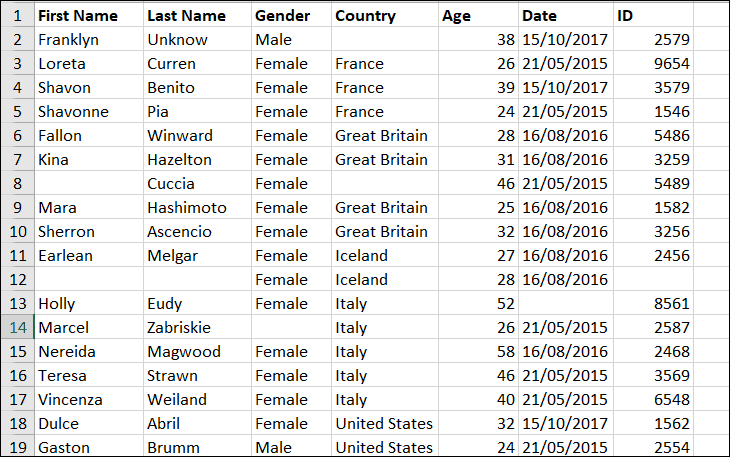
Deleting Blank Rows Using the COUNTBLANK Function
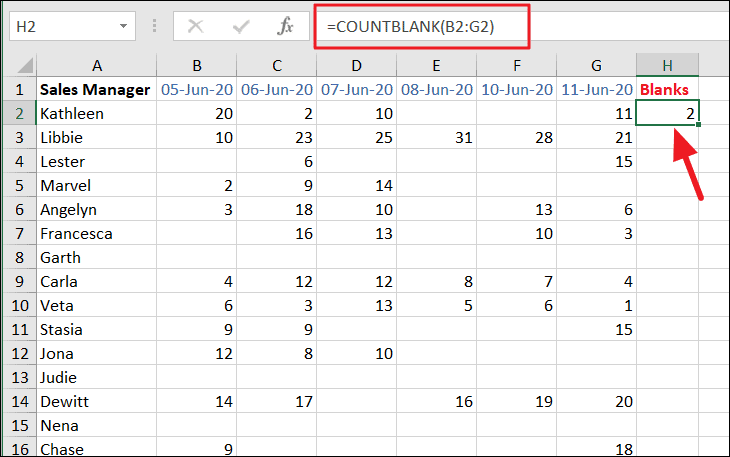
The COUNTBLANK function can help identify rows with a specific number of blank cells. This is useful when you want to remove rows that are completely empty or have a certain number of empty cells.
COUNTBLANK formula to count the number of blank cells in that row. For example:=COUNTBLANK(B2:G2)This formula counts the number of empty cells between columns B and G in the second row.
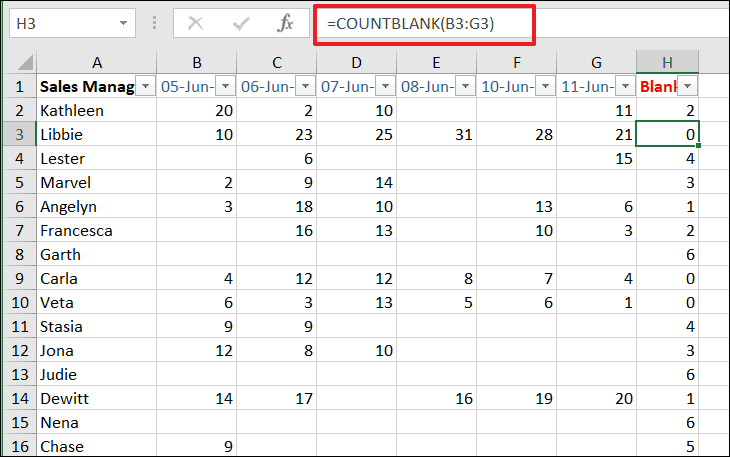
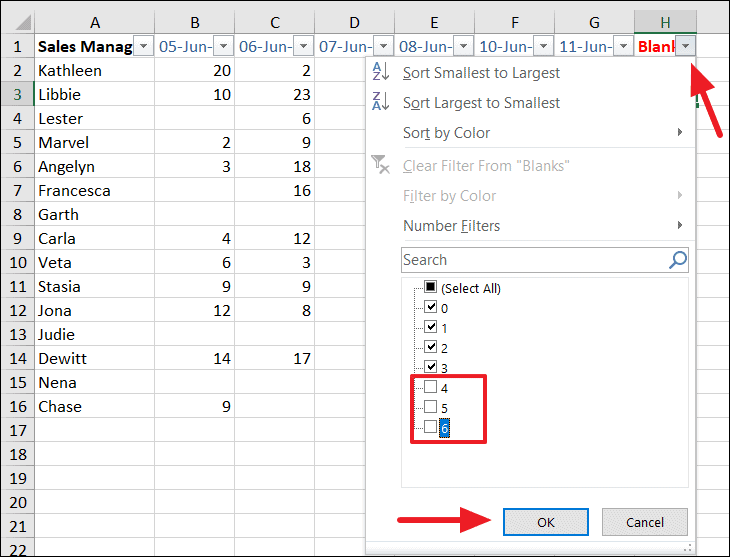
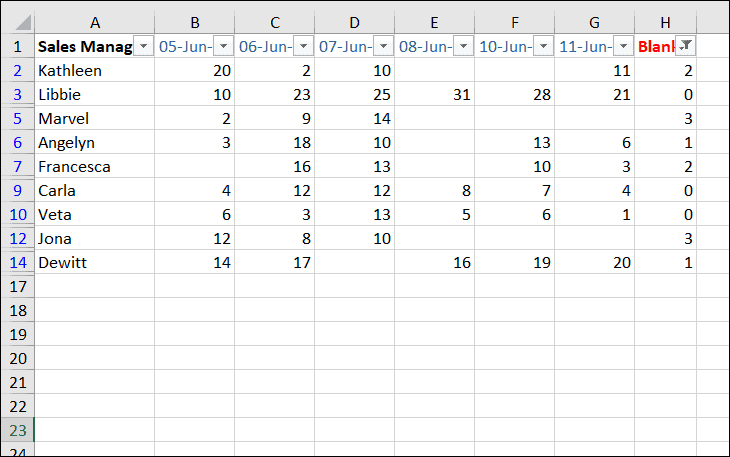
This method allows you to delete rows based on the number of blank cells they contain.
Deleting Blank Rows Using the Find Functionality
Another way to remove blank rows is by using Excel’s Find feature to locate empty cells and delete the corresponding rows.
Ctrl + F to open the Find and Replace dialog box.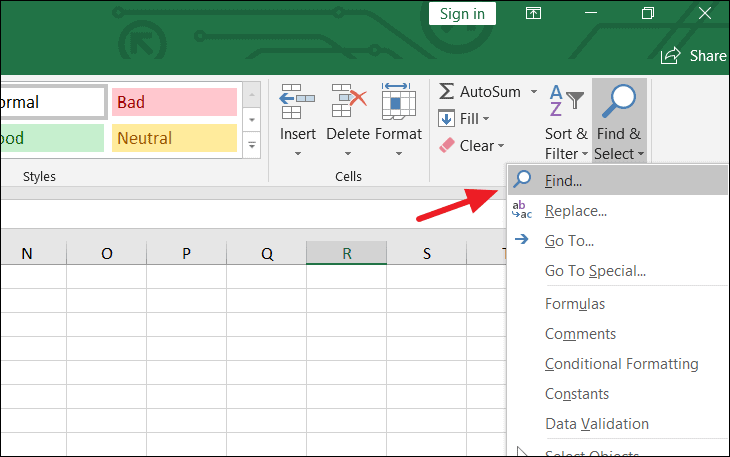
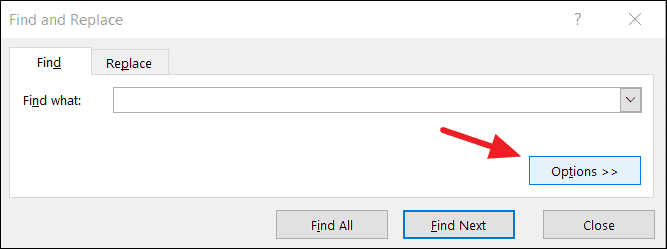
Values. Ensure that Within is set to Sheet and Search is set to By Rows. Click Find All.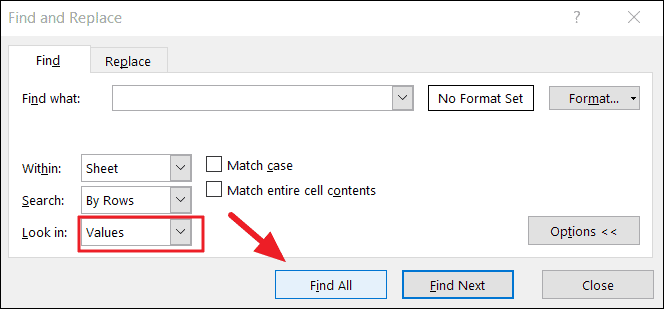
All blank cells will be listed at the bottom of the dialog box.
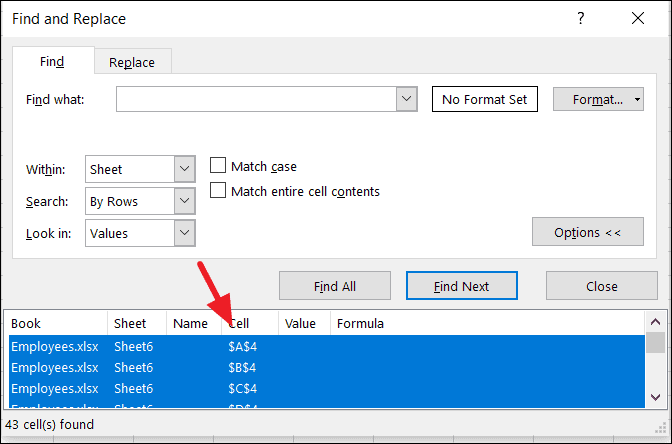
The empty rows will now be deleted from your sheet.
Manually Deleting Blank Rows
For smaller datasets with only a few blank rows, manual deletion might be the simplest approach.
Ctrl key and click on each row number.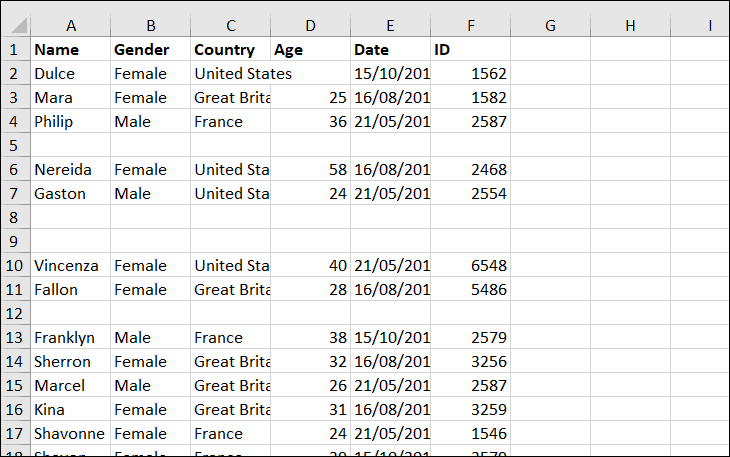
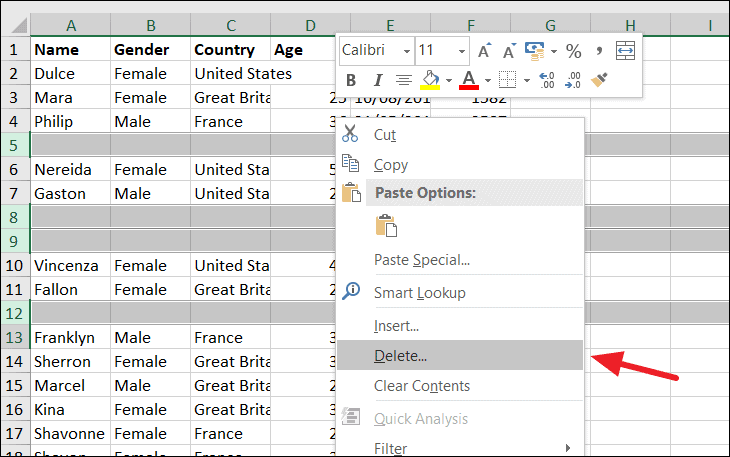
The selected blank rows will be removed from your worksheet.
Eliminating blank rows from your Excel spreadsheets can significantly improve data management and functionality. Choose the method that best suits your dataset and requirements.





