

In Microsoft Word, the ‘Track Changes’ feature lets you monitor edits made to your document by others. For example, if you’ve created a document and want someone to review it, ‘Track Changes’ allows you to see exactly what changes they make.
However, there are times when ‘Track Changes’ can be cumbersome. You might not want others to view the edit history or see the original content before revisions. This feature can expose initial mistakes, potentially affecting your credibility. As a result, many users prefer to disable ‘Track Changes’.
Disabling Track Changes in Microsoft Word
Using a keyboard shortcut
Ctrl + Shift + E on your keyboard to toggle ‘Track Changes’ off. This is a quick and efficient way to disable the feature. To re-enable it, simply use the same shortcut.Using the Review tab
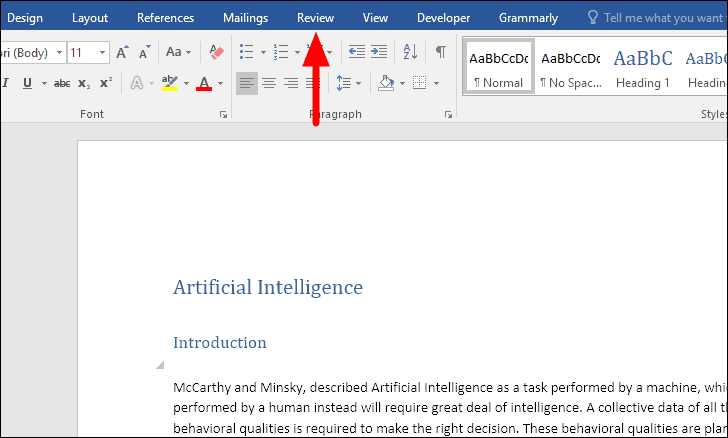
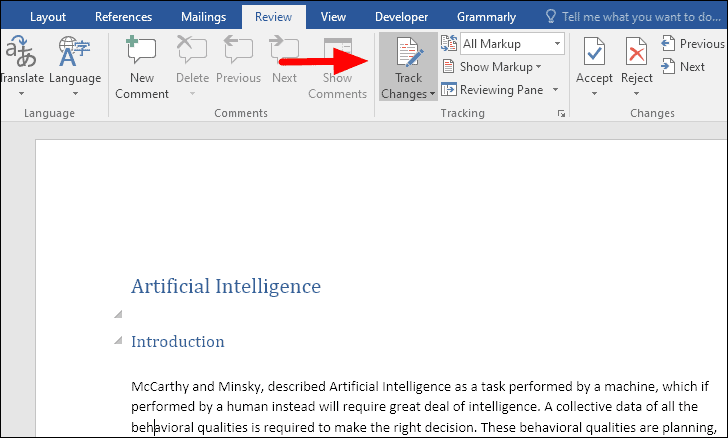
After disabling ‘Track Changes’, the icon will appear lighter, matching the surrounding icons in the ribbon.
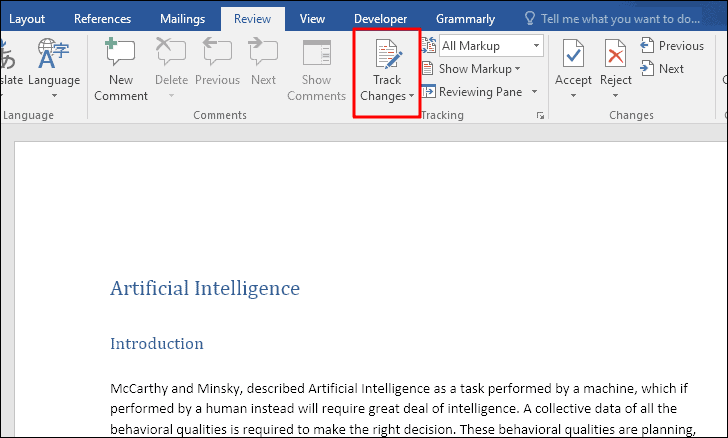
Why can’t I turn off Track Changes?
If you’re trying to disable ‘Track Changes’ but the options are greyed out and unresponsive, it’s likely because the ‘Lock Tracking’ feature is enabled.
When ‘Lock Tracking’ is active, you cannot turn off ‘Track Changes’ without entering the password that was set when the tracking was locked. If you have the password, follow these steps to unlock tracking and disable ‘Track Changes’.
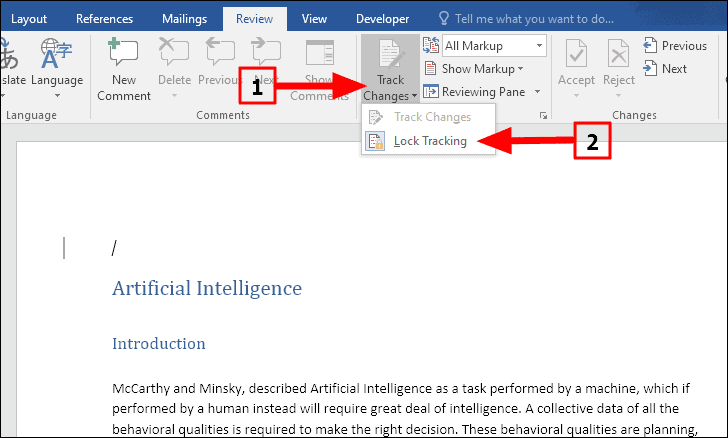
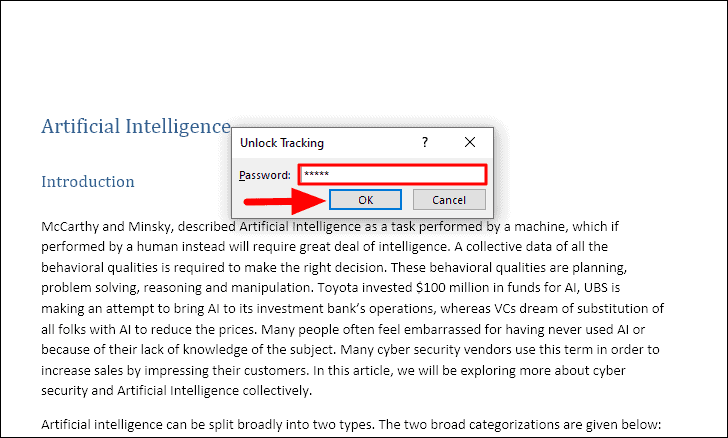
Ctrl + Shift + E keyboard shortcut.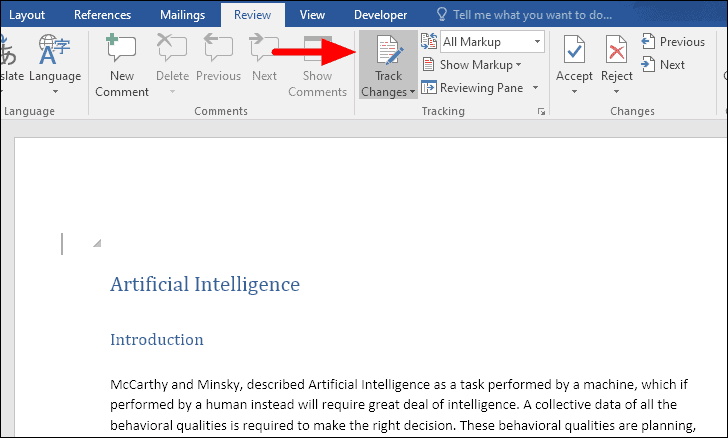
You should now be able to disable ‘Track Changes’ in your Word documents when you don’t want others to view the edits you’ve made. If you’re still unable to turn off the feature, remember to check for ‘Lock Tracking’ and obtain the password if necessary.





