
Assigning keyboard shortcuts to your Chrome extensions allows for quicker access and streamlined browsing. While Chrome has built-in shortcuts for various actions, setting up custom shortcuts for extensions can further enhance your productivity.
With Chrome’s built-in settings, you can easily assign keyboard shortcuts to any installed extension. This not only allows you to open extensions swiftly without relying on your mouse or touchpad but also helps declutter the toolbar by eliminating the need to pin extensions beside the address bar.
Adding a keyboard shortcut for a Chrome extension
More tools and then select Extensions.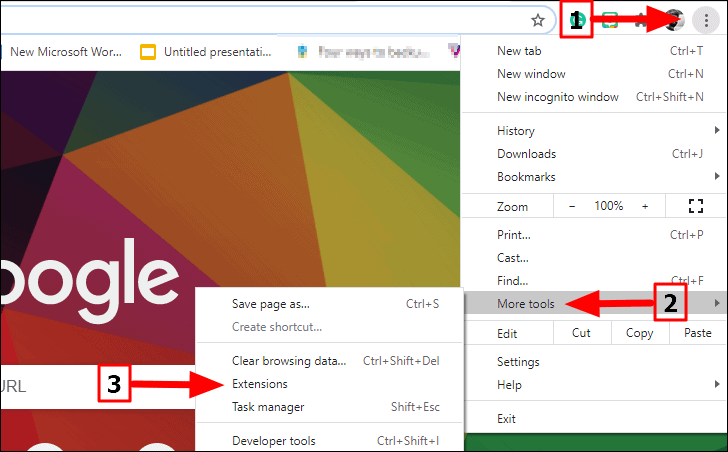
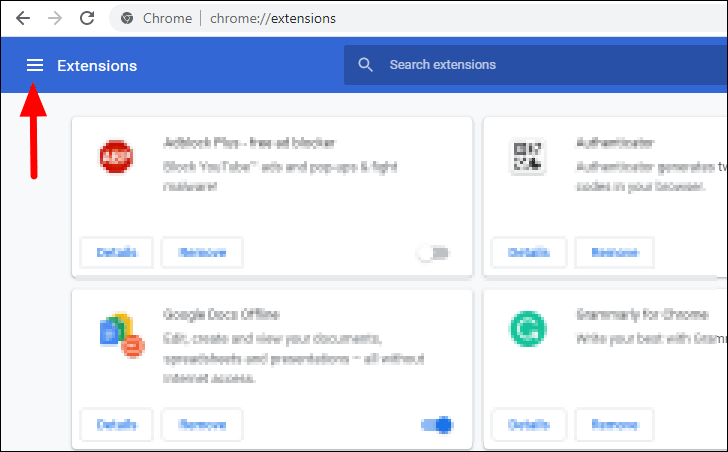
Keyboard shortcuts, which is positioned towards the bottom of the menu.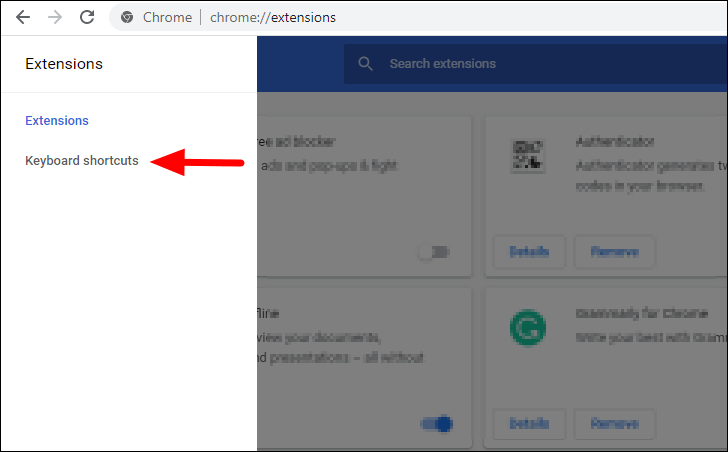
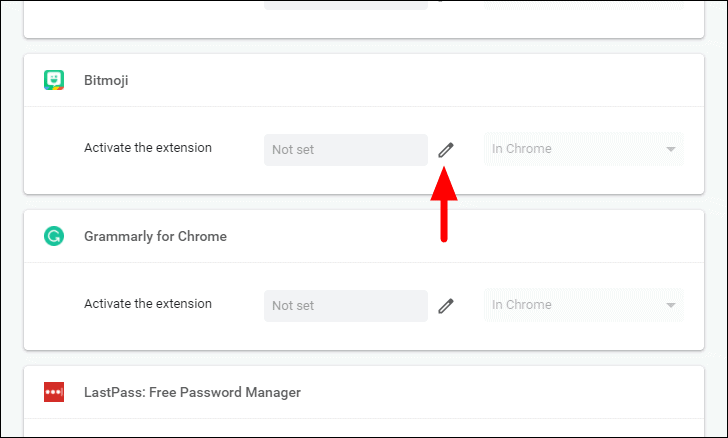
Ctrl, Shift, or both, along with any other key. Chrome will automatically record this combination as the new shortcut for the extension.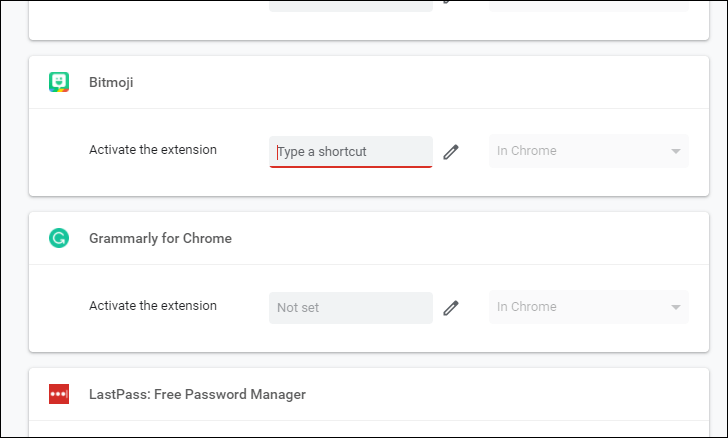
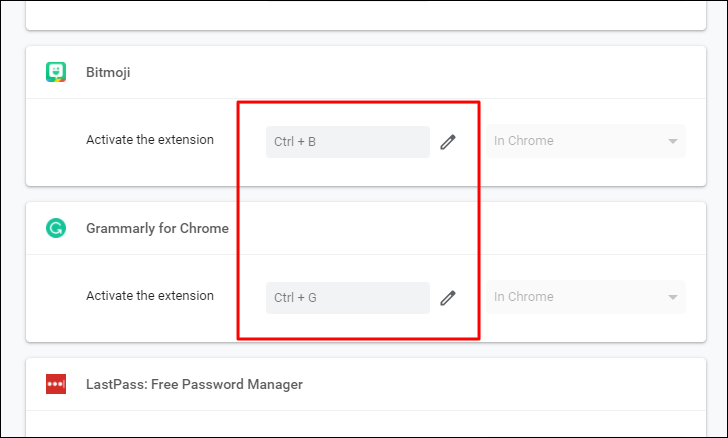
Once you have assigned the shortcut, it will display in the field next to the extension. It’s advisable to choose a shortcut that’s easy to remember and relevant to the extension. For example, you might use Ctrl + B for the Bitmoji extension or Ctrl + G for Grammarly. This approach allows you to efficiently access your most frequently used extensions.
Removing a keyboard shortcut for a Chrome extension
If you need to remove a shortcut—perhaps because you no longer use the extension or want to reassign the shortcut—the process is straightforward.
Keyboard shortcuts page in the Extensions settings. Click on the pencil icon next to the shortcut you wish to remove. This action will clear the existing shortcut, allowing you to leave it blank or assign a new one.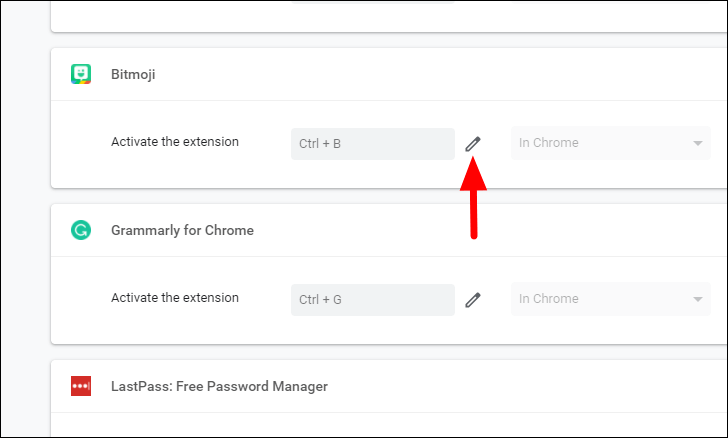
Unpinning the extension from the Chrome toolbar
After assigning keyboard shortcuts, you might find that you no longer need quick access to the extension icons on your toolbar. Unpinning extensions can declutter your browser interface.
Unpin.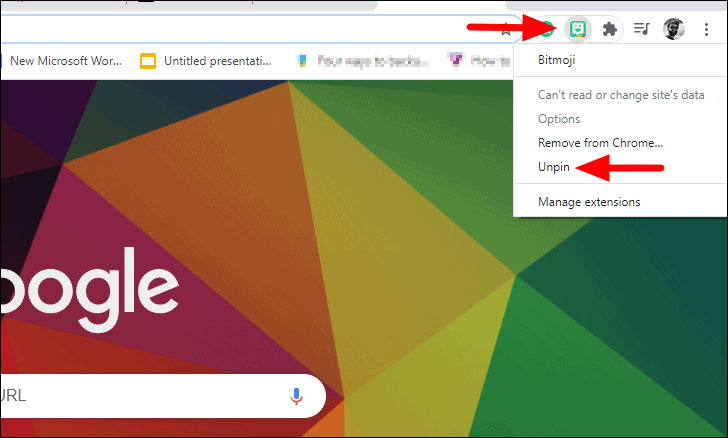
The extension icon will be removed from the toolbar, giving you a cleaner browsing experience.
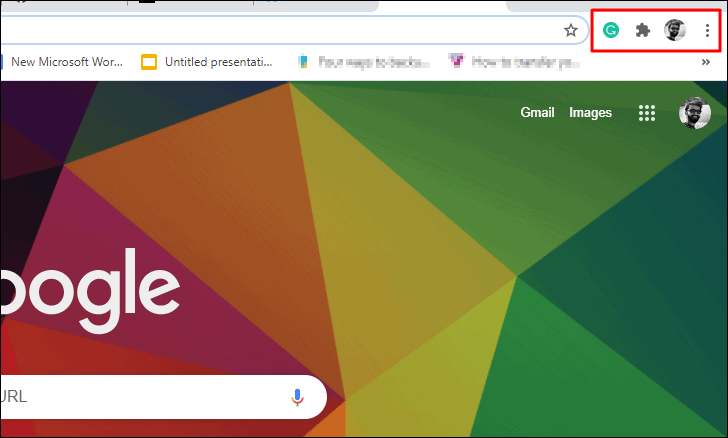
By setting up keyboard shortcuts for your Chrome extensions, you can improve both efficiency and accessibility while browsing.





