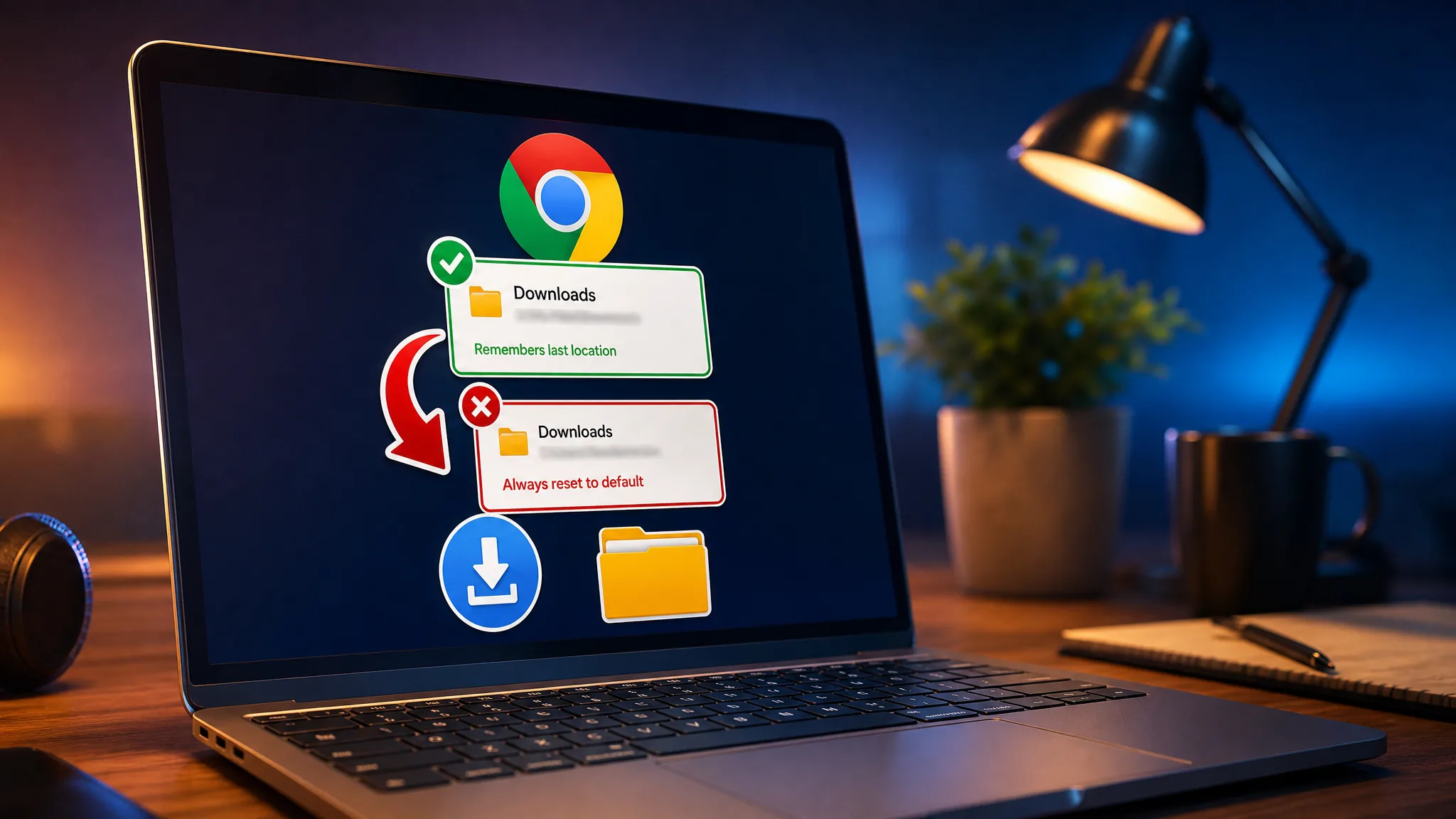
When Chrome works the way most people expect, the “Save as” dialog opens to the folder you used for your previous download. That behavior saves a lot of clicks when you are pulling dozens of files into the same project folder. If Chrome suddenly forgets and drops every file back into your default Downloads folder, the problem is almost always a Chrome update, a conflicting extension, or a download setting that needs adjusting.
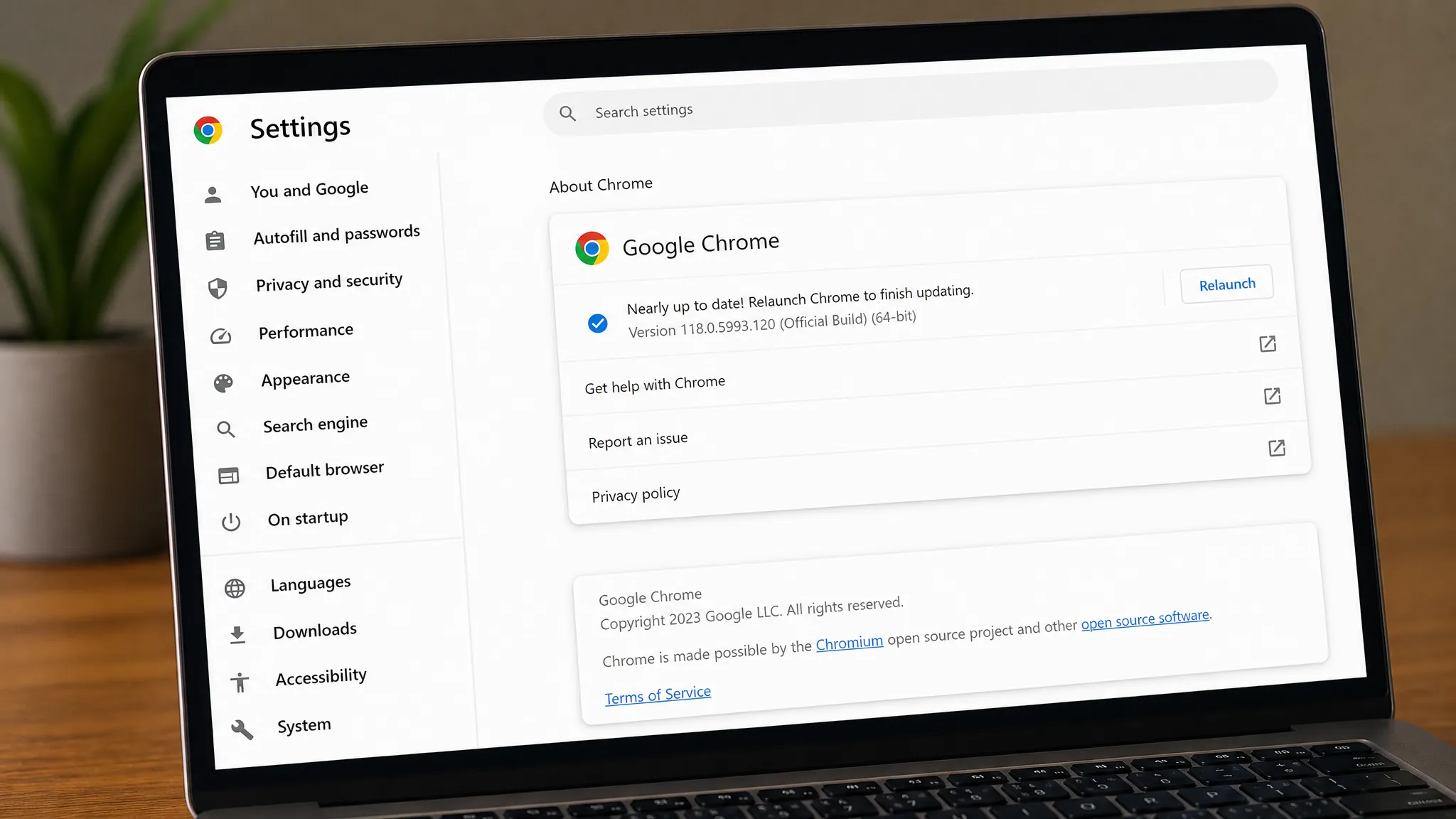
Quick answer: Update Chrome to the latest version through chrome://settings/help, then restart your computer. A Chrome release broke the “remember last folder” behavior for many users, and a later update restored it. If the dialog still defaults to Downloads, disable extensions that touch downloads and test a fresh profile.
Why Chrome stopped remembering the last folder
Chrome does not have a visible switch labeled “remember last used folder.” It only exposes two options: set one permanent default download location, or ask where to save each file before downloading. The memory of your last-used folder is handled quietly in the background when the “Ask where to save each file” prompt is turned on.
A recent Chrome update changed that background behavior, so the “Save as” dialog began snapping back to the Downloads folder every time, even within the same browsing session. Downloads triggered from Google Drive buttons and from extensions were the most affected, while right-click “Save image as” often kept working. Google shipped a follow-up update that fixed the regression, which is why updating and restarting is the first thing to try.
Note: If the dialog never appears at all and files just land in Downloads silently, that is a different setting. Turn on “Ask where to save each file before downloading” first, then work through the fixes below.
Update Chrome and restart your computer
This resolves the widespread version of the bug on its own. Make sure you are on the newest stable build before touching anything else.
Check your Chrome download settings
The download settings control both where files land and whether Chrome prompts you. Open chrome://settings/downloads in the address bar to review them.
If you want Chrome to prompt and then remember the last folder, keep Ask where to save each file before downloading turned on. If instead you want every file to go to a single fixed folder without a prompt, turn that toggle off and set your folder under Location using the Change button.
Tip: Toggling “Ask where to save each file” off and back on sometimes re-registers the behavior. It is a quick test that costs nothing before moving to the deeper fixes.
Turn off extensions that override downloads
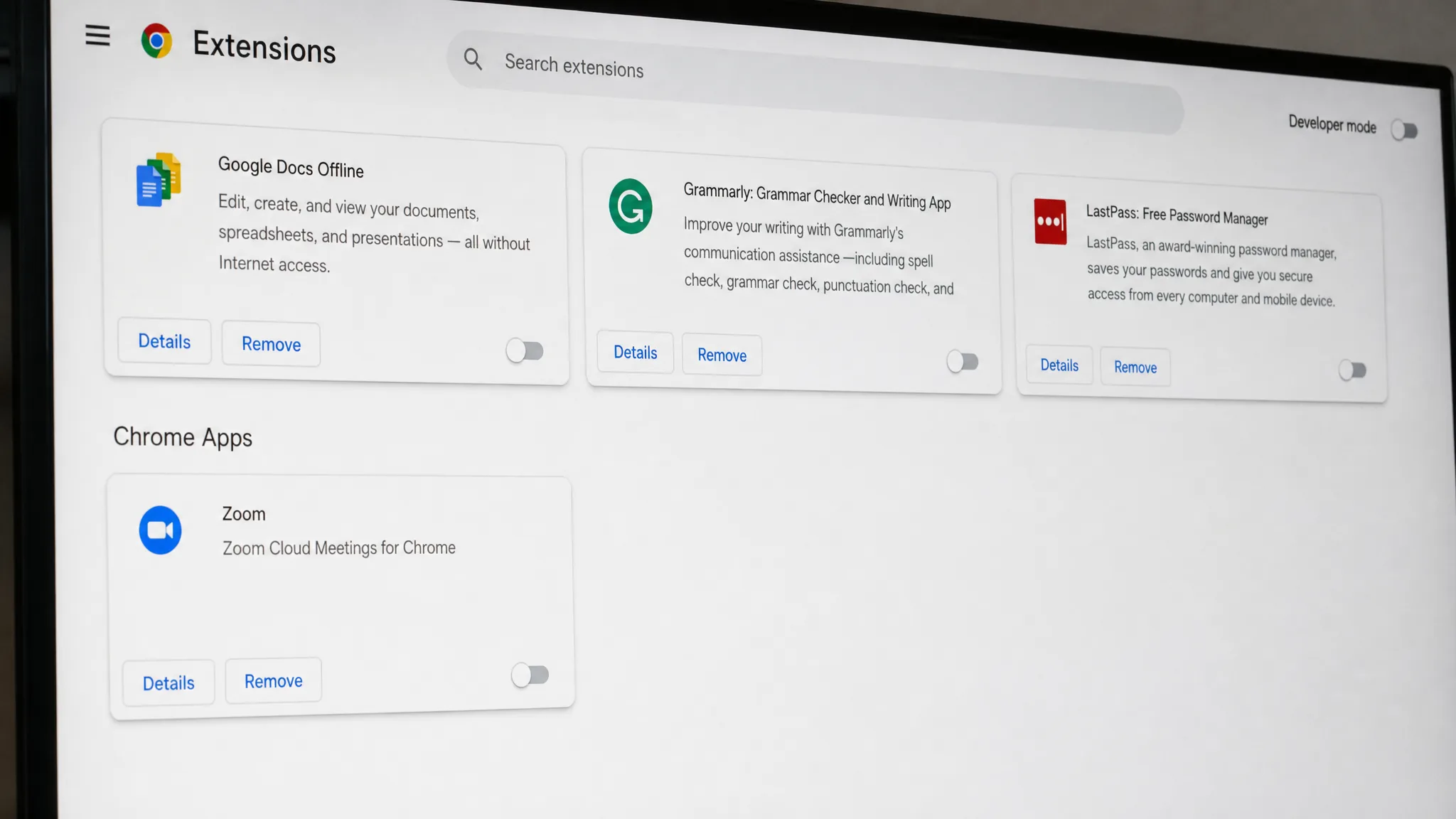
Extensions that manage or organize downloads are a common cause. Download managers, bulk image savers, and even some Google-provided apps can hijack where files go, which prevents Chrome from reusing your last folder.
chrome://extensions and switch off every extension. Then download a test file and see if the last folder sticks.Extensions known to break this behavior for users include bulk image downloaders and the Google Docs Offline extension along with the Docs, Sheets, and Slides apps. If you rely on one of those, disabling it confirms whether it is responsible.
Test a new Chrome profile
A damaged profile can carry over broken download preferences. Creating a clean profile isolates whether the fault lives in your current one.
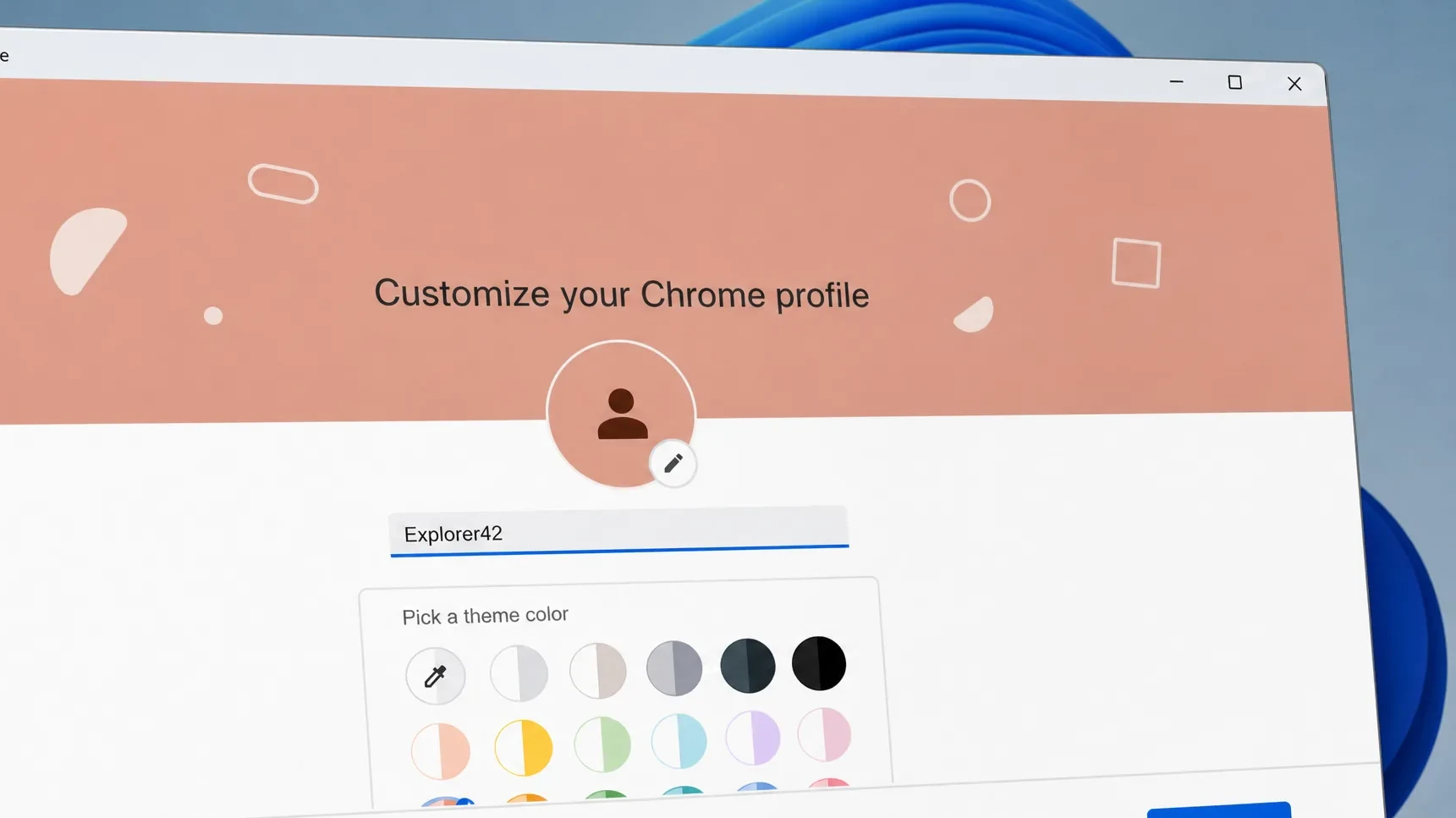
If a fresh profile shows the exact same behavior, the issue is not your profile. That points back to a Chrome version problem, so make sure the update step above is done and move on to a reset.
Reset or reinstall Chrome as a last resort
If updating, settings, extensions, and a clean profile all fail, reset Chrome to its defaults. Sign in with your Google account first so your bookmarks, extensions, and history sync to the cloud. If you use Chrome as a Guest, you will lose those after a reset.
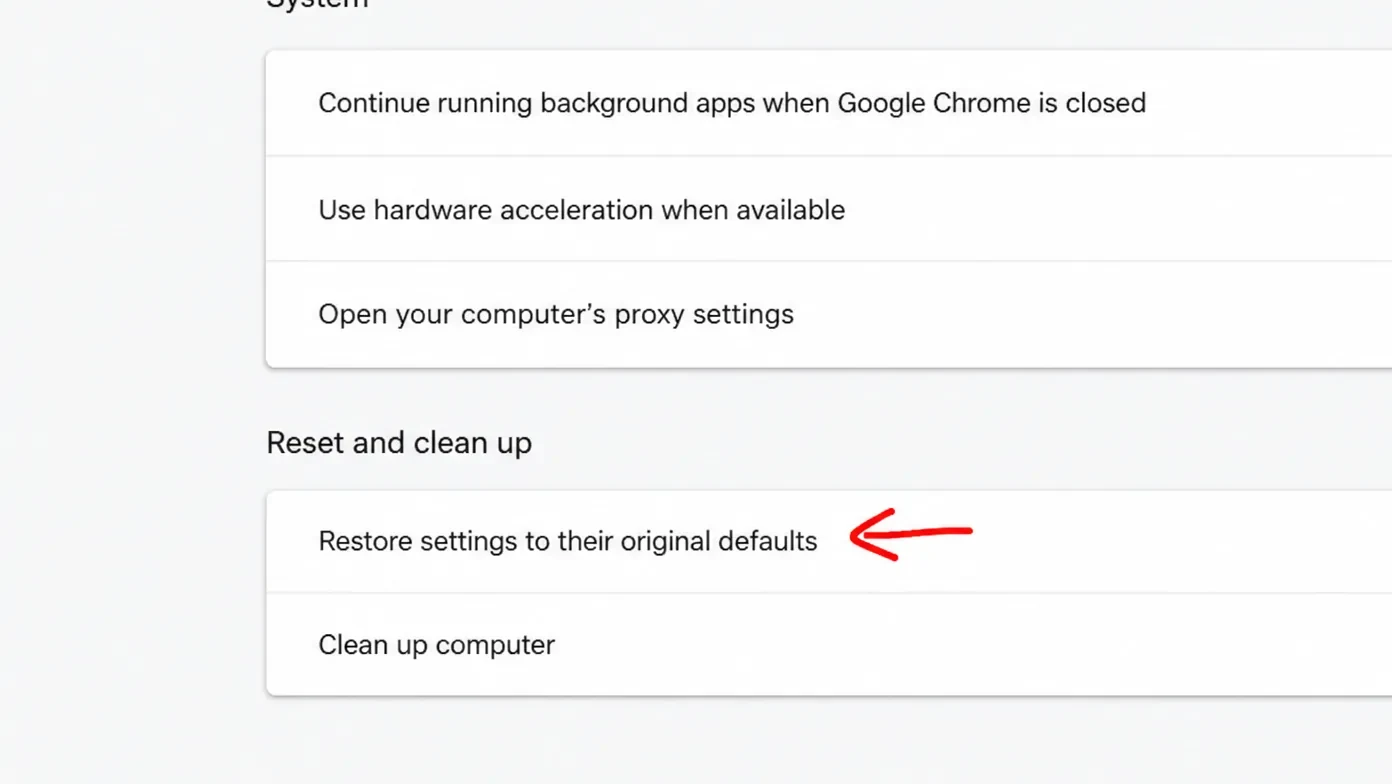
Open chrome://settings/reset and choose Restore settings to their original defaults. This clears misconfigured preferences and often fixes stubborn download problems.
Still no luck? Uninstall Chrome, restart your system, then install the latest build fresh. A clean install rules out corrupted program files as the cause.
Workarounds while the folder keeps resetting
If you need to keep working before the fix takes hold, a few habits reduce the clicking.
| Situation | What to do |
|---|---|
| Downloading many files into one folder | Set that folder as the default under chrome://settings/downloads for the duration of the project. |
| Right-click downloads | Use “Save image as” or “Save link as,” which more reliably reopens to your last-used folder. |
| Downloading from Google Drive | Sign out of your Google account in Chrome but keep the Drive tab open, then download. The last folder is more likely to be reused for that session. |
Once you are on the fixed Chrome version and no extension is interfering, the “Save as” dialog should reopen to your last folder on its own. If it does, the earlier workarounds are no longer needed, and you can restore your normal default download location whenever you like.