

Copying and pasting content from multiple Word documents into a single file can be tedious, especially when handling documents with numerous pages. Thankfully, Microsoft Word provides a built-in feature that allows you to merge documents efficiently without the need for manual copying.
Insert tab located in the ribbon at the top of the window.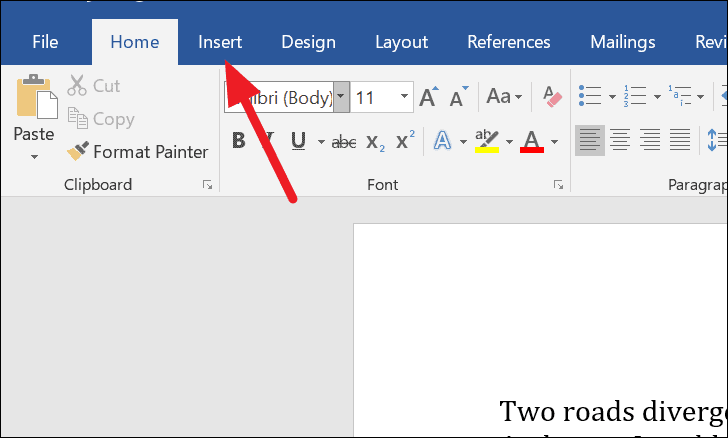
Insert tab, you’ll find various options to insert pages, tables, and more. Navigate to the Text section and click on the drop-down arrow next to the Object icon.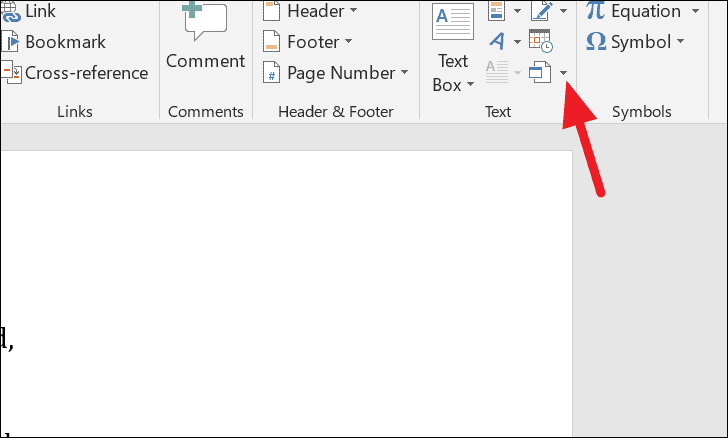
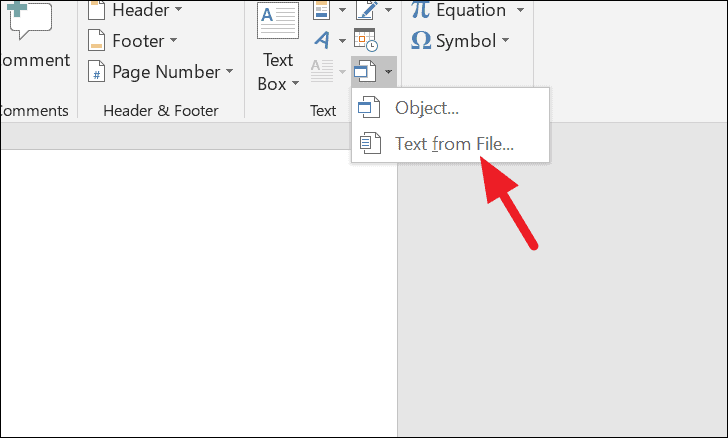
Insert.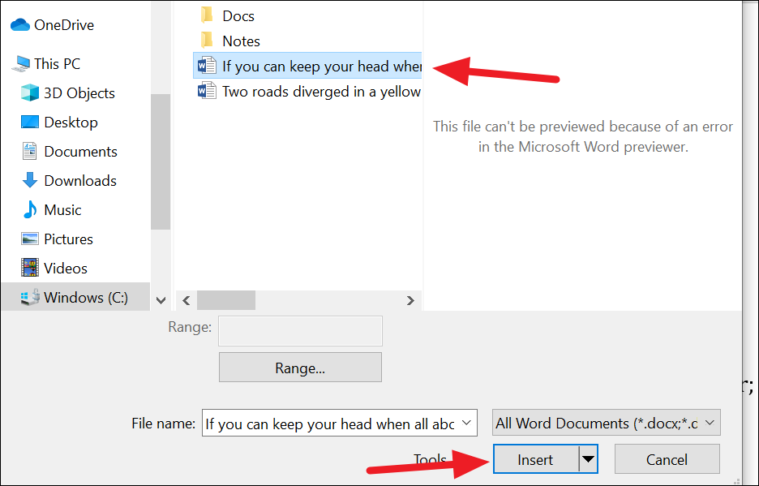
The content from the selected document will be added at the end of your current document. The original formatting of text, images, charts, and other elements will be retained. You can repeat these steps to combine multiple documents as needed.
If you’re merging documents with different file formats—for example, combining a .doc file with a .docx file—there may be formatting discrepancies. It’s advisable to check the final document and adjust formatting manually if necessary.
Combining Multiple Word Documents
Merging several Word documents can be done efficiently by following a systematic approach.

Insert tab, then click the drop-down arrow next to the Object icon in the Text section, and choose Text from File....Insert File dialog box that appears, navigate to the folder containing your documents. Select the first file you wish to insert and click on Insert.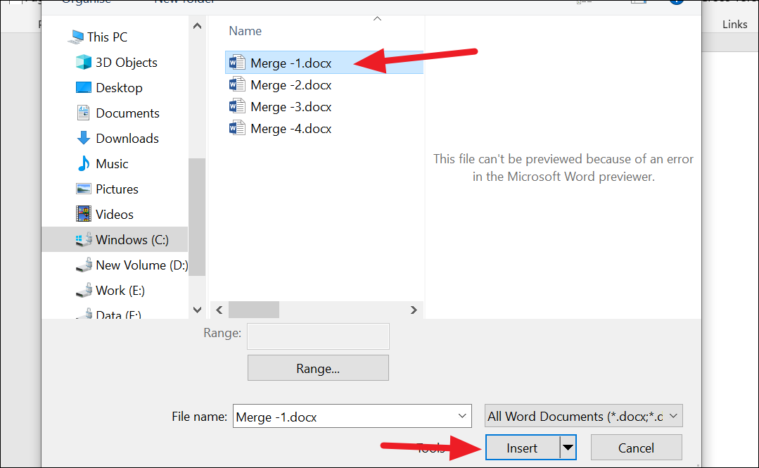
The contents of the selected document will be inserted into your new document. Ensure that your cursor is positioned where you want the next document to be inserted before repeating the steps.
While it’s possible to select multiple files at once, Microsoft Word may insert them in an unexpected order. To maintain control over the sequence of documents, it’s recommended to insert them one at a time following the desired order.
Merging Word documents using the built-in Insert feature streamlines the process and saves time. By carefully organizing your files and following the steps above, you can efficiently combine multiple documents into one cohesive file.





