Organizing documents in Google Docs can greatly enhance your workflow by making it easier to access and manage your files. Instead of sifting through numerous documents in Google Drive, creating folders directly in Google Docs allows for quick navigation and better categorization of your work.
Creating a folder in Google Docs
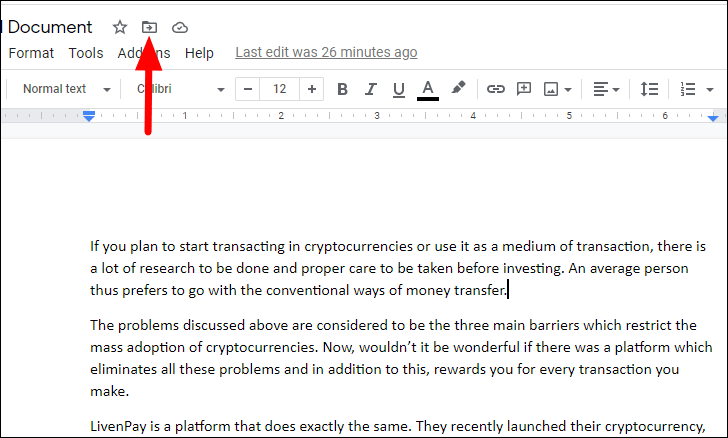
New Folder icon located at the bottom of the window to create a new folder.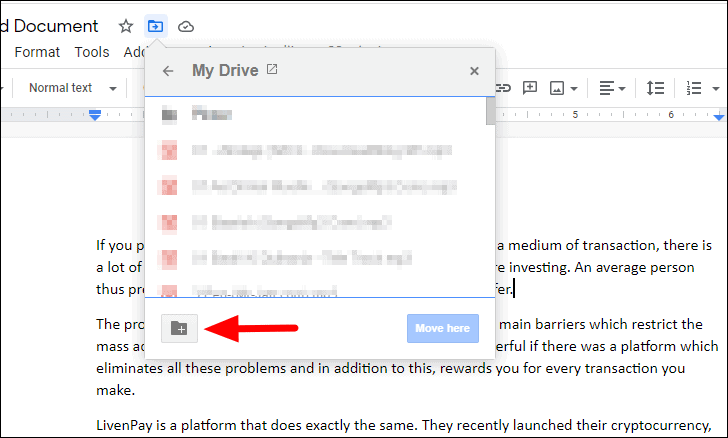
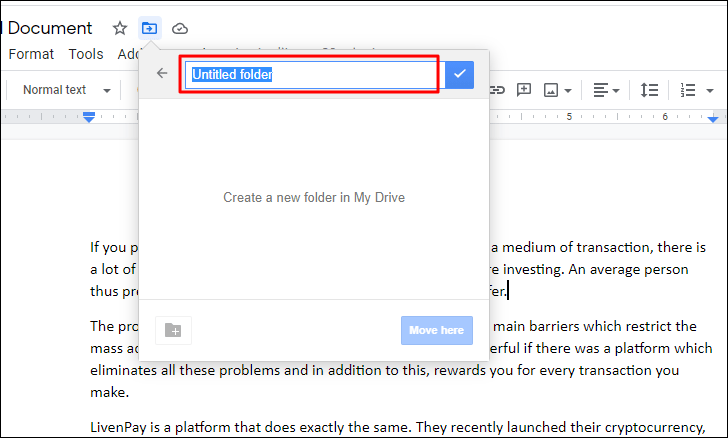
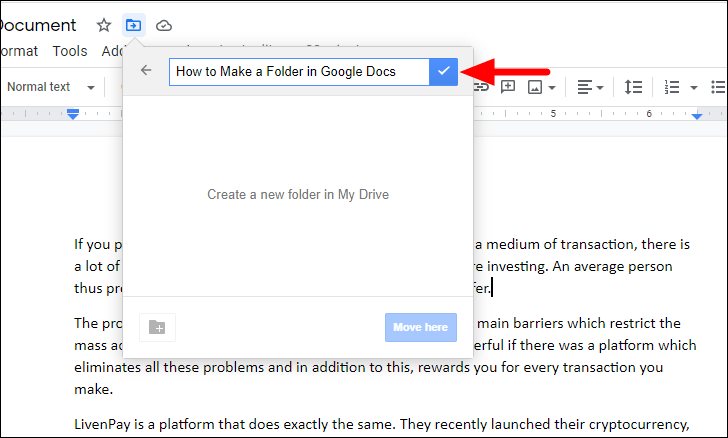
The folder is now created, and you can start adding documents and files to it directly from Google Docs.
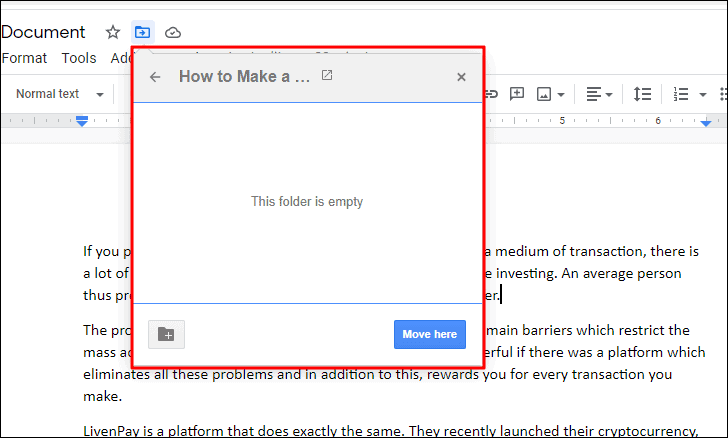
Adding documents and files to a folder in Google Docs
You can further organize your work by adding files and creating sub-folders within the folder you’ve just made. This categorization simplifies file management and improves accessibility.
Open folder in a new tab icon. This will open the folder in Google Drive in a new browser tab.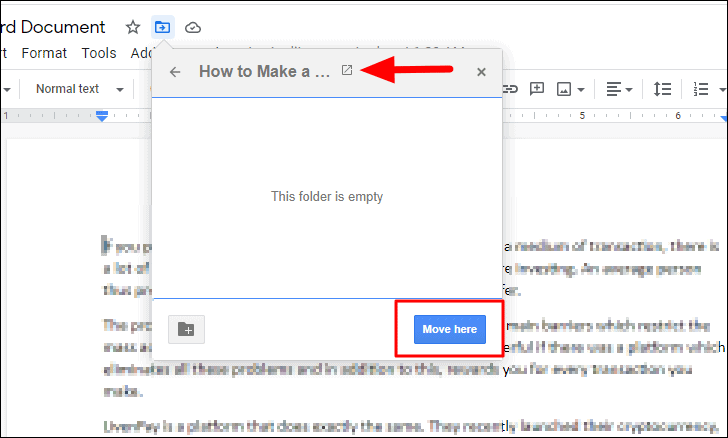
If you want to move the current document into this folder, click on the Move here button at the bottom of the dialog. This will place the document into the folder in Google Drive for easier access in the future.
New button at the top-left corner.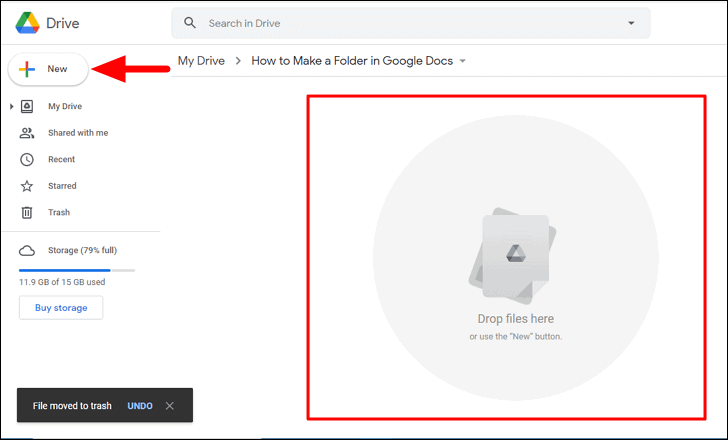
New button, a dropdown menu will appear with several options. To create a sub-folder, select Folder. To upload files from your computer, choose File upload, or select Folder upload to upload an entire folder. You can also create new Google Docs, Sheets, Slides, and other files directly from this menu.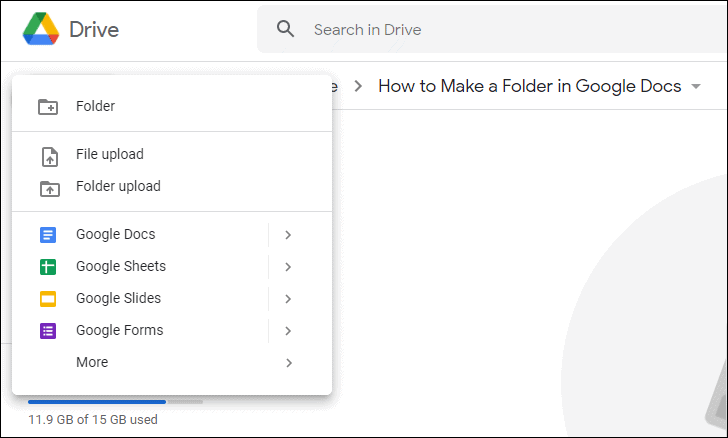
You can continue adding more files and sub-folders to organize your documents effectively. Proper organization saves time by making it easier to navigate through your documents without switching between multiple tabs or windows.
By creating folders and organizing your documents directly in Google Docs, you enhance your productivity and streamline your workflow, making it effortless to manage and access your files whenever you need them.