

Double-spacing text in Microsoft Word enhances readability and makes documents appear more professional. While Word defaults to single-spacing, adding extra space between lines can be necessary for certain documents or formatting requirements. However, keep in mind that double-spacing can increase the length of your document, which may lead to higher printing costs and might not be suitable for all types of documents.
Double-space selected text
Using the ‘Paragraph’ dialog box
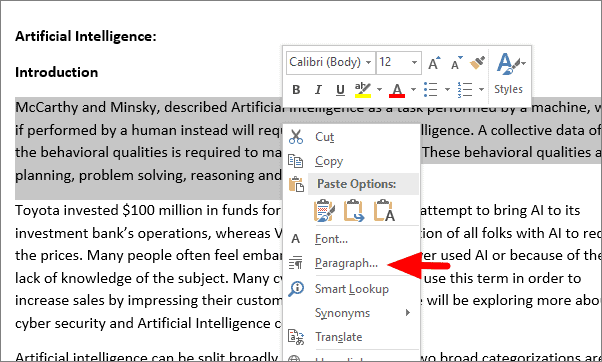
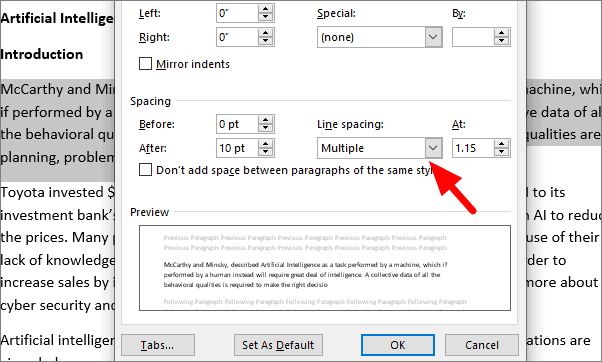
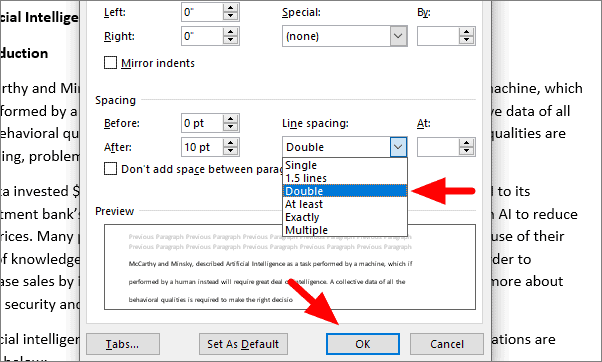
The selected text will now be double-spaced, adding extra space between each line for improved readability.
Using the ‘Home’ tab
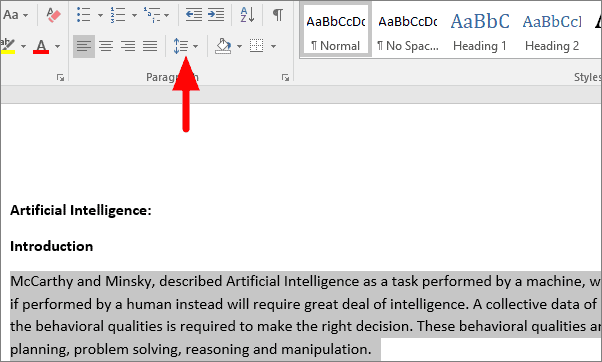
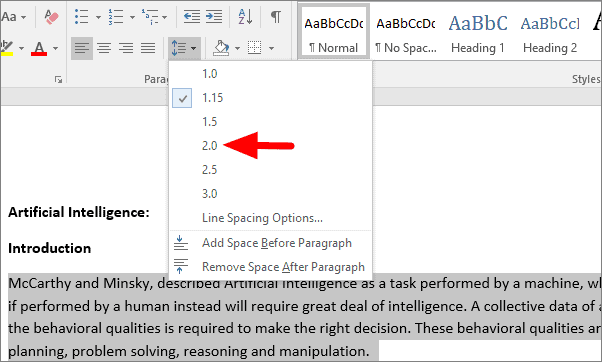
After selecting 2.0, the spacing between lines in the highlighted text will increase, applying the double-spacing format.
Double-space the entire document
You can also apply double-spacing to your entire document with a few simple steps.
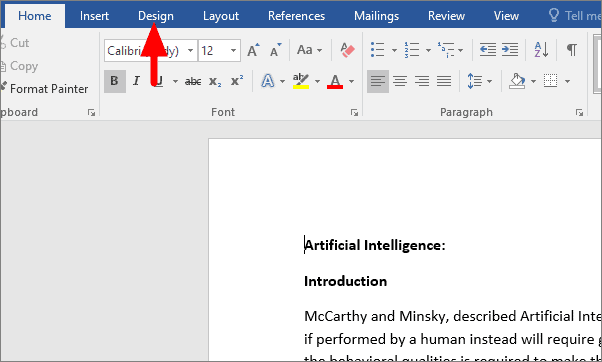
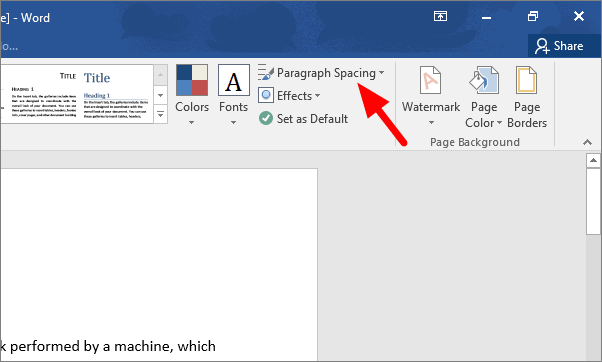
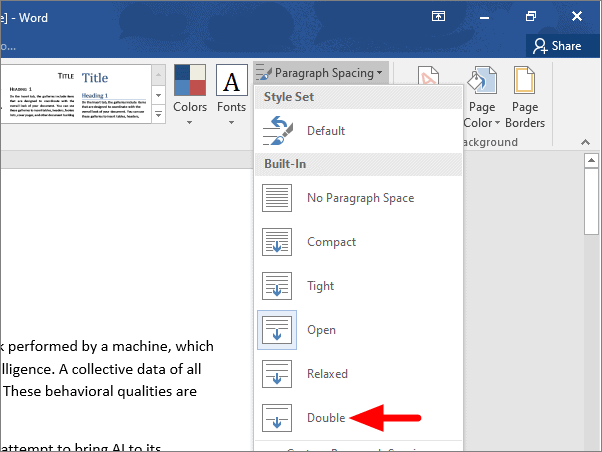
The entire document will now be formatted with double-spacing, increasing the space between all lines of text.
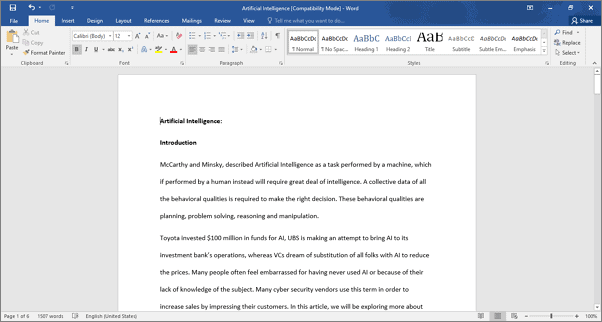
By following these methods, you can easily adjust line spacing in Microsoft Word to suit your document’s needs, enhancing its readability and presentation.





