


Tracking whether your emails have been opened can be incredibly useful, especially for important or time-sensitive messages. While most email services don’t offer this feature by default, the ‘Email Tracker’ Chrome extension provides an easy and free solution to monitor your sent emails.
By installing this extension, you can start tracking your emails sent through Gmail in Chrome, receiving updates until you choose to uninstall the extension.
Using Email Tracker Extension
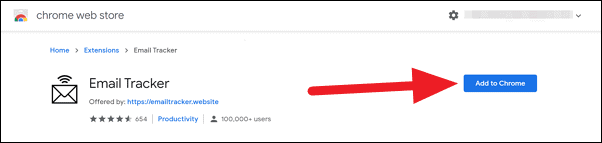
The Email Tracker is available as a Chrome extension, and you’ll need to install it to begin tracking your emails.
Head over to the Chrome Web Store and search for ‘Email Tracker’. Alternatively, you can use this direct link to access the extension’s page.
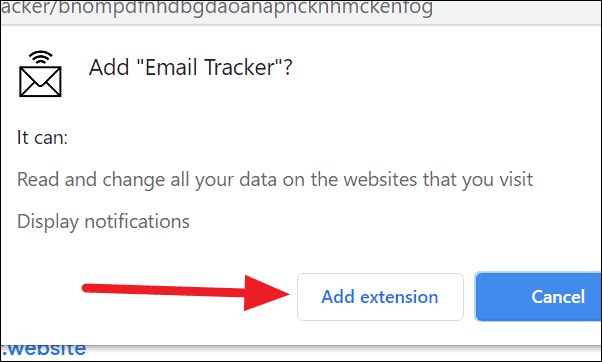
After installation, the Email Tracker icon will appear in your Chrome toolbar.
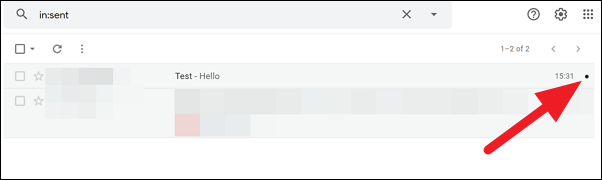
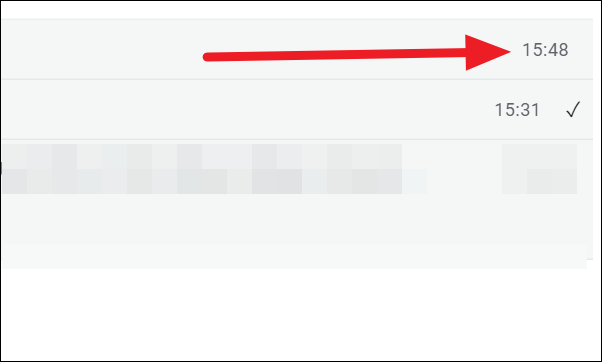
Once you’ve sent the email, navigate to your Sent folder. You’ll notice a small black dot next to the email you just sent.
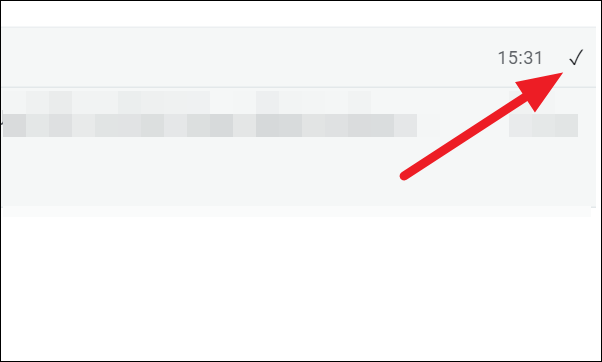
Hovering over the check mark will provide details such as how many times the email was opened and the timestamps of each opening.
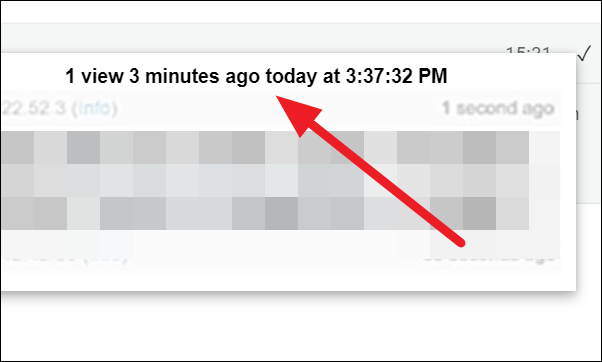
Upgrading to the pro version of the extension unlocks additional information, including the IP address from which the email was opened, geolocation data, and the device used.
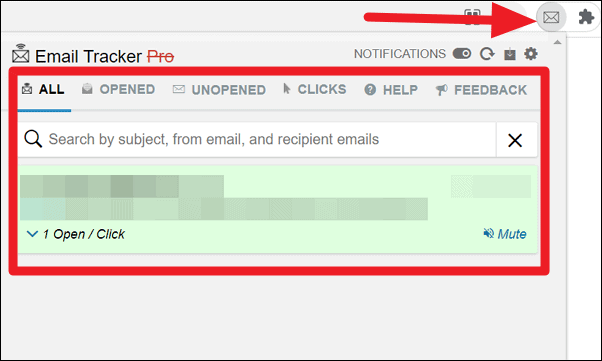
The extension also offers a comprehensive report of your sent emails and their statuses. To access this report, click on the ‘Email Tracker’ icon in the Chrome toolbar.
Sending Emails Without Tracking
There may be occasions when you prefer not to track an email. Email Tracker allows you to choose whether or not to track each email you send.
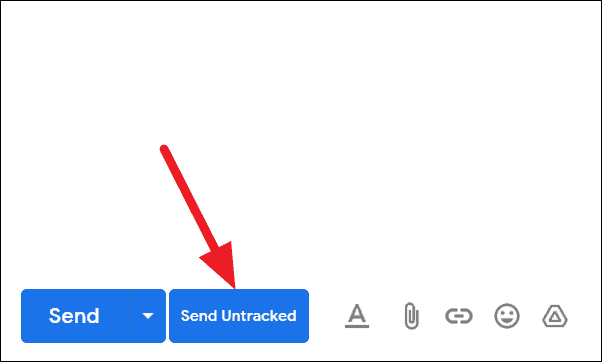
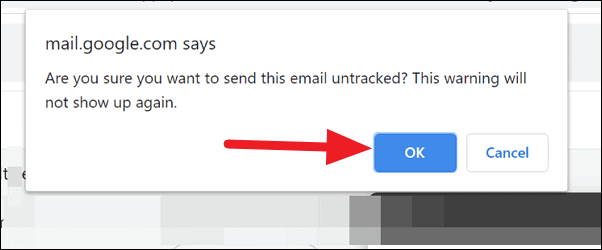
A confirmation prompt will appear. Click ‘Ok’ to confirm that you want to send the email without tracking.
Your email will be sent without being tracked. In your Sent folder, you’ll notice the absence of the black dot next to untracked emails.
Enabling Desktop Notifications
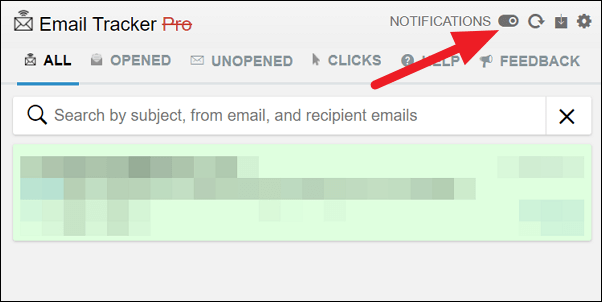
To receive alerts when your emails are opened, you can enable desktop notifications in the extension’s settings.
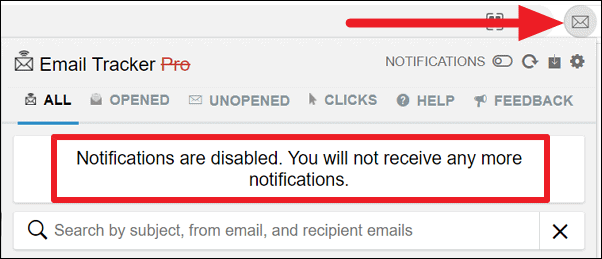
Keep in mind that Email Tracker functions as a Chrome extension, so it only works on desktop computers using the Chrome browser. Emails must be sent through the Gmail website in Chrome to be tracked. Tracking and notifications are available only within the browser and won’t function on the Gmail mobile app.





