Applying strikethrough formatting in Google Docs allows you to mark text that is to be deleted or revised without removing it entirely from your document. While the strikethrough option isn’t available directly on the toolbar, it’s easy to apply using a keyboard shortcut or the Format menu.
Using a keyboard shortcut to strikethrough text
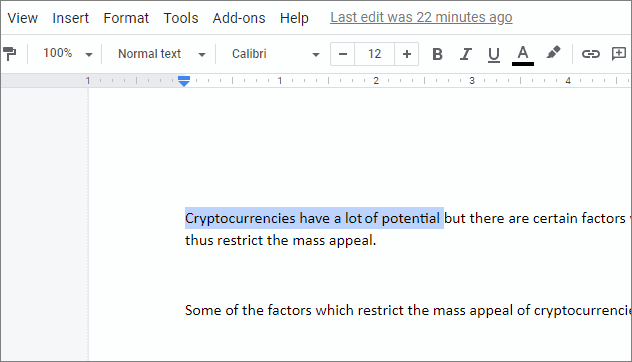
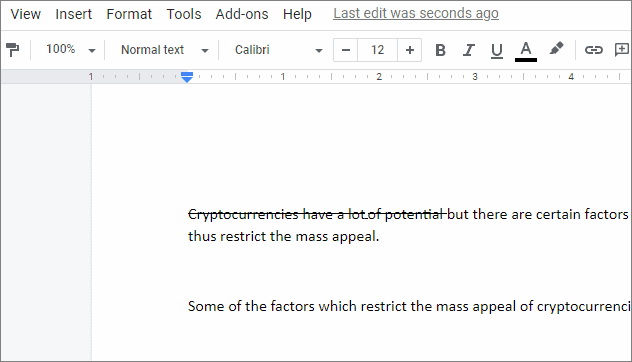
ALT + SHIFT + 5 to apply the strikethrough formatting to the selected text.The text will now appear with a line through it, indicating that strikethrough formatting has been applied.
Using the Format menu to strikethrough text
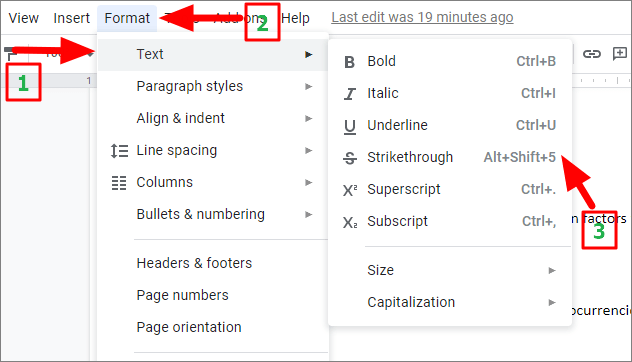
The selected text will now have a line drawn through it, just as it does when using the keyboard shortcut.
To remove the strikethrough formatting, simply highlight the text again and use the keyboard shortcut ALT + SHIFT + 5 or go back to the Format menu and deselect the Strikethrough option.
Using strikethrough in Google Docs is a straightforward way to manage edits and communicate changes without deleting content entirely. Whether you prefer using keyboard shortcuts or navigating through the menu, you can easily apply and remove strikethrough formatting as needed.