
Subscript formatting in Google Docs is essential for properly displaying mathematical expressions, chemical formulas, and other specialized notations. Efficiently applying subscript to your text enhances readability and conveys precise information in your documents.
Typing in subscript using keyboard shortcuts
Press
CTRL + , on your keyboard to activate the subscript formatting mode. This shortcut toggles the subscript feature, allowing you to type text that appears below the baseline.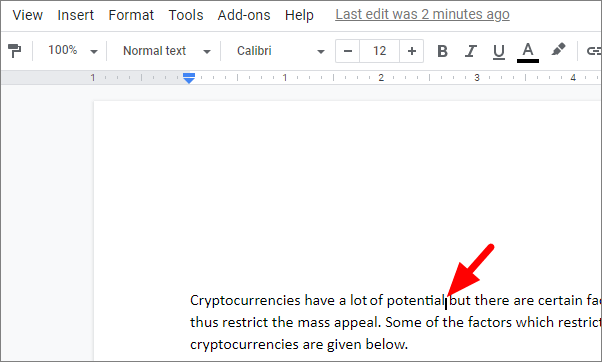
Type the text you want to appear in subscript. The characters will now display in subscript format as you type.
To return to normal text formatting, press
CTRL + , again. This will toggle off the subscript mode so you can continue typing standard text.Applying subscript to existing text
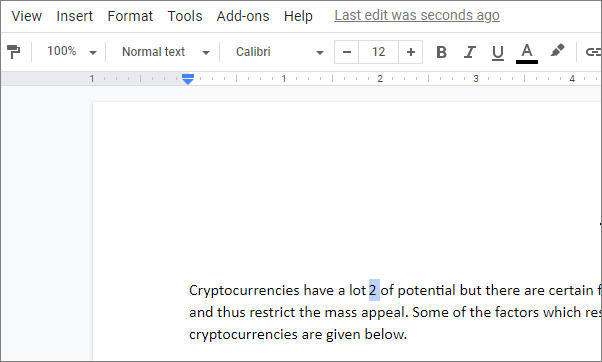
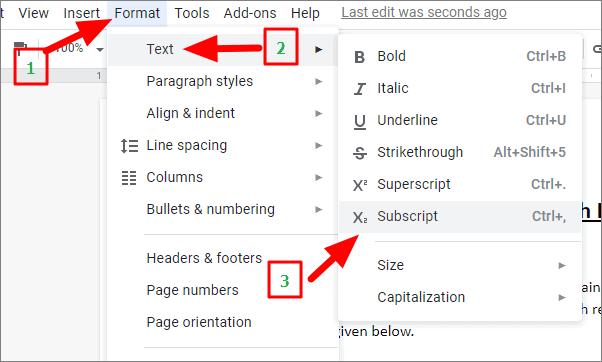
In the dropdown menu, hover over Text, then select Subscript from the extended menu. This will convert the selected text into subscript format.
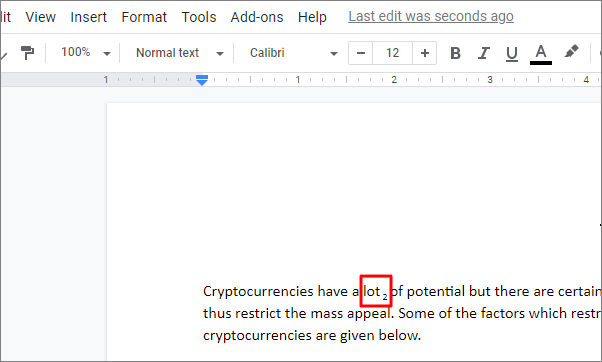
By utilizing these methods, you can effectively add subscript text in Google Docs, enhancing the clarity and professionalism of your documents.