

Zoom enables a large number of participants to join a video call, making it an excellent tool for hosting extensive online meetings and events. However, when using Zoom through the web browser client, the option to view all participants simultaneously with the ‘Gallery View’ feature is unavailable. To access this functionality in Chrome, you need to install the Zoom app specifically designed for the Chrome browser.
Installing the Zoom App for Chrome
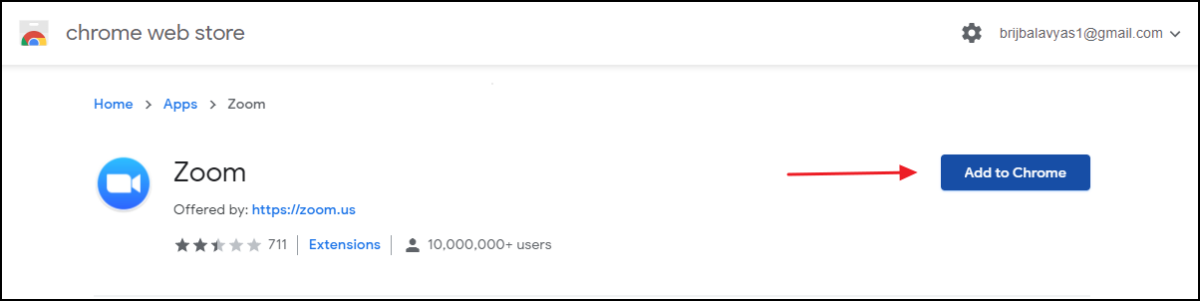
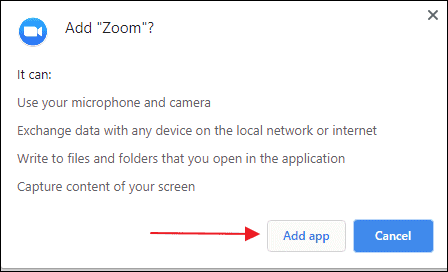
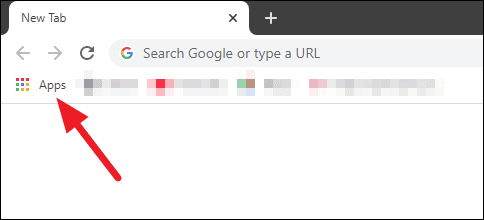
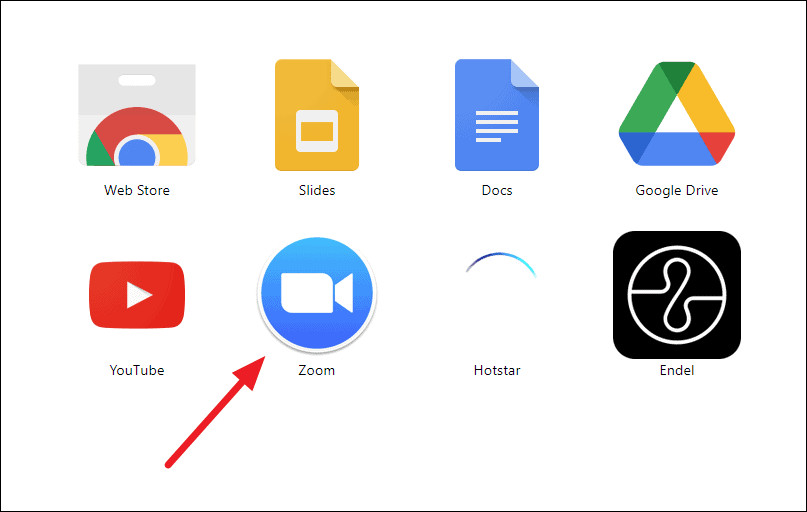
The official Zoom app for Chrome provides the ‘Gallery View’ feature, similar to the Zoom desktop applications for Windows and Mac. To install the app, open the Chrome Web Store and search for ‘Zoom’, or click the button below to navigate directly to the app’s page.
Enabling ‘Gallery View’ in the Zoom Chrome App

All meeting participants will now appear in a grid layout, allowing you to see everyone at once in the meeting.
By installing the Zoom app for Chrome and enabling the ‘Gallery View’ feature, you can enhance your meeting experience by viewing all participants simultaneously, even when using Zoom in your web browser.





