
The Google Chrome address bar, known as the ‘Omnibox’, offers more than just a place to type website URLs. It’s a powerful feature that enhances browsing by allowing users to perform various tasks directly from the address bar, providing a streamlined and efficient search experience.
One aspect of the Omnibox is the ‘Rich Search Suggestions’ feature. This provides certain information, such as images, directly in the search suggestions without needing to perform a full search. While this can be helpful, the images that appear can sometimes be distracting or unnecessary for some users.
Comparing Rich Search Suggestions With and Without Images
The inclusion of images in search suggestions is intended to enhance search efficiency, but it doesn’t appeal to everyone. For example, typing ‘will’ might prompt a suggestion for “Will Smith” along with his photo, which might feel intrusive to some users.
Here’s how ‘Rich Search Suggestions’ appear with images:
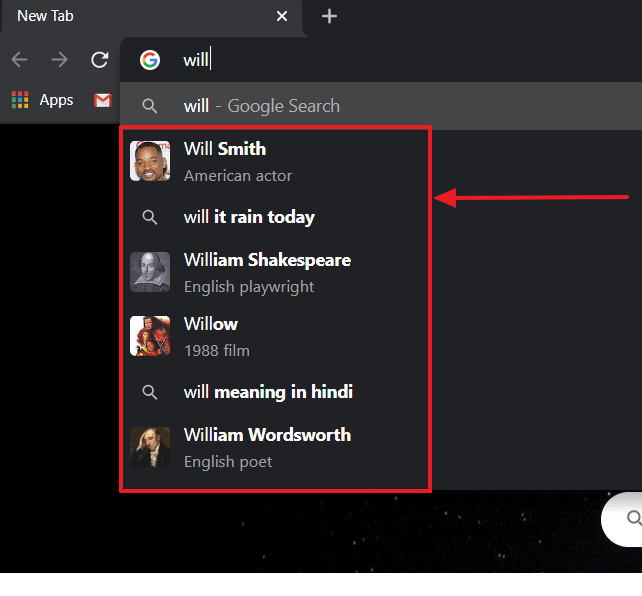
Celebrity names, movies, and other popular culture references often trigger image suggestions in the Omnibox, which can be bothersome for users seeking a cleaner interface.
In contrast, this is how the search suggestions look without images:
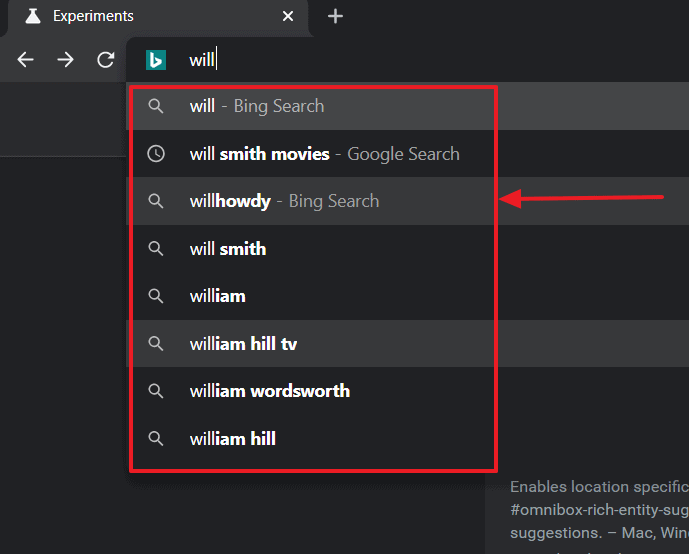
Without images, the suggestions are less intrusive, making them preferable for many users, especially when using Chrome for work or research.
How to Disable Images in Chrome Search Suggestions
Although Chrome doesn’t offer a straightforward setting to disable rich entity results, you can turn off the images in search suggestions by adjusting one of its experimental features. Here’s how to do it:
chrome://flags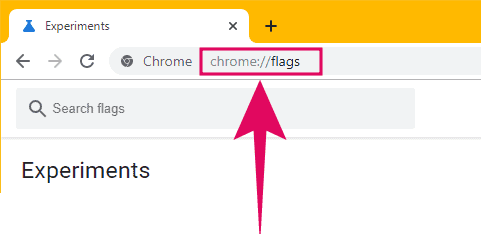
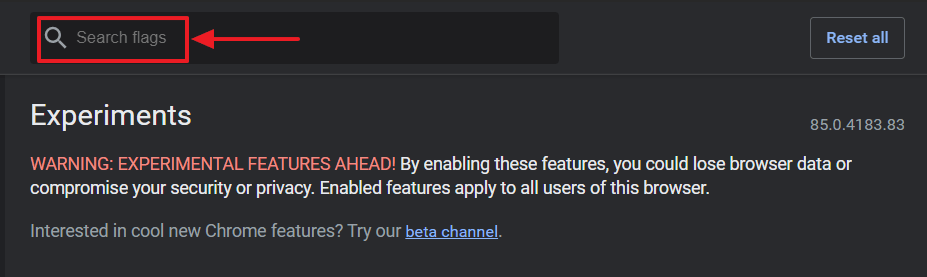
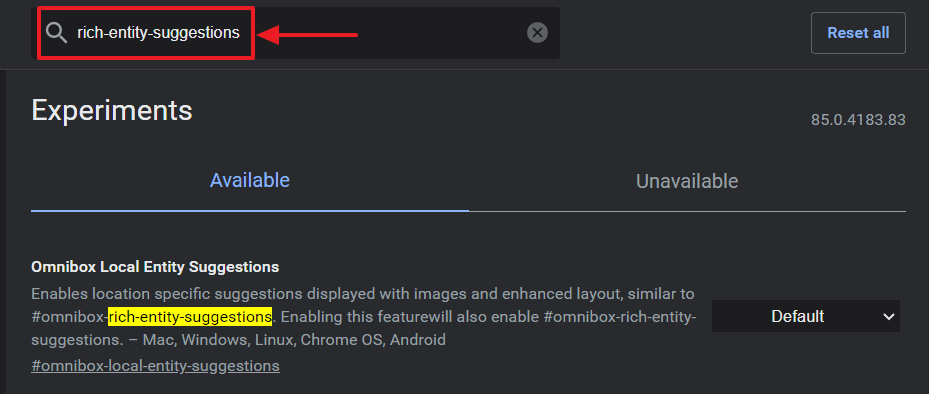
The default setting for this flag is enabled, meaning rich entity suggestions with images are active.
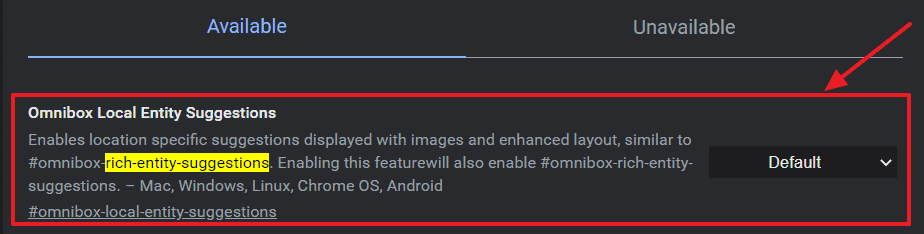
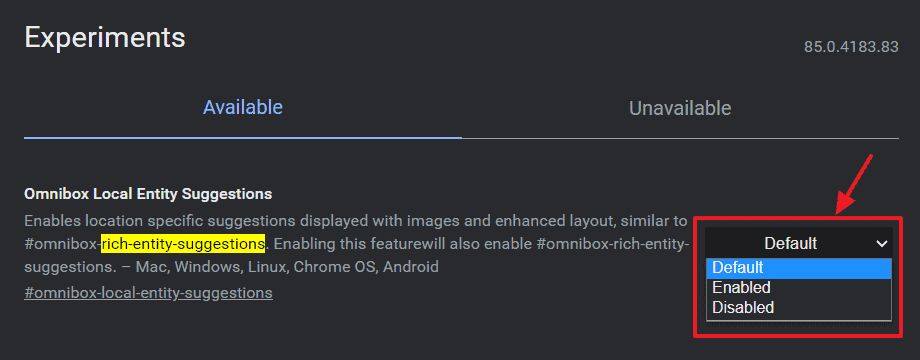
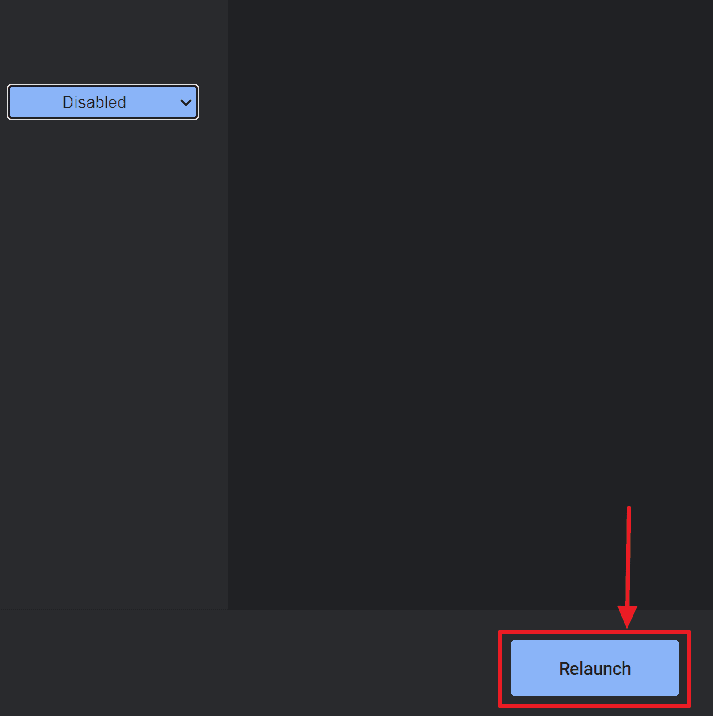
Once Chrome restarts, the images in your search suggestions should no longer appear.
If you wish to re-enable the rich search suggestions with images in the future, simply follow the same steps and select Enabled or Default for the “Omnibox Local Entity Suggestions” flag.





