Recording your Google Meet sessions is a great way to keep track of important discussions or share them with team members who couldn’t attend. If you’re not sure how to record meetings, here’s a guide on how to record a Google Meet. However, locating these recordings afterward can sometimes be confusing. Here’s how you can find and access your Google Meet recordings.
Where do Google Meet recordings go?
Any participant within the same organization as the meeting organizer can record a Google Meet session from a desktop browser. However, regardless of who starts the recording, it is always saved to the meeting organizer’s Google Drive account.
The person who initiated the recording, along with the organizer, will receive an email containing a link to the recording. This link can be shared with others, and the recording can be downloaded directly from it.
If the meeting was scheduled through Google Calendar, the recording link is automatically added to the event details. This means attendees can access the recording directly from their calendar.
How to view a Google Meet recording
Now that you know where your Google Meet recordings are stored, let’s explore how to access them.
In Google Drive
If you’re the meeting organizer, you can access the recording directly from your Google Drive. Log in to Google Drive with the same account you used for the meeting.
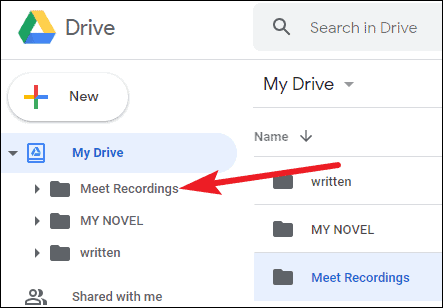
Recordings stored in your Google Drive can be easily shared or downloaded.
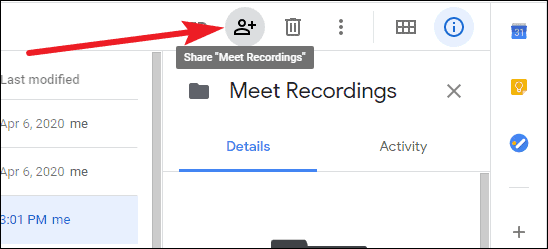
To share the recording: Select the file, then click on the ‘Share’ icon. Enter the email addresses of the individuals you wish to share the recording with.
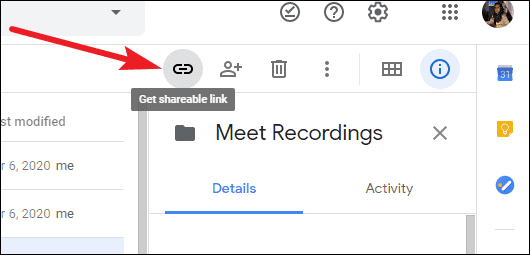
You can also click on the ‘Get link’ icon to generate a shareable link, which you can send via email or chat.
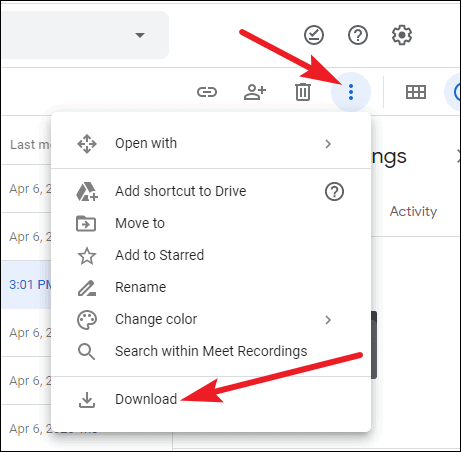
To download the recording: Select the file, click on the ‘More actions’ icon (three vertical dots), and choose ‘Download’ from the dropdown menu.
From the email link
If you’re the meeting organizer or the person who started the recording, you’ll receive an email with a link to the recording once it’s available.
To share the recording: You can forward the email containing the link or click on the ‘More actions’ icon (three vertical dots), select ‘Share’, and enter the email addresses of the recipients. You can also download the recording by clicking the ‘Download’ button available in the email link.
In the Google Calendar event
If the meeting was scheduled through Google Calendar and the recording started during the scheduled time, the recording link is automatically added to the event details.
Attendees from the same organization as the organizer can access the recording directly from their Google Calendar.
Recording and accessing your Google Meet sessions is straightforward once you know where to look. Whether you need to review important discussions or share the meeting with others, these methods ensure you can find and manage your recordings efficiently.