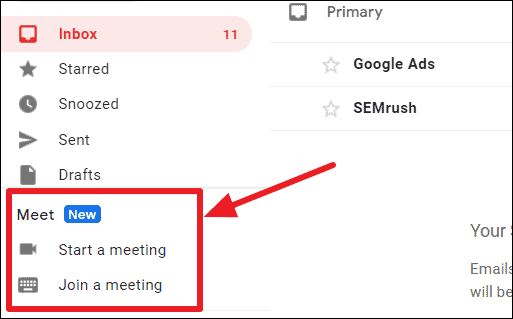
Google Meet offers a seamless way to conduct virtual meetings, and its integration into Gmail makes the process even more efficient. You can now start or join meetings without leaving your inbox, making it easier to connect with colleagues, friends, or family right from Gmail.
How to create a Google Meet from Gmail
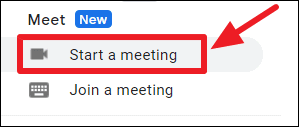
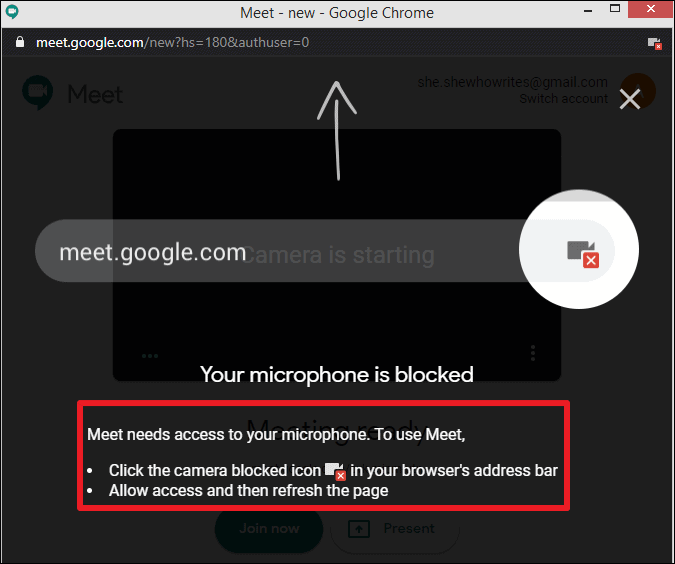
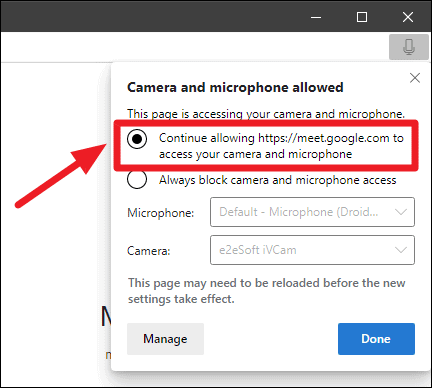
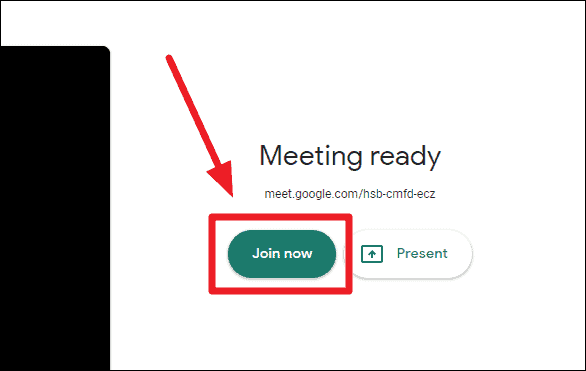
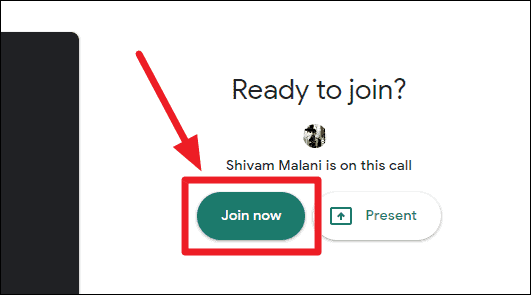
The ‘Present’ option enables you to share your screen immediately upon joining, which is particularly useful for presentations or teaching sessions.
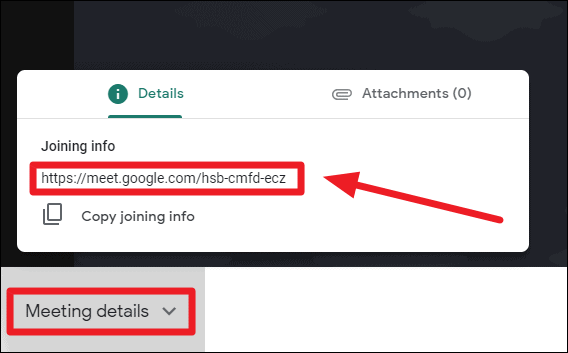
Use the ‘Copy joining info’ button to copy the meeting link and details. You can then share this information via email, chat, or any other communication tool.
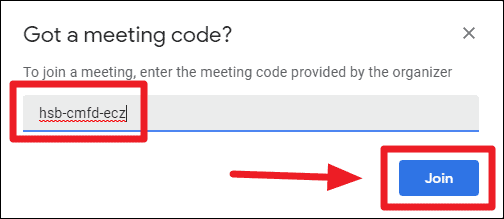
Getting the Google Meet code: To extract the meeting code from the link, simply copy the portion of the URL that appears after the slash (/). This code can be shared with participants who will join using the ‘Join a meeting’ option.
For example, from the link:
https://meet.google.com/hsb-cmfd-eczThe meeting code is:
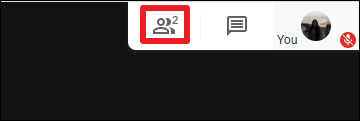
hsb-cmfd-eczWhen someone tries to join your meeting, you’ll receive a notification to admit them. The participant count will update to reflect the number of people in the meeting.
How to join a Google Meet in Gmail
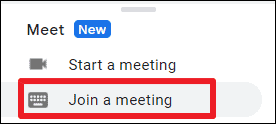
If you have a Google Meet meeting code, you can join the meeting directly from Gmail without needing to open a new tab or window. (If you have a meeting link, you can click on it to join immediately.)
By integrating Google Meet into Gmail, Google has streamlined the process of joining and initiating meetings, allowing you to manage your communications more effectively within a single platform.