Although Google Meet provides a solid platform for video conferencing, it lacks built-in options for applying virtual backgrounds or visual effects. However, you can still customize your video feed by using the 'Visual Effects for Google Meet' Chrome Extension. By installing this extension, you can add virtual backgrounds, blur your background, and apply other fun visual effects during your Google Meet sessions. Here's how to set it up and use it: Step 1: Go to the Chrome Web Store using a bro
Although Google Meet provides a solid platform for video conferencing, it lacks built-in options for applying virtual backgrounds or visual effects. However, you can still customize your video feed by using the ‘Visual Effects for Google…
by Sakshi Garg
Although Google Meet provides a solid platform for video conferencing, it lacks built-in options for applying virtual backgrounds or visual effects. However, you can still customize your video feed by using the ‘Visual Effects for Google Meet’ Chrome Extension.
By installing this extension, you can add virtual backgrounds, blur your background, and apply other fun visual effects during your Google Meet sessions. Here’s how to set it up and use it:
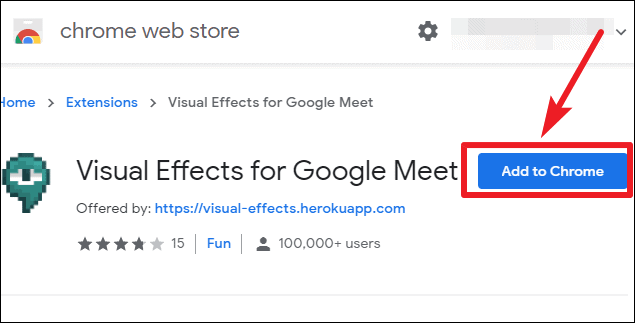
Go to the Chrome Web Store using a browser that supports Chrome extensions. You can search for ‘Visual Effects for Google Meet’ or click the button below to go directly to the extension page.
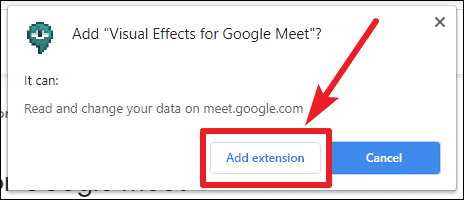
A confirmation dialog will appear. Click ‘Add extension’ to confirm the installation. The extension icon will be added to your browser’s toolbar and will activate when you use Google Meet.
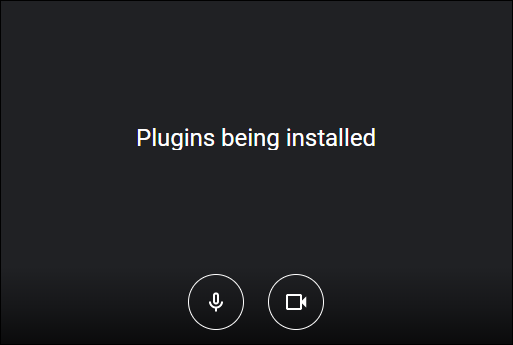
Open meet.google.com and join or start a meeting as you normally would. On the ‘Meeting ready’ page, you might see a message saying ‘Plugins being installed’ on the preview screen. Wait a few seconds for it to complete before clicking ‘Join now’.
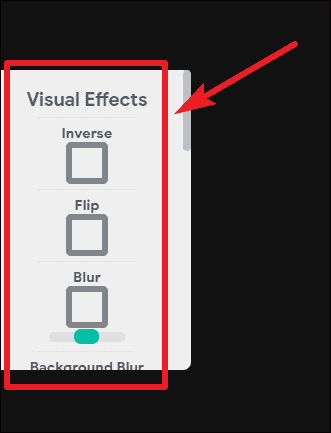
Choose the visual effects you want to apply by checking the corresponding boxes. Options include AI effects like ‘Background Blur’, ‘Virtual Green Screen’, ‘Sunglasses AR’, as well as various 2D and 3D effects.
If your camera is turned off, the extension toolbar might not appear. Make sure your camera is on to access the visual effects.
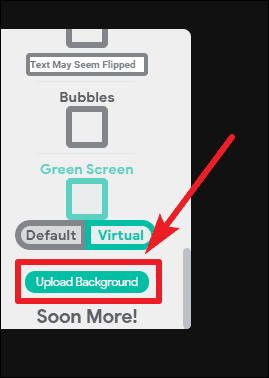
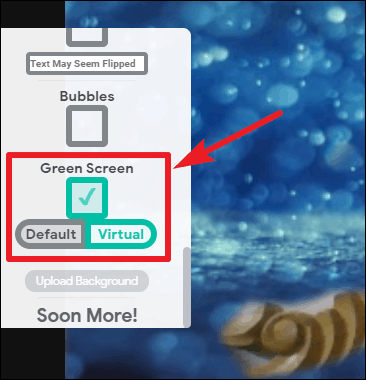
After uploading, check the ‘Green Screen’ effect to apply the background. Select ‘Default’ if you have a physical green screen setup, or ‘Virtual’ if you do not.
A preview of the virtual background appears.
When switching between effects, it’s a good idea to deselect the previous effect to ensure a smoother transition to the new one.
By leveraging extensions like ‘Visual Effects for Google Meet’, you can enhance your video meetings with features not natively available in Google Meet. Whether you need to hide your background or add some fun effects, this extension offers an easy way to customize your video feed.