
Google Chrome includes a hidden Reader Mode that simplifies web pages by removing ads and other distracting elements, making articles easier to read. Although it’s an experimental feature, you can enable it manually to enhance your browsing experience.
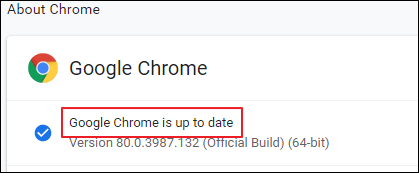
Ensure that your Google Chrome browser is updated to the latest version. To check for updates, click on the Chrome menu, navigate to Help » About Google Chrome, and allow any available updates to install.
In the address bar, type or paste
chrome://flags/#enable-reader-mode and press Enter to open Chrome’s experimental features page.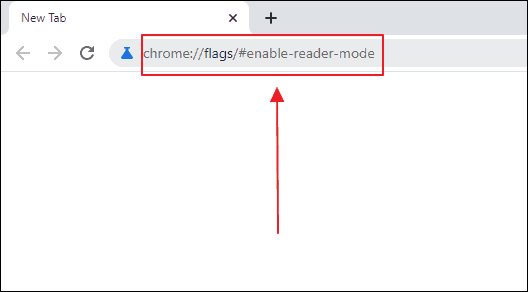
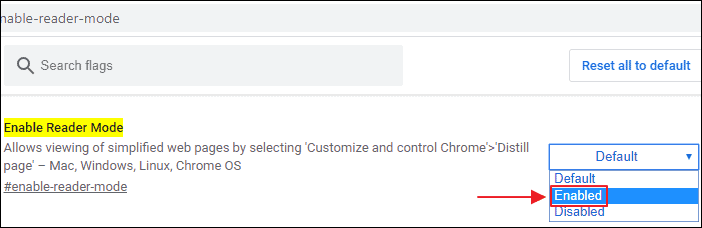
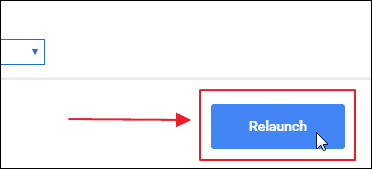
Click the Relaunch button at the bottom-right corner of the page to restart Chrome and apply the changes. Be sure to save any work before relaunching.
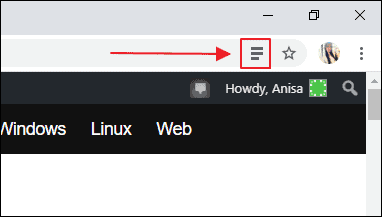
After Chrome restarts, open any article or webpage. You’ll notice a new Reader Mode icon (three horizontal lines) in the address bar next to the bookmark icon. Click this icon to activate Reader Mode for the current page.
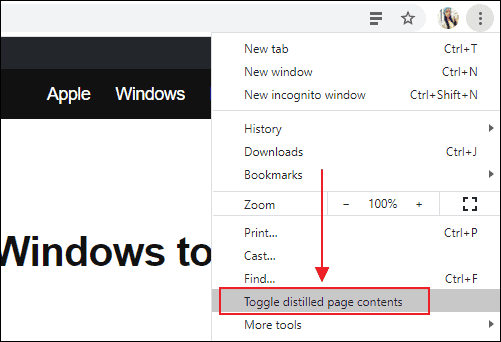
Alternatively, you can activate Reader Mode from the Chrome menu. Click on the three-dot menu icon, and select Toggle distilled page contents to enable Reader Mode for the page.
By enabling Reader Mode, you can enjoy a cleaner and more focused reading experience on your favorite websites.





