
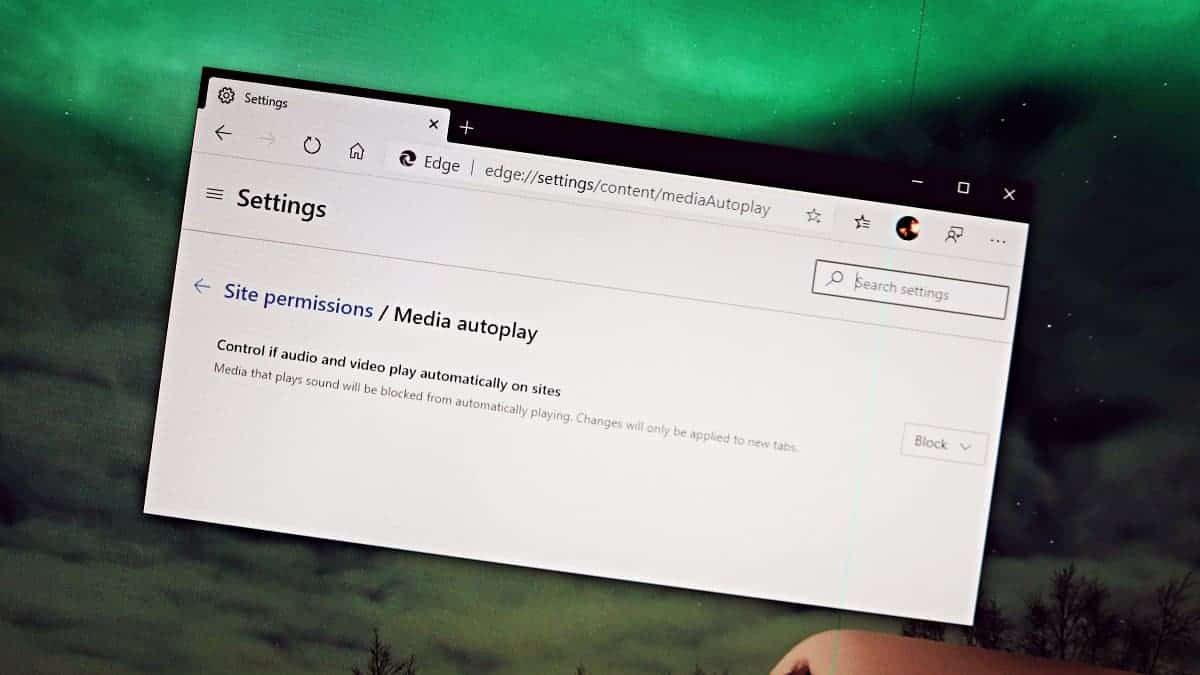
Auto-playing videos on websites can be both annoying and disruptive, especially when they suddenly start with sound in quiet environments. If you’re using the latest version of Microsoft Edge, there’s a way to prevent these videos from playing automatically. Microsoft Edge offers a feature that allows you to completely block all auto-playing media on the websites you visit.
Although this feature is experimental and considered a flag within the browser community, it can help you regain control over media playback. However, remember that enabling experimental features may affect browser performance or security. Proceed with caution.
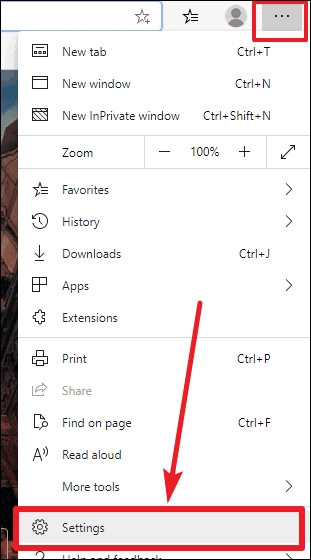


Here, you’ll find settings that control if audio and video media can play automatically on sites. By default, there are two options: Allow and Limit. The Limit option restricts media from playing automatically on sites where you’ve previously blocked media playback, but it doesn’t prevent all autoplay media.
edge://flags into the address bar and press Enter. This will open the experimental features page known as “Experiments.”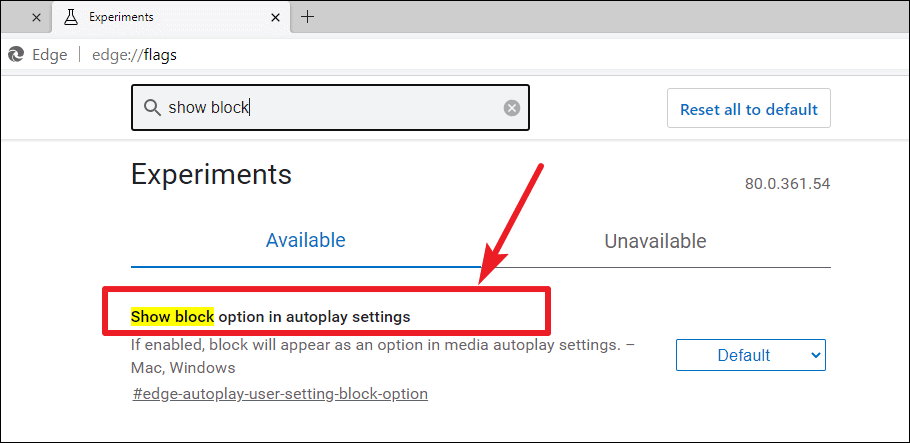
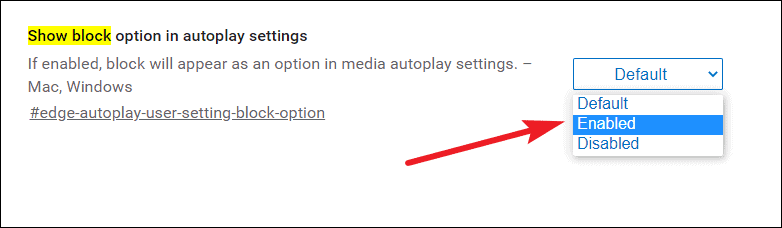
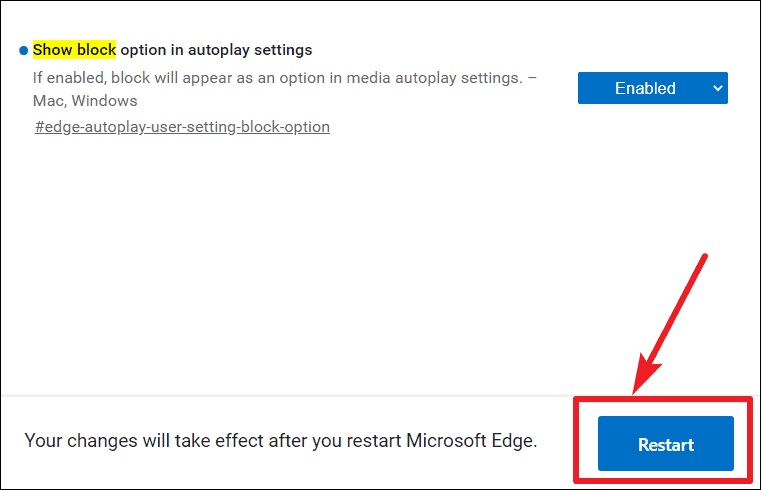
After enabling the flag, a message will appear at the bottom prompting you to restart the browser for the changes to take effect. Ensure that you save any work in open tabs before proceeding.

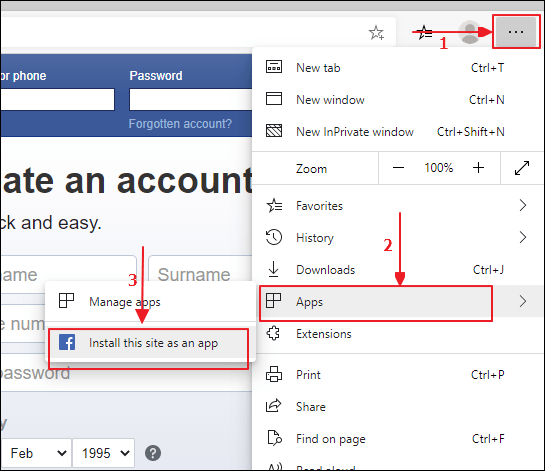
By following these steps, you’ve successfully configured Microsoft Edge to block all auto-playing media with sound. This gives you more control over your browsing experience and prevents unexpected media playback on websites.





