Website alerts from Microsoft Edge are expected to appear in the Windows notification center, but some users notice that notifications either never show up or disappear after restarting the browser. This issue interrupts timely updates from services like YouTube, Gmail, and other web apps that rely on push notifications for real-time alerts. Addressing this problem involves checking both Windows system settings and Edge browser permissions, as well as reviewing site-specific configurations.
Check Windows Notification Settings for Edge
Windows key + I. In the Settings window, select System, then click Notifications from the left sidebar.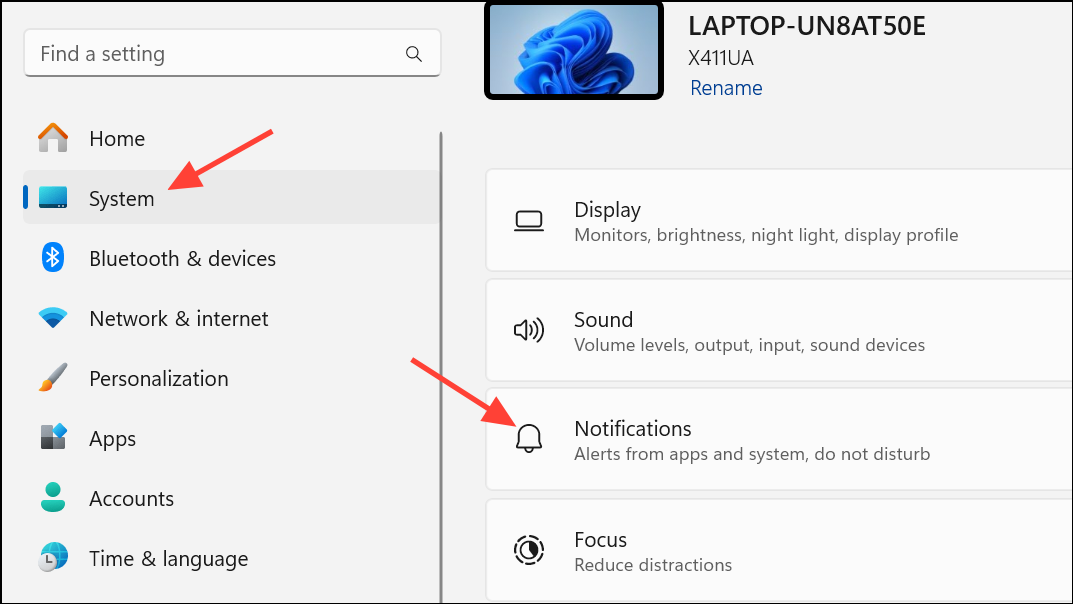
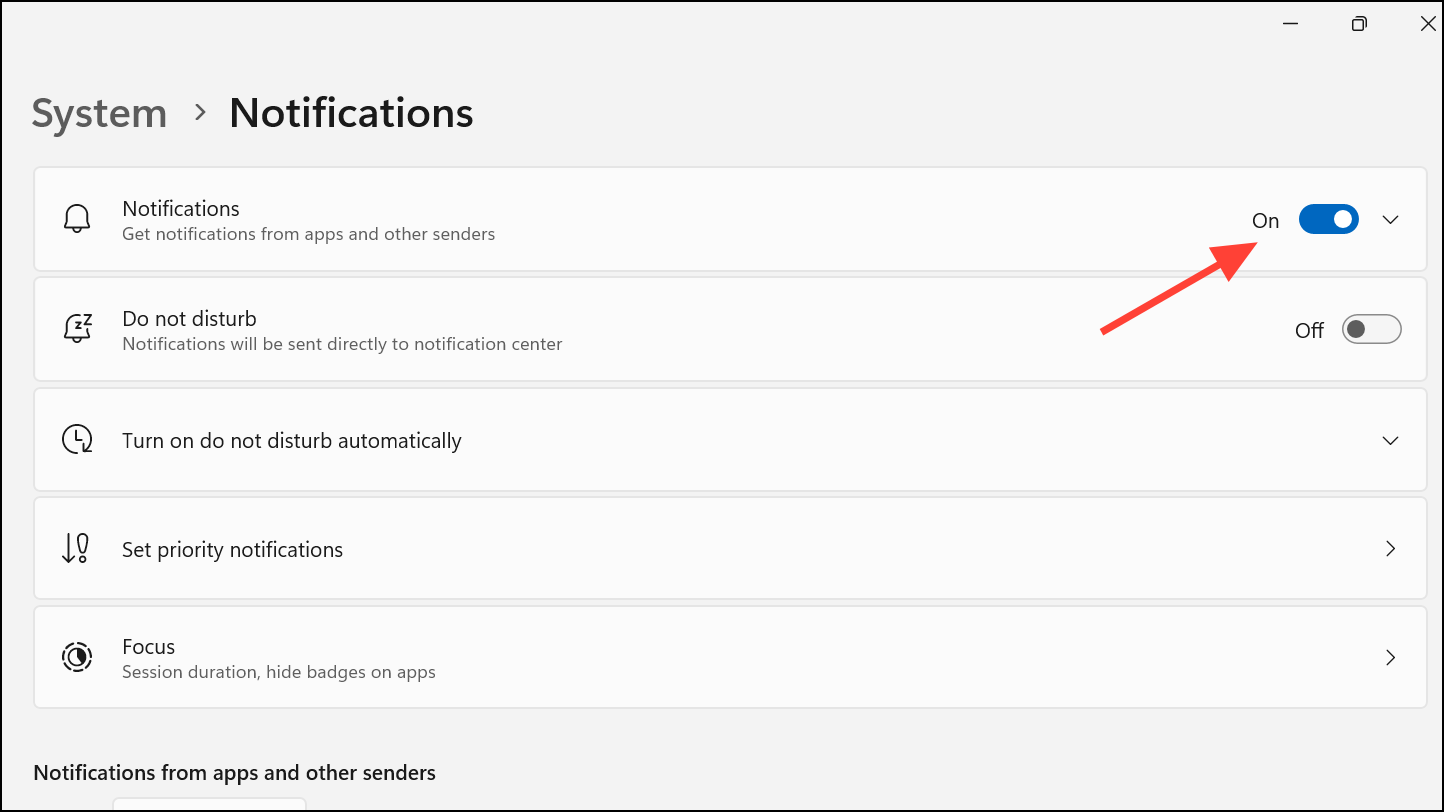
Checking this setting ensures that Edge is allowed to send notifications at the system level. If the toggle is off, notifications will never reach you regardless of browser or site settings.
Review Edge Notification Permissions
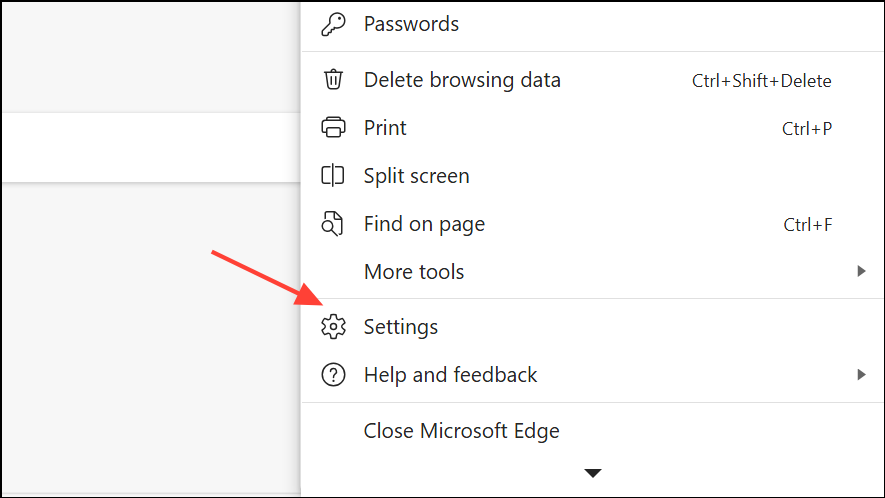
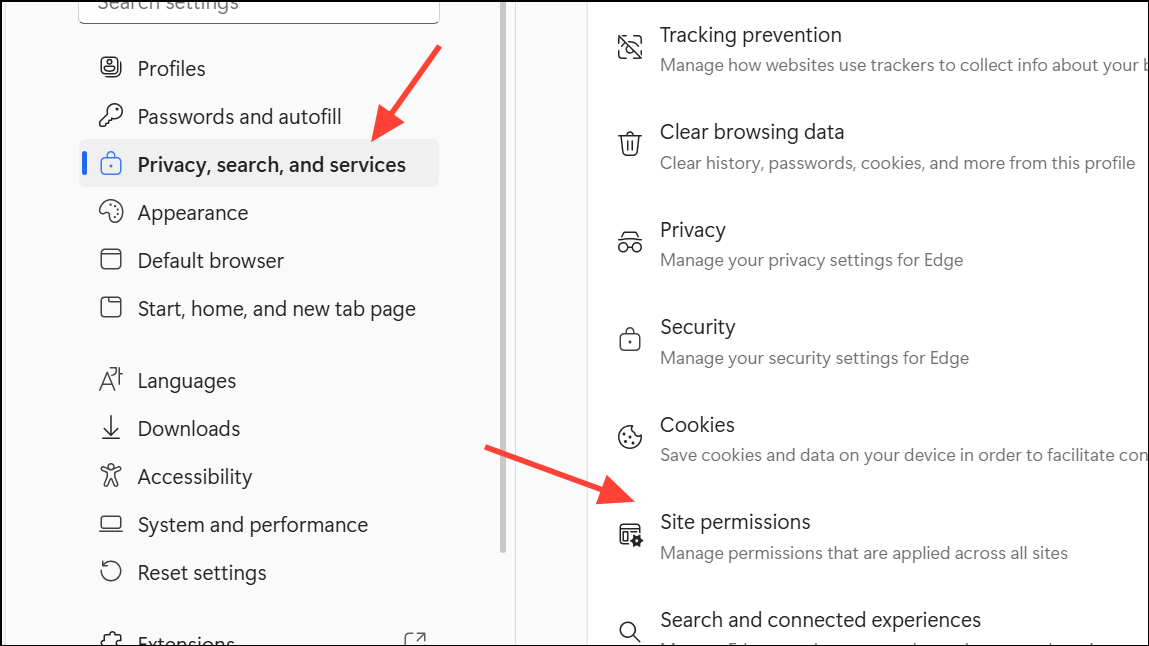
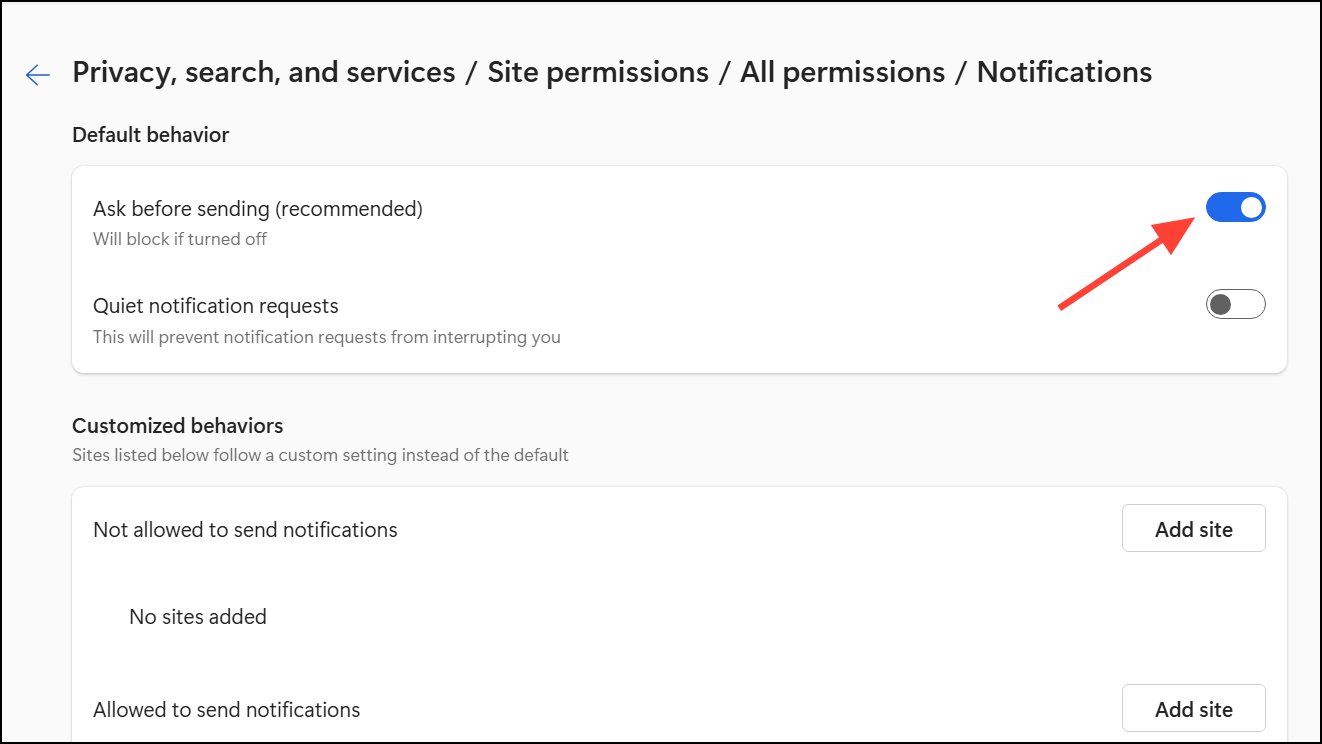
Configuring these permissions ensures that Edge will not silently block notifications from trusted sites.
Adjust Site-Specific Notification Settings
Some web services, such as Gmail or YouTube, have their own notification preferences that operate independently of browser and system settings.
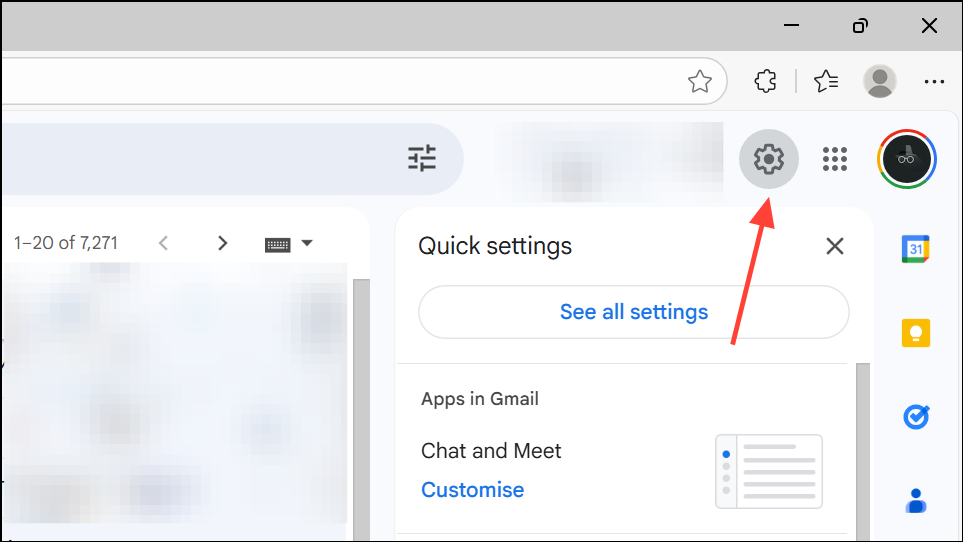
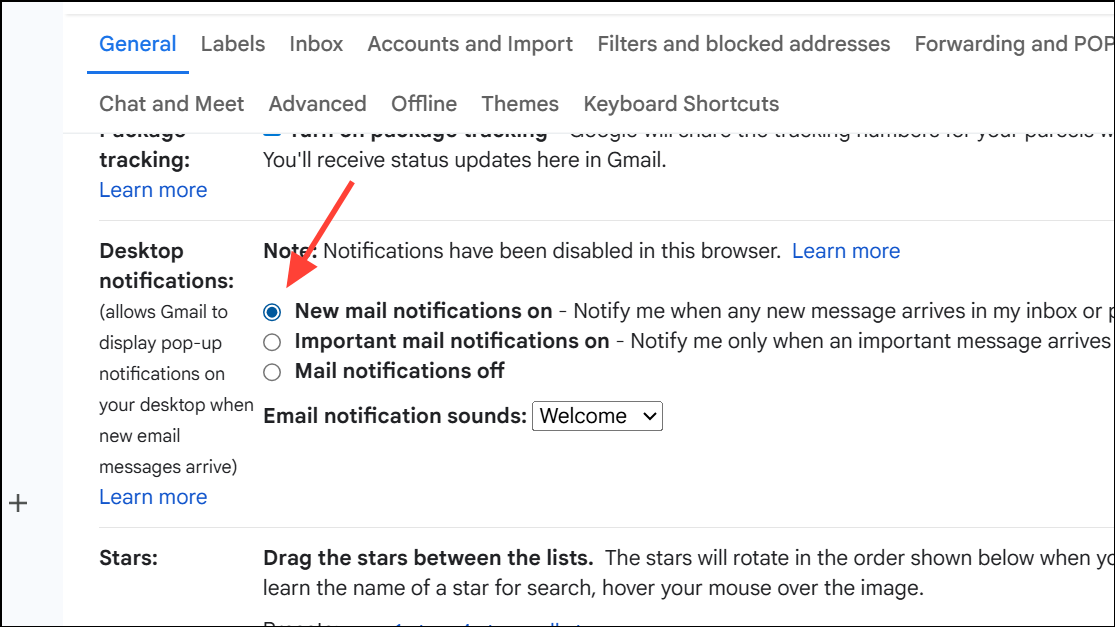
Ensuring that notifications are enabled on the website itself allows Edge to receive and process push requests from that service.
Disable Focus Assist or Do Not Disturb
Windows features like Focus Assist (Windows 10) or Do Not Disturb (Windows 11) can suppress notifications from all apps, including Edge.
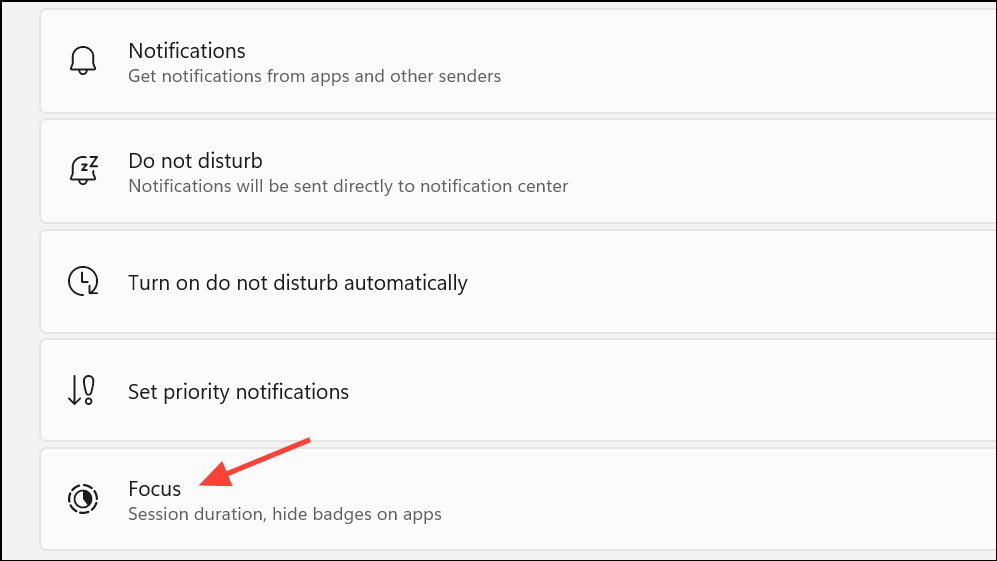
Turning off these modes ensures that notifications are not silently withheld by the operating system.
Clear Edge Browsing Data and Site Settings
Corrupted site data or outdated permissions can prevent notifications from working correctly.
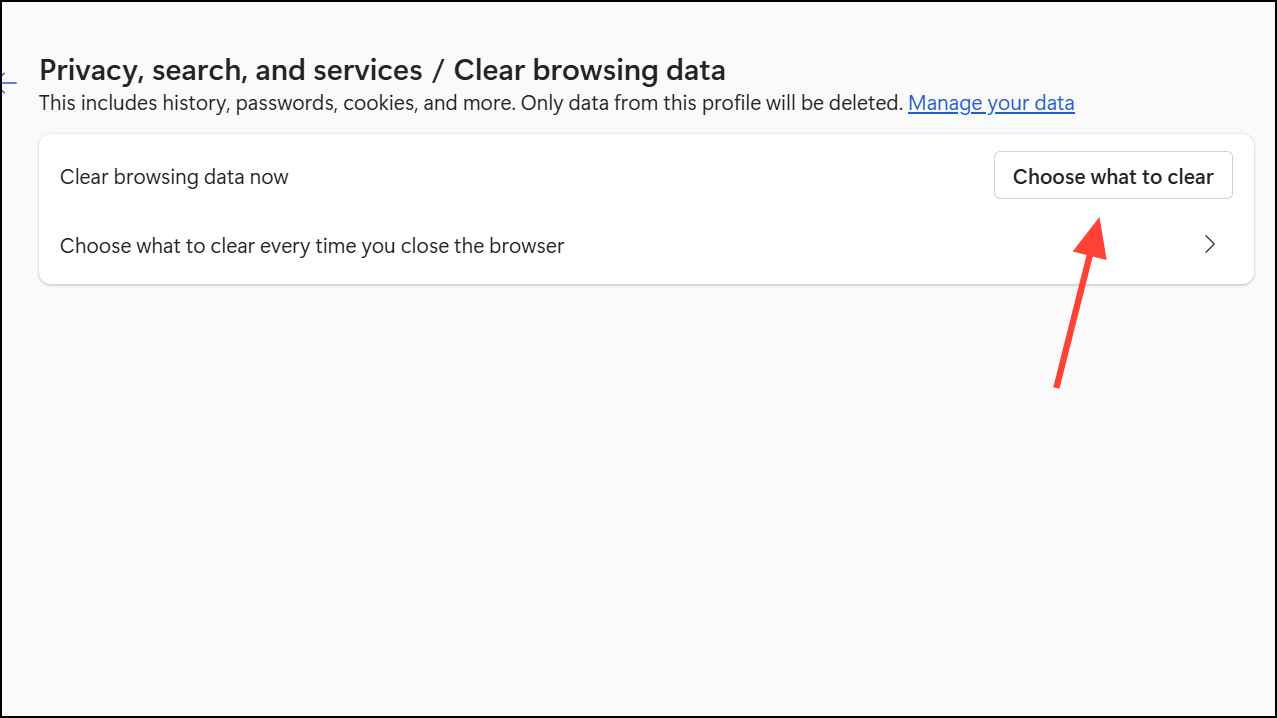
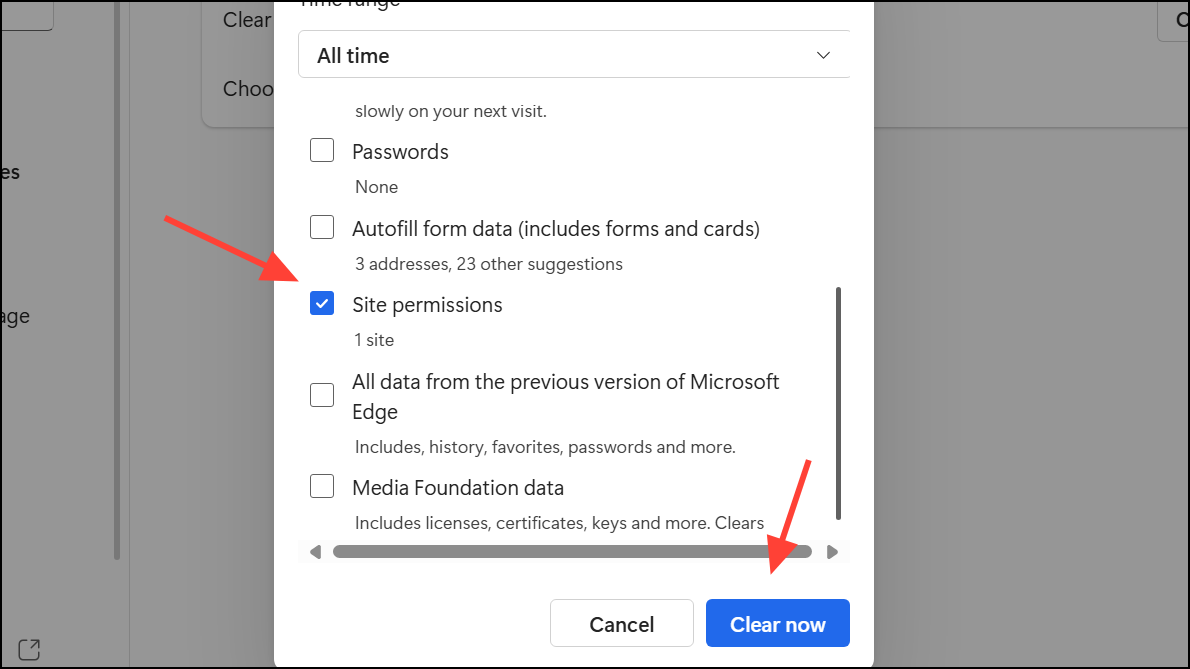
Clearing site data can resolve persistent issues where notification permissions are out of sync between Edge and Windows.
Repair or Reset Microsoft Edge
If all notification settings are correct but alerts still do not appear, Edge itself may be corrupted or misconfigured.
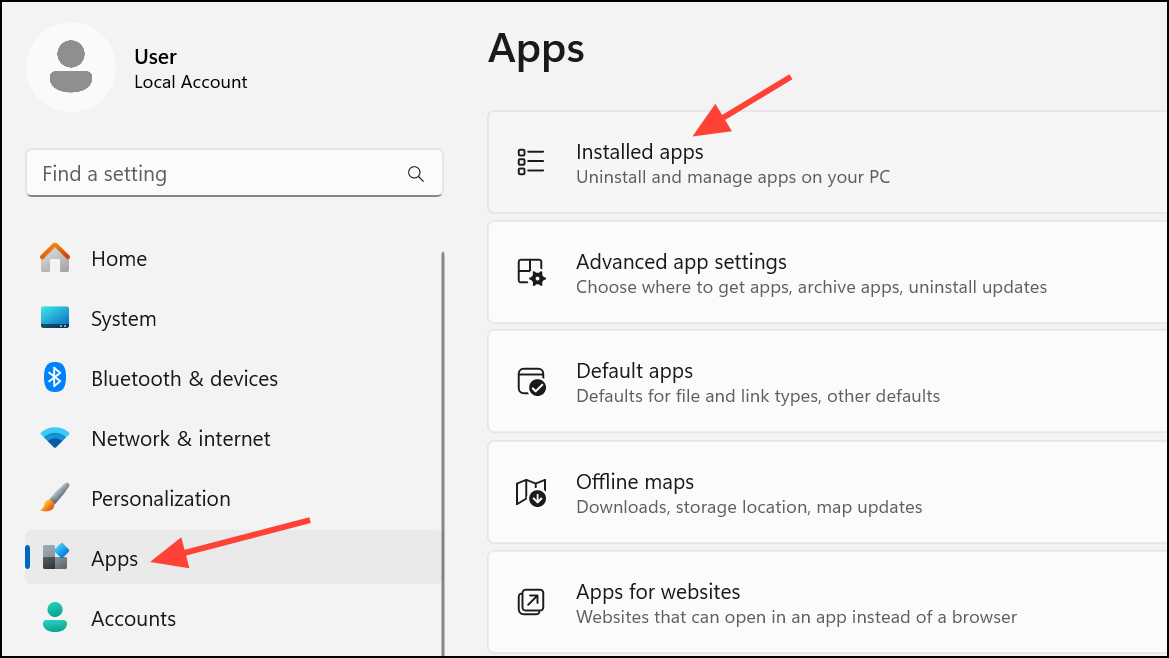
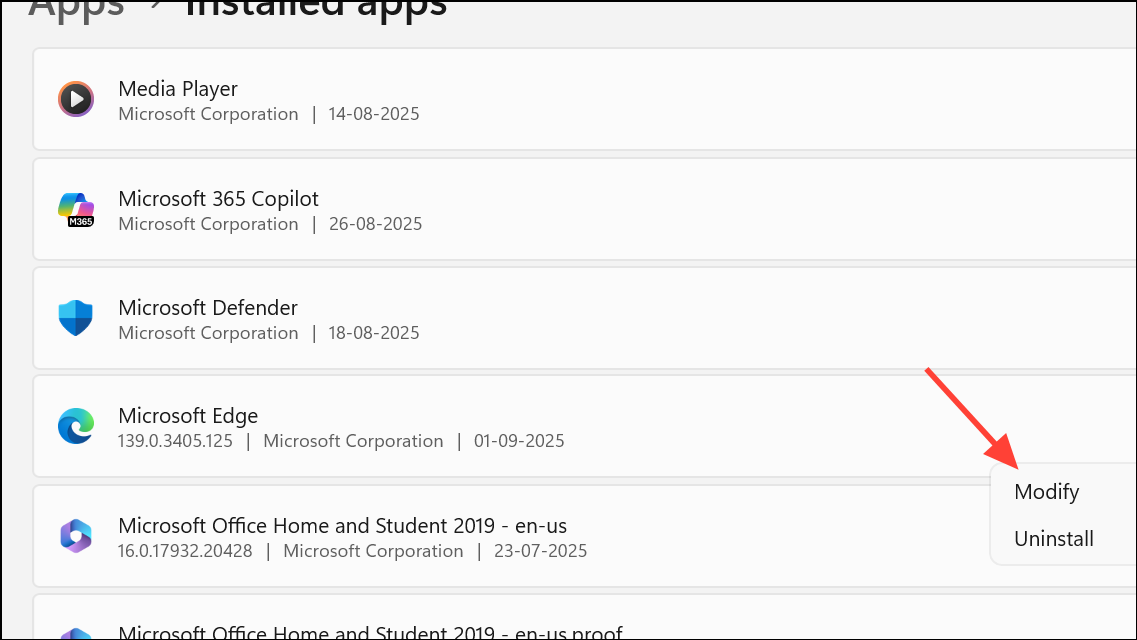
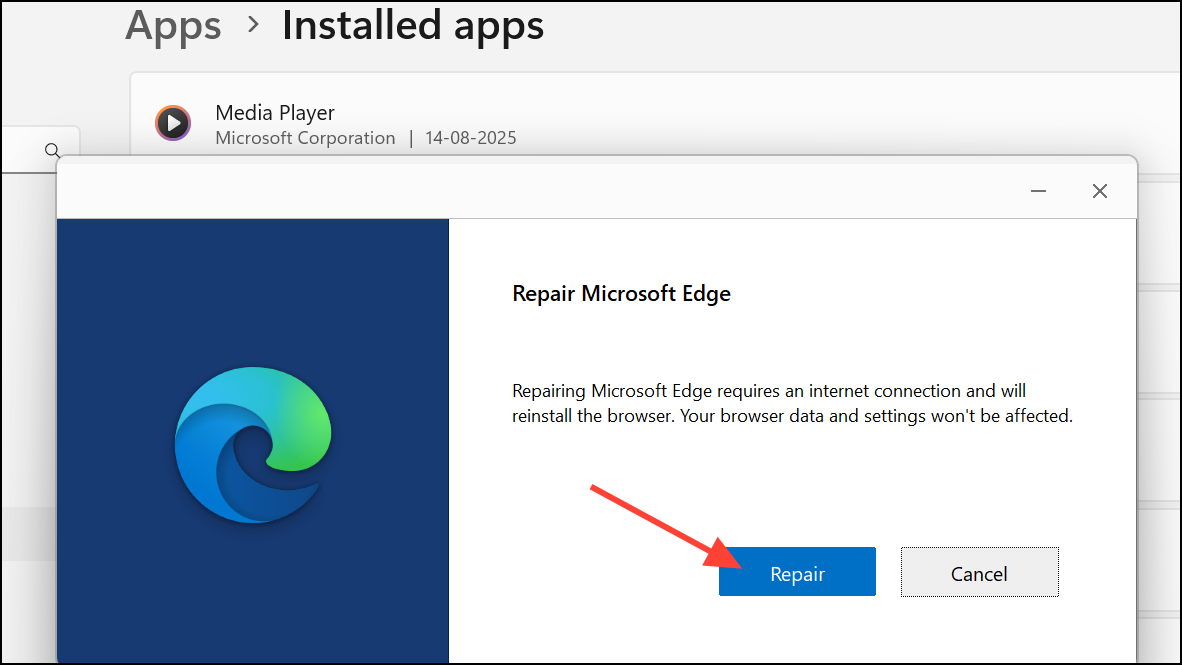
Repairing Edge can restore notification functionality if the browser files are damaged or out of date.
Test with a New Windows User Profile
Notification issues may sometimes be tied to a corrupted user profile, especially if Edge is missing from the system notification sender list or settings do not persist.
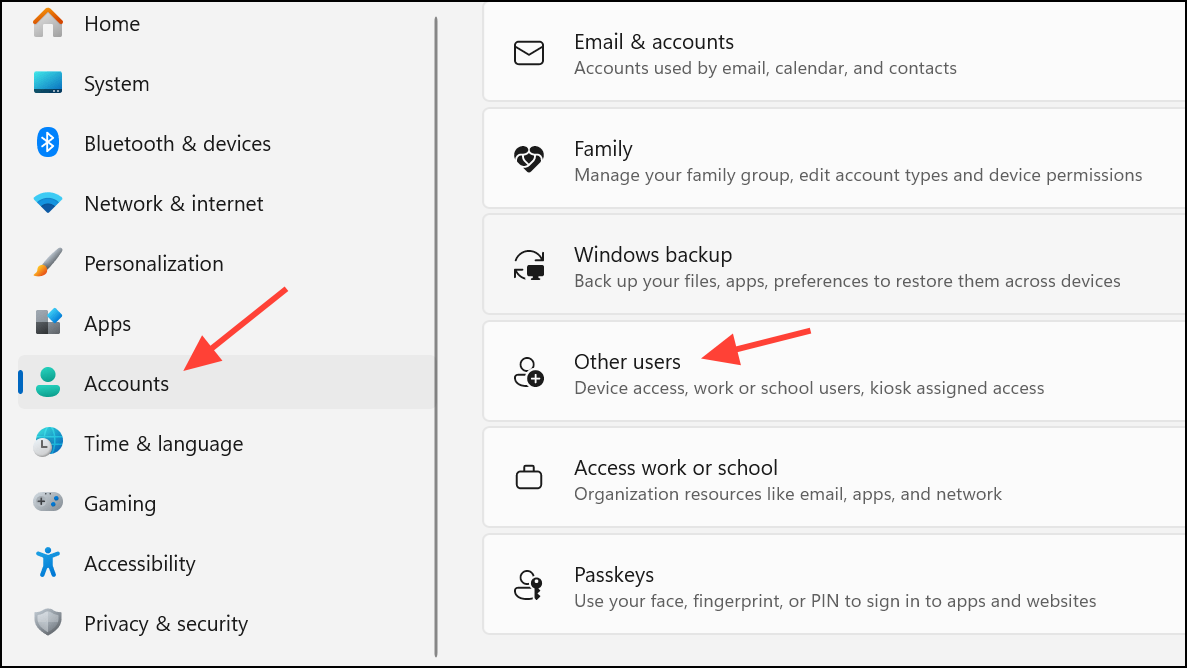
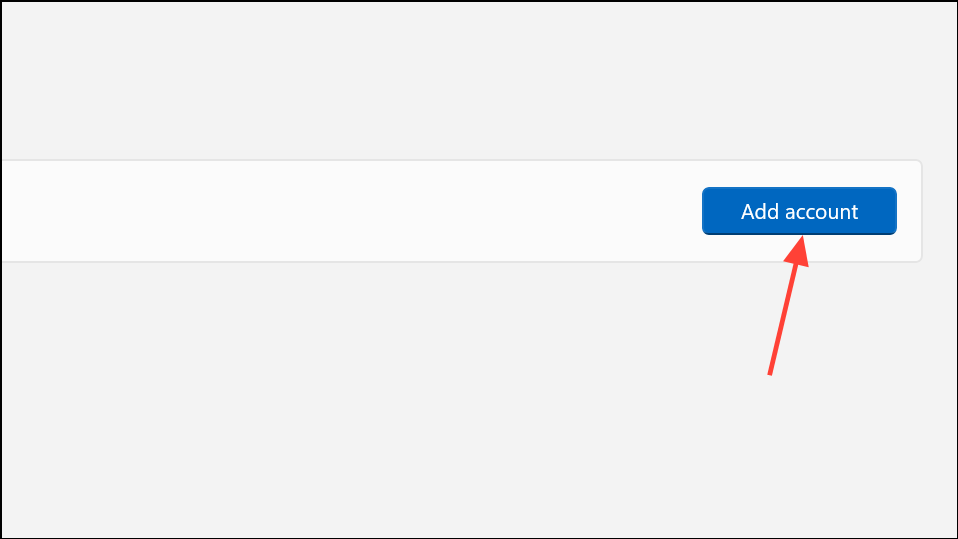
If notifications work in the new profile, consider migrating your data to this account, as the original profile may be permanently affected.
Additional Troubleshooting for Developers
For advanced users or developers working with push notifications, reviewing Windows event logs can provide diagnostic information. Use the Event Viewer to check logs under Microsoft-Windows-TWinUI/Operational or Microsoft-Windows-PushNotifications-Platform for errors related to notification delivery and processing.
Common causes for notifications not displaying include incorrect XML payloads, expired channel URLs, or mismatched headers in push requests. Ensuring that your app or service follows Windows Push Notification Services (WNS) requirements can resolve delivery failures at the system level.
Following these steps should restore reliable push notifications in Microsoft Edge. If notifications remain inconsistent, keep your browser and Windows updated, and periodically review notification permissions for both Edge and your most-used sites.