
Experiencing non-responsive brightness keys on your Ubuntu system can be a common issue, particularly with certain hardware configurations. If you find that the brightness controls on your keyboard aren’t working, there’s a straightforward method to fix this problem.
sudo vim /etc/default/grub
GRUB_CMDLINE_LINUX_DEFAULT. You’ll need to modify this line to include specific kernel parameters that address the brightness control issue. Update the line so it looks like this:GRUB_CMDLINE_LINUX_DEFAULT="quiet splash acpi_backlight=vendor acpi_osi=linux"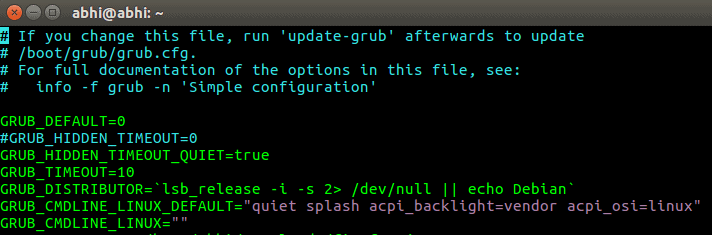
vim, press Escape to enter command mode, then type :wq and press Enter to write the changes and quit the editor.The parameters acpi_backlight=vendor and acpi_osi=linux inform the kernel to use the vendor-specific ACPI (Advanced Configuration and Power Interface) driver for backlight control instead of the generic kernel driver. This adjustment can resolve incompatibilities between the Linux kernel and your system’s hardware that affect brightness keys functionality.
sudo update-grubBy following these steps, you should regain control over your screen brightness using your keyboard’s dedicated keys, improving your overall experience with Ubuntu.