Stutters, frame drops, and the occasional freeze are the most common complaints about Star Wars Zero Company on PC, and they show up even on high-end hardware. The turn-based tactics don’t demand twitch reflexes, so the goal here is stable, consistent frames rather than raw numbers. The right mix of settings does most of the work.
Quick answer: Cap your frame rate at 60 FPS, turn on upscaling (FSR for AMD, DLSS for Nvidia, XeSS for Intel), enable your GPU vendor’s anti-lag option, and lower the CPU-heavy settings first — Hidden Objects Detail, Effect Quality, and View Distance.
Why the game stutters (CPU bottleneck)
Zero Company runs on Unreal Engine 5, and much of its performance trouble is tied to the processor rather than the graphics card. On many systems the CPU spikes at the start of a mission and during cutscenes, while the GPU sits well below full load. That leaves frames on the table and produces hitches that no amount of GPU tuning alone will fix.
Because of this, the single most effective change is capping the frame rate. A 60 FPS limit smooths out pacing on a game that gains nothing from higher numbers. If you are still seeing hitches after that, the next fixes are the settings that hit the CPU rather than the ones that only tax your graphics card.
Recommended graphics settings for Star Wars Zero Company
These values favor a smooth, steady frame rate on mid-range and lower-end hardware. If you have a high-end card and plenty of VRAM, you can raise the GPU-bound options without much penalty.
| Setting | Recommended value | Notes |
|---|---|---|
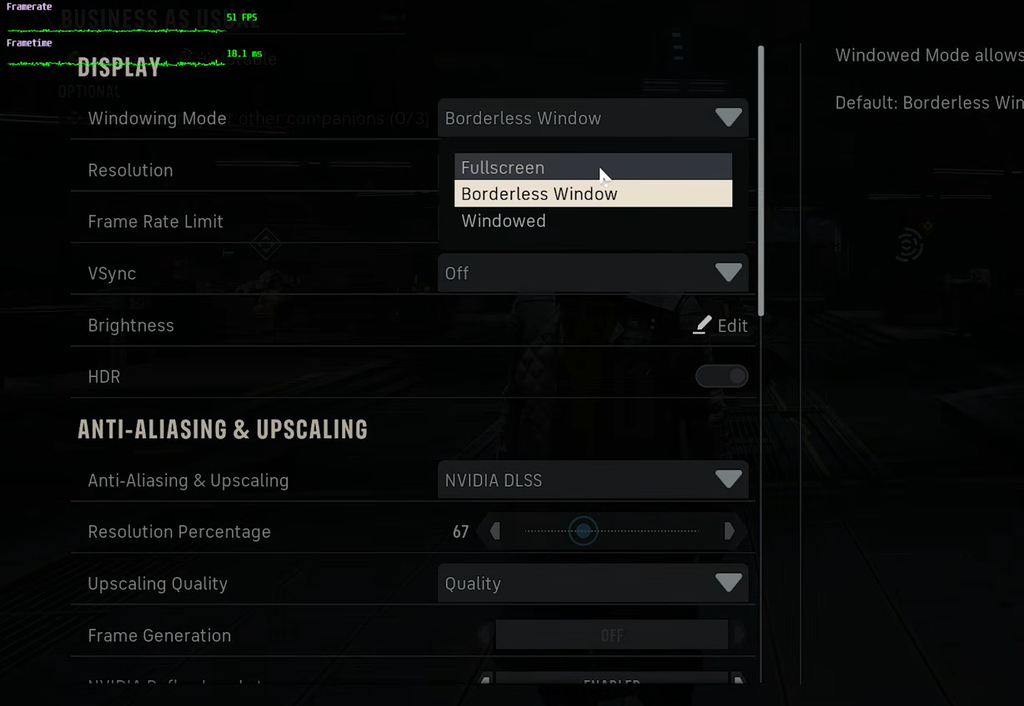
| Windowing Mode | Fullscreen (single monitor), Borderless (multi-monitor) | Borderless helps if you alt-tab often |
| Resolution | Native monitor resolution | Let upscaling handle the load |
| Frame Rate Limit | 60 FPS | Biggest single fix for stutter |
| VSync | Off | Turn on only if you get frequent stutters or tearing |
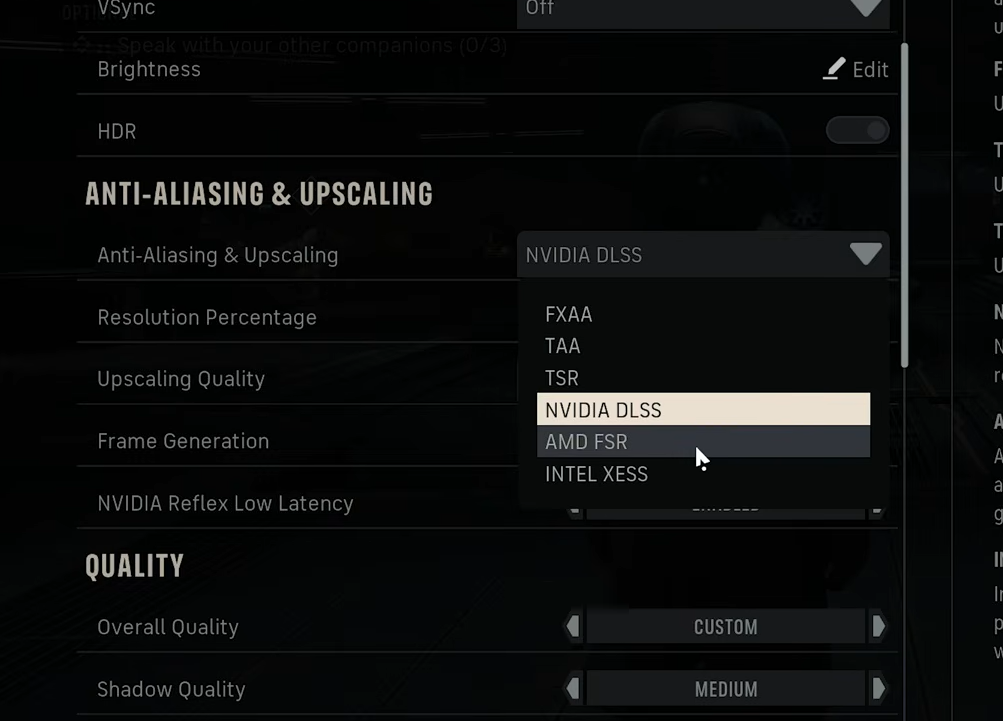
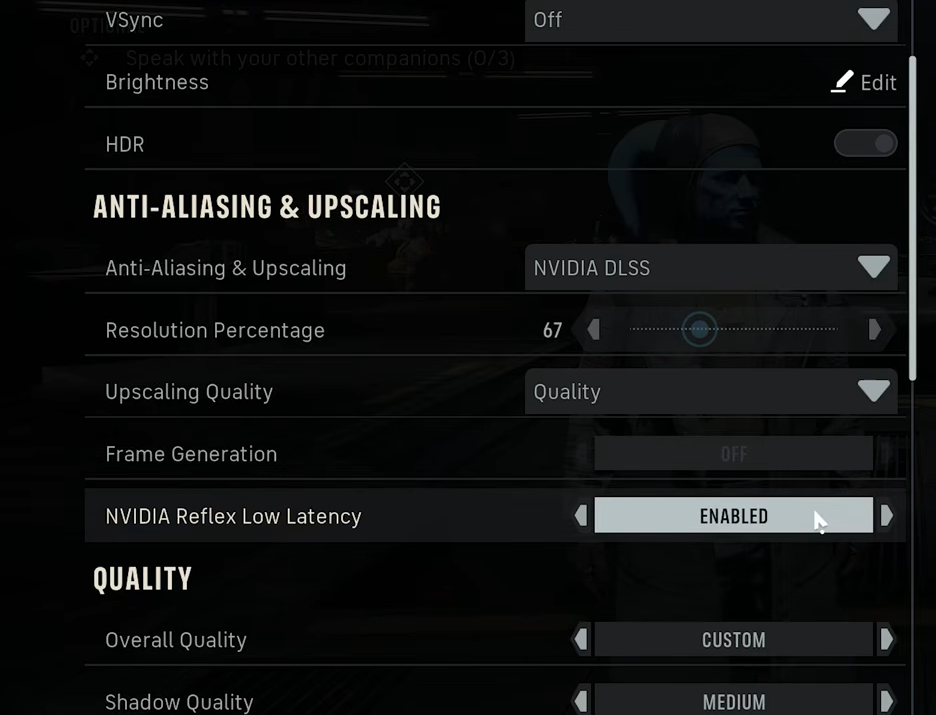
| Anti-Aliasing & Upscaling | FSR (AMD), DLSS (Nvidia), XeSS (Intel) | Match to your GPU brand |
| Upscaling Quality | Performance (4K), Balanced (1440p), Quality (1080p) | Lower it further if you need more frames |
| Frame Generation | Off | Optional; latency barely matters in a turn-based game if you want it on |
| Anti-Lag / Reflex | On | Lowers latency with no downside |
| Shadow Quality | Low | First cut when GPU-bound; still looks decent on Low |
| Global Illumination | Low | High and Ultra use ray tracing and hit the GPU hard |
| Reflections | Low | Many reflective sci-fi surfaces; costly on weaker GPUs |
| Post Processing | Medium | Little performance impact; lower if you dislike motion blur |
| Textures | Low | Ultra is fine with 10GB+ VRAM; drop to Low/Medium under 8GB |
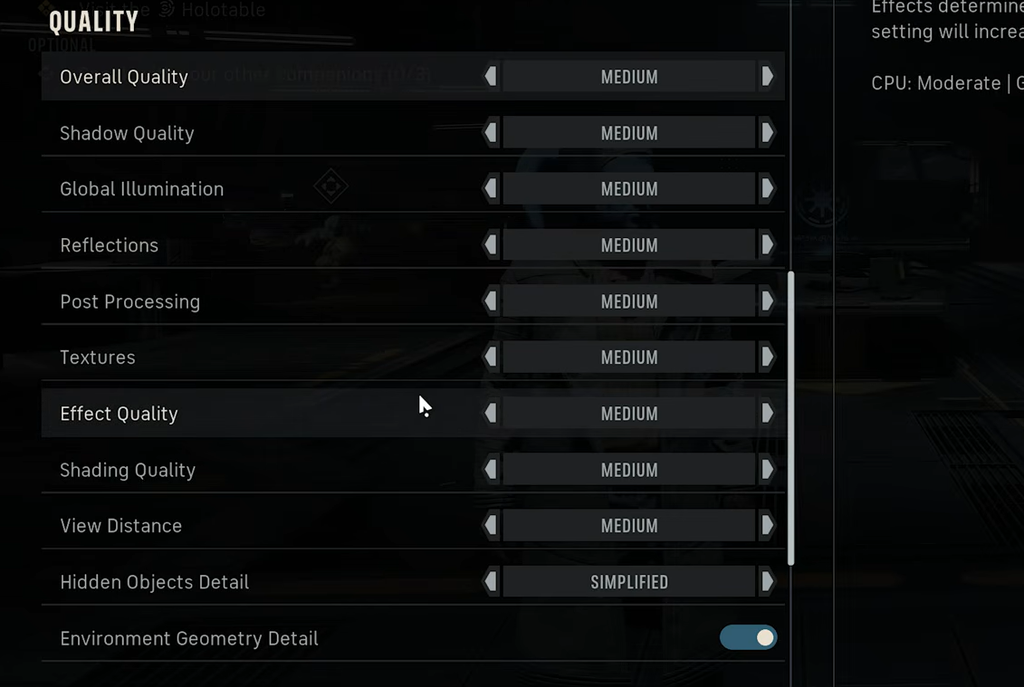
| Effect Quality | Medium | CPU-heavy; lower it if you are CPU-bound |
| Shading Quality | Low | Affects object detail; lower if short on VRAM |
| View Distance | Low | Arenas are small, so this is mostly cosmetic |
| Hidden Objects Detail | Simplified | CPU-heavy; cut this early |
| Environment Geometry Detail | Off (older GPUs only) | Leave On for cards newer than about five years |
Set upscaling and anti-lag correctly
Almost every system benefits from upscaling here. Pick the option that matches your graphics card. AMD cards should use FSR, Nvidia cards should use DLSS, and Intel Arc cards should use XeSS. The quality scale is the same across all three, so choose based on your native resolution.
Anti-lag technology is worth enabling in every case. Nvidia Reflex, AMD Anti-Lag, and Intel’s low-latency mode all do the same job. They keep the render queue short so frames are only produced as the CPU delivers them, which trims latency. There is no reason to leave it off.
Frame Generation is a matter of taste. It inserts AI-generated frames to make motion look smoother at the cost of some latency. In a turn-based game that trade-off is easy to accept, so turn it on if you want a smoother image, or leave it off if you prefer to keep things simple.
If you use an Intel Arc graphics card, turn on Resizable BAR in your motherboard firmware to improve frame rates. It is often disabled by default, so check your manufacturer’s documentation for the exact steps.
Cut the right settings for your bottleneck
Not every setting hurts your system the same way, so match your cuts to the part that is holding you back. Run a performance monitor for one mission to see whether your CPU, GPU, or VRAM is the limit, then adjust accordingly.
- CPU-limited: Lower Hidden Objects Detail, Effect Quality, and View Distance first. These load the processor and are the usual cause of hitches at mission starts.
- GPU-limited (card at or near 100%): Drop Shadow Quality, Global Illumination, and Reflections. The High and Ultra tiers on lighting and reflections use ray tracing, so stepping down from them frees up a lot of headroom.
- VRAM-limited: Reduce Textures and Shading Quality. Keep Textures on Ultra only if you have 10GB or more, and move to Medium or Low with less than 8GB.
PC system requirements
Meeting the minimum spec does not guarantee smooth play at every setting. If your hardware sits near the minimum, lean on the low-end values above and keep the frame cap in place.
| Component | Minimum | Recommended |
|---|---|---|
| OS | 64-bit Windows 10/11 | 64-bit Windows 10/11 |
| CPU (Intel) | Core i5-8400 | Core i7-10700K |
| CPU (AMD) | Ryzen 5 2600X | Ryzen 7 3700X |
| Memory | 16 GB RAM | 32 GB RAM |
| GPU (Nvidia) | GeForce GTX 1080 | GeForce RTX 3080 |
| GPU (AMD) | Radeon RX 5600 XT | Radeon RX 7800 XT |
| GPU (Intel) | Arc B580 | — |
| DirectX | Version 12 | Version 12 |
| Storage | 50 GB | 50 GB |
| Target | 1920×1080, 30 FPS, Low preset | 2560×1440, 60 FPS, High preset |
What to expect after tuning
With the frame cap set and the CPU-heavy options lowered, gameplay should hold a steady 60 FPS through most missions. Some hitching in cutscenes and at the very start of a mission can still occur, since those spikes come from the engine’s CPU load rather than your settings. Post-launch patches are expected to smooth these out over time, so keep the cap in place for now and raise individual settings once stability improves on your system.