Getting your gear onto the battlefield in Dungeon Quest Reborn comes down to one menu and a single hotkey. Weapons go into your active weapon slot, abilities fill your Q and E slots across two swappable sets, and the F key lets you flip between those sets while you fight.
Quick answer: Open the Inventory button in the bottom-right corner, pick a weapon or ability, choose a slot (Set 1 or Set 2, Q or E), then press F in combat to swap between your two equipped sets.
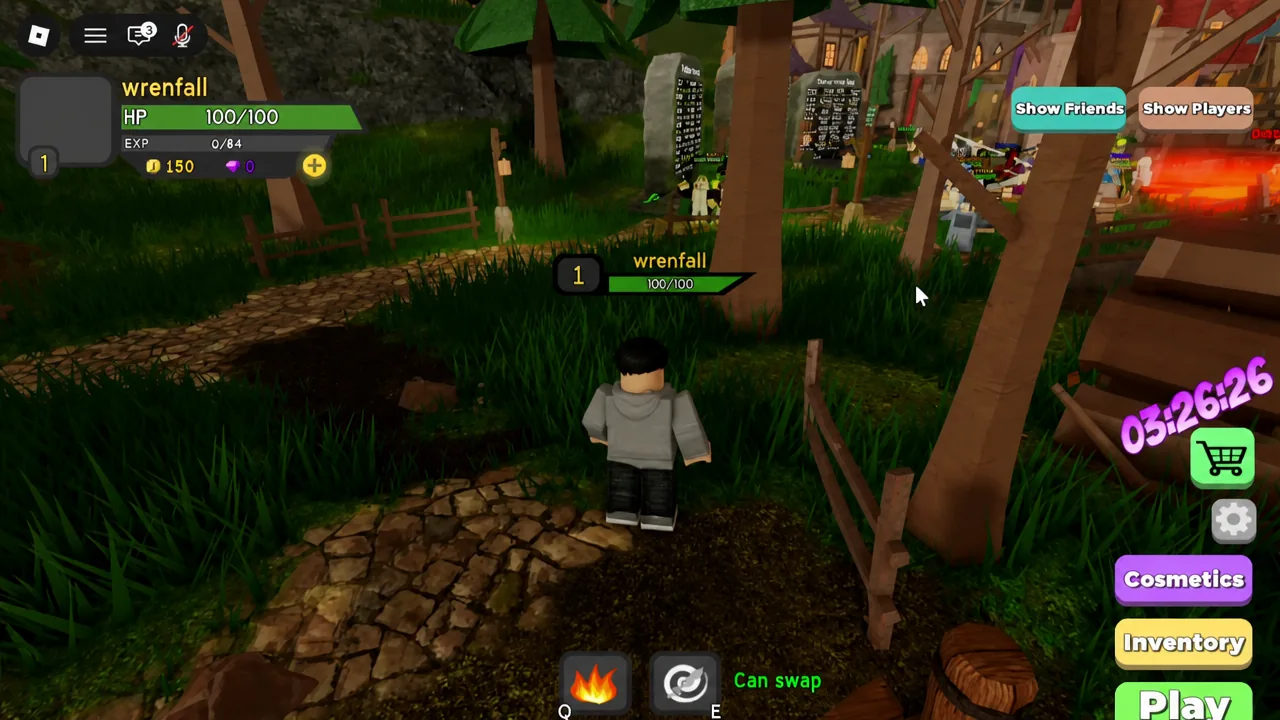
Open the inventory menu
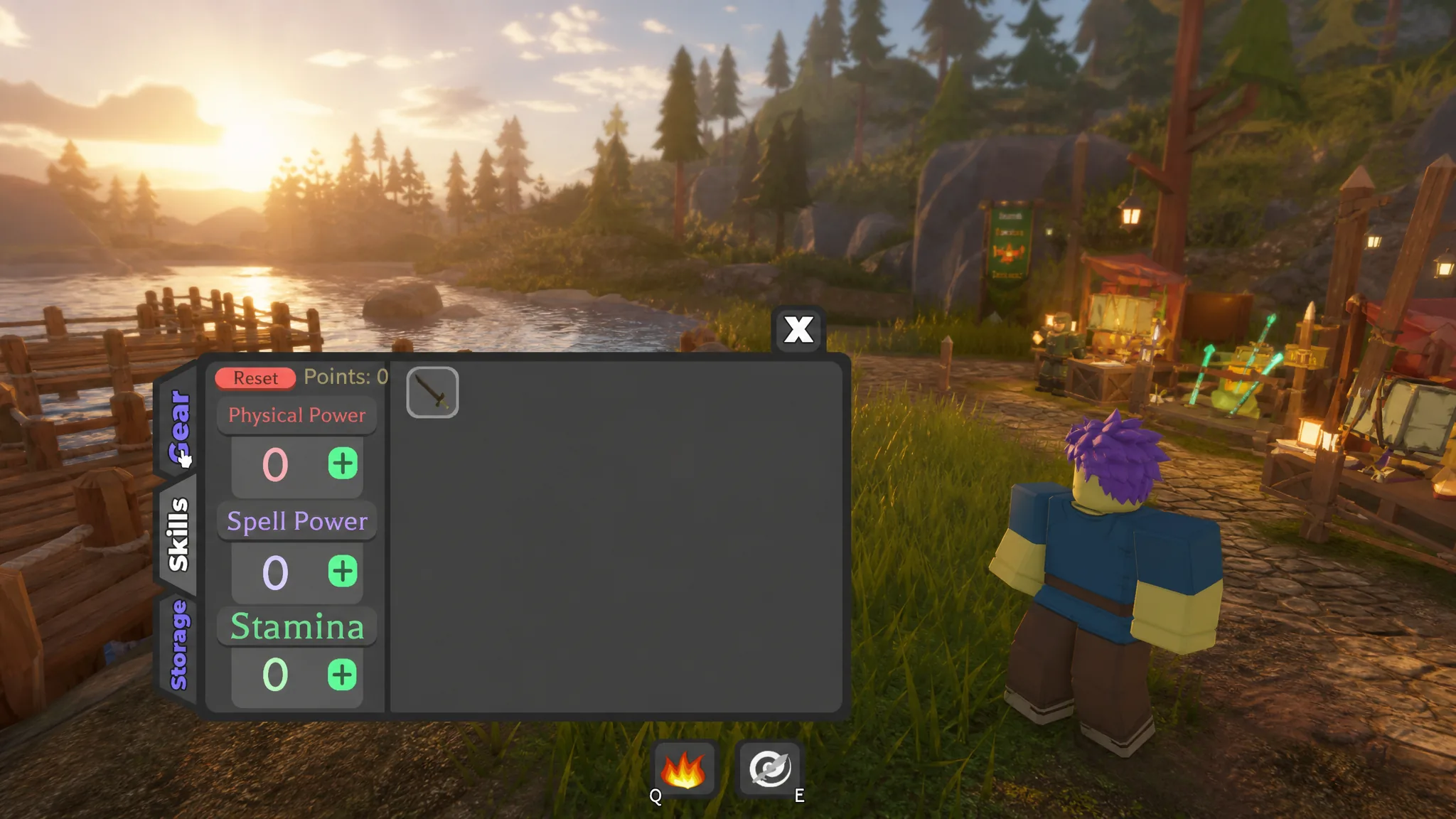
Everything you equip lives in the inventory. The menu holds separate tabs for Gear, Skills, and Storage, so your weapons and your abilities are managed from the same place.
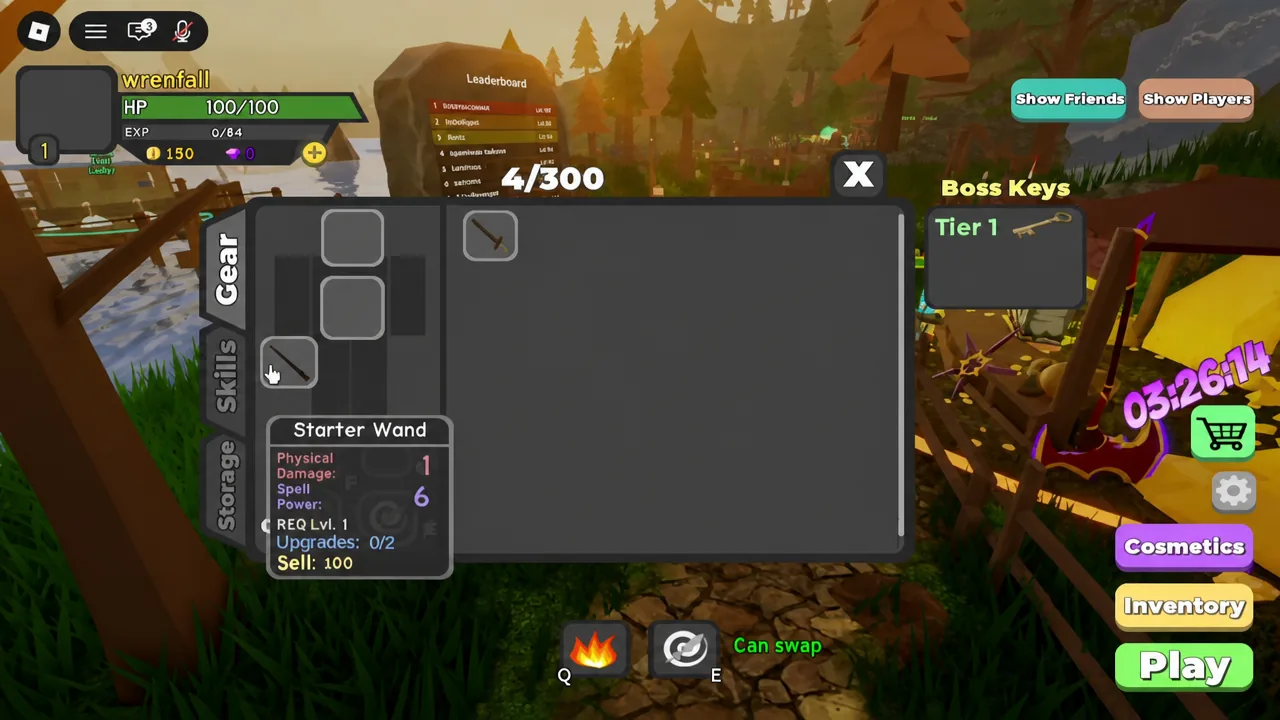
Equip a weapon
Weapons slot directly into your active weapon slot from the Gear tab. A weapon such as the Bronze Dagger carries its own stats (for example, Physical 6 and Power 1), so pick the one that matches your build before you queue for a dungeon.
Assign abilities to Q and E slots
Abilities like Fireball and Whirlwind go into hotkey slots rather than the weapon slot. Each ability can be placed into Set 1 or Set 2, and within each set you choose either the Q slot or the E slot.
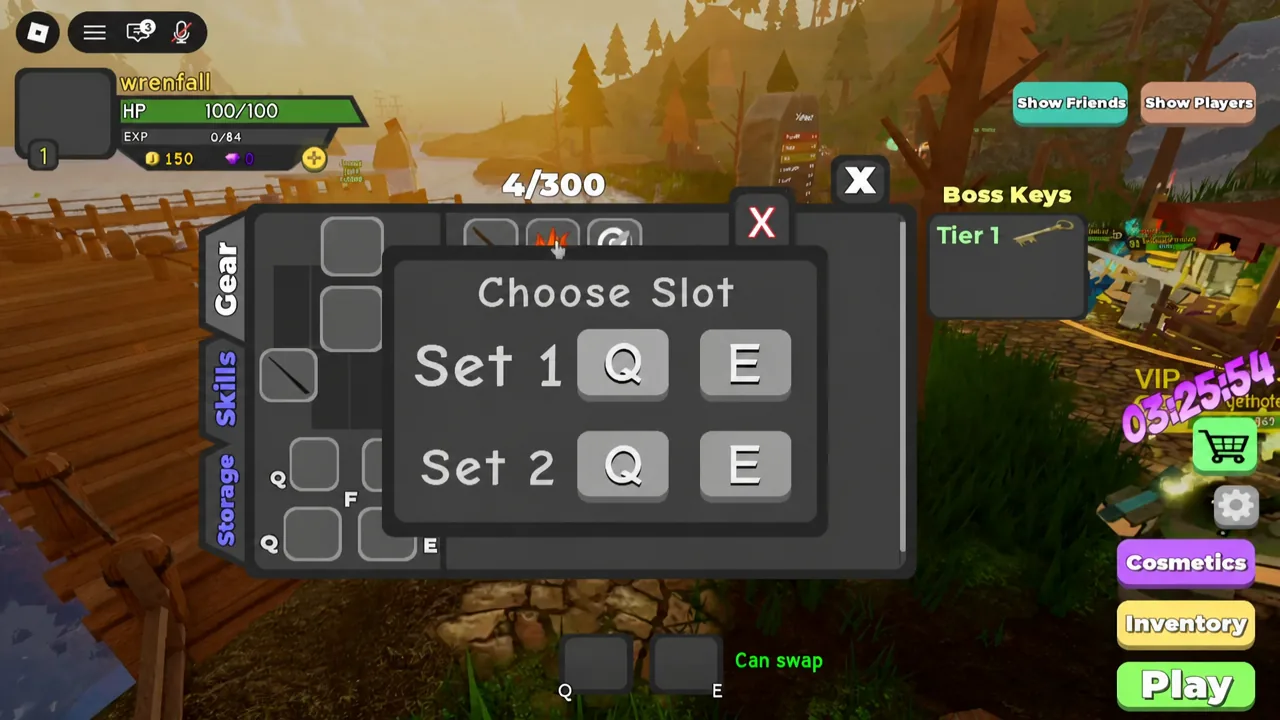
Match each ability to the stat your weapon scales with. Spell power abilities pair with spell weapons, and physical power abilities pair with warrior weapons, so keeping both sets on the same path produces more usable damage than mixing them.
Swap between sets with the F key
The two-set layout exists so you can change your active abilities without pausing to reopen a menu. Once both sets are filled, a single key toggles between them mid-fight.
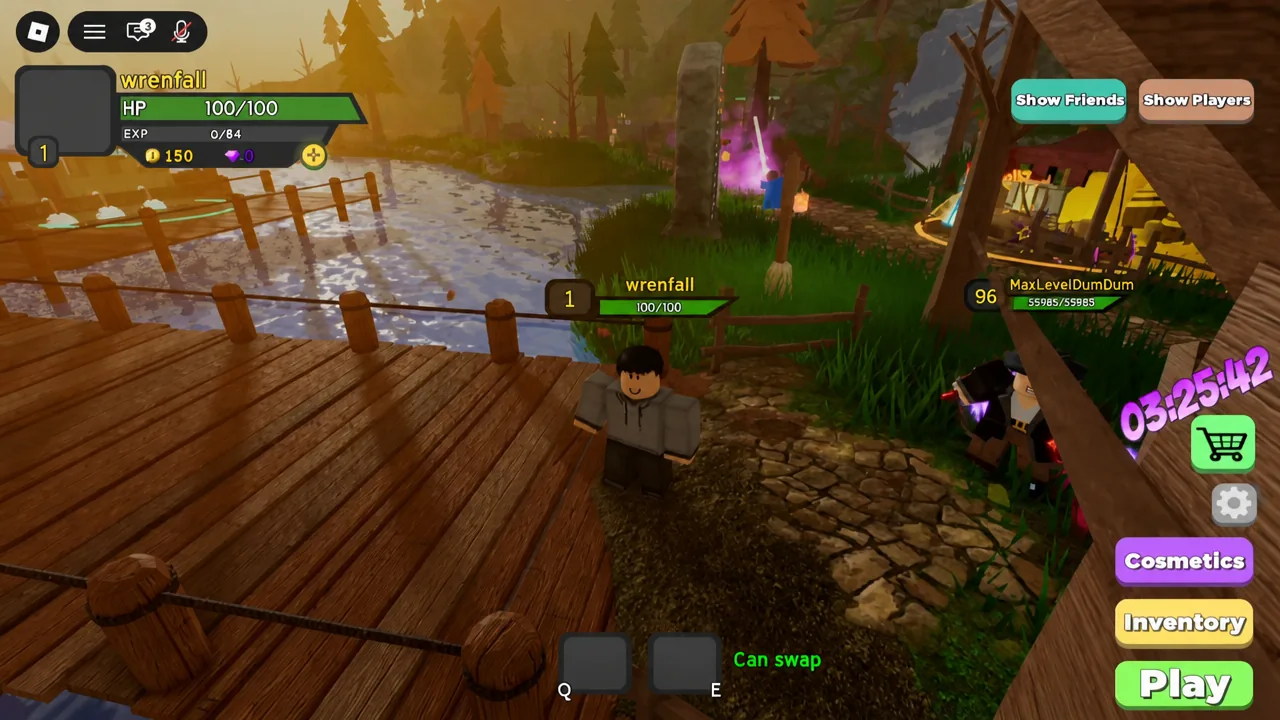
Slot reference
| What you equip | Where it goes | How to switch it |
|---|---|---|
| Weapon (Starter Wand, Bronze Dagger) | Active weapon slot, Gear tab | Select a different weapon in the inventory |
| Ability (Fireball, Whirlwind) | Set 1 or Set 2, Q or E slot | Reassign in the Choose Slot dialog |
| Active ability set | Bound to your Q and E keys | Press F during gameplay |
You will know an item is equipped when it appears in your active weapon slot or on the Q/E hotbar for the set you selected. Button positions can shift by device and update, so read the on-screen labels rather than relying on a fixed layout, and confirm your loadout in the inventory before you start a run.