Rolling an aura in Sol’s RNG does not automatically put it on your character. Auras land in storage, and you have to open that storage and equip one before its visual effect shows up on your avatar. The button that does this lives in a menu separate from your regular inventory, which is why plenty of new players end up with a full collection and a plain-looking character.
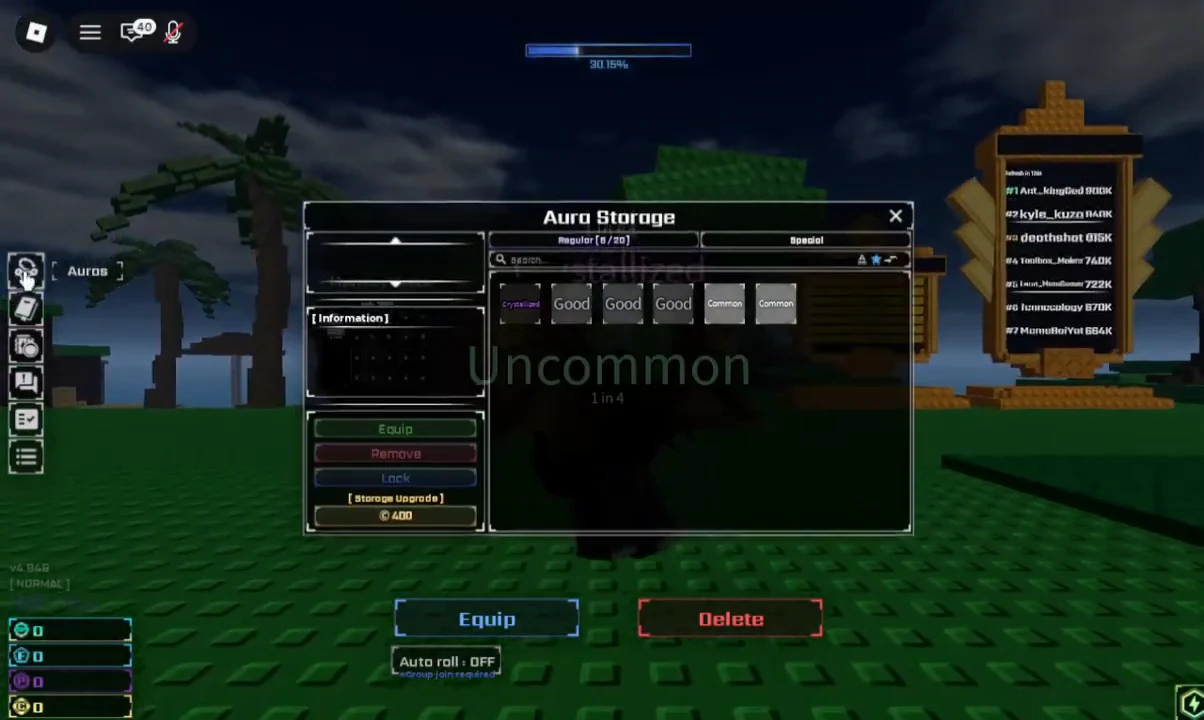
Quick answer: Click the box icon on the left side of the screen to open Aura Storage, select an unlocked aura from the grid, then press the green Equip button on the left panel.
Aura Storage vs. Aura Collections
Two menus look similar and only one of them can equip anything. Aura Collections is a catalogue of what you have unlocked so far. Aura Storage is the working inventory, and it holds the copies you can actually equip, lock, upgrade, or delete.
| Menu | What it does |
|---|---|
| Aura Collections | Shows every aura you have unlocked. Viewing only. |
| Aura Storage | Holds your rolled auras with Equip, Unequip, Remove, Lock, and Manage upgrade buttons. |
If you open a menu and see no Equip button anywhere on the panel, you are in Collections. Back out and click the box icon instead.
How to equip an aura in Sol’s RNG
Swapping or removing an equipped aura
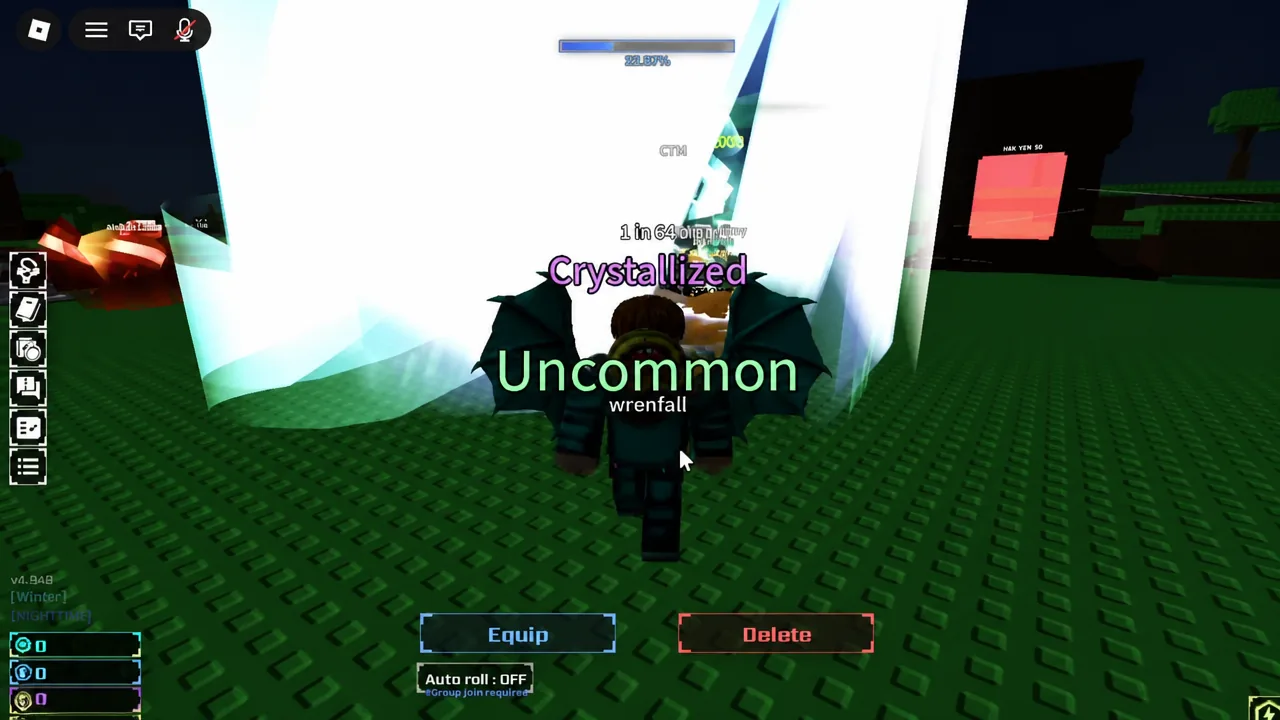
You do not need to unequip first to change auras. Open Aura Storage, pick a different tile, and hit Equip again. The new one takes over the slot.
The other buttons on that panel handle housekeeping. Unequip strips the effect and leaves you plain. Remove deletes the aura from storage. Lock protects an aura so it cannot be removed by accident, which is worth using on anything rare before you start clearing space. Manage upgrade is a separate system and does not affect what is equipped.
Note: Aura Storage has a slot cap. Collecting Coins around the map and spending money expands it, and a full storage bar is the usual reason a fresh roll fails to save.
Keeping an aura equipped while you roll
Equipping an aura has no effect on rolling. You can leave a favourite aura on your character and keep hitting Roll, or flip Auto roll from OFF to ON and let the rolls run while the current aura stays visible. Nothing swaps unless you tell it to, or unless a filter setting swaps it for you.
That last part catches people out. The Aura Filter in Settings can be set to auto-equip new auras above a chosen rarity, and the Auto Equip Rarity option decides where that threshold sits. If your aura keeps changing on its own during an auto-roll session, that filter is why.
| Filter setting | Effect on your equipped aura |
|---|---|
| Auto-equip | New rolls at or above the set rarity replace what you are wearing. |
| Auto-skip | Those auras never enter storage, so they cannot be equipped. |
| Default (blank) | You get the equip or skip prompt on each roll and choose manually. |
To reach the filter, click the cogwheel in the bottom left of the screen and select Open next to Aura Filter. New auras default to keep, so update the list as you discover more of them. Leave the filter on default if you want full manual control over what your character wears.
Why an aura will not equip
- You are in Aura Collections, not Aura Storage. Collections lists unlocked auras but has no Equip action.
- No tile is selected. The Equip button only applies to the aura currently highlighted in the grid.
- The aura was set to skip in the filter. Skipped auras never reach storage, so there is nothing to select.
- It was removed. Deleted auras have to be rolled again before they can be worn.
Once you have the routine down, equipping becomes a two-second job between rolls. The one habit worth building early is locking anything you would be upset to lose, because the Remove button sits right next to Equip in the same panel.