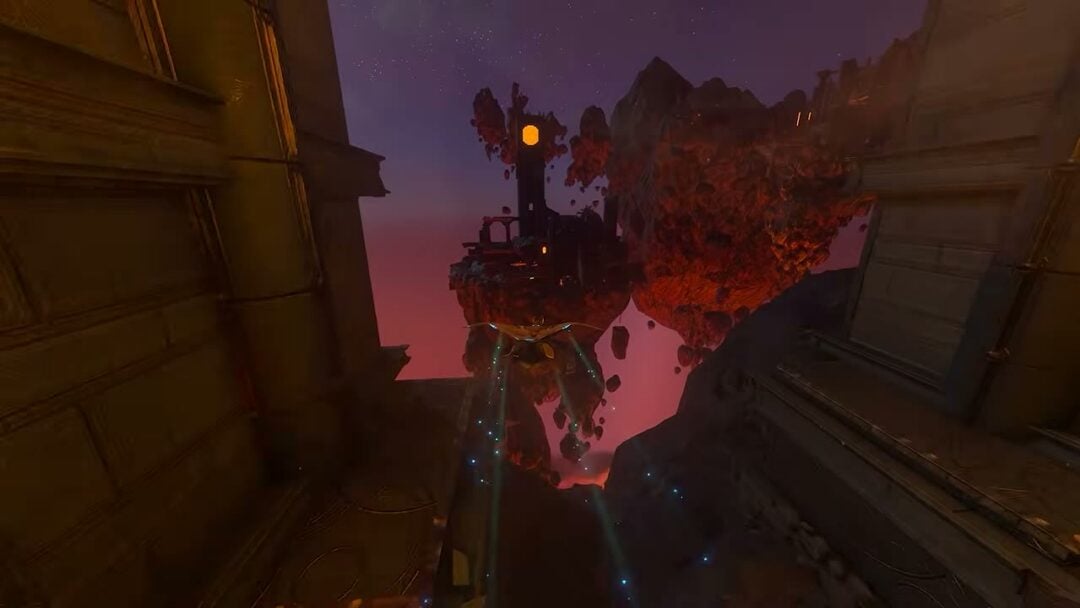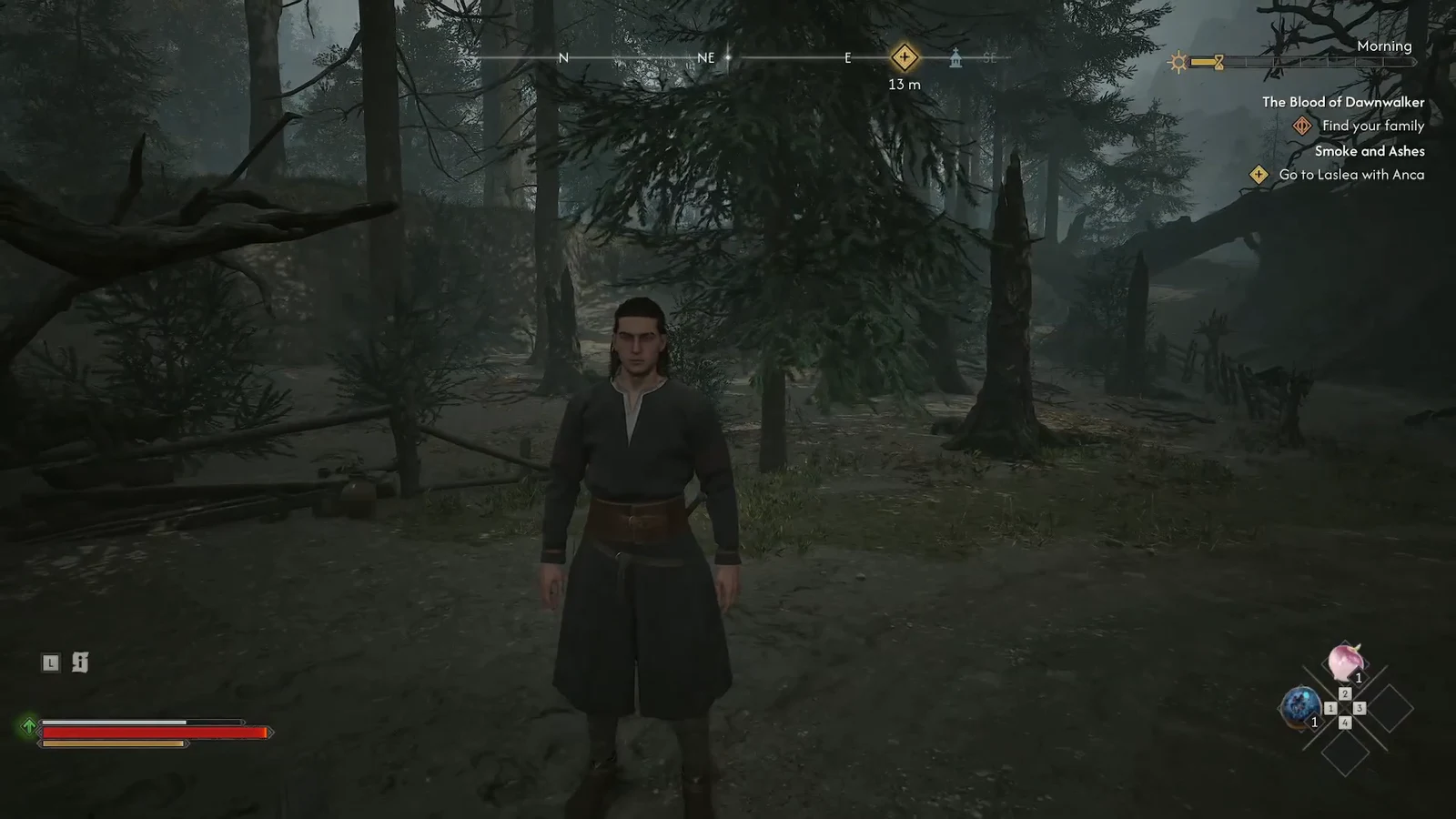
The Blood of Dawnwalker launched with a stuttering problem that has very little to do with your graphics card. The Unreal Engine 5 world runs cleanly through the prologue, then falls apart the moment you reach the first village, where the frame time spikes every time you swing the camera. It happens on high-end hardware too, including an RTX 5090 paired with a Ryzen 9 7950X3D, so dropping every slider to Low is not the answer.
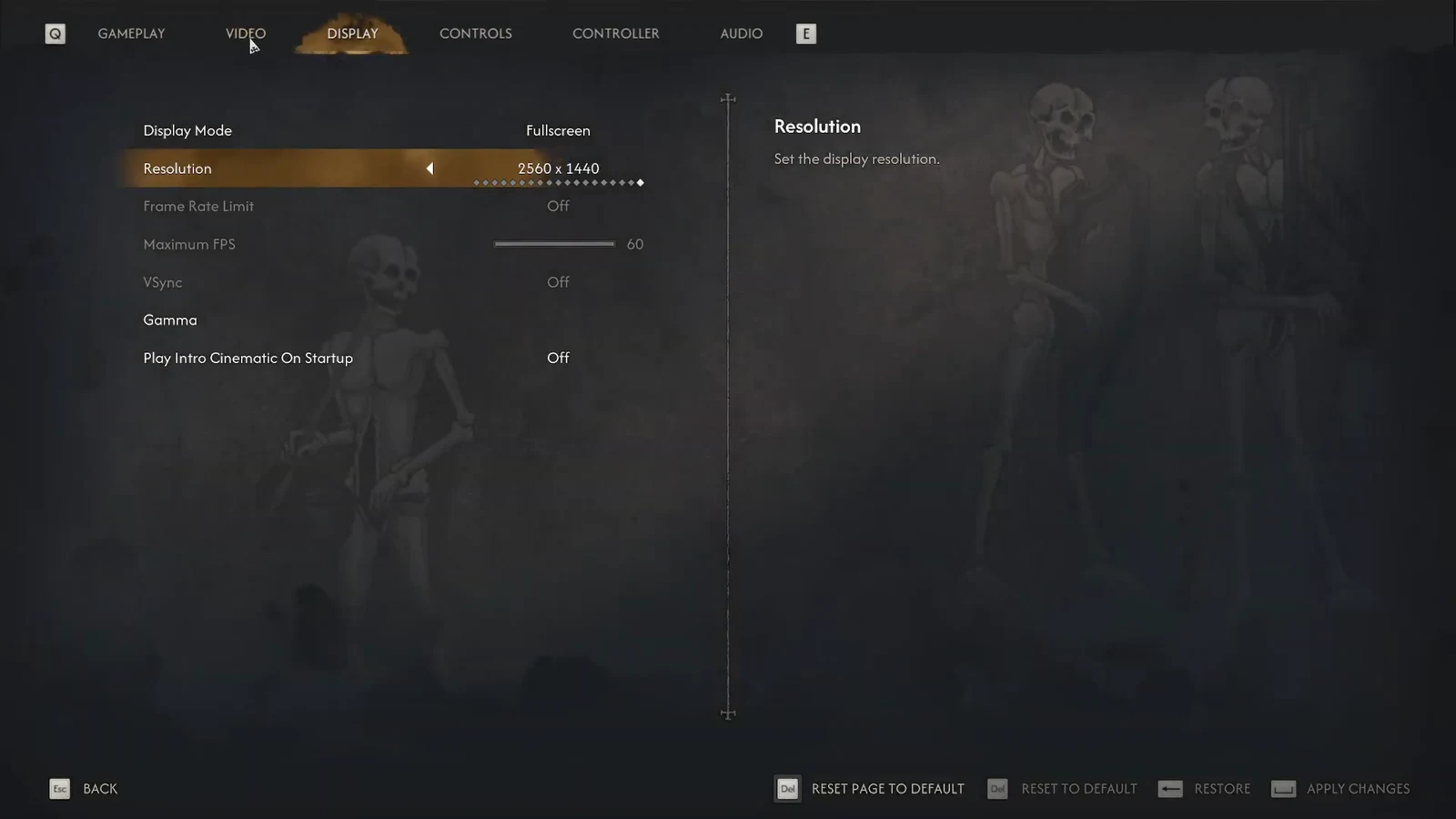
Quick answer: Open Settings, go to the Display tab, and change Display Mode to Fullscreen. Windowed and Borderless both cause the heavy camera-pan stutter, and switching to exclusive Fullscreen removes it, which then lets you raise Texture, Effects, and Shading Quality back up to Medium.
Fix the stutter first: Set Display Mode to Fullscreen
Do this before touching anything else. It is the single change that has the largest effect on frame pacing, and it is free — you lose no visual quality at all.
Note: Cutscenes are a separate issue. Most cinematics are hard-capped at 30fps on PC, while the ones with dialogue choices run unlocked. That jump is by design in the current build, not a symptom of a badly configured PC, and no display setting will change it.
Video settings that give back the most frames
The game uses Lumen, which makes lighting, fog, and foliage far more expensive than textures. At native 4K with Ultra settings, the first village runs around 45–50fps even on top-tier hardware. Upscaling is what pulls that back above 60.
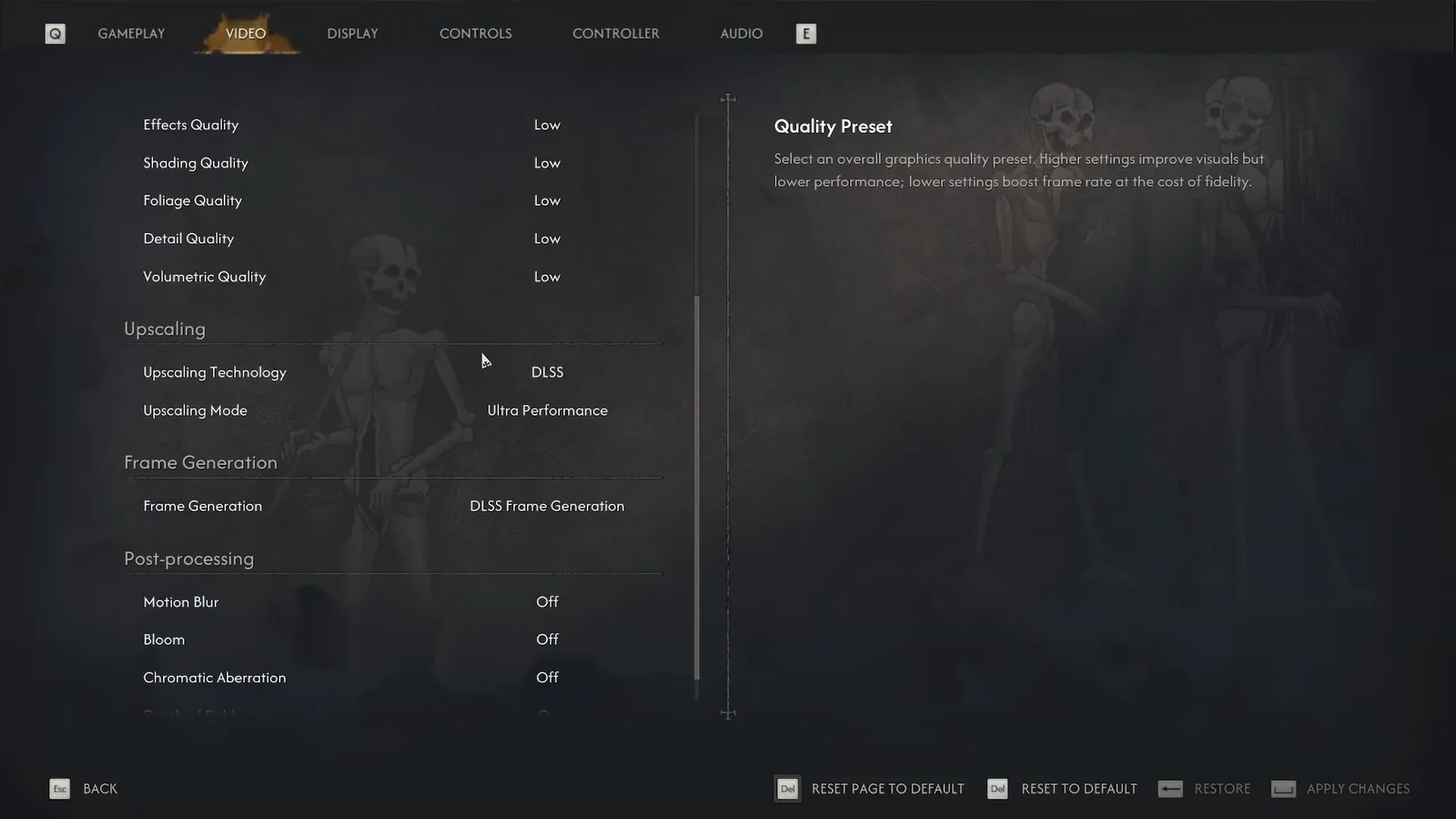
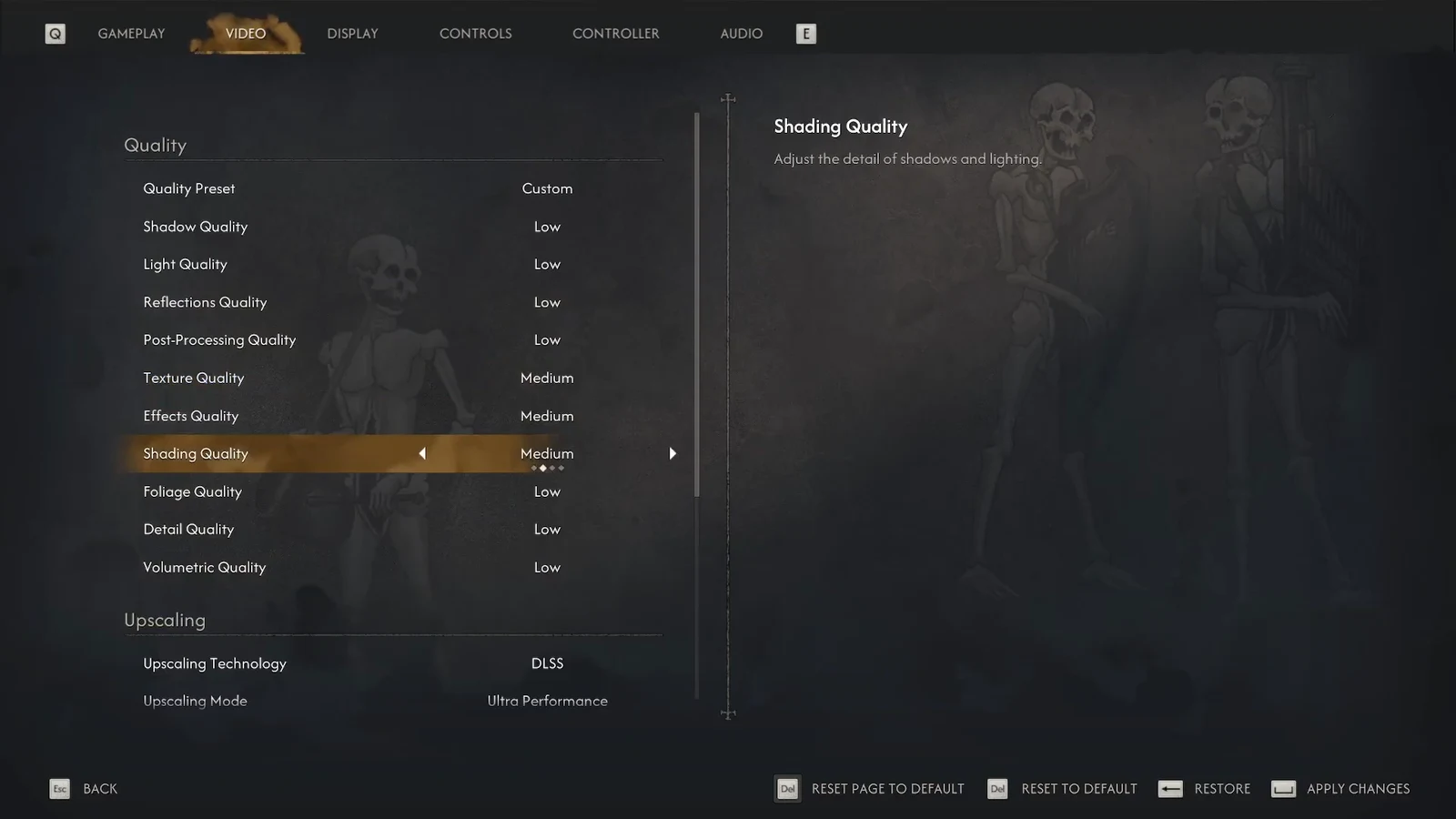
Here is a balanced starting point for a 1080p or 1440p target:
| Setting | Value | Why |
|---|---|---|
| Display Mode | Fullscreen | Removes the camera-pan stutter |
| Upscaling | DLSS / FSR / XeSS, Quality | Biggest single GPU saving |
| Shadow Quality | Medium | Heavy on both CPU and GPU |
| Volumetric Quality | Low or Medium | Expensive fog and atmosphere passes |
| Reflections Quality | Medium | Limits dynamic surface cost |
| Foliage / Detail | Medium | Traversal load in forests and villages |
| Texture Quality | High on 8GB+, Medium on 6GB | Match it to your VRAM buffer |
| Motion Blur, Bloom | Off | Clarity, and easier hitch spotting |
| Frame Rate Limit | Stable value under your peak | Flat frametimes beat high averages |
Frame Generation is not a rescue tool. It needs a stable base of roughly 40fps before it behaves, and it cannot smooth out CPU-bound traversal hitches — it only adds displayed frames on top of whatever pacing you already have. Get the base frame rate steady first, then test it.
Why The Blood of Dawnwalker drops frames
Knowing which failure you are looking at saves a lot of pointless slider dragging. There are four common ones, and each responds to something different.
| Symptom | Cause | What to do |
|---|---|---|
| Brief hitches in new zones or during a first transformation | Shader compilation | Raise GPU shader cache to 10GB; let the first pass finish |
| Drops in villages and crowded combat | CPU saturation | Lower Shadows and Foliage; close background apps |
| Multi-second freezes while moving fast | VRAM spill or slow storage | Lower Volumetrics and Textures; install on an SSD |
| Stutter that started after a driver update | Stale shader cache | Clean driver install, then clear the cache |
Test in one fixed spot, at one resolution, and watch the frametime graph rather than the average fps counter. A steady 55fps feels better than a number that swings between 100 and 35, and a two-frame hitch barely moves an average while wrecking a camera pan.
Driver, shader cache, and storage fixes
Install the current driver your GPU vendor recommends for the game, but do not assume newest is best. If the freezing began right after an update, do a clean install or roll back to the previous stable driver, restart Windows, and let the game rebuild its shader data before judging the result.
Raise the shader cache next. In the NVIDIA Control Panel, open Manage 3D Settings and change Shader Cache Size from Driver Default to 10 GB. AMD users can reset the shader cache from the Gaming section of Adrenalin’s Graphics settings and let it rebuild. The default limit is small enough that the game keeps recompiling the same effects.
Verify the game files through Steam or your launcher before editing anything by hand — missing or damaged files look a lot like an optimization problem. Install the game on an SSD, ideally NVMe. On a 7200RPM mechanical drive, traversal between hubs can freeze for a couple of seconds at a time, and the streaming system has no way to keep up. Keep spare free space on the drive as well.
Then clear the room around the game. Enable Game Mode, close extra launchers, pause cloud sync, and shut down overlays you are not using. Steam Overlay, Discord, Xbox Game Bar, and capture tools all hook into the renderer. Monitoring software is the worst offender here: running MSI Afterburner with RivaTuner Statistics Server has produced repeated Unreal Engine crashes, and closing it resolved them.
On a laptop, check Windows Graphics settings and your vendor control panel to confirm the game is assigned to the dedicated GPU. A title quietly running on integrated graphics produces exactly the kind of numbers that look like a broken port.
PS5 and Xbox Series X|S settings
Console players have fewer knobs but the same priorities. Install the day one update, which addresses early performance issues, then open Settings and switch the graphics mode under Video to Performance Mode. Turn off Motion Blur, Film Grain, and Depth of Field for cleaner motion during combat and fast camera pans.
On PS5 Pro, PSSR holds image clarity in Performance Mode with fewer frametime dips in CPU-heavy areas. If you have a VRR display, leave it enabled — it smooths the transition between the 30fps cinematics and real-time gameplay running well above that.
How to confirm the fix worked
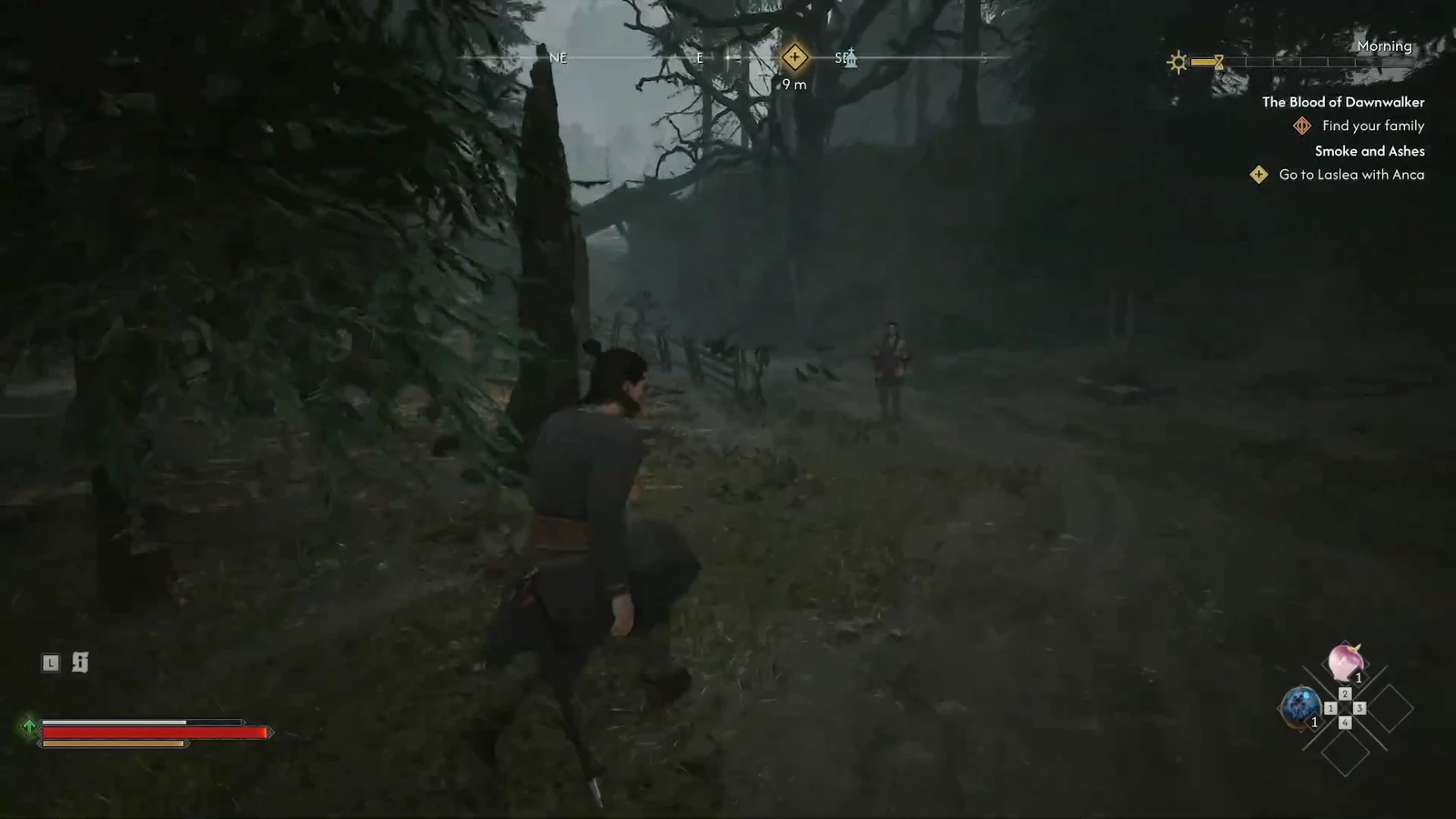
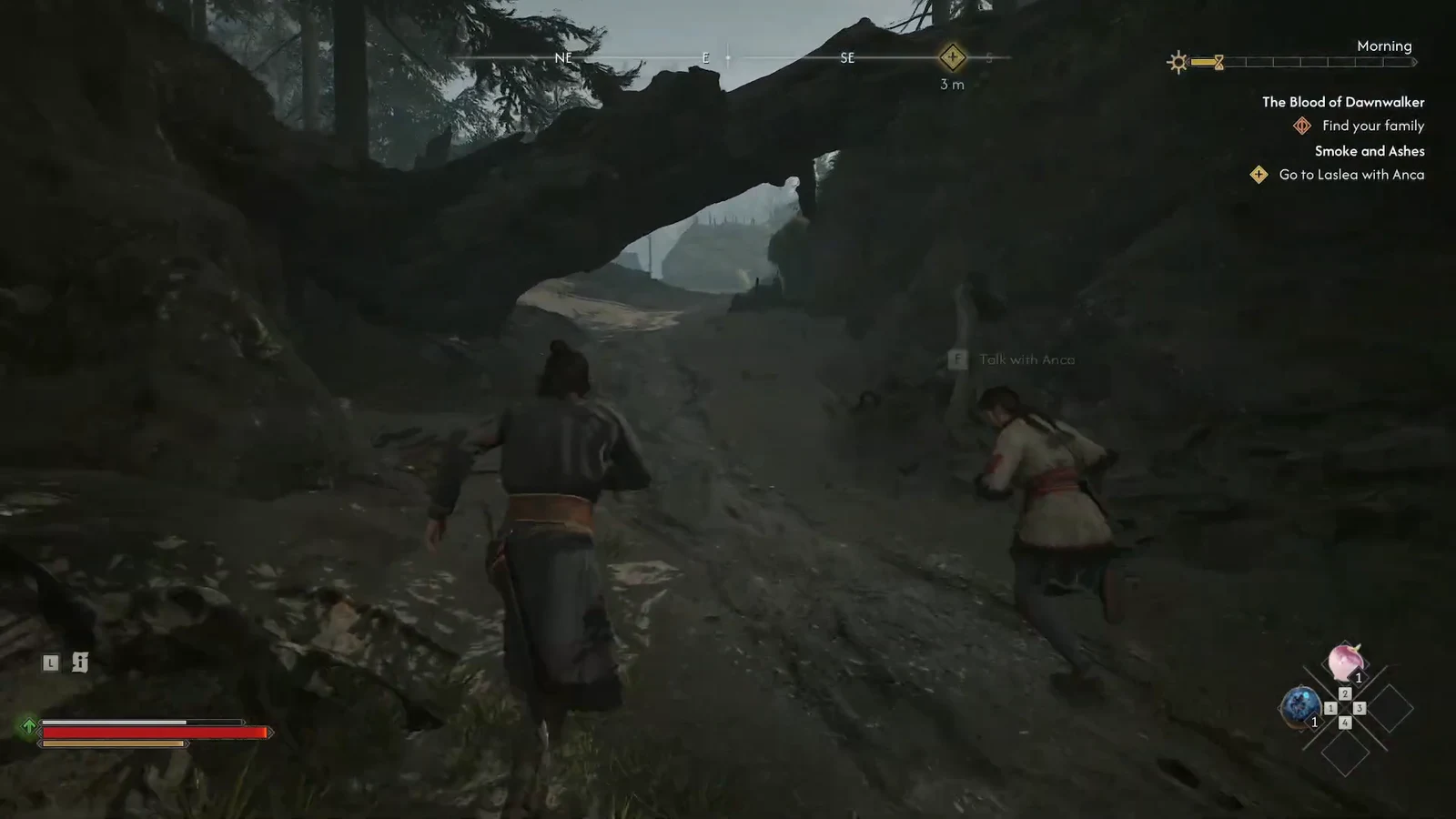
Load a save in the first village or a dense forest and rotate the camera in a full circle. If the stutter was caused by Windowed or Borderless mode, the hitching stops immediately and the frametime line flattens instead of spiking with every camera movement. That is your confirmation.
If it does not settle, work through the short list of reasons the fix fails to take. Overlays or monitoring tools still running will reintroduce hitches; re-enable them one at a time to find the culprit. A first launch after clearing a shader cache will always stutter while the cache rebuilds, so retest only after that pass completes. And if the freezing is limited to a single quest area, it is a content-specific problem that settings cannot solve.
Some of this is out of your hands. The camera stutter is a real engine-side problem, and the locked cinematic frame rate is a deliberate choice that only a patch can undo. Rebel Wolves has already shipped one round of performance changes, and the sensible approach in the meantime is to lock in Fullscreen, run a Quality upscaler, cap the frame rate somewhere you can hold, and stop chasing peak numbers you cannot sustain.