Dodging and camera locking are the two inputs that decide most duels in Dueling Grounds, the Roblox PvP fighter built around light and heavy melee exchanges. Both are bound by default on PC, and both can be reassigned from the in-game Settings menu if the defaults get in your way.
Quick answer: Press Q or Shift to dodge, press M3 (mouse wheel click) or T to lock onto an enemy, and press Ctrl to toggle mouse lock on and off.
Dodge and camera lock keybinds in Dueling Grounds
These are the default PC bindings tied to movement and camera control. Every one of them can be changed inside the game’s settings, so a fresh install is the only guaranteed way to know you are on the defaults.
| Action | Default key |
|---|---|
| Dodge | Q or Shift |
| Jump | Spacebar |
| Lock to enemy | M3 (mouse wheel click) or T |
| Mouse lock / unlock | Ctrl |
| Light attack | M1 (left click) |
| Heavy attack | M2 (right click) |
| Parry / block | F (tap to parry, hold to block) |
| Ultimate | R |
Note: mouse lock and Roblox’s Shift Lock Switch are separate things. In this experience, the camera lock is on Ctrl because Shift is already spoken for by the dodge.
How to dodge with Q or Shift
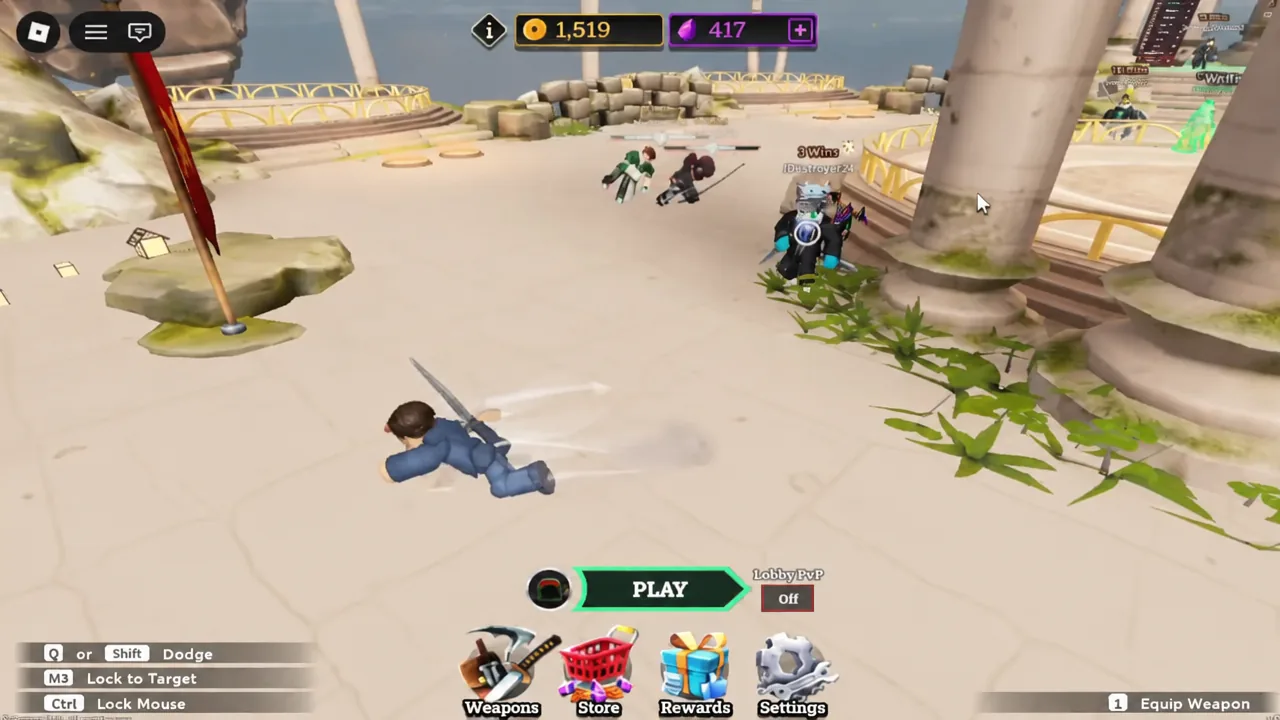
Q or Shift to perform the dash. The animation carries brief invulnerability, which is what lets a dodge cut through a combo you are being pressured by rather than just repositioning you.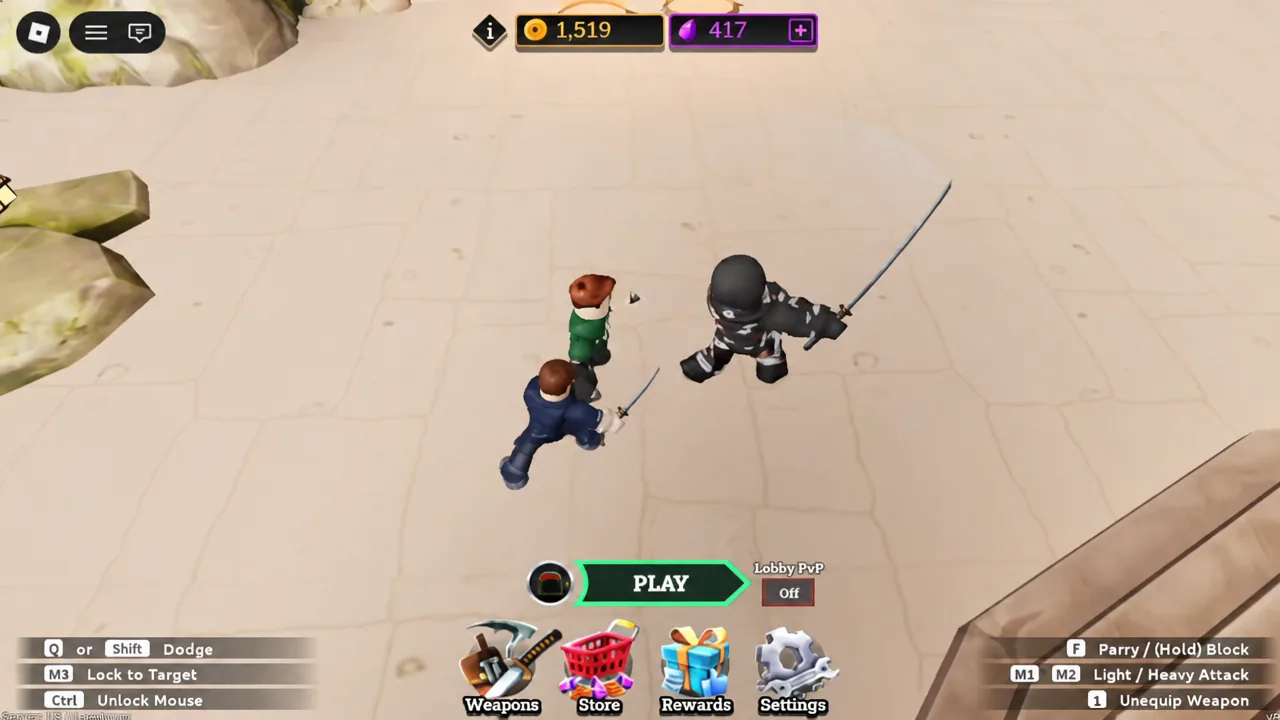
M1 or M2. Dodging into an attack produces dodge-attack variations that can start or extend a combo, which is the main reason to dodge forward or sideways instead of straight backwards.Spacebar. Jumping avoids ground-level attacks, and pressing an attack after leaving the ground turns it into a drop strike, which is useful against an opponent who is committed to a low sweep or who just finished a dodge.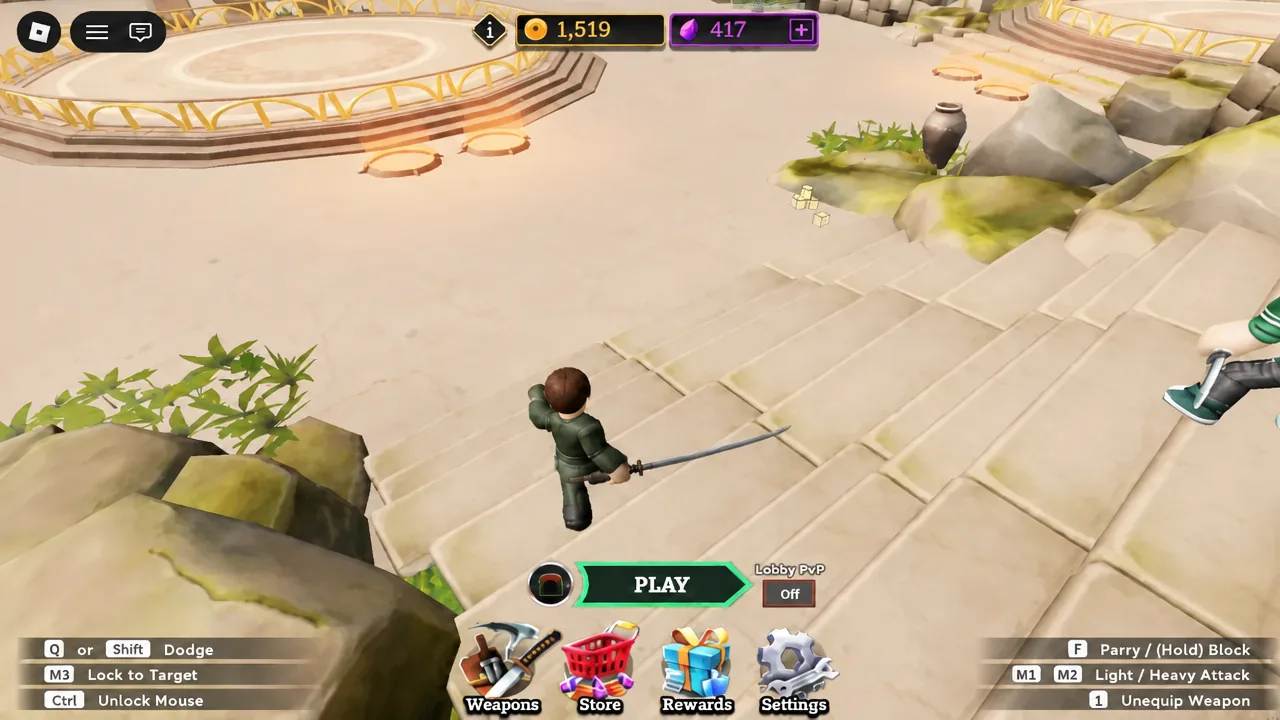
How to lock onto an enemy with M3 or T
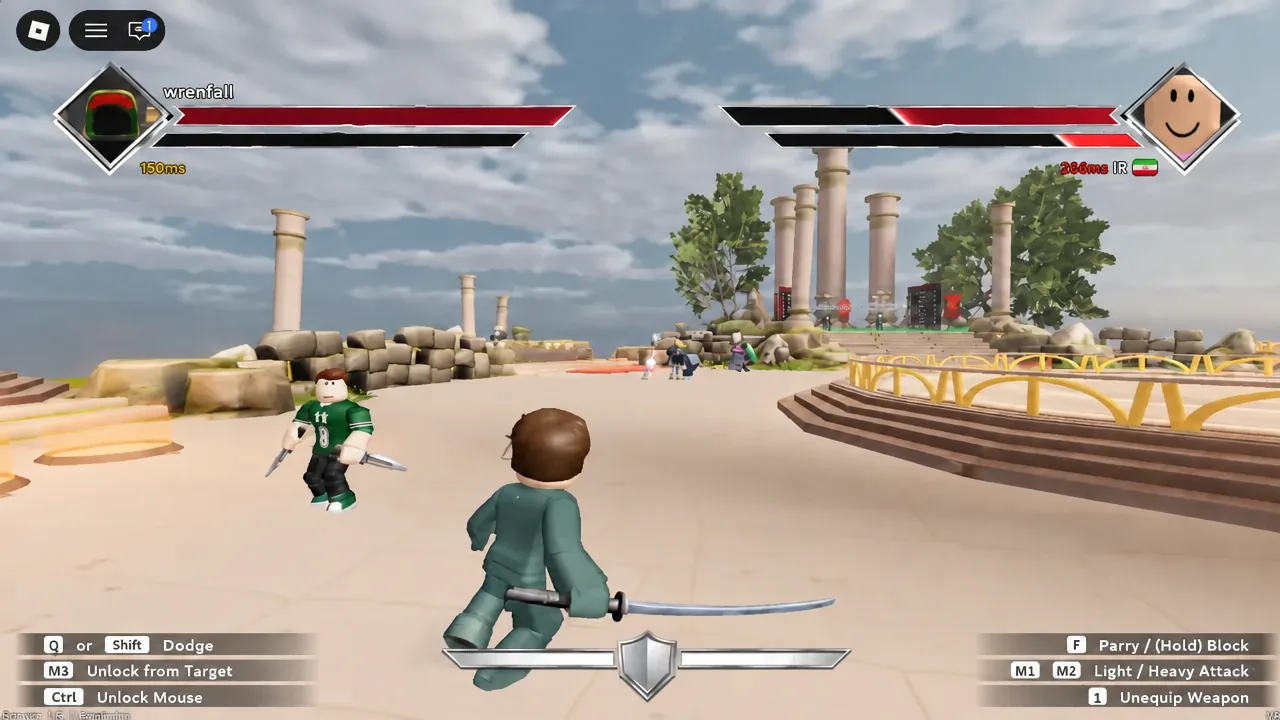
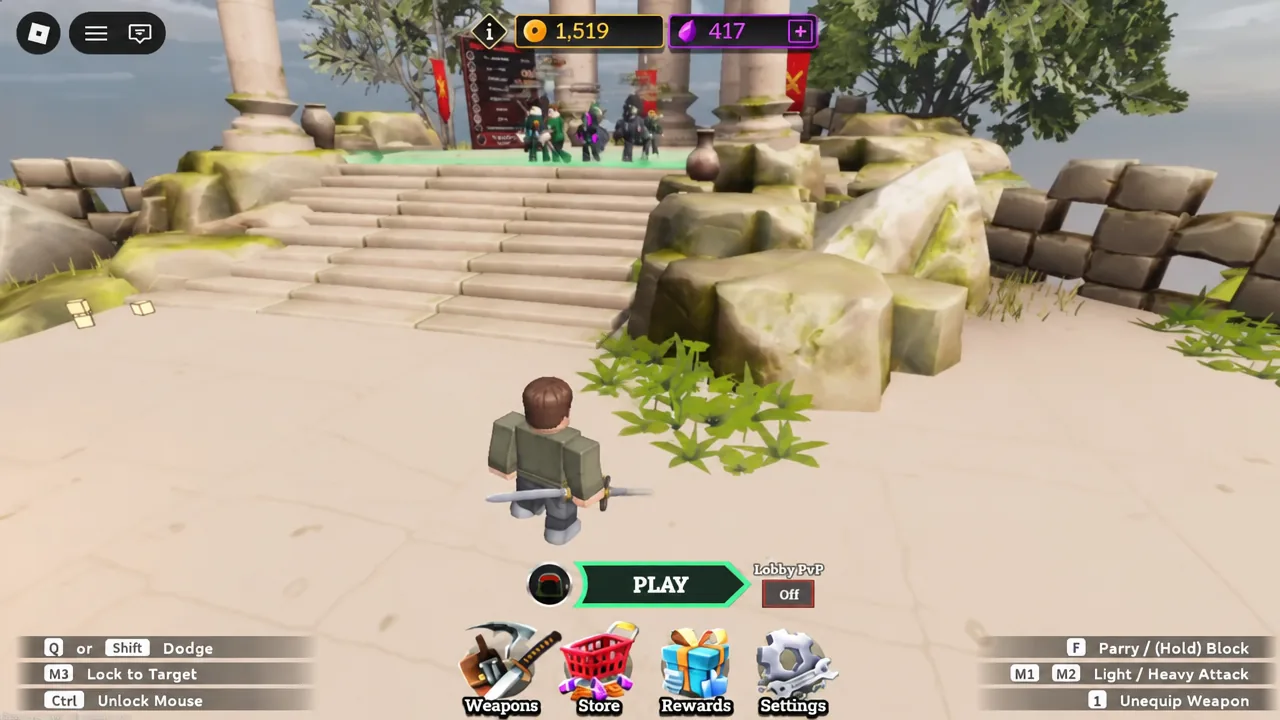
Target lock keeps the camera pointed at your opponent so you do not lose them during an exchange. Face the player you want to fight and press M3, the mouse wheel click, or T if you prefer a keyboard input. The bottom-left HUD prompt tells you which button the lock is currently bound to.
You know the lock registered because the opponent’s status bars appear across the top of the screen. Pressing the same key again releases the target. Many players toggle it on and off as the fight moves rather than leaving it engaged the whole match, since a locked camera limits how freely you can look around when a second player is nearby.
Mouse lock (Ctrl) and the Shift Lock Switch setting
Mouse lock centres the cursor and locks camera movement to your mouse, so the view stops swinging away mid-duel. Press Ctrl to turn it on, and press Ctrl again to release it. It works independently of enemy lock-on, and the two can be active at the same time.
Shift also triggers a dodge here, players who want a shift-based camera toggle usually keep their dodge on Q to avoid pressing both at once.Tip: if a key stops responding the way it is described here, check View & Controls first. All of these inputs are rebindable, so a changed binding, not a bug, is the usual explanation.
Dodge and lock-on buttons on mobile
Dueling Grounds runs on PC, mobile, and console. On a touchscreen, the left thumb handles movement through the virtual joystick and swiping the right side of the screen moves the camera. The action cluster on the right holds dedicated Dodge, Jump, and Lock-on buttons that behave the same as their keyboard equivalents, so the dodge still takes its direction from whichever way the joystick is pushed.
Where to practice dodging before a ranked duel
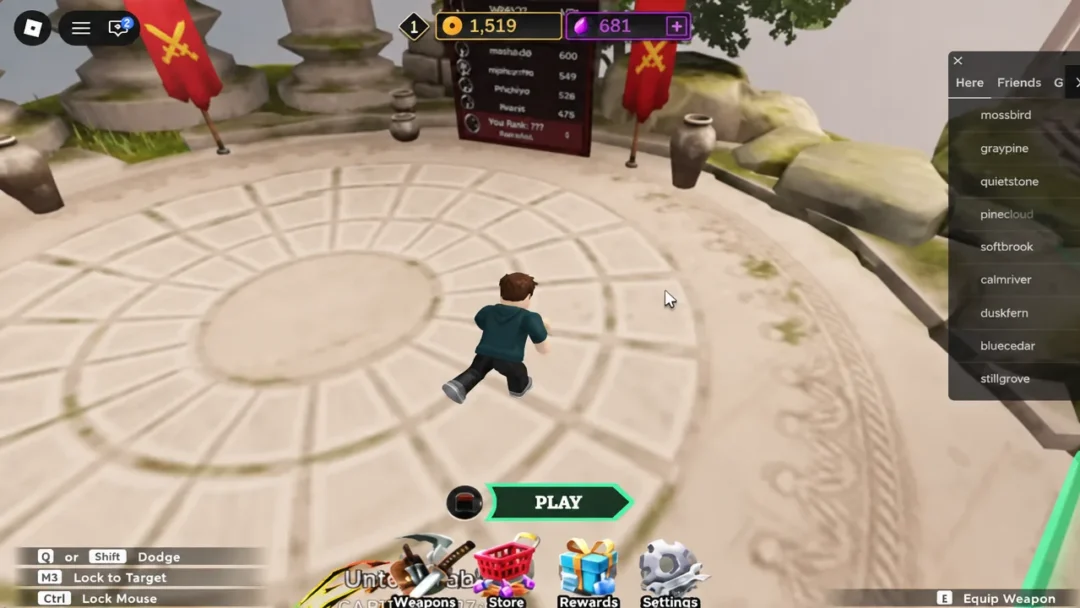
The lobby arena is the low-stakes place to drill dodge timing and lock-on toggling, since other players are moving around and you can equip a weapon without a match on the line. When you are ready to queue, the mode selection screen splits into Casual, with 1v1 Duel, 2v2 Clash, and Custom, and Ranked, which currently offers 1v1 Duel.
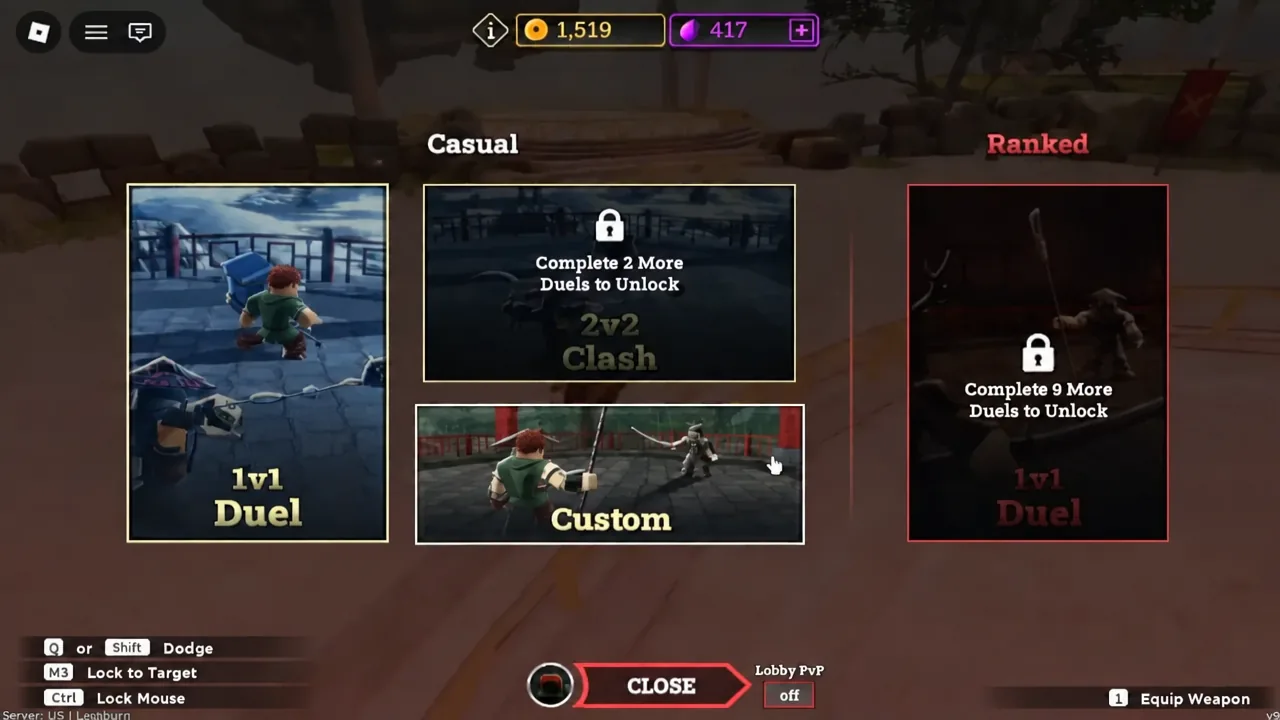
Custom matches are the cleanest option for testing inputs against a friend, because you control who you are fighting and nothing is riding on the result.
Once the muscle memory is there, the pattern is simple enough to repeat under pressure. Lock on to keep the camera honest, dodge with direction rather than in place, and use Ctrl when the camera starts drifting during a long exchange.