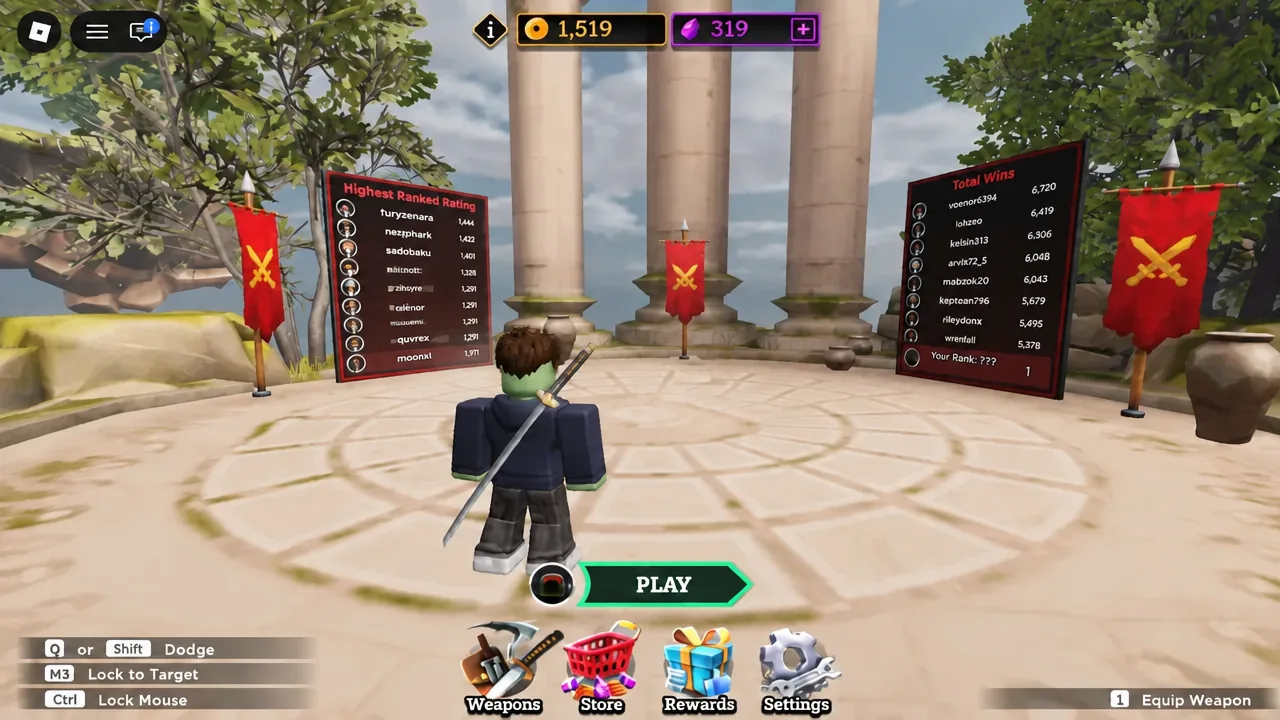
Dueling Grounds ships with a keyboard layout that spreads combat across the mouse buttons, F, Q, Shift, and R. It works, but it is not fixed. The experience includes a full settings menu with its own Keyboard tab, so you can move Parry off F, drop Dodge onto a key your fingers already sit on, and turn off the effects that slow your frame rate down.
Quick answer: Click Settings at the bottom of the lobby screen, open the Keyboard tab, click the key box next to the action you want to change, press the new key, then confirm the prompt that appears.
Where the Settings button is in the Dueling Grounds lobby
Everything lives in the lobby hub, not in a pause menu mid-fight. The bottom row of the screen holds PLAY, Weapons, Store, Rewards, and Settings. Click Settings and the panel opens on the General tab, with Keyboard sitting next to it as the second tab.
Note: the Keyboard tab is for keyboard and mouse players. On mobile you get on-screen buttons for movement, attacks, parry, dodge, and your ultimate instead, so there are no keys to reassign.
Default Dueling Grounds keybinds you can change
The Key Bindings list on the Keyboard tab covers every combat input. Some actions carry two defaults, and mouse buttons count as bindable inputs alongside letters and modifiers.
| Action | Default |
|---|---|
| Light Attack | M1 (left click) |
| Heavy Attack | M2 (right click) |
| Parry / Block | F |
| Dodge | Q or Shift |
| Jump | Space |
| Ultimate Ability | R |
| Lock To Enemy | M3 or T |
| Lock / Unlock Mouse | Ctrl |
Movement stays on W, A, S, and D, and the camera follows your mouse. Those are handled by Roblox itself rather than the Key Bindings list.
How to rebind a key on the Keyboard tab
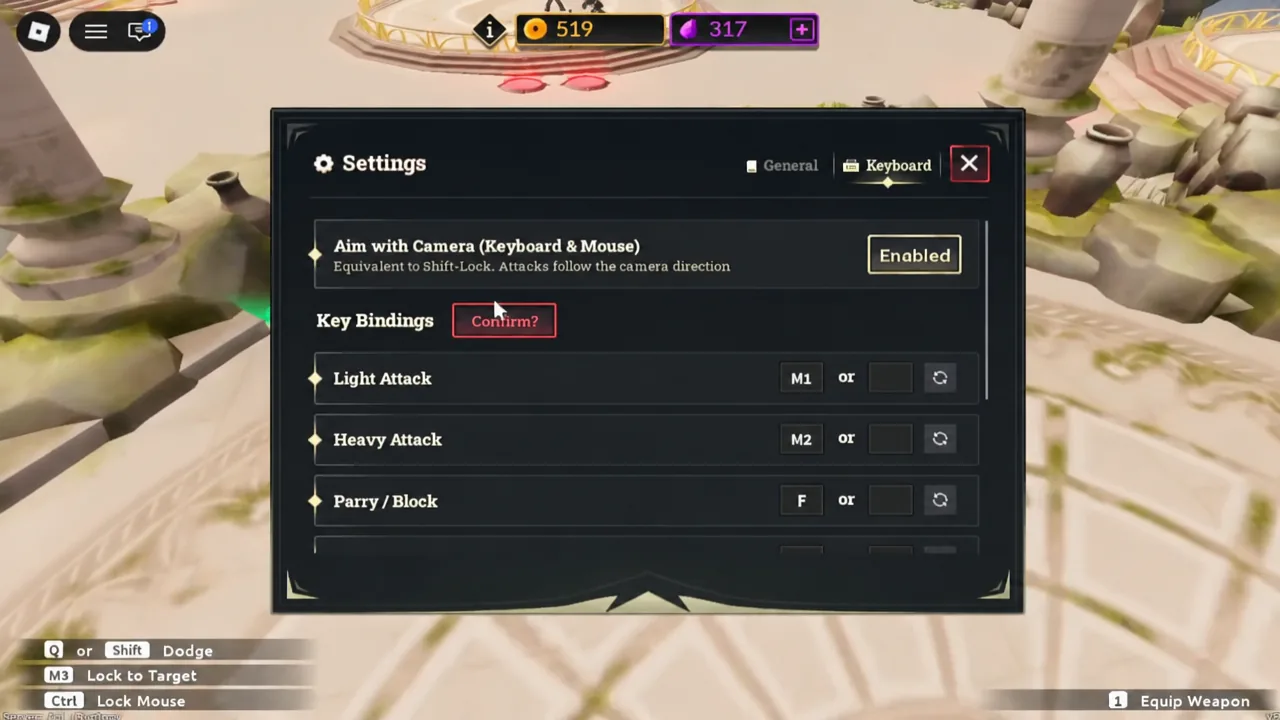
Aim with Camera (Keyboard & Mouse) explained
Above the key list, the Keyboard tab has a single toggle called Aim with Camera (Keyboard & Mouse), set to Enabled or Disabled. The description calls it the equivalent of Shift-Lock, and with it on your attacks follow whichever way the camera is pointing. Turn it on if you want your swings to land where you are looking rather than where your character happens to be facing.
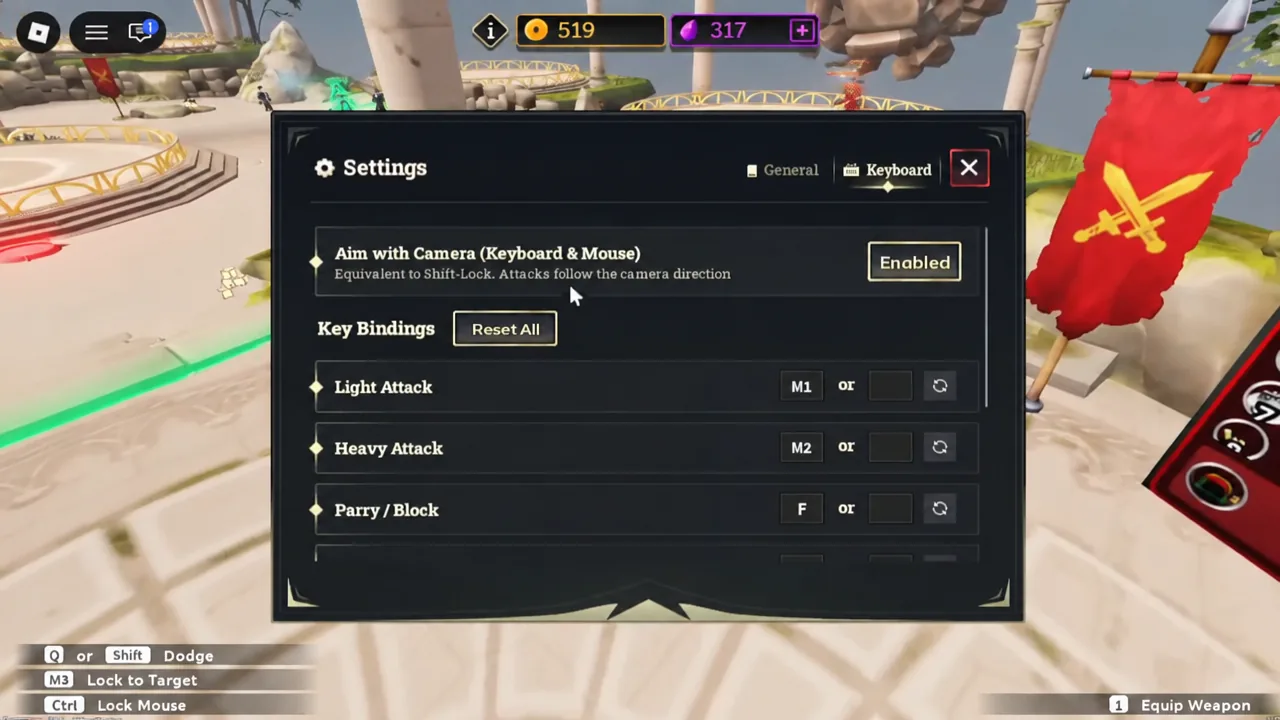
This pairs with the Lock / Unlock Mouse bind on Ctrl and Lock To Enemy on M3 or T. Camera aim controls where hits go, mouse lock controls whether your cursor is pinned to the screen, and enemy lock keeps the camera fixed on your opponent.
General tab: volume, Blood, performance, and Show Country
The General tab handles audio, visuals, and one privacy option. Volume is split into three separate sliders, so you can mute the lobby track and keep fight audio, or drop the music entirely and leave sound effects at full so you can still hear attack cues.
| Option | What it controls |
|---|---|
| Music Volume (Lobby) | Slider for the music that plays in the hub |
| Music Volume (Fights) | Slider for the combat soundtrack |
| Sound Effects Volume | Slider for all in-game sounds |
| Blood | Enabled or Disabled for blood effects |
| Low Detail Mode | Hides some extra details and may improve performance |
| Potato Mode | Cuts visual quality much harder for a guaranteed performance gain |
| Show Country | Visible or Hidden for your country next to your name |
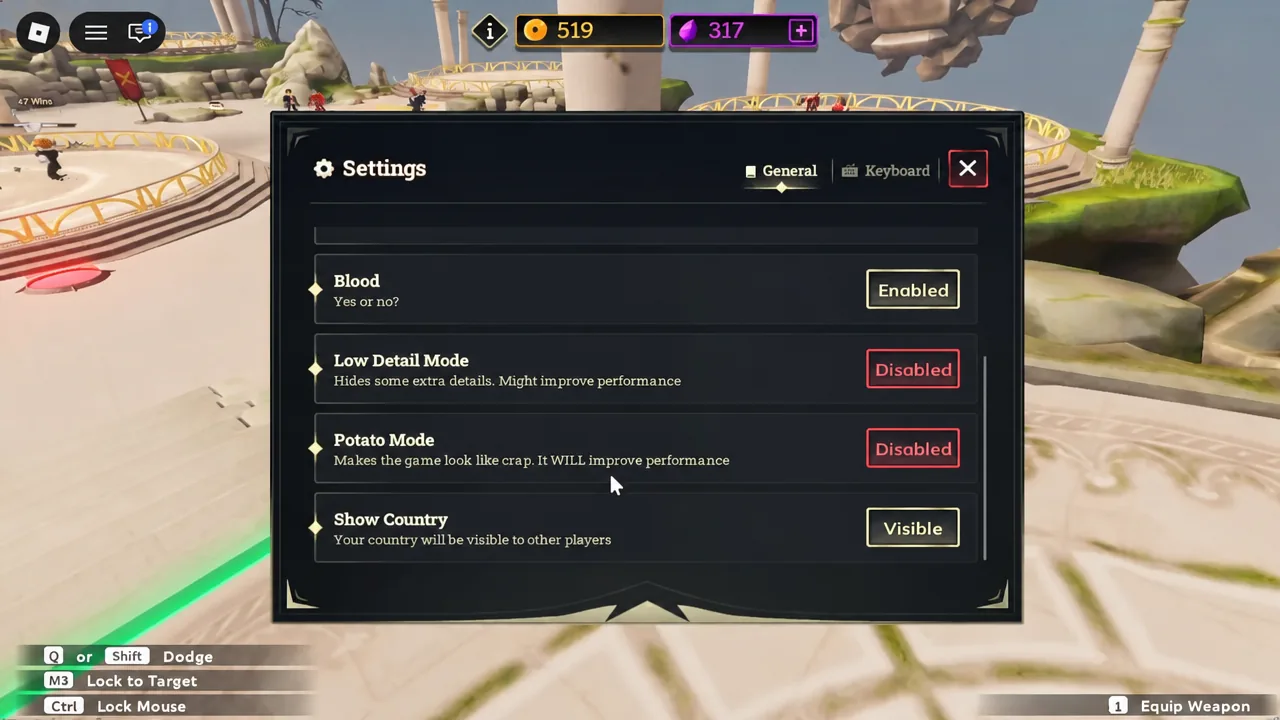
Low Detail Mode and Potato Mode are worth treating as a ladder. Try Low Detail Mode first, since it only strips extra details, and move to Potato Mode only if frames still drop during duels. Turning Blood off also removes one layer of effects, which helps on weaker hardware.
Check that your new binds saved before queueing
Close the Settings panel and you land back in the lobby with the bottom row of buttons visible again. Reopen Settings, return to the Keyboard tab, and read the key boxes. Any binding that shows your new key has saved; anything still showing the default means the confirmation step did not go through and you need to set it again.
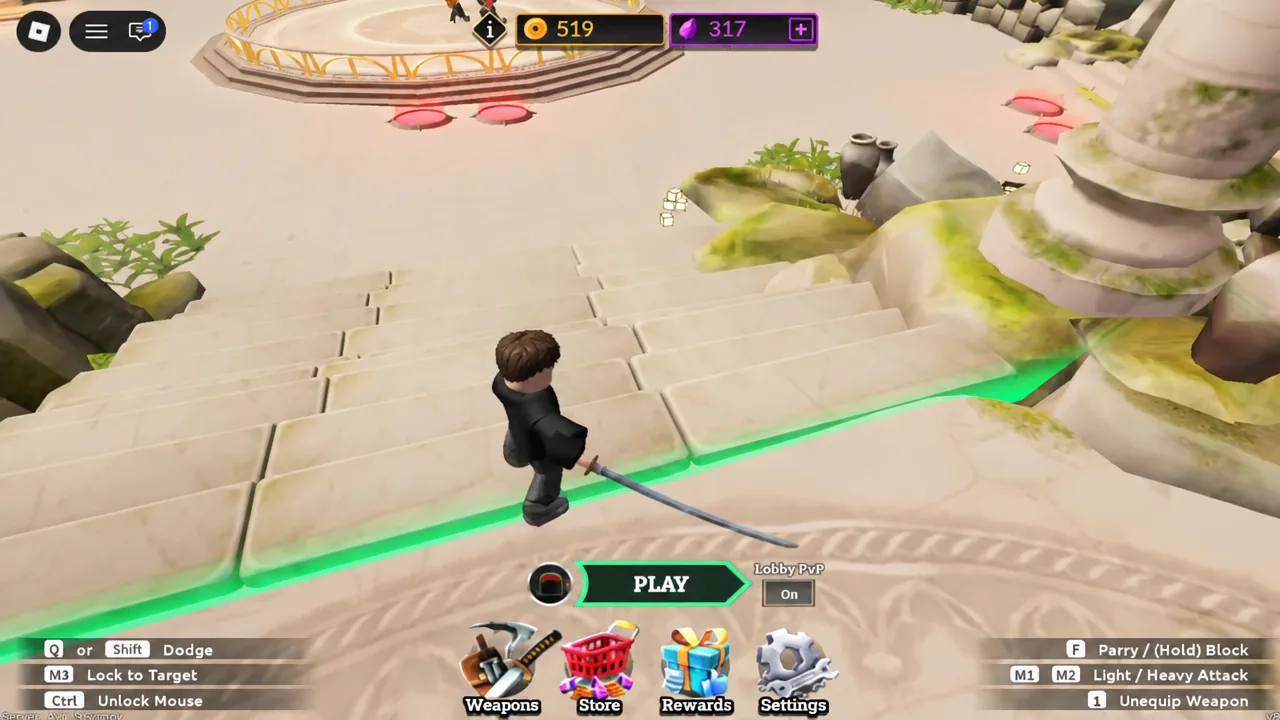
The lobby itself is the best place to test a new layout. Equip your weapon so the combat prompts appear on screen, then run through light attack, heavy attack, parry, dodge, and your ultimate once each before you hit PLAY and enter a real match. Parry timing is unforgiving, and a bind you have not muscle-memorised yet will cost you rounds.
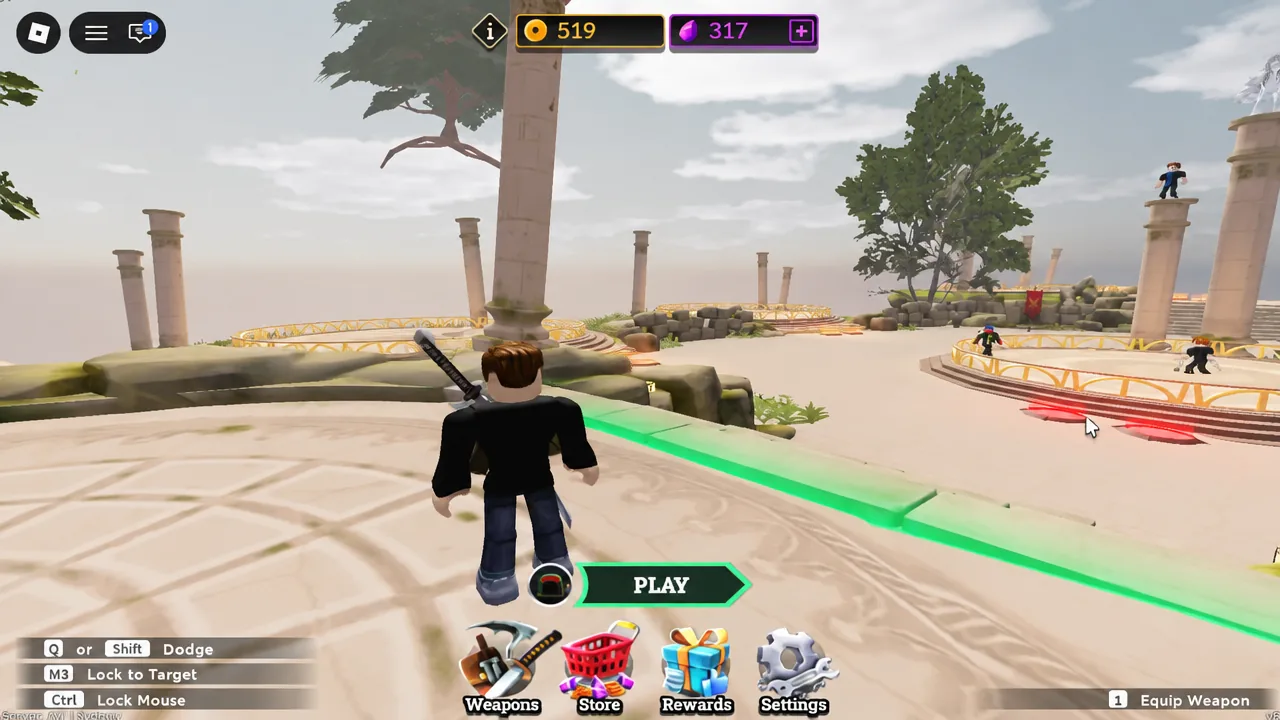
One habit worth keeping: change one or two binds at a time rather than rewriting the whole sheet. Reset All is there if a layout goes sideways, but it wipes every custom key at once, and rebuilding a full set of controls mid-session is more disruptive than the original layout ever was.