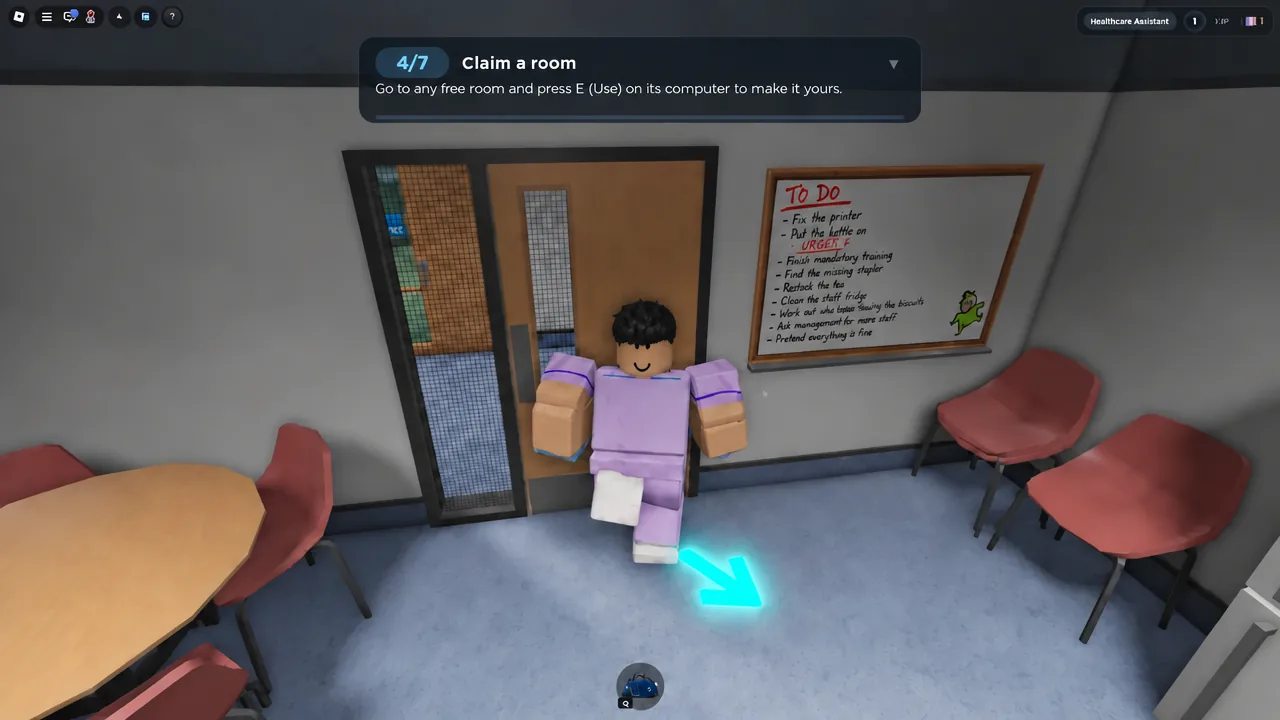
Every shift in Lakefalls Medical: GP Simulator runs on the same loop. You take a room, take a patient, ask questions, run examinations, get a diagnosis signed off, treat, and then decide whether the patient goes home or to hospital. The Roblox roleplay experience, built by Coda Games, tracks your progress through numbered objectives on screen, so the game tells you which part of the loop you are in at any moment.
Quick answer: Claim a room at the desk computer, claim a waiting patient with E, bring them back, consult and examine, submit the file to the on-call GP, apply the treatment, then discharge at the computer.
The patient loop in Lakefalls Medical: GP Simulator
The tutorial counts objectives out of seven, and the first three set the rhythm for everything that follows. Read the objective counter and the PATIENT NOTES panel together, because they can show different instructions at the same time. The notes panel may still be asking you to start the consultation while the objective has already moved on.
| Objective | What it asks for | Where you do it |
|---|---|---|
| 1/7 Claim a room | Log in and claim | Desk computer |
| 2/7 Take a patient | Claim Patient with E | Waiting area |
| 3/7 Consult | Begin Consultation with E | Your room |
Work out of your own claimed room. A room number quoted by another player is not a required destination, and interacting in someone else’s room does not advance your objectives.
Claim a room at the workstation computer
E to bring up the RHS GP Practice Secure Workstation login screen, which shows your own username.Claim a patient and start the consultation
E for Claim Patient. The objective moves to 3/7 Consult, and the patient starts following you.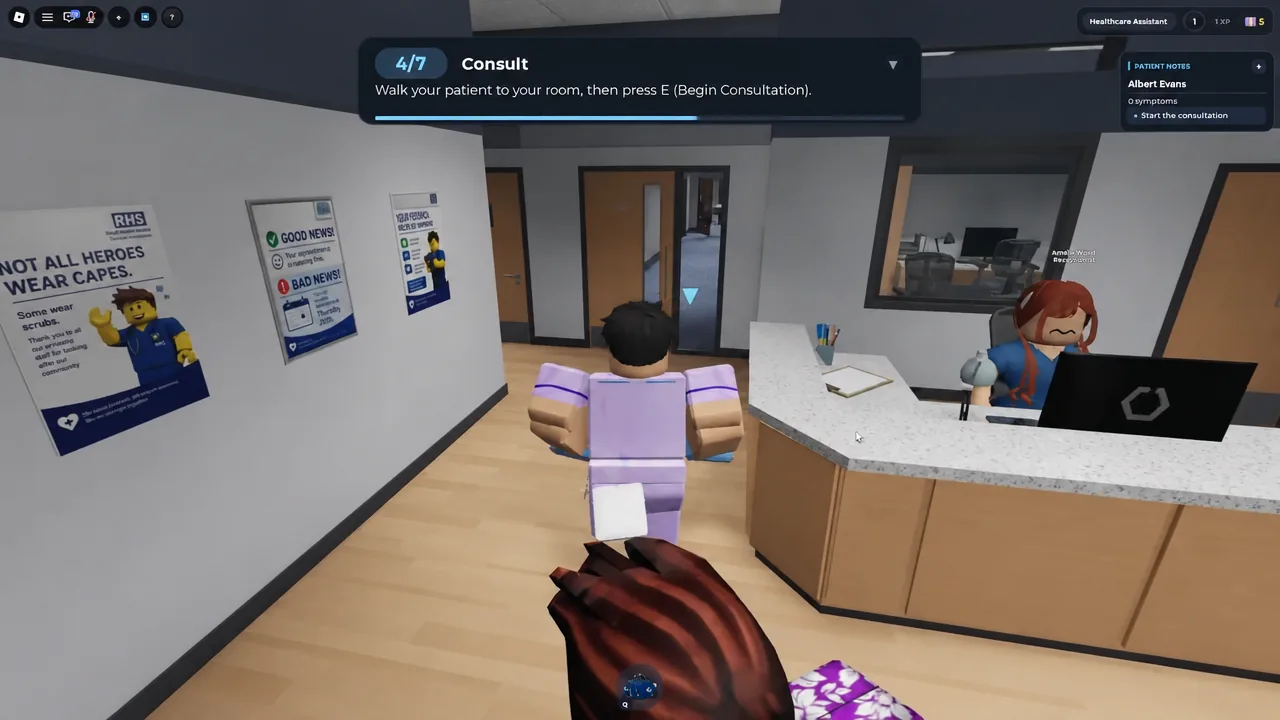
E for Begin Consultation, then work through the dialogue. On keyboard, press Enter to skip a line and hold Enter to fast-forward. The questions cover symptoms, triggers, when the problem started, and allergies.The Enter prompt is only a dialogue control. Seeing it, or seeing the patient’s name in the notes panel, does not mean treatment is finished.
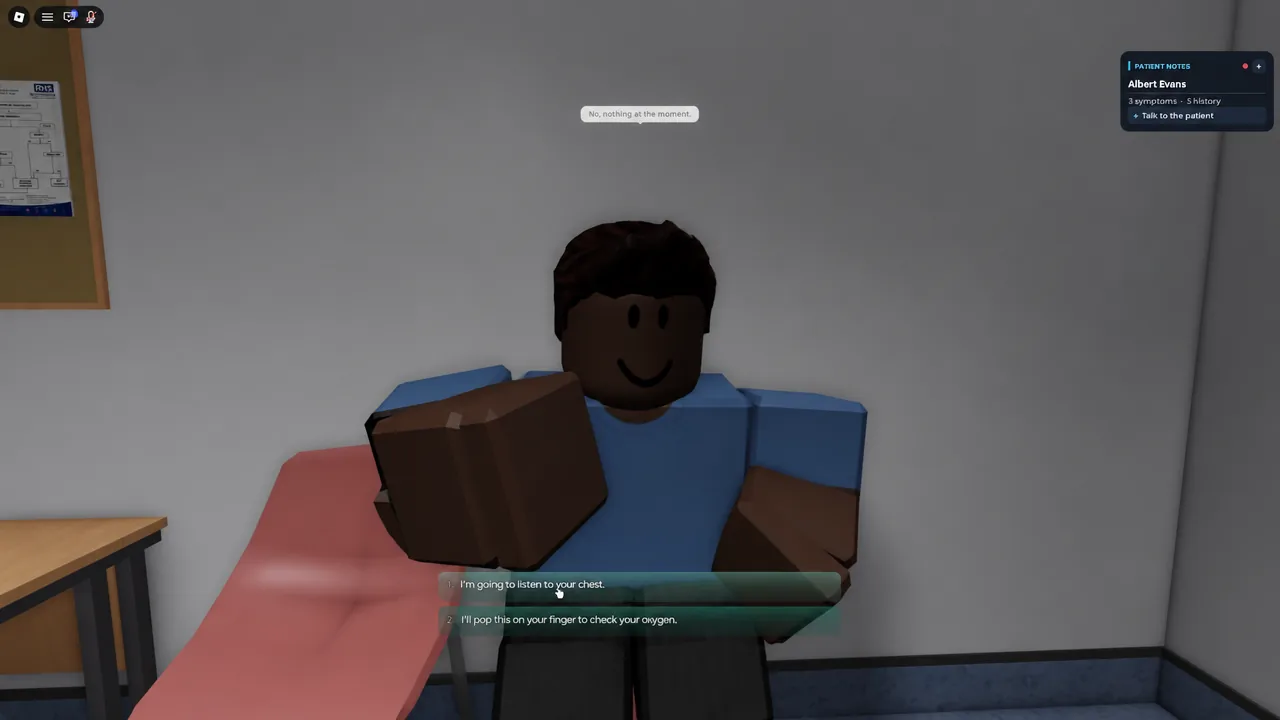
Examinations and vitals: stethoscope, pulse oximeter and blood pressure
Once the history is done, the game switches to interactive examinations. Each one is a short mini-game with its own interface, and equipment comes out of your medical bag.
- Auscultation: listen across several points on the patient’s chest with the stethoscope.
- Pulse oximeter: equip it from the bag to read oxygen levels.
- Thermometer: take body temperature straight after the oximeter.
- Blood pressure: hold to pump the cuff into the green zone, then tap when prompted as the needle falls.
- Weight scale: place it down, then move on to the height check.
The stethoscope screen expects you to cover every listening point rather than one spot. Missing points leaves the examination incomplete, so clear the whole chest before putting the equipment away.
Submit the patient file to the on-call GP for a diagnosis
You do not pick a diagnosis out of thin air. Go back to the desk computer, open the patient file, and review what you have collected. Submitting the data sends it to the on-call GP, who returns a confirmed diagnosis and the treatment it requires.
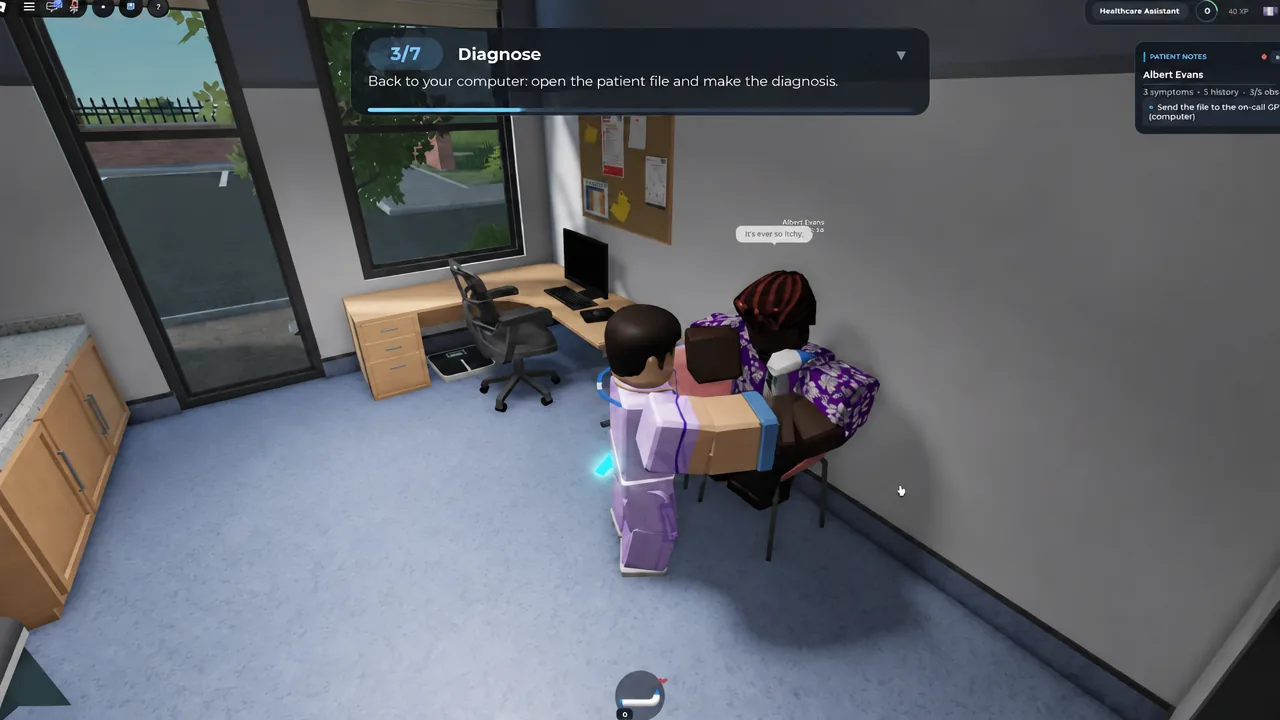
In the opening case, Albert Evans comes back as a Mild Allergic Reaction treated with Itch-Be-Gone ointment. That name is what you carry into the next step, because the treatment item is not handed to you.
Collect the treatment from the storage room and apply it
Discharge the patient and check your rating
Treatment is not the end of the case. Go back to the workstation one more time and pick the outcome. The game asks whether the patient is discharged or admitted to hospital, which is the decision that closes the file.
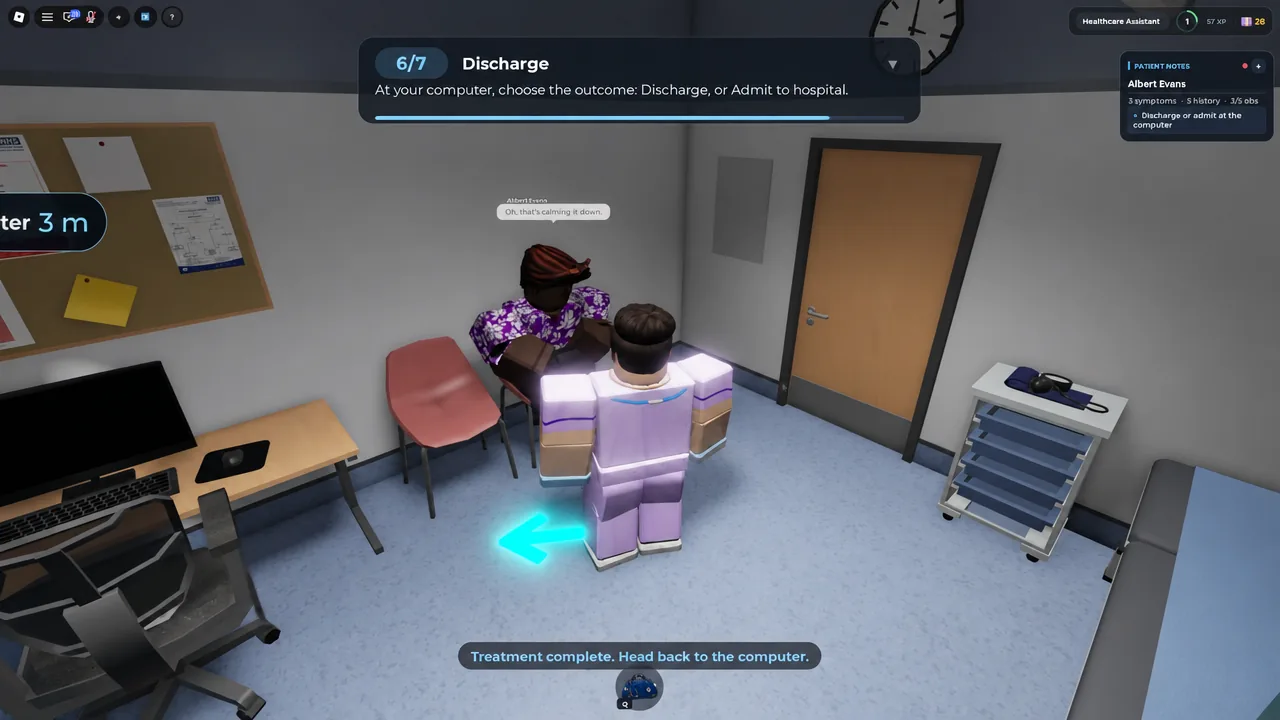
You know the case worked when the summary appears with a star rating out of five plus cash and XP. A clean run through consultation, examinations, diagnosis and treatment returns 5.0/5. After that, the computer lets you call the next patient from the waiting list, and the shift tasks list shows what is queued up.
Health reviews work the same way without a diagnosis
Not every appointment is an illness. A Weight & Height Review, like the one for James Hopkins, still starts with claiming the patient and running an intake conversation about general health and lifestyle. The difference is that the measurements themselves are the job, so you place the weight scale, run the height check, and close out with the patient rather than fetching medication.
The practice also handles emergencies and hospital referrals, which is where the admit option earns its place on the discharge screen.
Patient count badges to aim for
Progression is measured in patients treated, and three badges mark the milestones.
| Badge | Requirement | Rarity |
|---|---|---|
| First Shift | Treat 5 patients | 44.7% |
| Ward Favourite | Treat 100 patients | 1.0% |
| Senior Partner | Treat 600 patients | 0.0% |
Servers hold eight players, so rooms and waiting patients are shared. If every room is taken, wait for one to free up rather than trying to work from a room you have not claimed.
Once the loop clicks, a full case takes only a few minutes, and the rating at the end is the quickest way to tell whether you skipped an examination along the way.