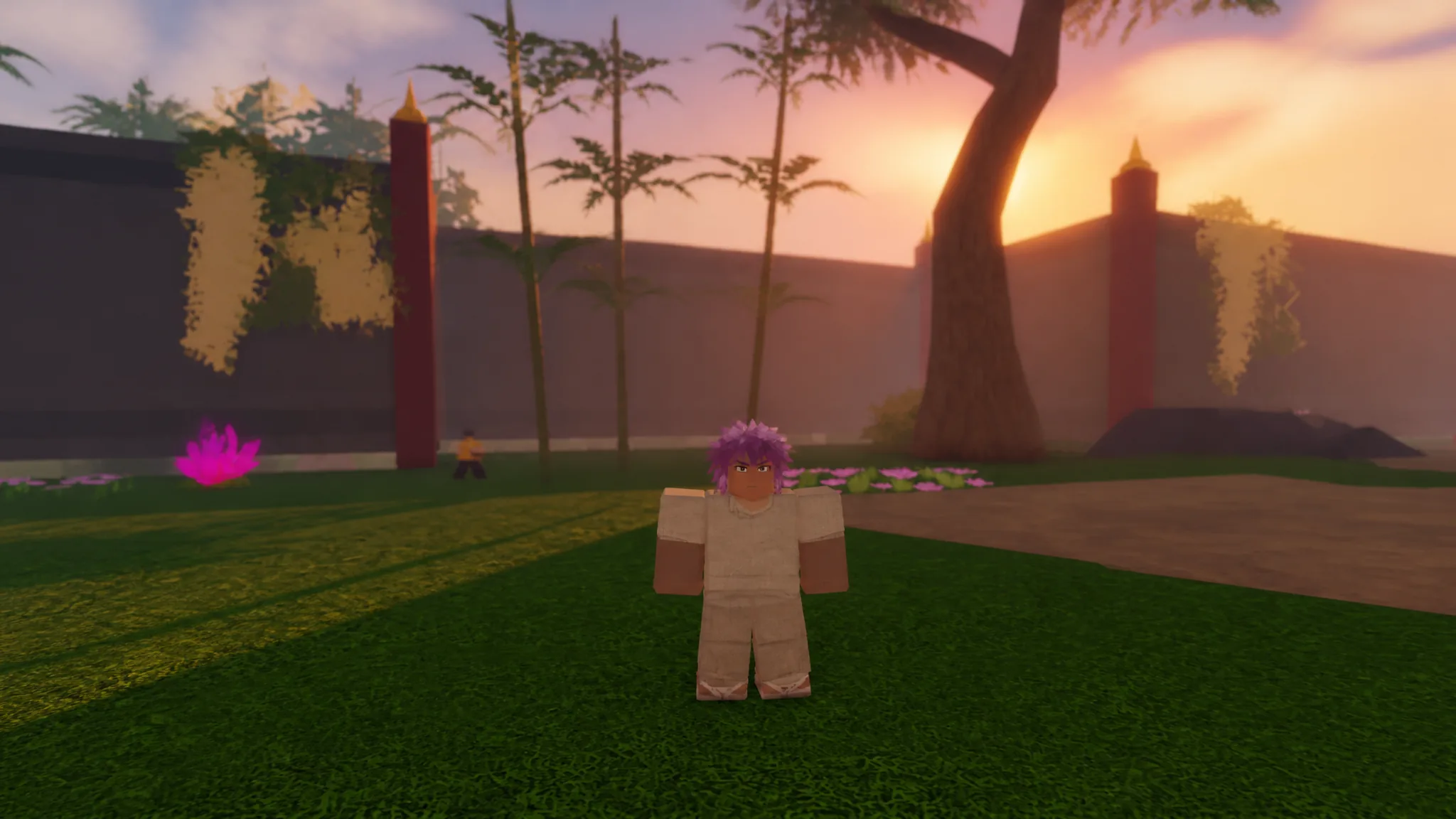
Slayers 2 leans hard on visual effects. Breathing style activations, Blood Demon Art projectiles, and crowded boss arenas all stack particle work on top of an already busy Roblox world, and that is where frame rates collapse on mid-range hardware. The fix is almost always a settings problem rather than a hardware problem, and it lives in two separate places: the Roblox client menu and the game’s own display tab.
Quick answer: In the Roblox settings menu, set Graphics Mode to Manual, drop Graphics Quality to level 1, raise Maximum Frame Rate to 240 FPS, then lower Graphics Quality inside Slayers 2 as well.
Roblox client settings: Graphics Mode, Graphics Quality, and frame rate cap
These four changes do the heaviest lifting, because the Roblox client controls rendering before Slayers 2 ever gets a say. Apply them in order during a live session so you can watch the frame rate respond.
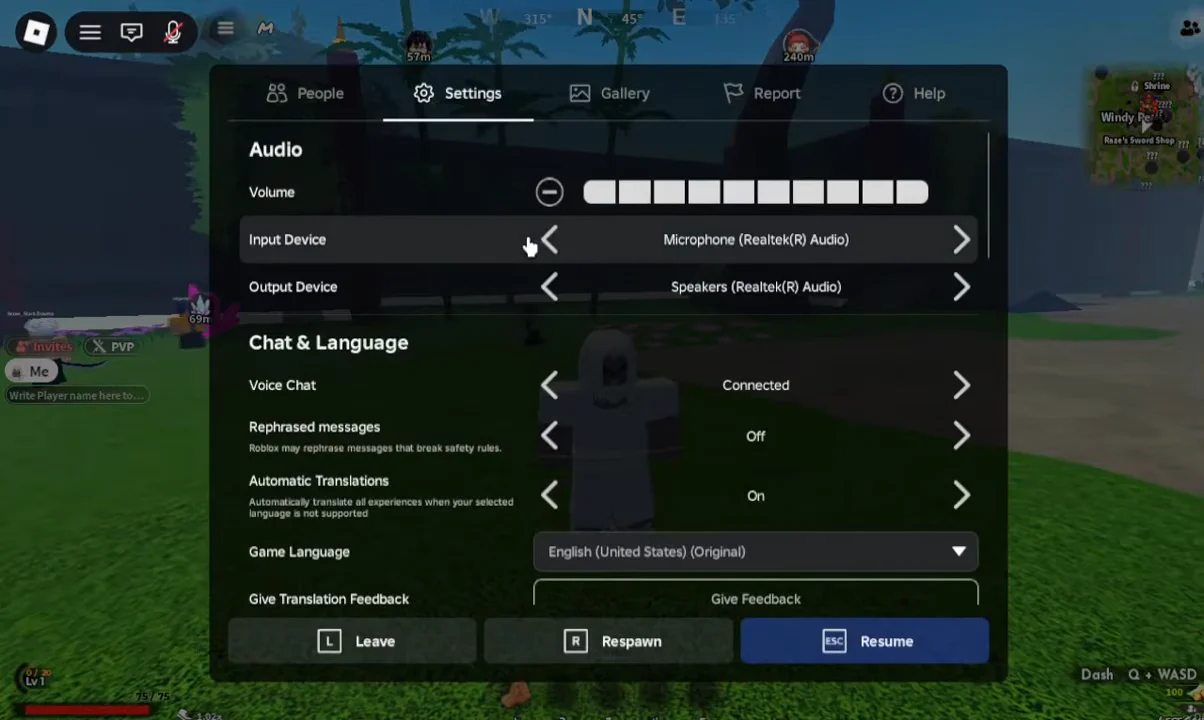
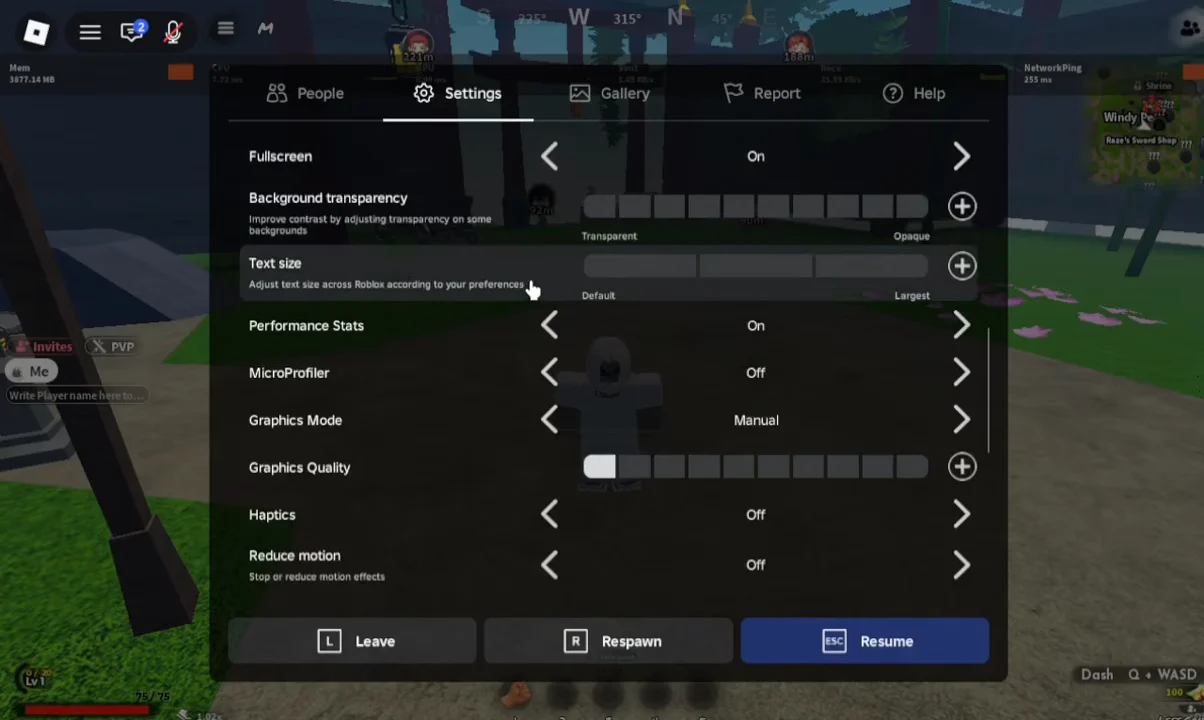
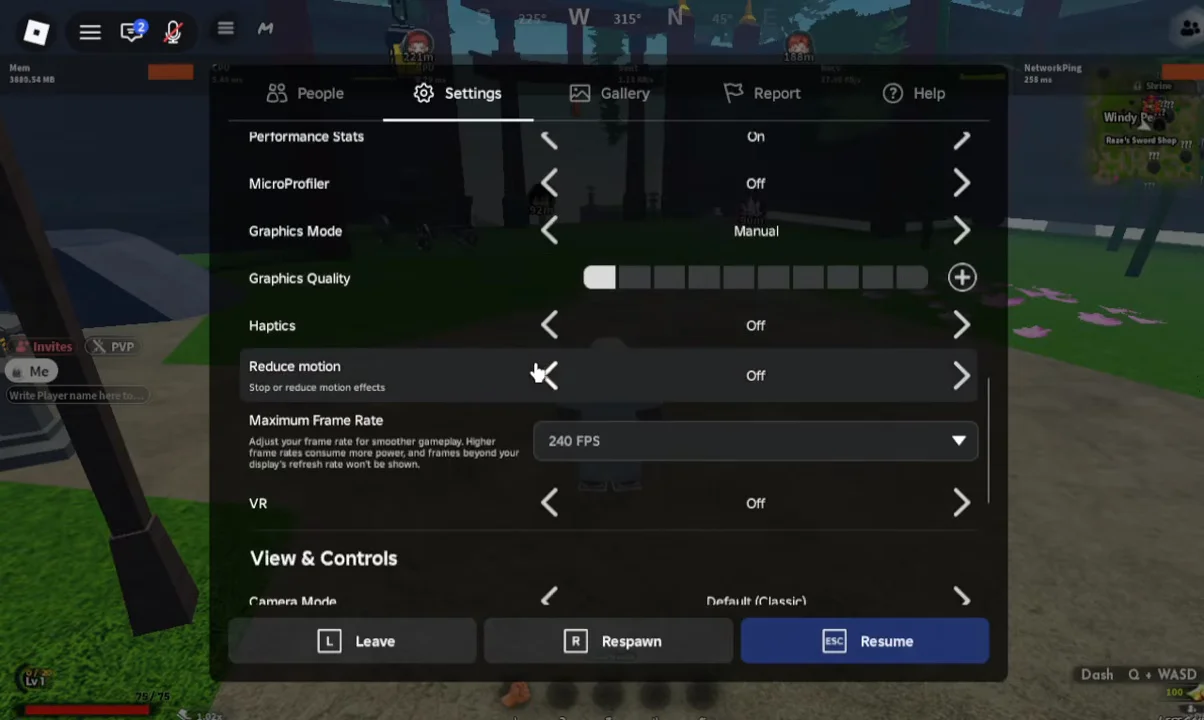
Make these changes while standing in a quiet area rather than during a boss fight, so the numbers you read are not being skewed by a screen full of Demon Art effects.
Slayers 2 display settings: render distance, shadows, and effect intensity
Slayers 2 keeps its own display controls, reachable from the settings icon in the top-right corner of the screen. The tabbed panel separates display options from gameplay toggles, and the display tab is the one that matters for performance. Lowering these on top of the client-side changes is what turns a stuttery boss fight into a playable one.
| Setting | What it costs you | Set it to |
|---|---|---|
| Graphics Quality | Overall render load | Auto, or Low on weak devices |
| Render distance | Objects drawn far away | Lowest comfortable value |
| Shadow quality | Dynamic shadow passes | Lowest |
| Effect intensity | Ability and impact particles | Lowest |
Effect intensity is the setting to reach for first if frames only drop during combat. Breathing style activations and wide-area Blood Demon Arts spray particles across the screen, and reducing that load has a bigger impact than shaving render distance, which mostly matters while you are travelling between regions. Shadow quality sits somewhere in between: it hurts most in dense areas with lots of geometry.
Phones and tablets should start at Low and stay there. The game’s mobile build already carries extra overhead from the virtual joystick, touch-drag camera, and on-screen action buttons, so there is less headroom left for visual quality than on a PC running a keyboard and mouse setup.
Tell lag apart from low FPS using the Performance Stats readout
The two problems look identical in the moment and have completely different fixes. With Performance Stats enabled from the Roblox settings menu, the on-screen overlay shows your network ping alongside your frame rate, which is all you need to work out which one you are dealing with.
- Low frame rate, normal ping: a rendering problem. Keep lowering graphics quality and effect intensity.
- High ping, normal frame rate: a connection problem. Rejoin to land on a different server.
- Both poor at once: apply the client settings first, then reconnect and re-check.
You know the settings took effect when the frame rate figure in the overlay climbs and holds steady through an ability chain rather than spiking down every time a skill lands. Rubber-banding — your character snapping back after a dash — is a ping symptom, not a graphics one, and no amount of quality reduction will remove it.
Use a private server to cut the number of effects on screen
Slayers 2 supports private servers, which hand you control over who is in the session. Beyond training without interruption or setting up PvP matches, a near-empty server means far fewer breathing styles and Blood Demon Arts firing off around you at once, so the client has less to draw. Server owners and moderators can manage the session through commands typed into the in-game chat.
If you would rather stay on public servers, simply rejoining is the fastest way to get placed somewhere less crowded.
Change one thing at a time and re-check the overlay before moving on. Dropping every slider at once gets you a smoother game, but it also leaves you with no idea which setting was actually costing you the frames — and that matters later, when a new region or a heavier Blood Demon Art build pushes your machine again and you need to know exactly where the headroom is.