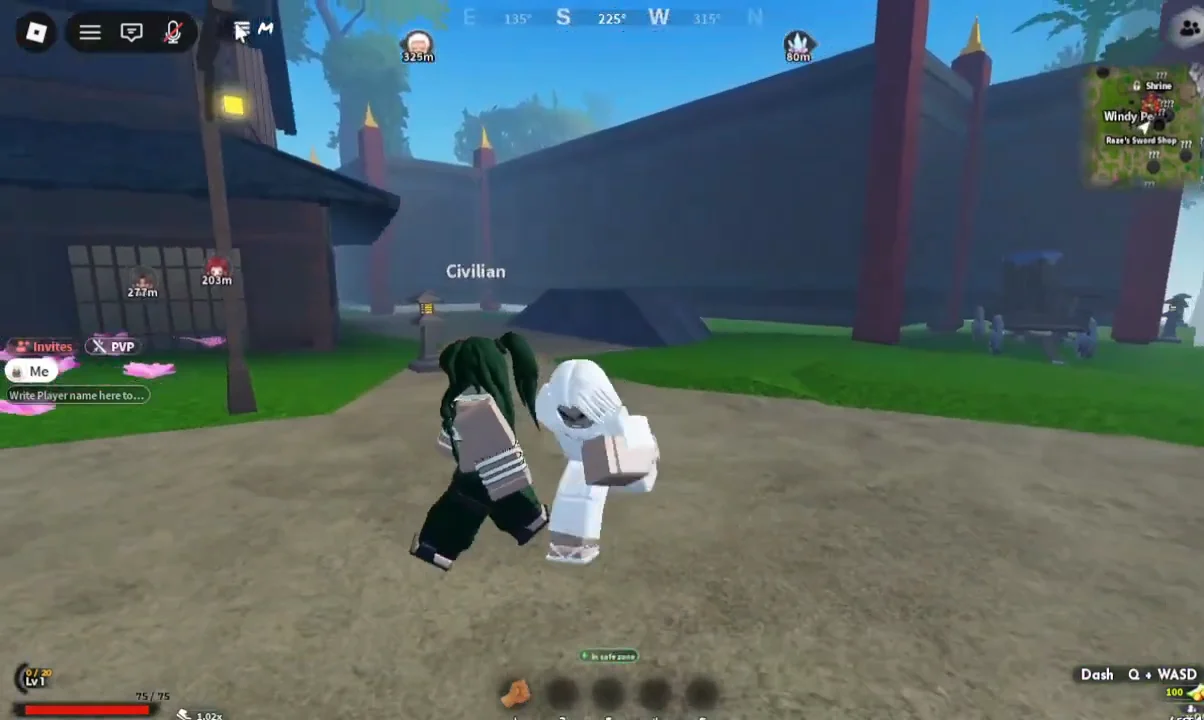
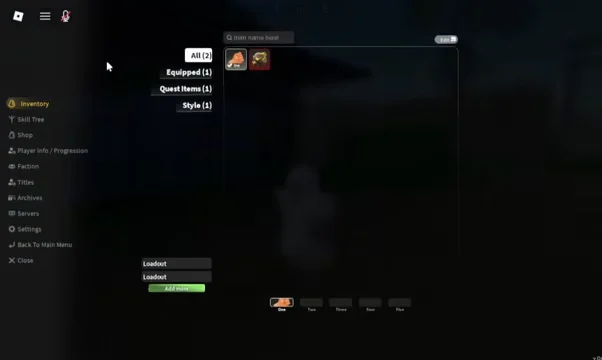
Slayers 2 buries its options behind a sidebar rather than a floating gear icon, which is why plenty of players spend their first hour holding down Left Shift and fighting a keyboard layout they never agreed to. Everything you need sits in one panel, split across two tabs, and the changes take about thirty seconds once you know where to click.
Quick answer: Click the three-line icon in the top-left corner, select Settings, then use the General tab for audio and visuals or the Controls tab for Toggle run and keybinds.
How to open the Settings menu in Slayers 2
General tab: control scheme, visuals, and audio
The General tab handles everything that is not a key assignment. The Controls dropdown at the top is the one worth checking first, since it decides which input layout the game draws on screen.
| Option | What it does |
|---|---|
| Controls | Sets the input scheme: Auto, PC, Console, or Mobile |
| Effects | Slider for visual effect intensity |
| Screen shake | Slider for camera shake during combat |
| Map materials | Toggles world material detail |
| Theme | Audio slider for the soundtrack |
| Ambience | Audio slider for environmental sound |
Auto picks the layout based on the device you joined from, so you only need to change it if the game guesses wrong — a controller on PC, for example, or a tablet that gets treated as a desktop. Dropping Theme while leaving Ambience alone is the usual move for players who want to hear attack cues without the music sitting on top of them.
Controls tab: Toggle run and the Movement section
Click Controls at the top of the settings window. The Movement section appears first, and the only switch in it is Toggle run. Flip it to the ON position.
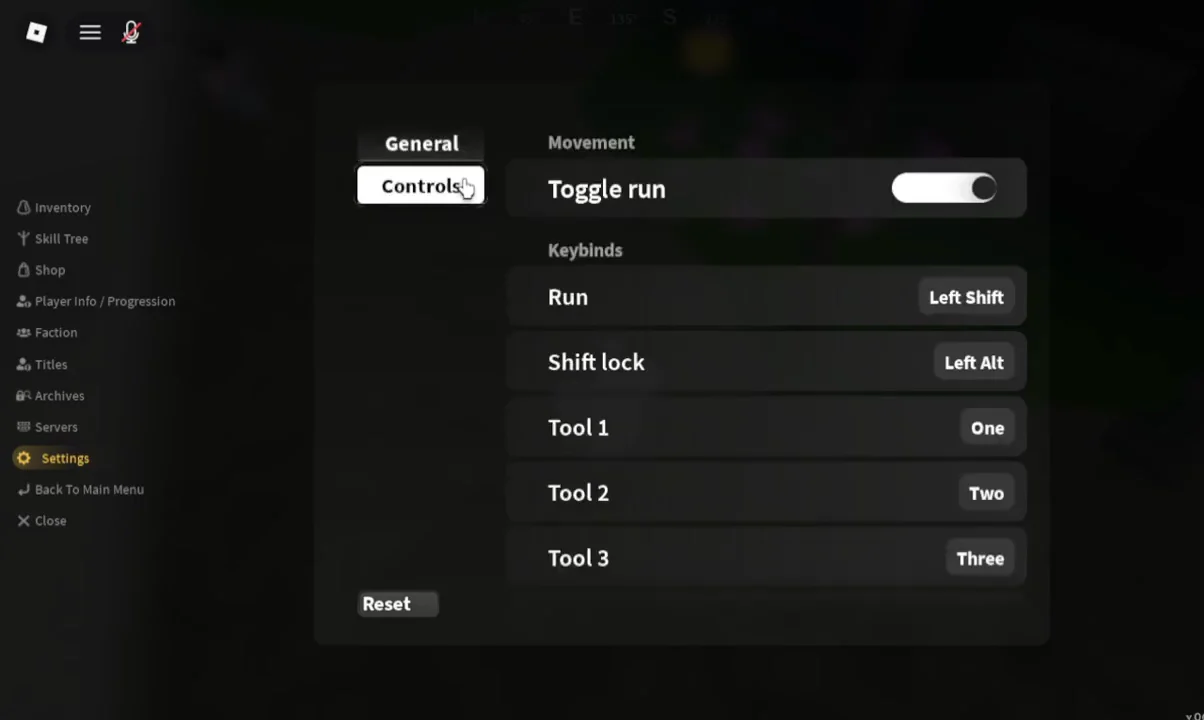
With it enabled, pressing the run key once starts a sprint that keeps going until you press the key again. You no longer hold Left Shift down while you cross the map. To confirm it took effect, close the menu, tap Left Shift once, and let go — if your character keeps sprinting, the setting is live.
Default keybinds in Slayers 2
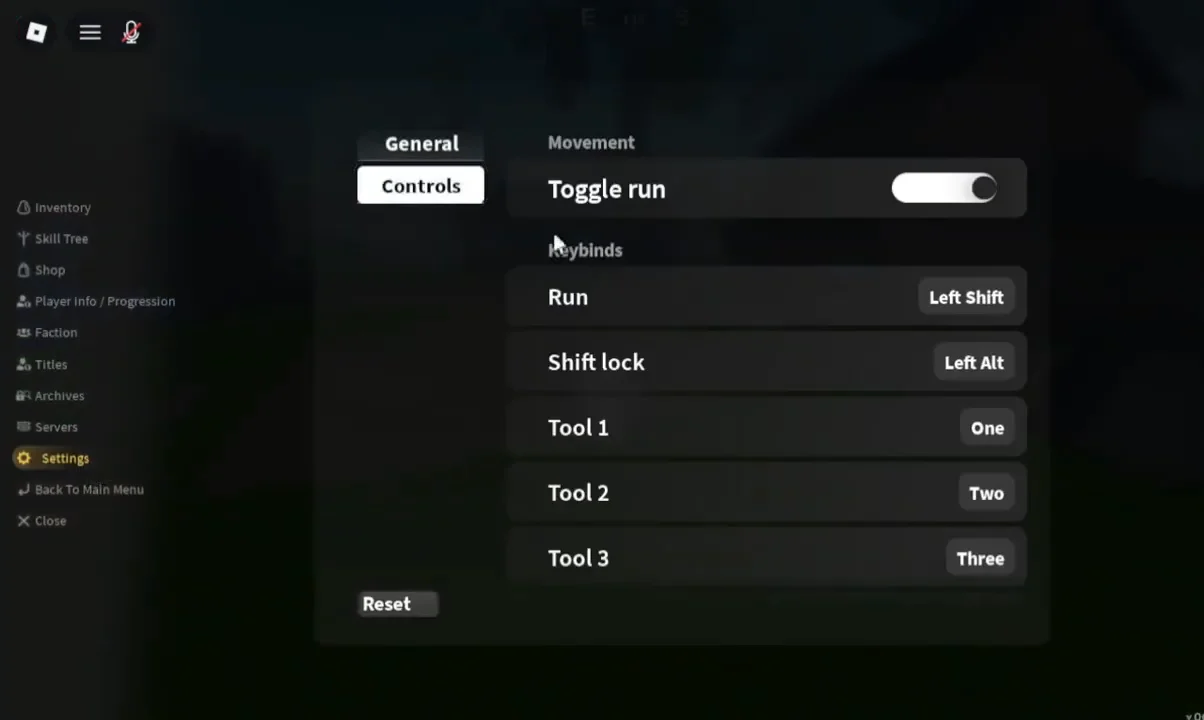
Scroll past the Movement section and the Keybinds list covers movement, tools, and skills. These are the defaults you are remapping from.
| Action | Default key |
|---|---|
| Run | Left Shift |
| Shift lock | Left Alt |
| Tool 1–5 | One, Two, Three, Four, Five |
| Skill 1–4 | F, Z, X, C |
| Skill 5–8 | V, B, N, K |
Skill 1 through Skill 8 are spread across two rows of the keyboard, which is the part most players end up rearranging. Dash is handled separately by Q plus a WASD direction and is shown on the HUD rather than in this list.
How to change a keybind
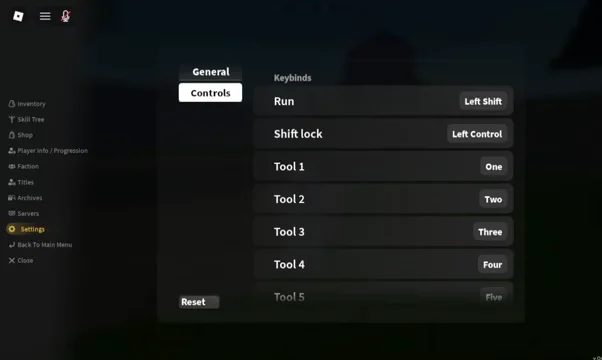
Remap one action at a time and test it in the world before doing the next. It is much easier to spot a conflict that way than after rebuilding the whole skill row.
Reset controls and close the menu
If a layout stops making sense, the Reset button restores the default assignments. It asks for confirmation before wiping your changes, so an accidental click will not undo your work on its own.
To get back to the game, switch to the General tab or simply click Close in the side menu. Control returns to your character immediately, and any applied keybind is active on the next press.
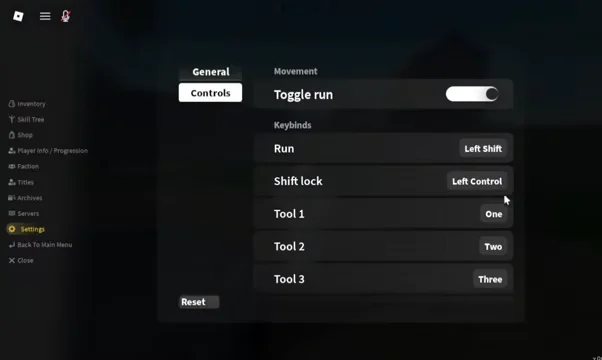
Worth doing before any long grind session: set the control scheme to match your hardware, turn Toggle run on, and move Shift lock somewhere your hand already rests. Those three changes remove most of the input friction that shows up during longer fights.