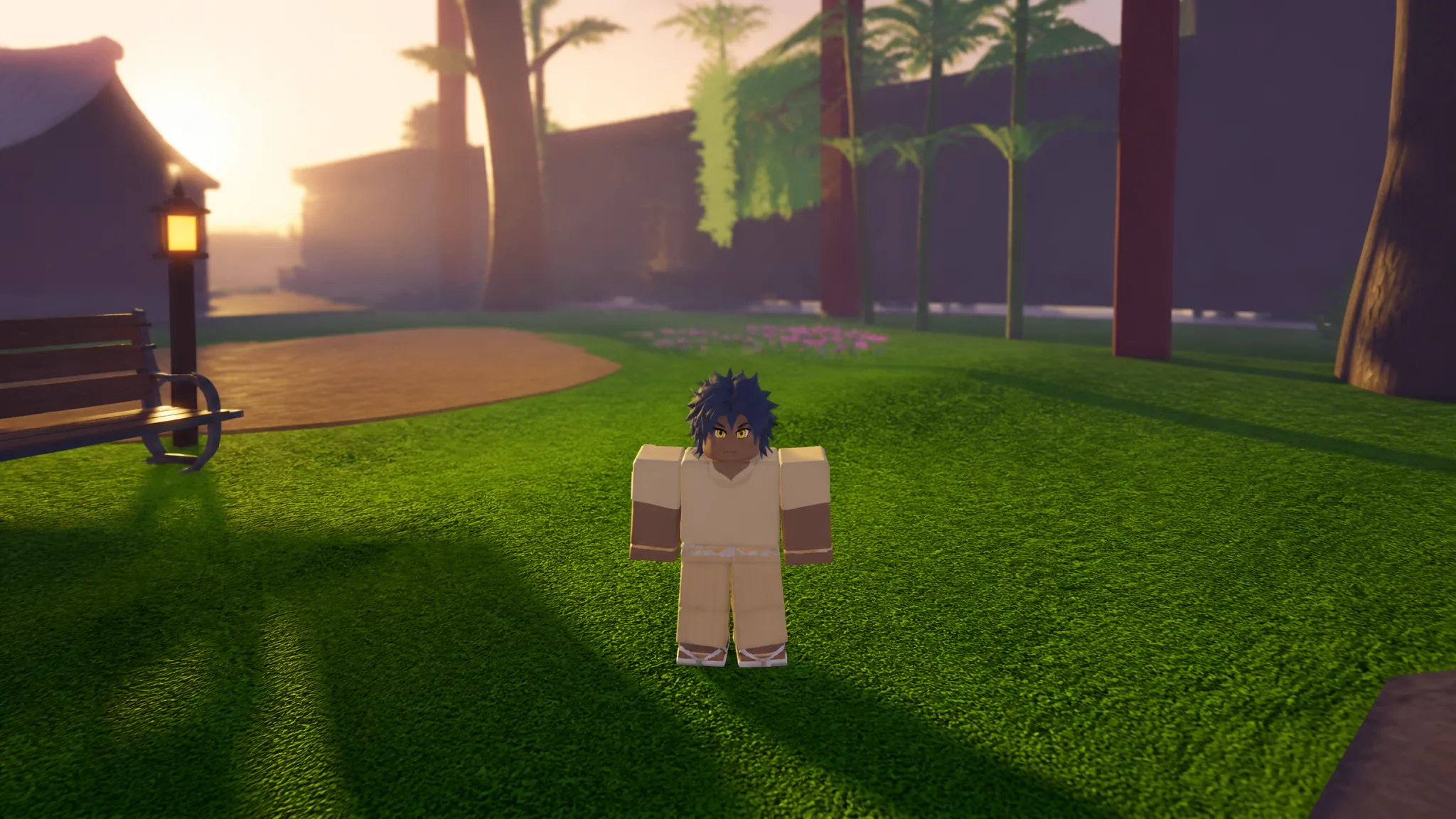
Voice chat in Slayers 2 is not a toggle the game itself owns. It runs on Roblox’s platform-wide voice feature, so the switch lives on your Roblox account, and the in-game menu only reports whether that connection is live. Get the account side right and the rest is a two-minute check.
Quick answer: Enable and verify voice chat on your Roblox account first. Then in Slayers 2, press Escape, open Settings, confirm Voice Chat reads Connected, and set your Input Device and Output Device.
Voice chat requirements on your Roblox account
To use Roblox voice chat, an account must meet age and identity requirements. Roblox’s official help page specifies an age of 13 or more, phone verification where supported, and ID verification in other regions. However, players often say the setting appears only when the account age is above 15; with a lower birthdate, the toggle will likely remain unavailable.
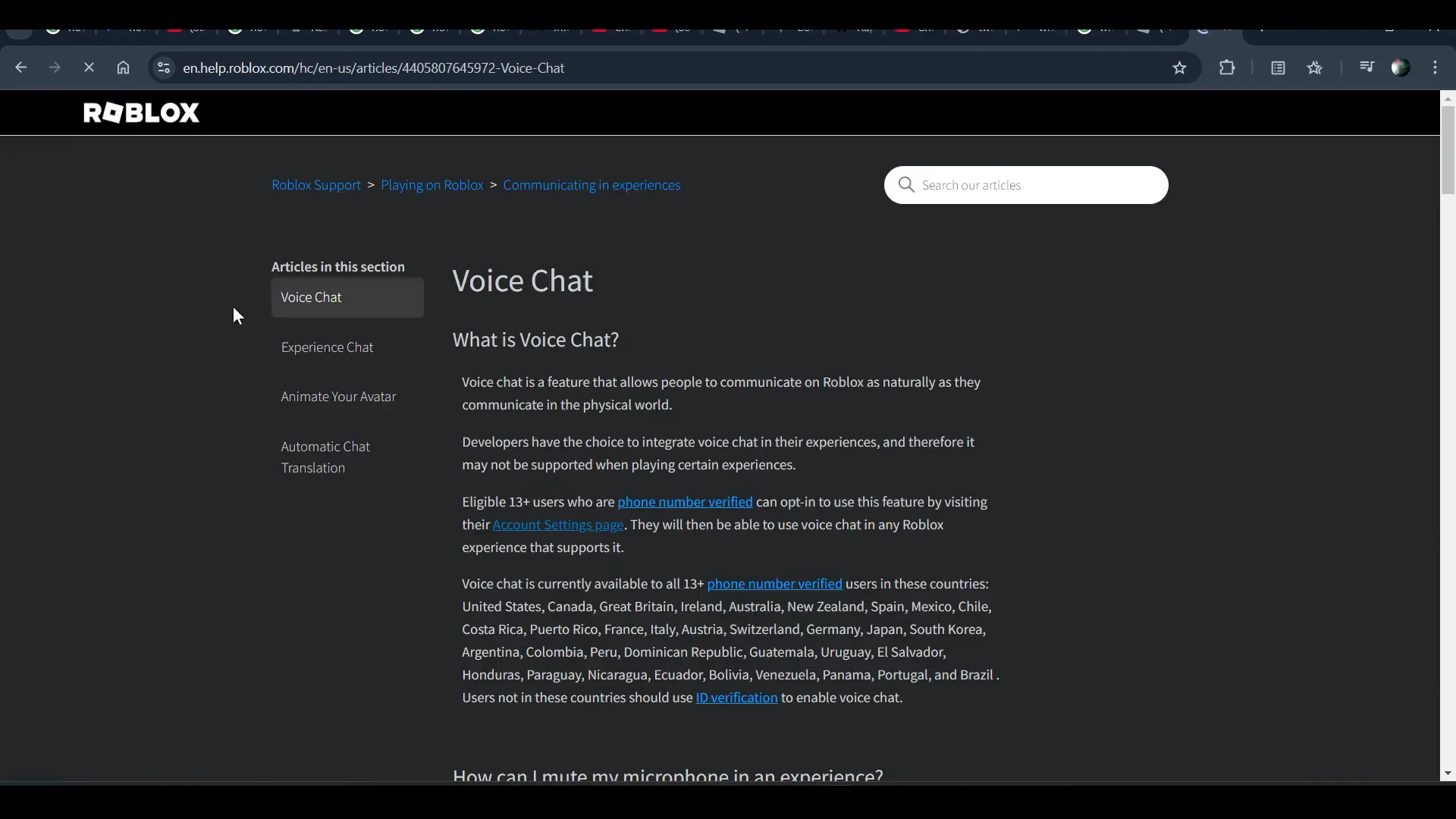
- An age-eligible Roblox account, verified by phone number or ID depending on your region.
- Voice chat switched on in your Roblox account settings, not in Slayers 2.
- A working microphone that Windows recognizes as an input device.
- Speakers or a headset selected as your output device.
Turn on voice chat in Roblox settings
Check the Voice Chat status inside Slayers 2
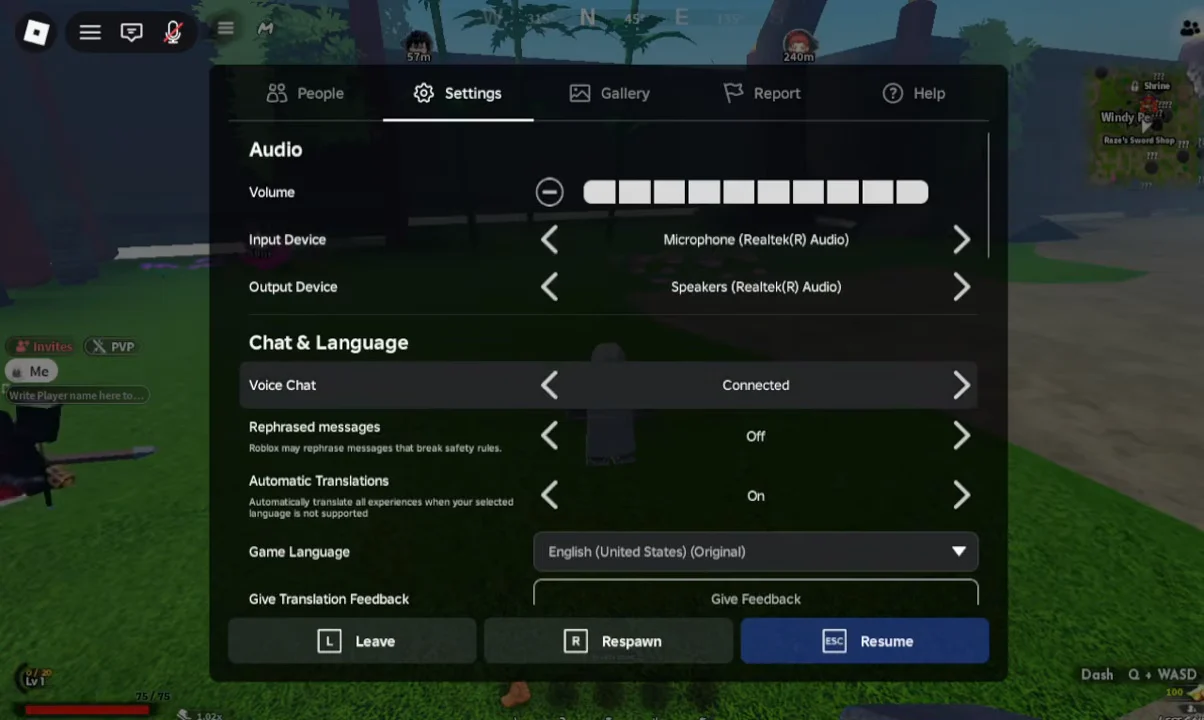
Pick your input and output device
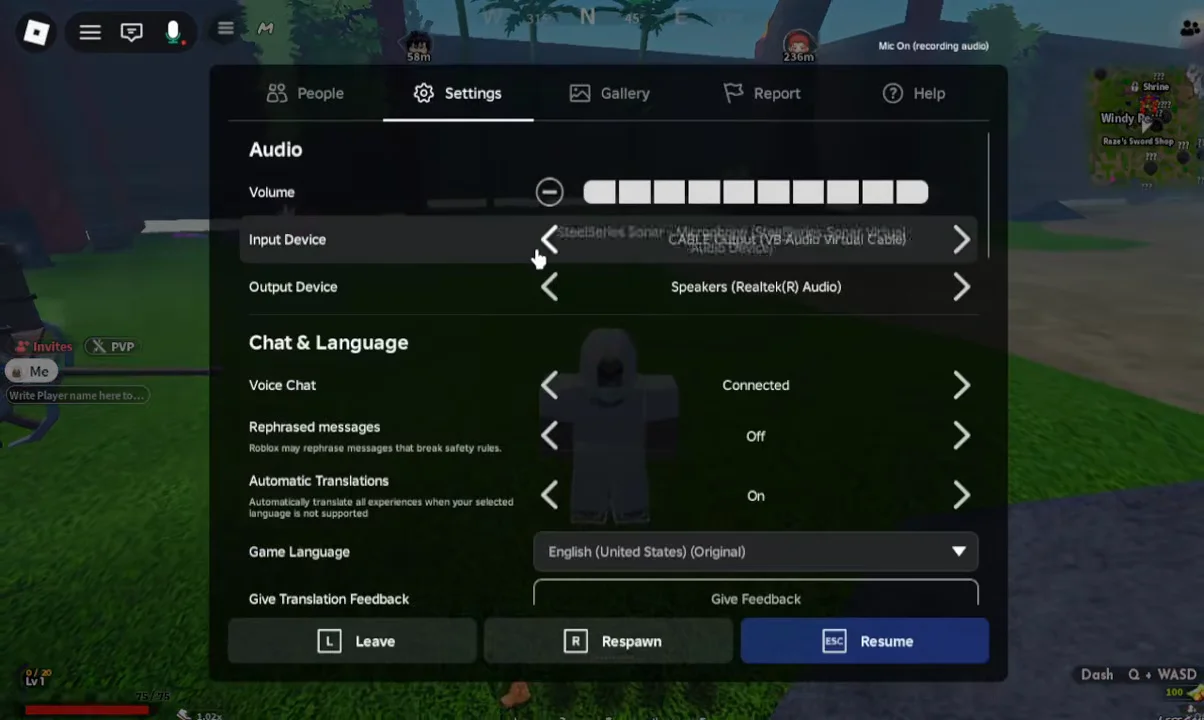
Both device menus live in the Audio section of the same in-game Settings tab. Roblox lists every device Windows exposes, which on a typical PC means a mix of real hardware and virtual audio drivers.
| Setting | What to select | Example entry |
|---|---|---|
| Input Device | Your physical microphone | Microphone (Realtek(R) Audio) |
| Output Device | Your headset or speakers | Speakers (Realtek(R) Audio) |
Virtual drivers such as CABLE Output (VB-Audio Virtual Cable) or SteelSeries Sonar – Microphone also show up in these lists. Pick one by mistake and your voice routes somewhere nobody in the server can hear.
Confirm voice chat is live in the server
You will see both visual indicators automatically. One microphone symbol appears over your character in the world, while another is shown at the upper-left of the screen beside the Roblox menu button.
To see who else you can talk to, open the menu again and switch to the People tab. Every player with voice chat enabled carries a speaker icon beside their username. If nobody in the list has one, the silence is the server’s, not your setup’s.
If the Voice Chat option never appears
Account changes are the usual culprit. Updating details on a Roblox account can affect whether voice chat stays available, so re-check the setting after any such change rather than assuming it carried over.
If the account is under the eligible age, there is no in-game workaround. The feature simply cannot be switched on, and the only route to voice chat is an account that meets the age requirement.
Once Voice Chat shows Connected and the microphone icon is sitting above your head, you are set for the rest of the session. The check is worth repeating after a Roblox update or a device swap, since a changed default input is the quickest way to go quietly mute mid-fight.