Gender in World of Warcraft Forever is set through the body type buttons on the character creation screen. The control sits at the very top of the screen and switches your chosen race between its male and female models before you finalize the character.
Quick answer: On the character creation screen, click the two silhouette buttons at the top center. The left button (Body 1) sets a male model; the right button (Body 2) sets a female model.
Select your character’s gender in character creation
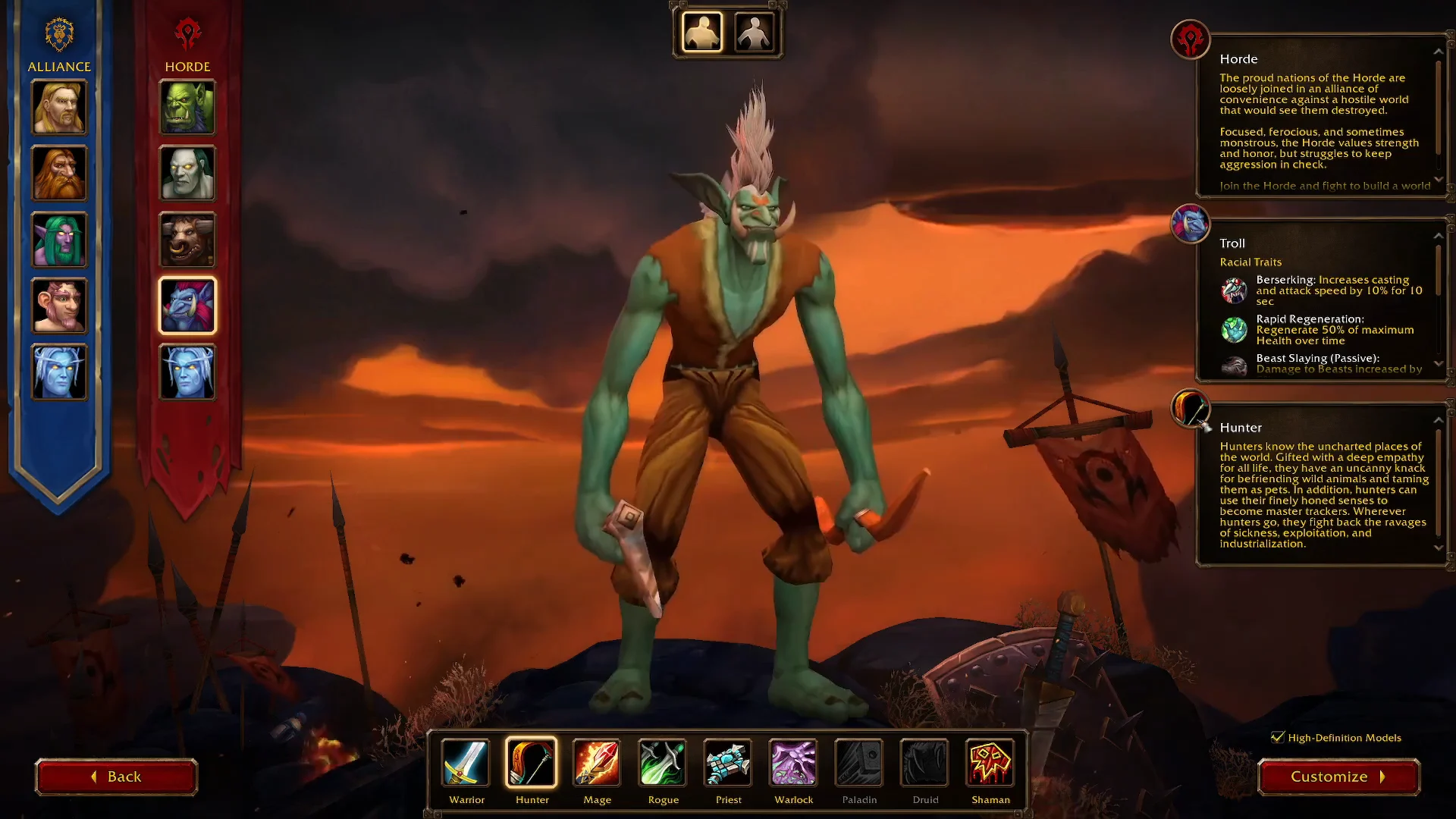
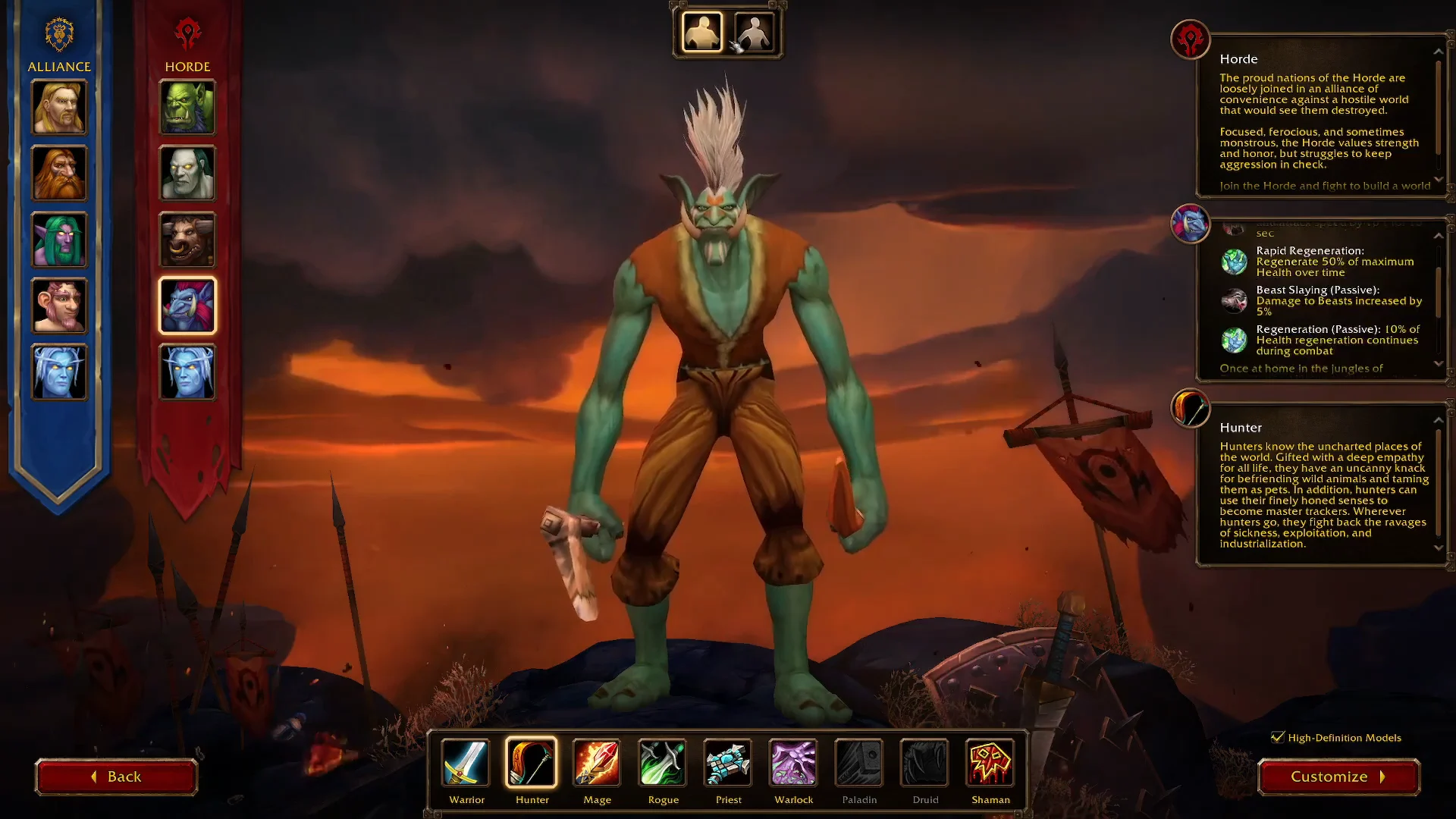
The preview updates instantly as you switch between the two buttons, so you can compare both models for your race before deciding. This works the same way across every playable race, including Troll and Orc.
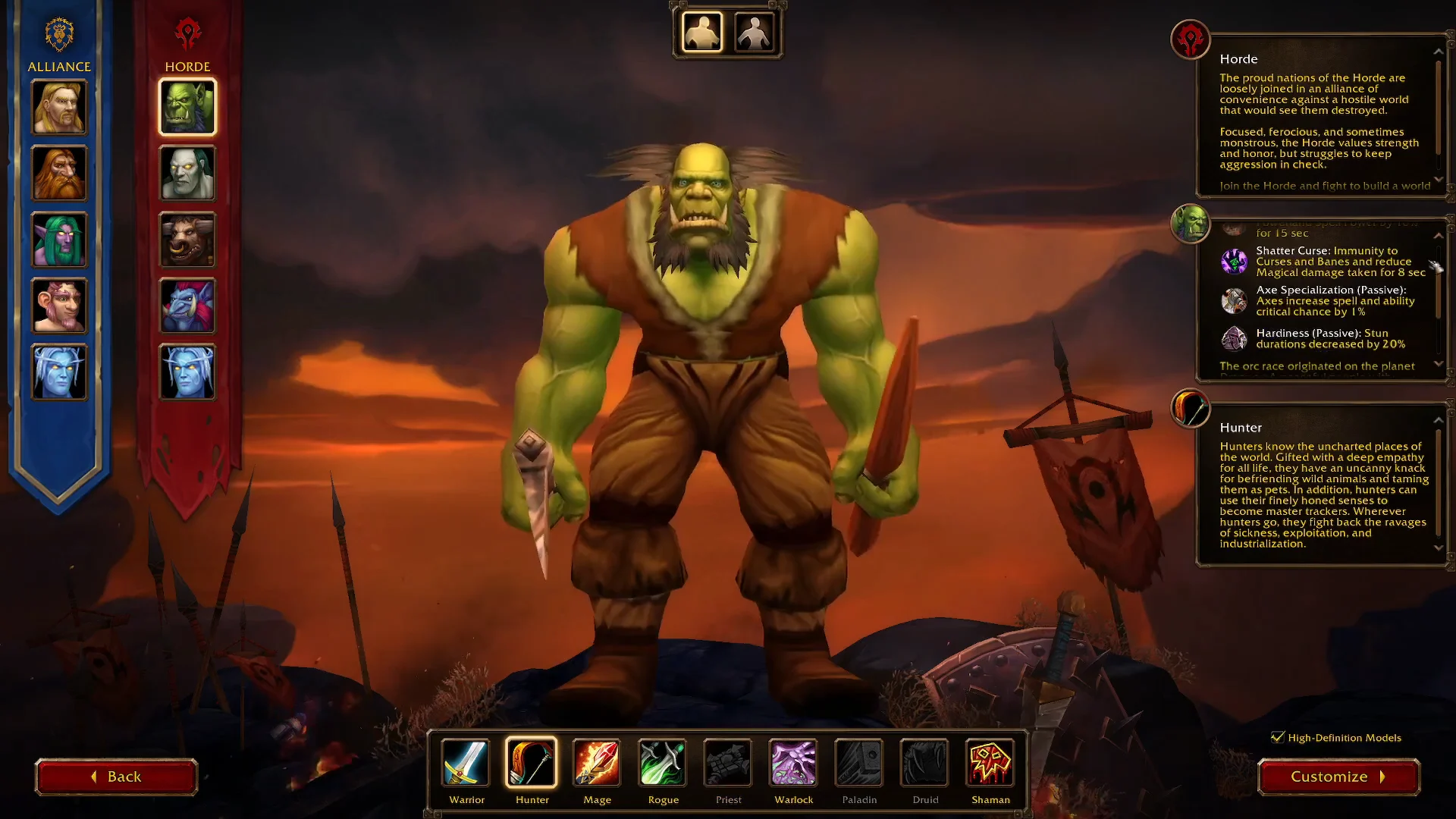
Body 1 and Body 2 explained
The two buttons map directly to the two body models available for each race. Hovering over each one shows its label.
| Button | Position | Model |
|---|---|---|
| Body 1 | Left silhouette | Male |
| Body 2 | Right silhouette | Female |
After choosing a body type, you can move on to the other customization options for your race and class, then confirm the character to finish creation. Your selected model carries over into the game world exactly as previewed.
Changing gender after creation
Set the body type carefully during creation, because it is not something you toggle freely once you are playing. The choice is best made before you confirm the character.
If you do want a different model later, a character’s gender can be changed at a barbershop. Sitting in a barbershop chair opens the customization interface, where the appearance of your race, including gender, can be adjusted.