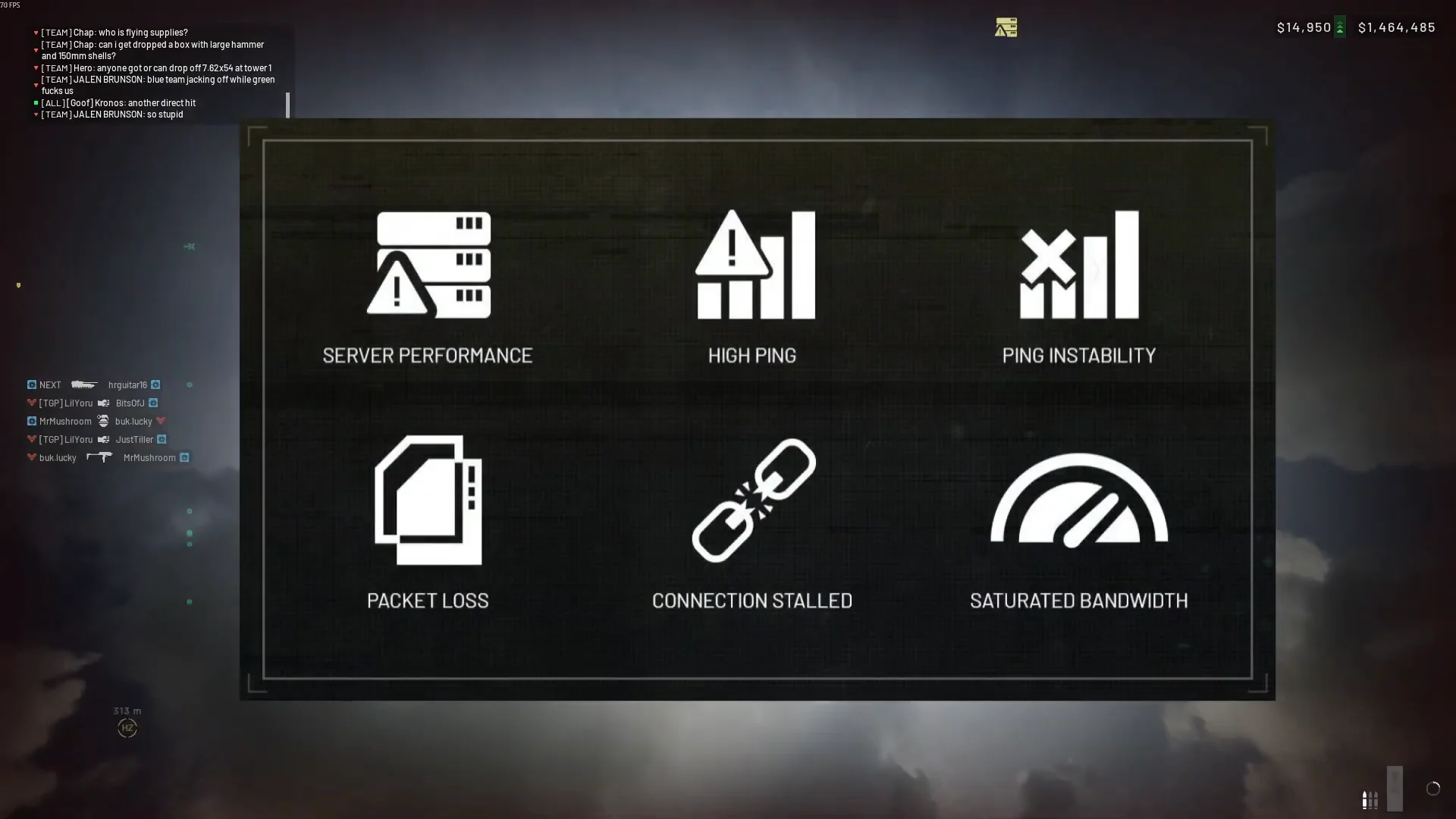
WARDOGS shows a small connection status indicator in the upper-right corner of the HUD, and it changes into one of six specific warning icons the moment your network or the game server starts to struggle. Each icon points to a different problem, so reading it correctly tells you whether to touch your router or leave your settings alone.
Quick answer: Check the icon first. Server Performance means the fault is on the game server and you should change nothing. The other five point to your connection, and Ethernet plus pausing background downloads fixes most of them.
The six WARDOGS connection icons and what they mean
All six warnings live in the same spot on the HUD. Before you change anything, match the shape you see to the row below so you fix the right layer instead of guessing.
| Icon | What it means | What you see in the match |
|---|---|---|
| Server Performance (server rack, warning triangle) | The game server is struggling, not your connection | Delayed events, rubberbanding, unregistered hits |
| High Ping (bar chart, warning triangle) | High round-trip latency to the server | Delayed hit detection and actions above 100–200+ ms |
| Ping Instability (bar chart, X) | Jitter: latency spikes up and down | Erratic stutter even when average ping is low |
| Packet Loss (paper sheets, exclamation mark) | Data packets are being dropped | Rubberbanding, missed inputs, teleporting, ghost shots |
| Connection Stalled (broken chain link) | Communication with the server has stopped | Frozen gameplay and unresponsive controls for seconds |
| Saturated Bandwidth (speedometer gauge) | Local bandwidth is fully used by other activity | Game data choked while something else downloads or streams |
Server Performance: when the fix is to do nothing
The Server Performance icon means the match host itself cannot keep up with the calculations for the players and events in that game. It is not caused by your local connection, so changing your router, cable, or region will not help. The tell is that everyone in the match feels the same delay at once, not just you.
If teammates and opponents freeze or rubberband at the same moment you do, note the time and region and wait for the server to recover rather than reconfiguring your home network.
High Ping: reduce latency to the server
High Ping measures the round-trip time between your PC and the game server. It shows up as delayed hit detection, players desyncing, and actions that land a beat late, and it becomes obvious around 100 ms, 150 ms, and 200+ ms. WARDOGS runs regional server selection through its Server Browser, so distance to the region you pick is the biggest factor you control.
- Select the server region geographically closest to you.
- Connect over Ethernet instead of Wi-Fi.
- Close any application using your network in the background.
Nearest is usually best, but not always. If a nearby region feels worse than expected, ISP routing may be sending your traffic on a longer path, so compare a couple of appropriate regions before settling.
Ping Instability: stop the jitter
Ping Instability is jitter. Your latency does not sit still, it jumps around, for example bouncing between 40 ms and 150 ms from one moment to the next. That produces erratic stutter even when your average ping looks fine, because the game keeps adjusting to a moving number.
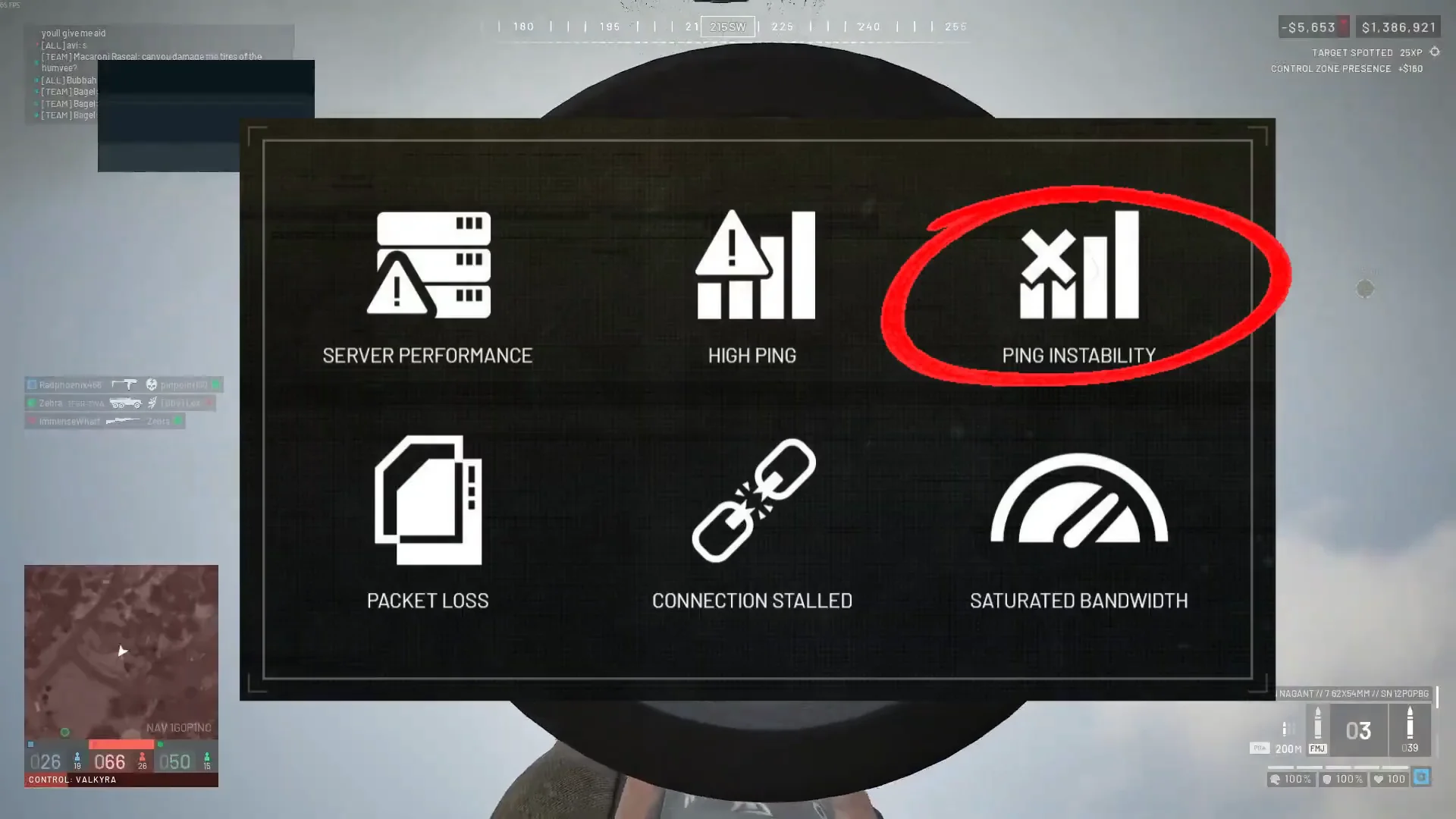
Wi-Fi is the usual cause. Run a wired Ethernet cable directly into the router to remove wireless interference and roaming between access points. If you must stay wireless, prefer a strong 5 GHz or 6 GHz signal and stop devices from hopping between access points mid-match.
Packet Loss: recover dropped data
Packet Loss means data packets travelling between your PC and the server never arrive. Because the game has to wait for missing updates or correct an inconsistent state, you get rubberbanding, missed inputs, players teleporting, and ghost shots that never register. A fast download speed does not protect you from this, since loss and raw bandwidth are separate problems.
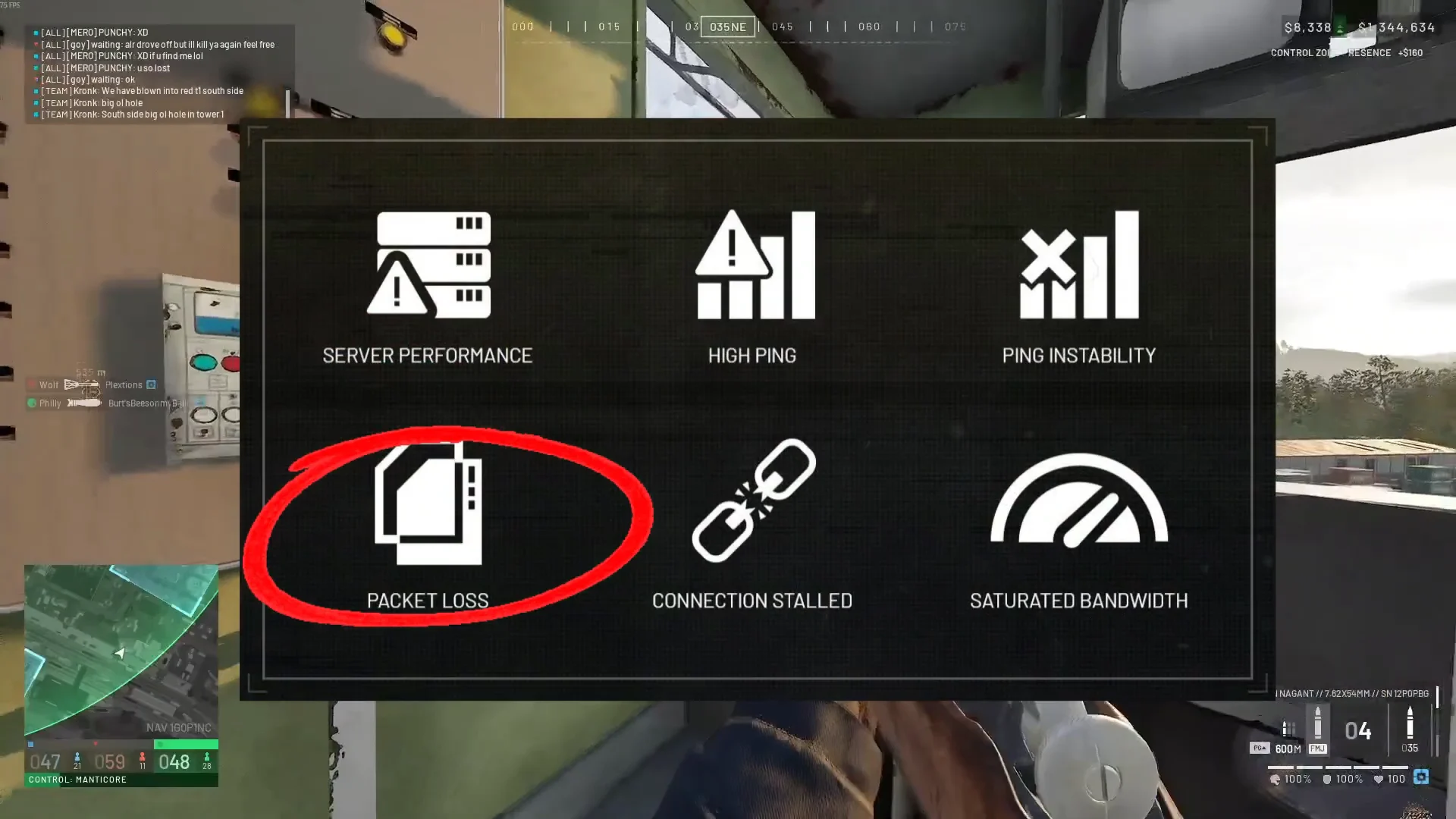
To confirm where the loss begins, open Command Prompt and run a sustained ping to a public endpoint while you recreate the issue:
ping -n 50 1.1.1.1Loss on your own gateway points to Wi-Fi, cabling, or the router. A clean gateway with loss farther out points to the ISP path. This tests a general endpoint, not the WARDOGS server, so treat it as a check on your local connection rather than proof about the game route.
Connection Stalled: wait, then reconnect
The broken chain link means communication with the server has stopped completely or is critically delayed. Gameplay freezes, character animations stop, and your inputs do nothing for several seconds. Sometimes the link recovers on its own.
Give it a few seconds first. If the connection does not come back, exit the match, reconnect, and restart the game client. If you are repeatedly dropped after extended play without a hard crash, that pattern points to a session timeout, so test with a different cable or router port and remove aggressive power-saving settings from your network adapter.
Saturated Bandwidth: clear the pipe
The speedometer icon appears when your local bandwidth is fully used up by something other than the game, choking the game’s data. This is common in a busy household where another task or user is filling the connection.
- Pause game downloads, launcher updates, and cloud backups.
- Stop streaming video, large uploads, and torrent clients.
- Ask other high-bandwidth devices on the router to hold off during your session.
If ping stays low when idle but climbs sharply the moment the connection gets busy, that loaded-latency spike is bufferbloat. A router’s Smart Queue Management or QoS feature keeps game traffic moving while other transfers run, set slightly below your real upload and download rates.
Confirm the fix worked
A fix is confirmed when its corresponding icon no longer shows in the upper-right corner and the related gameplay symptoms are gone. Apply changes individually, then play one match to test each adjustment; changing several at once can solve the issue without revealing which one helped. Leave the network diagnostic overlay on throughout testing so you can follow the real status instead of relying on how the game feels.