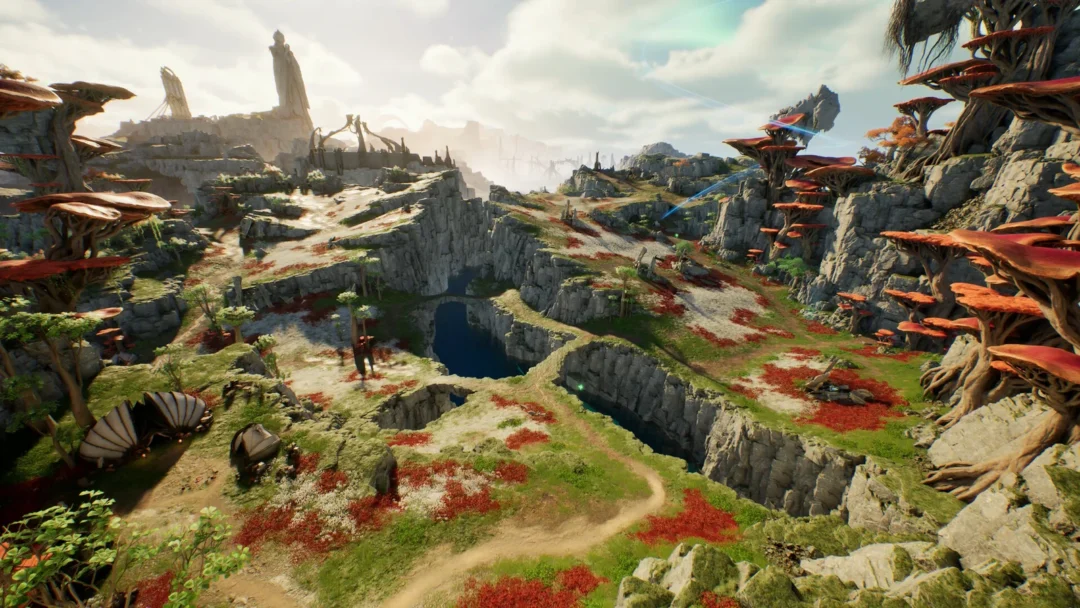
Aniimo does not give you a way to wipe a character and begin again from a clean slate. There is no delete button in the interface, and an account holds a single character rather than a roster you can swap between. If you regret an early choice, the real question is not how to delete but how to start over or fix what you can.
Quick answer: Aniimo has no delete button and allows one character per account. To start over, switch to a different regional server, create a new account that is not linked to your old one, or contact in-game Customer Support.
Can you delete a character in Aniimo?
No. There is no self-service option to delete a character or remove all your progress with a button. You also cannot hold more than one character on a single account, and you cannot switch between characters the way you would in a game with multiple save slots.
Because of that, “delete my character” is usually the wrong goal. What most players actually want is a fresh start, a different server, a name change, or a new appearance. Each of those has its own route.
How to start over in Aniimo
Three routes let you begin again. None of them erases your existing character, so pick the one that matches what you are trying to fix.
Select a different server
Return to the title screen and pick a different server. After entering, decline the option to keep your earlier customization so you can create your character again from the beginning. Aniimo has three regional servers, each with separate data; progress cannot be carried from one server to another, so a character made on the wrong server cannot be transferred to the correct one.
Create a new, unlinked account
Register a fresh account that is not tied in any way to your old one. This is also the cleanest way to have a presence on a second server, since server progress is separate. On PS5, your server is assigned from your PSN region, which is worth checking before you commit.
Ask Customer Support
For changes to the existing account, rather than a workaround, contact Customer Support in-game. Open the main menu and talk to the headset-wearing character, or go through the online support portal.
Avoid unlinking and relinking accounts to try to reset things unless official instructions direct you to do so. The console account-linking prompt is shown just once for each PSN or Microsoft account, and an incorrect choice cannot be undone. If you’ve already made a character and don’t want to lose it, contact support instead of trying a workaround.
Choices you cannot undo
Two early decisions are locked for the life of the character, and neither can be reversed later inside the game.
- Gender is set at creation and cannot be changed afterward. Be certain before you confirm.
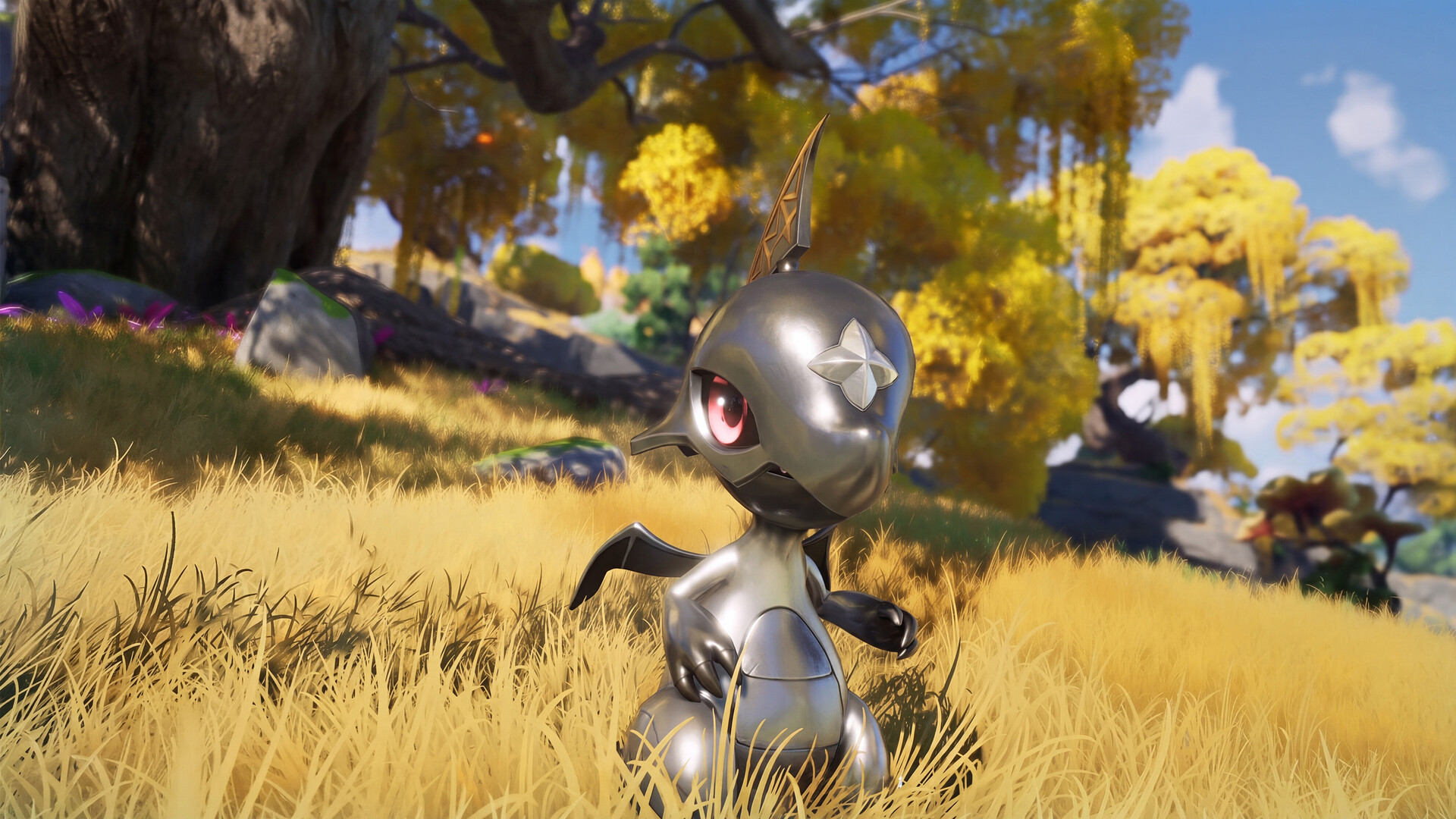
- Your starter choice between Lunara and Helion during the tutorial is just as final.
If either of those is what you regret, the only way out is one of the restart routes above.
Change your character’s appearance instead
Most people who look for a delete option simply dislike how their character turned out. That is a quick fix inside the game rather than a reason to reset.
Changing your hairstyle costs nothing. Editing facial features needs a Redesign Card, and re-dyeing your hair needs a Hair Saloon Card. Each card costs 300 Glimmers, which you can earn in-game without spending real money.
| Card | What it changes | Cost |
|---|---|---|
| Redesign Card | Face features and makeup | 300 Glimmers |
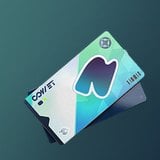 Hair Saloon Card Hair Saloon Card | Hair color | 300 Glimmers |
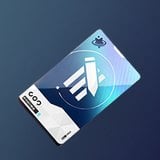 Name Change Card Name Change Card | Character name | 300 Glimmers |
Finishing the tutorial gives you a ticket, so you can first see whether you like your character and then make one free adjustment. A Redesign Card allows you to save multiple appearances and switch between them without paying extra.
You won’t be able to change clothes before September 30, 2026, when Clothing Design becomes available.
Change your character’s name
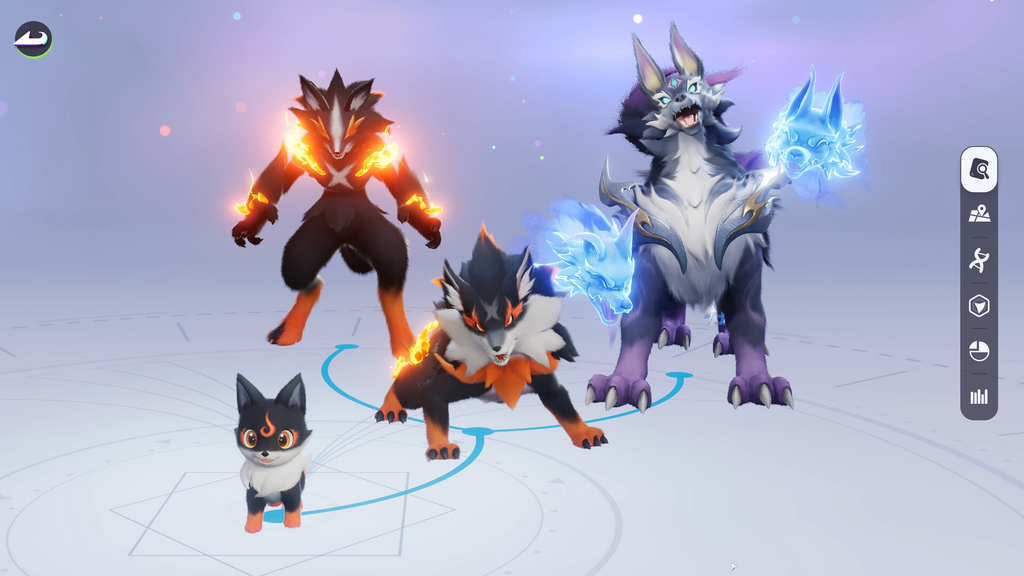
Your name is not permanent. Buy a Name Change Card for 300 Glimmers from the Item section of the Shop, then use it from your inventory or through your profile to enter the new name.
What a fresh start costs you
Before you commit to starting over on a new account or server, weigh what carries over and what does not.
| Progress | What happens on a fresh start |
|---|---|
| Story and unlocked systems | Repeated from the beginning |
| Caught creatures and Prismana forms | Lost |
| Free Prismana choice | Already spent, not re-granted |
| Battle Pass redemption cards | Carry forward, never expire |
| Pre-order accessories | Tied to the purchasing account |
The free Prismana selection is the sharpest loss. Every account gets one choice as a launch reward, and starting over does not hand you a second one.
How to confirm it worked
When you pick a new server and reach the “keep your previous customization” prompt, refusing it drops you straight into the character creator with everything reset. That prompt is your signal that a fresh start is underway. For appearance edits, the change applies immediately in the preview and the used card disappears from your inventory once you confirm. If you need an account-level change beyond these steps, treat it as a support request rather than expecting a visible reset toggle in the menus.