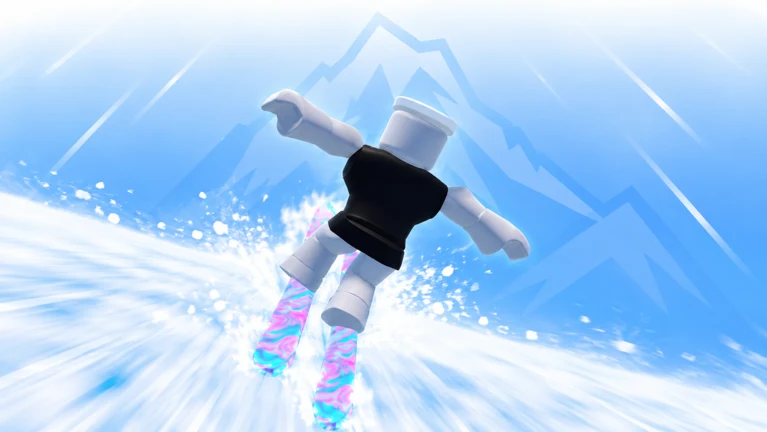
SKI (ALPHA) buries most of its options behind a single gear icon on the Roblox HUD, and the menu controls more than you might expect: sound levels, your own music, whether other players can pester you with requests, and how smoothly the mountain runs on weaker hardware. Everything sits in one scrollable window called SETTINGS.
Quick answer: Click the gear icon in the top-left HUD bar, between the shop tag and the compass, to open the SETTINGS window. Adjust sliders and toggles there, then close it with the red X.
Open the settings menu in SKI (ALPHA)
Audio and music options
The first block of the menu handles sound. Two sliders split game noise from music, so you can silence the soundtrack while keeping the ski effects. There are also controls for the built-in library and a box for your own tracks.
| Control | What it does |
|---|---|
| SKIS | Volume for skis, wind, jumps, crashes, and pickups. |
| MUSIC VOLUME | Sliding it all the way down turns music off; ski sounds stay on. |
| MUSIC LIBRARY | Shows the current track and offers CHOOSE SONGS and SKIP SONG. |
| YOUR OWN MUSIC | Paste a Roblox audio ID to play your own music instead. |
For custom audio, drop a Roblox audio ID into the input box, or several IDs separated by commas (for example, 123, 456, 789) to loop them. Leaving the box empty keeps the game’s own music running.
Gameplay and social toggles
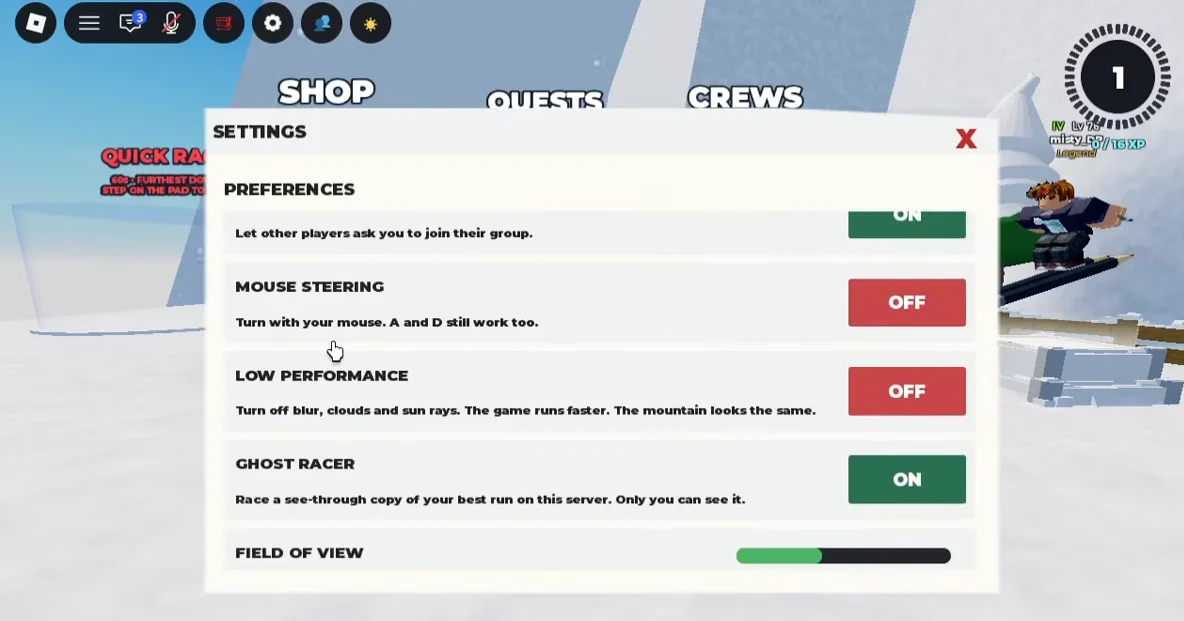
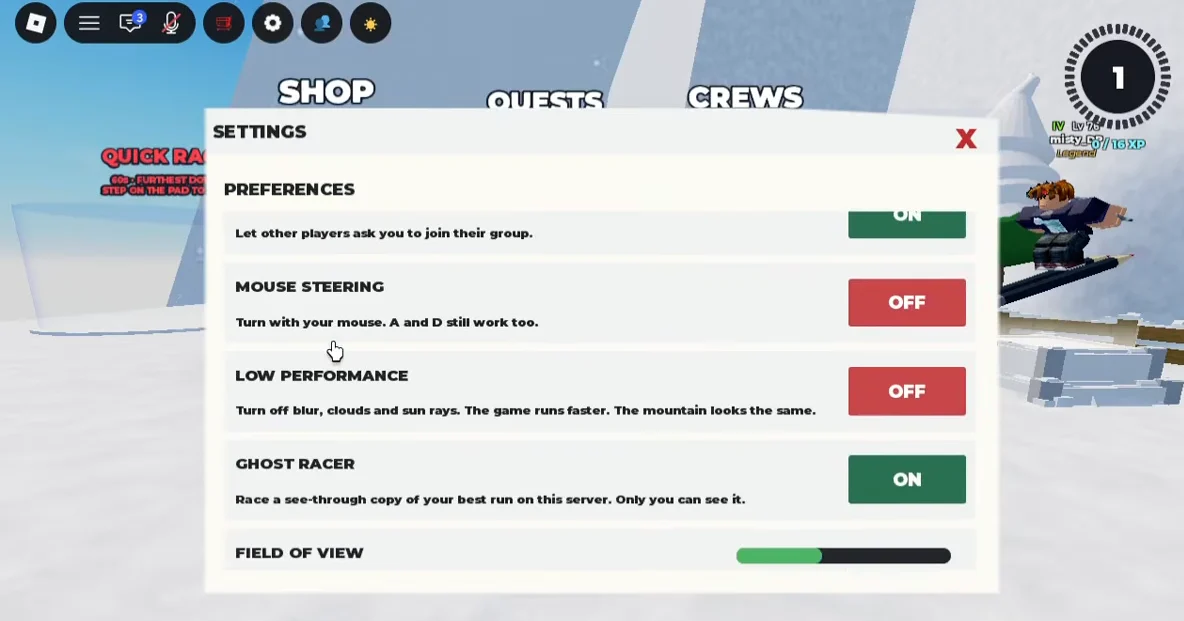
The middle of the menu is a stack of on/off switches. Some change how you control the run, and the rest decide whether other players can send you requests. Click any switch to flip it.
| Toggle | Default | Effect when on |
|---|---|---|
| TRICKS | ON | Allows trick inputs; turn off and steering and jumping still work. |
| TRADE REQUESTS | ON | Lets other players ask you to trade. |
| RACE REQUESTS | ON | Lets other players challenge you to a race. |
| GROUP INVITES | ON | Lets other players ask you to join their group. |
| MOUSE STEERING | OFF | Steer with your mouse; the A and D keys keep working too. |
| GHOST RACER | ON | Displays a translucent copy of your top run on this server, viewable only by you. |
Turn off TRADE REQUESTS, RACE REQUESTS, and GROUP INVITES if pop-ups from other players are breaking your focus during a fast line.
Performance and graphics sliders
The bottom of the menu is where you trade visuals for speed. If the game stutters, the LOW PERFORMANCE toggle is the fastest fix. It switches off blur, clouds, and sun rays so the game runs faster, and the mountain itself still looks the same. It is off by default.
Below that sit two sliders, each with its own RESET button:
- FIELD OF VIEW — widens or narrows your skiing view. Setting it to 0 keeps the current camera.
- LOADING DISTANCE — controls how far distant terrain renders. Nearby obstacles always stay loaded, and 100% is the current distance.
Press RESET on either slider to return it to its default value if a change looks wrong.
Close the menu and get back to skiing
There is no separate save button; just close the window when you are done. Once you finish, select the red X in the SETTINGS window’s upper-right corner. The overlay disappears, placing you back in the game with your updated settings active.