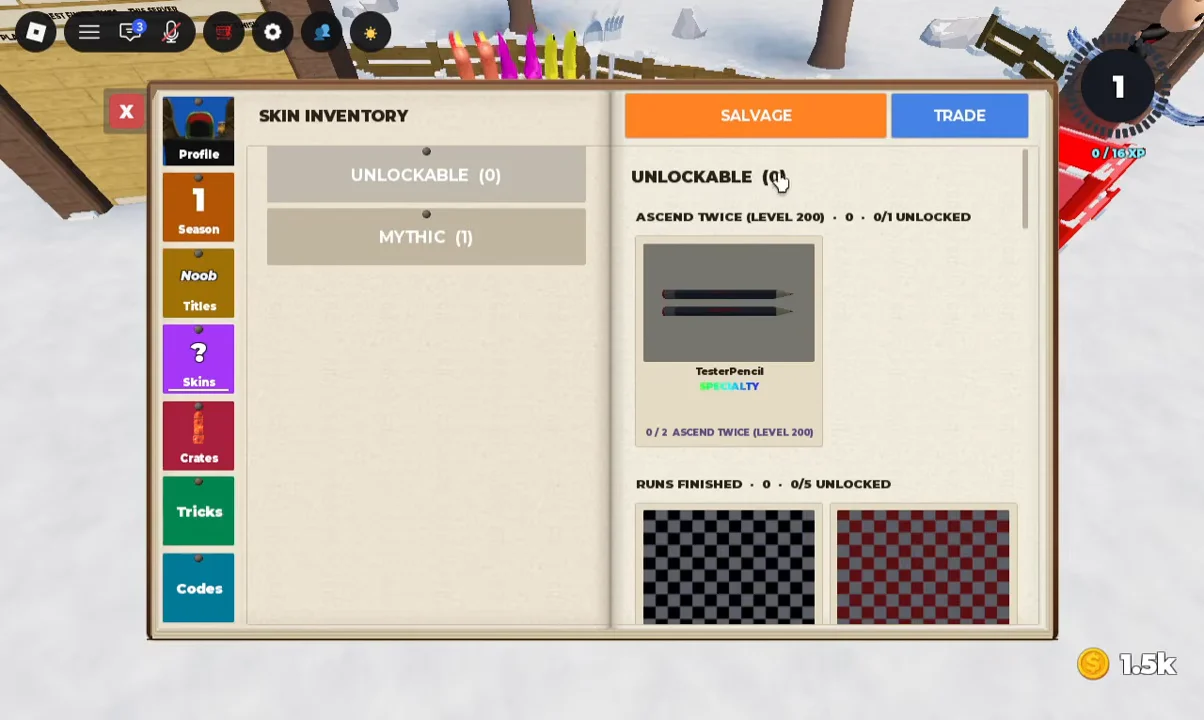
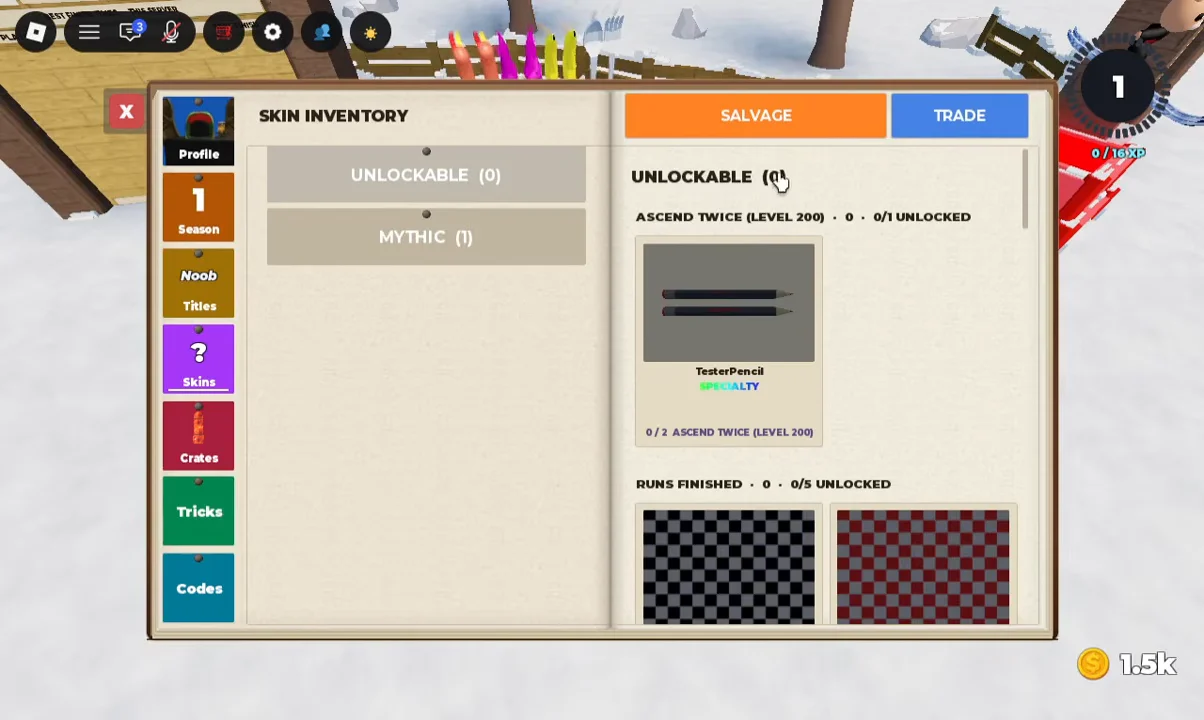
Skins you own in SKI [ALPHA] can be broken down into crafting shards through the Salvage menu. The controls live inside the same Skin Inventory window you use to equip skins, so you never leave the mountain hub to do it. Salvaging returns material shards that match the rarity of the skin you scrap, which you can then spend elsewhere in the crafting system.
Quick answer: Open your profile menu, select the Skins tab, then click the blue SALVAGE button in the top-right of the Skin Inventory. Choose a skin to convert it into shards of its rarity.
Open the Salvage menu in the Skin Inventory
The Salvage screen is tucked into your Skin Inventory, not a separate stand in the hub. Reaching it takes three clicks from your profile card.
+ INVENTORY, SALVAGE, and CRAFT.What shards you get from salvaging
Salvaging pays out material shards that line up with the rarity of the skin you break down. Scrapping the Mythic skin FrankSki, for example, returns +2 Mythic Shards. Shards are split across seven separate tiers, each with its own counter in the Materials panel.
- Common Shards
- Uncommon Shards
- Rare Shards
- Epic Shards
- Legendary Shards
- Mythic Shards
- Specialty Shards
The same window holds the CRAFT option, so the shards you earn stay in one place ready to spend. A separate TRADE button at the top of the Skin Inventory lets you start player-to-player trading or party racing, but that is unrelated to salvaging.
Unlockable skins are tied to progression, such as ascending twice at Level 200 or clearing run milestones, so check whether a skin is a hard-earned unlock before you decide to salvage it.
Confirm the salvage worked
Before you confirm, the Salvage screen shows the reward the selected skin will return, such as +2 Mythic Shards for the Mythic skin FrankSki. The Materials panel in the same window lists your shard totals across every tier, from Common Shards through Specialty Shards, so you can see where the payout lands.