Gaming How-To

AION 2: How to Add Friends and Accept Requests on PC

Two ways to send a friend request, how to accept incoming ones, and the actions you unlock once someone is on your list.

Two ways to send a friend request, how to accept incoming ones, and the actions you unlock once someone is on your list.

Image: NC

AION 2 keeps its friend system simple once you know where the controls live. You can add someone you run into out in the world, or type an exact character name into the friend menu. Both routes drop the request into the same place, where the other player accepts it and lands on your list.

Quick answer: Hold Alt to free the cursor, click a nearby player, then click the Add Friend icon above their nameplate — or open Manage Friends and enter their character name.


Add a nearby player in the open world

When another player is standing near you, you can send the request straight from the world without opening any menu.

Hold the Alt key to reveal the free mouse cursor on PC. Movement stops so you can point at things on screen.
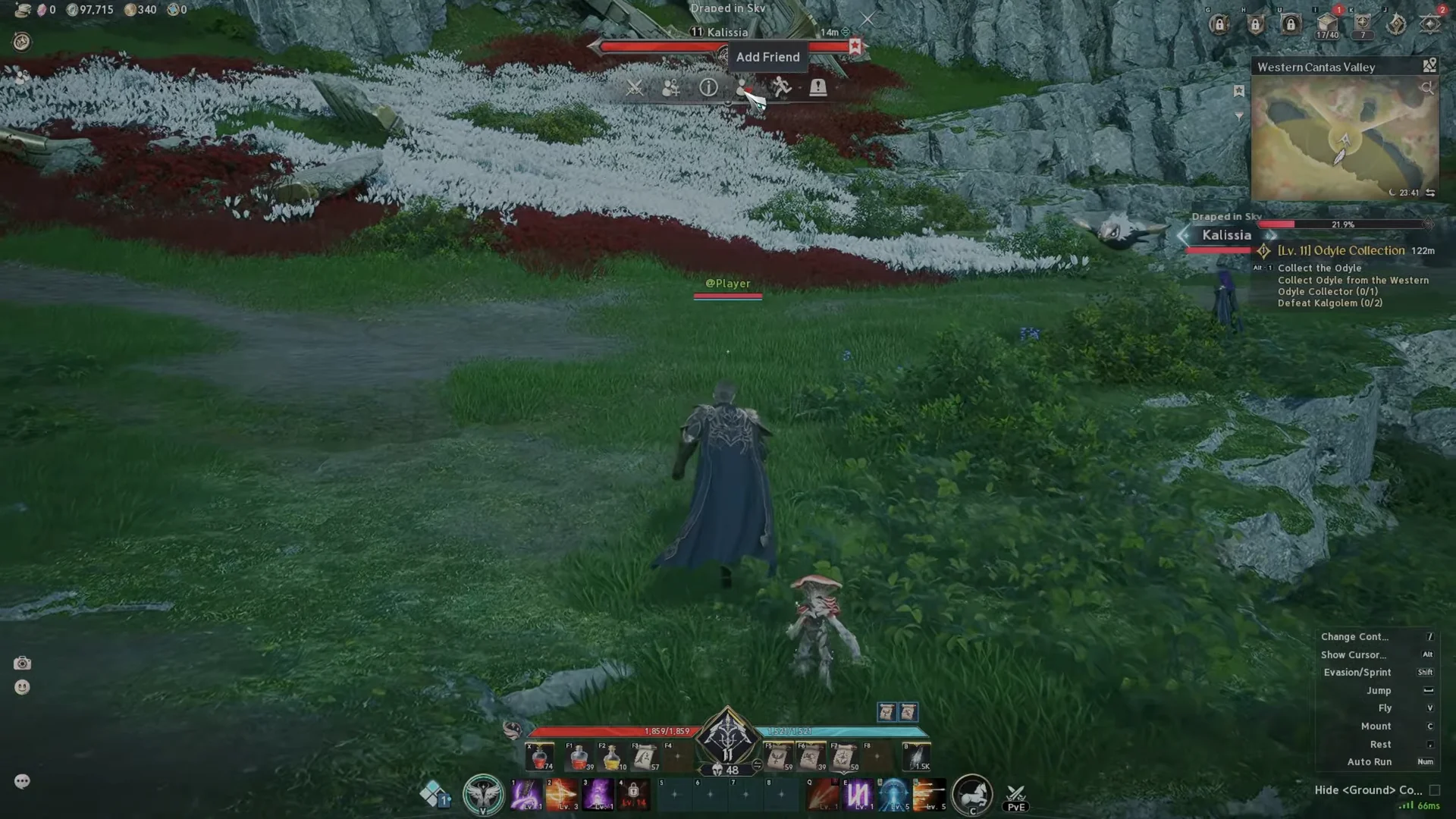
Left-click the player character you want to add. A target ring appears beneath them and their nameplate and health bar show above their head.
Use the Add Friend icon above the targeted player’s nameplate. A system notice confirms the request, such as “Friend request sent to Katissia.”
Direct World Friend Request00:27Direct World Friend Request
Clicking the Add Friend icon above a nearby player's nameplate sends the request instantly. Shown at 00:27 in MistaWigglez’s video. Image: NC

The same nearby-player click also exposes other quick actions, including inviting that person to your party, so you can group up and add each other in one pass.
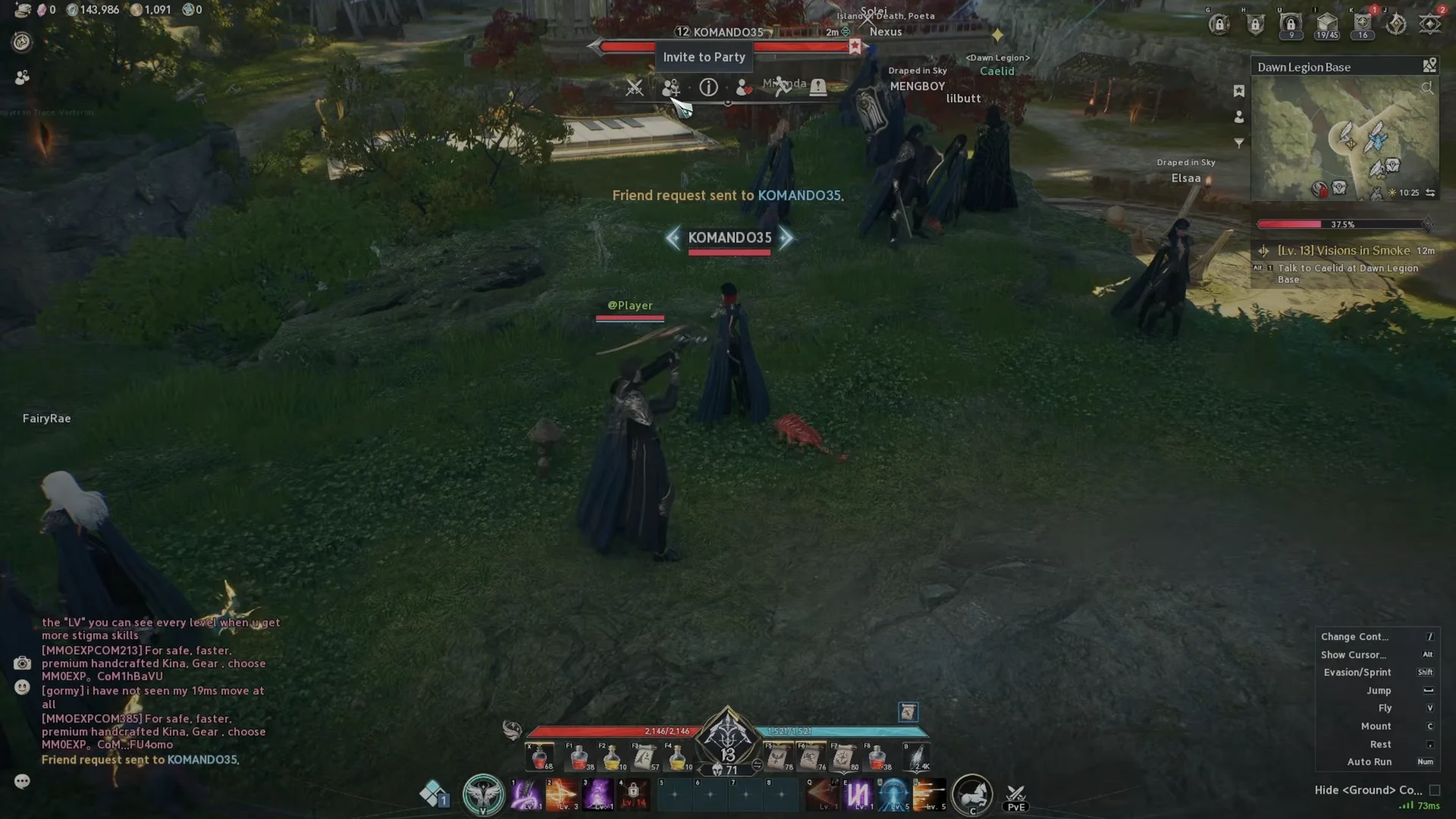
Adding and Inviting Nearby Players
Targeting a nearby player opens an interaction menu with options like Invite to Party alongside Add Friend. Image: NC / via @MistaWigglez

Add a friend by character name from the menu

If the person is not nearby, send the request by typing their exact character name.
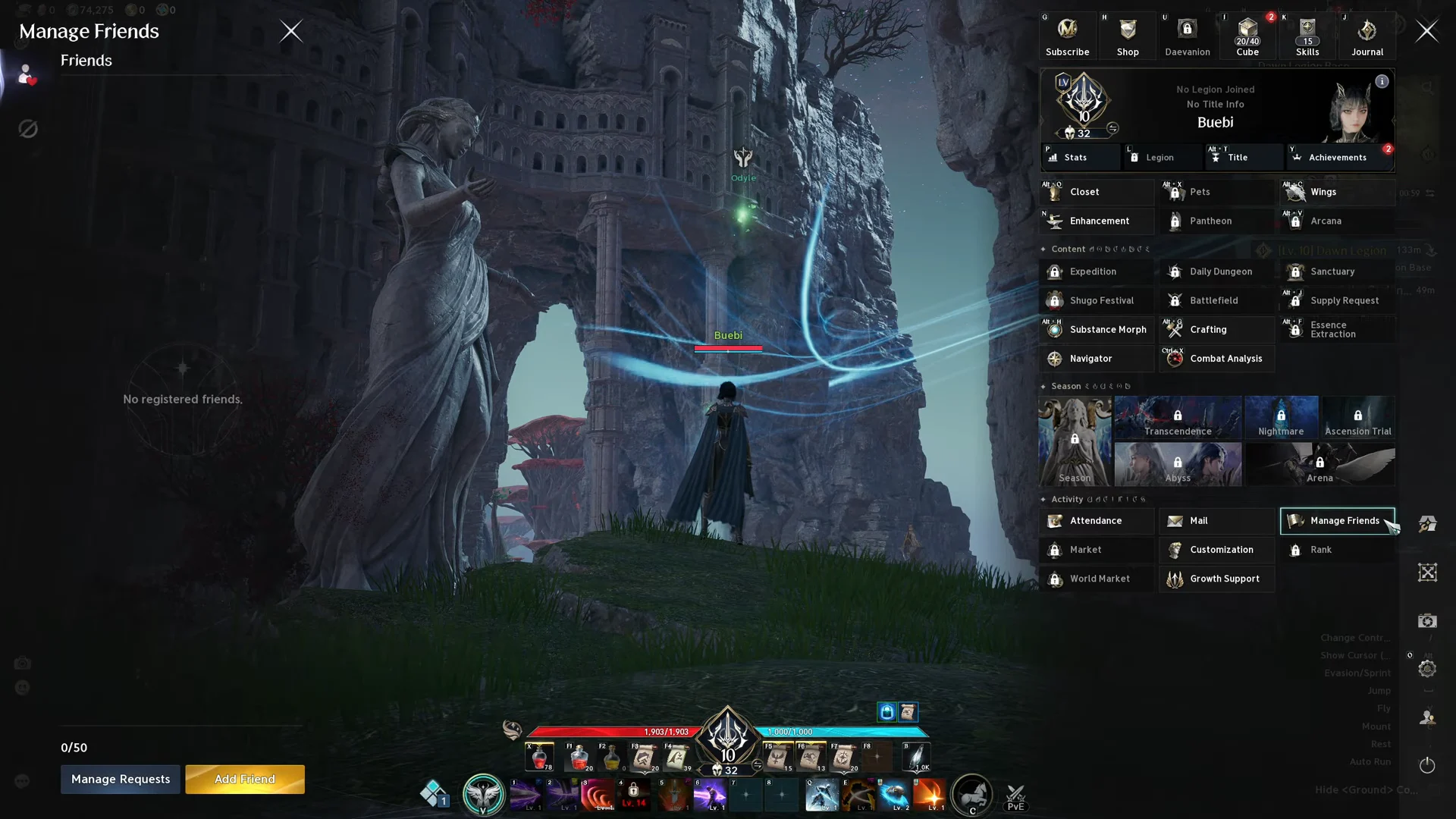
Open the main menu using the icon in the top-right corner of the screen, or press Esc.
Choose Manage Friends. The Friends panel appears along the screen’s left edge.
Opening Friends list
The Manage Friends panel, with the Friends tab showing your current list. Image: NC / via @BueWoW
Use the add-friend text box and enter the character name you want to add, then click the yellow Confirm button. A notification such as “Friend request sent” appears once it goes through.

Accept incoming friend requests

Requests sent to you sit in the same friend interface until you respond.
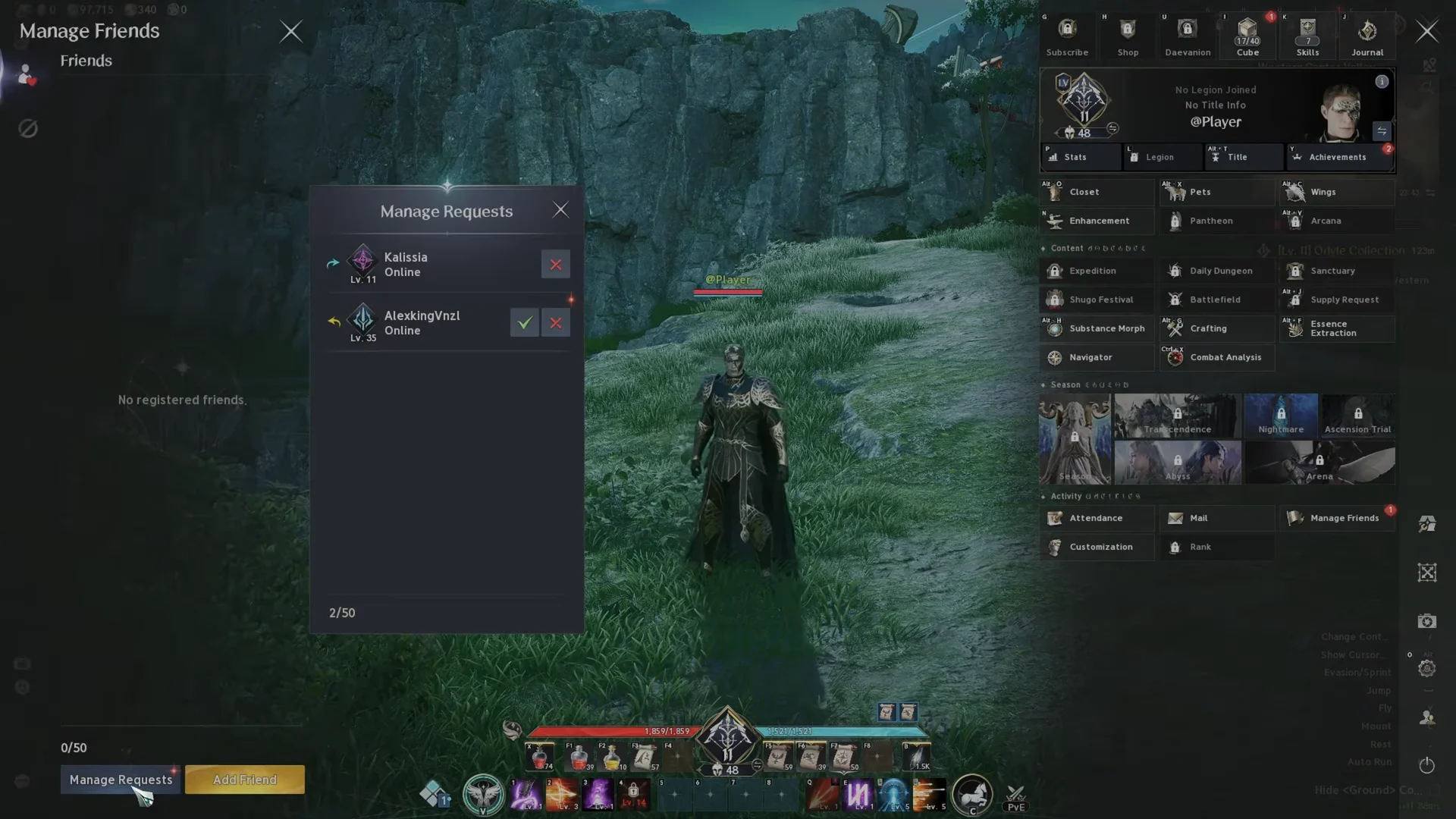
Open Manage Friends from the main menu.
At the panel’s lower-left, select Manage Requests. The list includes requests you’ve sent and ones you’ve received.
Managing Friend Requests00:39Managing Friend Requests
The Manage Requests panel separates outgoing requests from ones waiting for your reply. Shown at 00:39 in MistaWigglez’s video. Image: NC
Outgoing requests display a pending status icon. Incoming requests show a checkmark and an X. Click the checkmark to accept. A chat alert confirms the pairing, for example “You are now friends with AleskingVinzl.”

What you can do with a friend once added

Clicking a name in your friends list opens a context menu with five actions.

  • View Info — open that player’s profile and gear.
  • Whisper — send a private message.
  • Invite to Party — pull them into your group.
  • Memo — attach a personal note to their entry.
  • Remove Friend — delete them from your list.
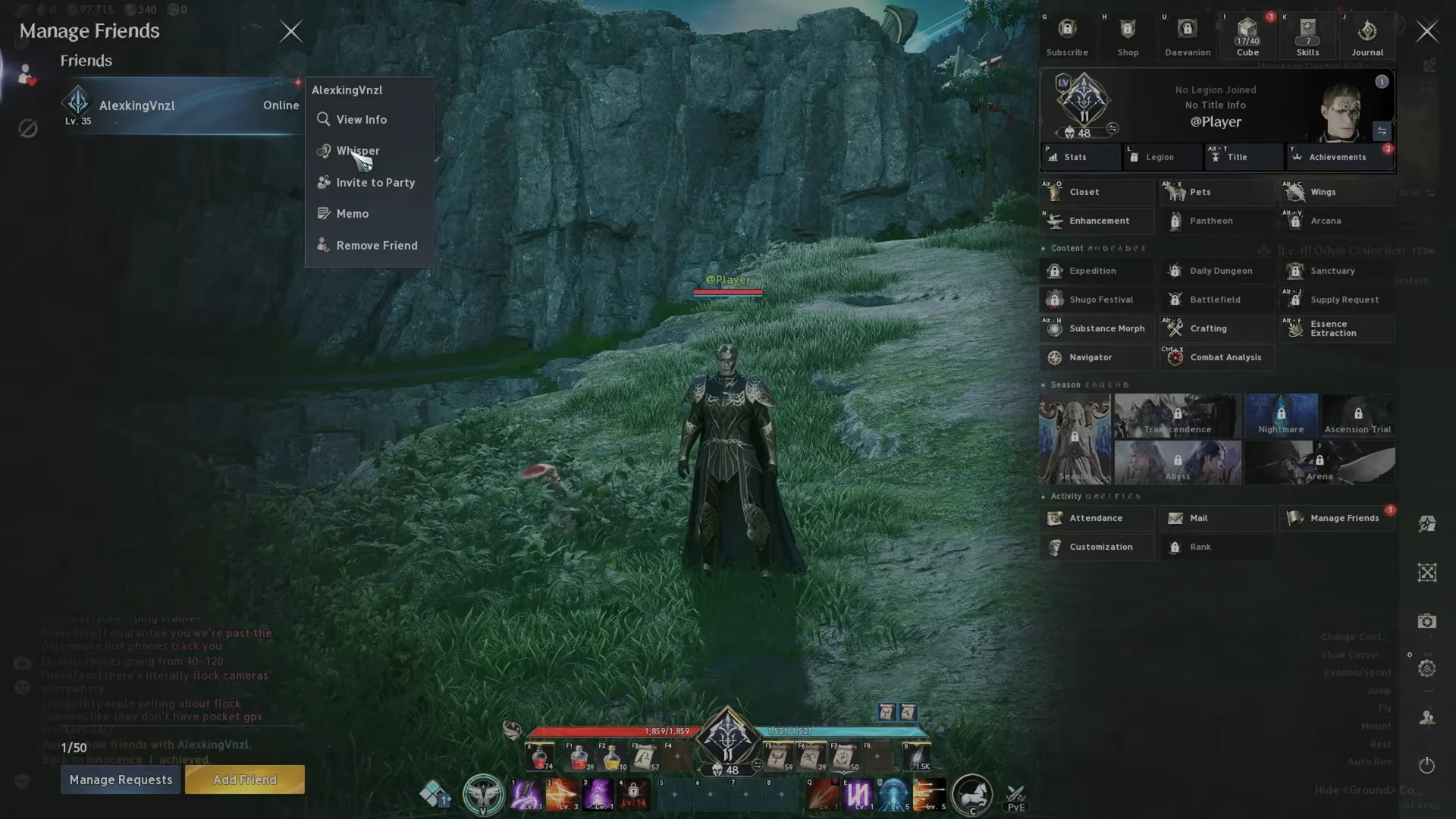
Accepting Request & Friend Options00:52Accepting Request & Friend Options
Selecting a friend opens View Info, Whisper, Invite to Party, Memo, and Remove Friend beside the player info panel. Shown at 00:52 in MistaWigglez’s video. Image: NC

The friend menu counter caps your list at 50, shown as values like 0/50 or 1/50 as you fill it.


How to confirm the request went through

A friend request is not the same as a confirmed friendship. When you send one, a “Friend request sent” system notification appears and the entry shows under your outgoing list with a pending status icon. Once the other player accepts, you get the “You are now friends with” chat alert and their name moves into the Friends tab. The counter also ticks up, so 0/50 becoming 1/50 is a reliable sign the pairing completed.