Your character nickname in Aniimo is not locked in for good. You can rewrite it at any point from your profile, but the change is gated behind a single consumable item rather than a free text edit. Here is exactly what the swap costs and the order you need to do things in.
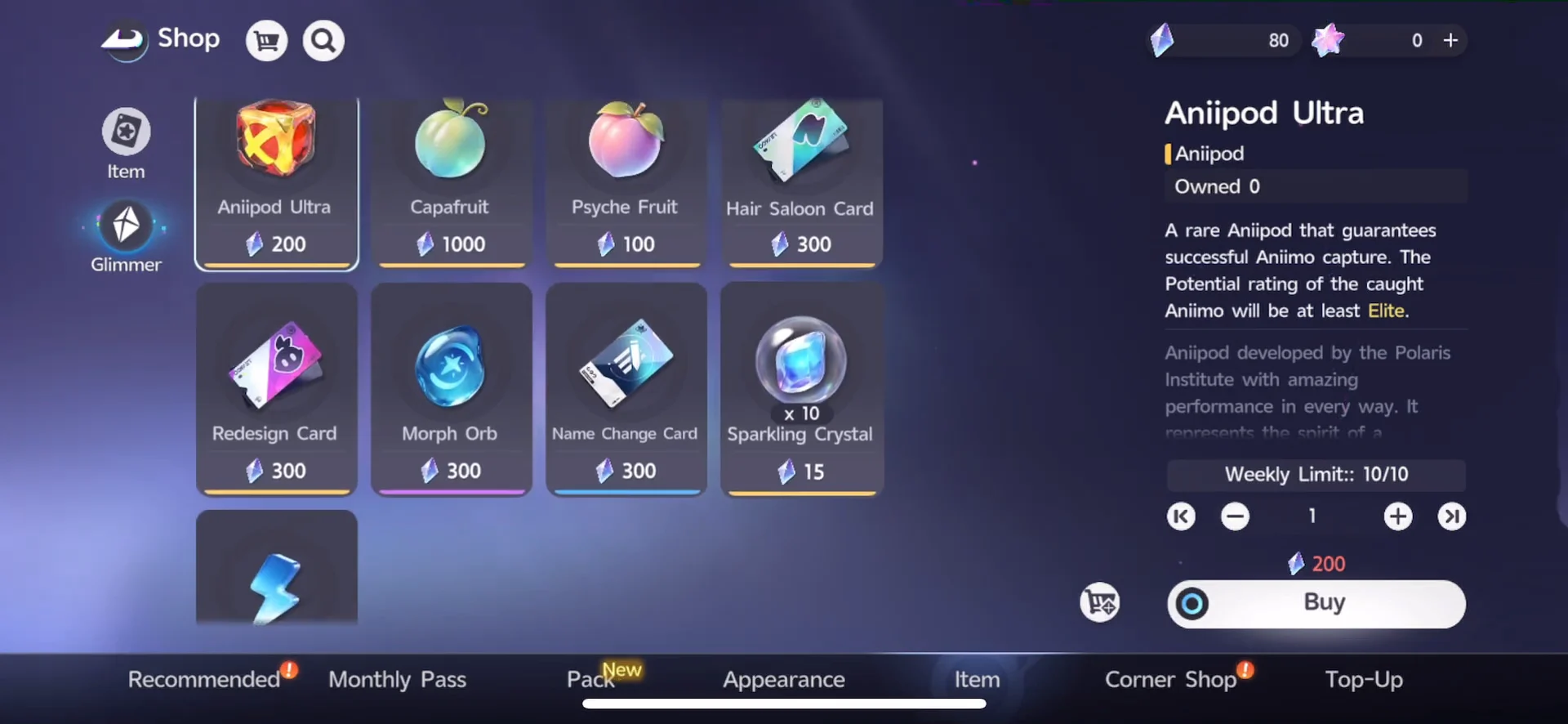
Quick answer: Buy a Name Change Card for 300 Glimmer from the Item Store, then open your profile, press Edit, type a new nickname, and confirm to spend the card.
What a name change costs in Aniimo
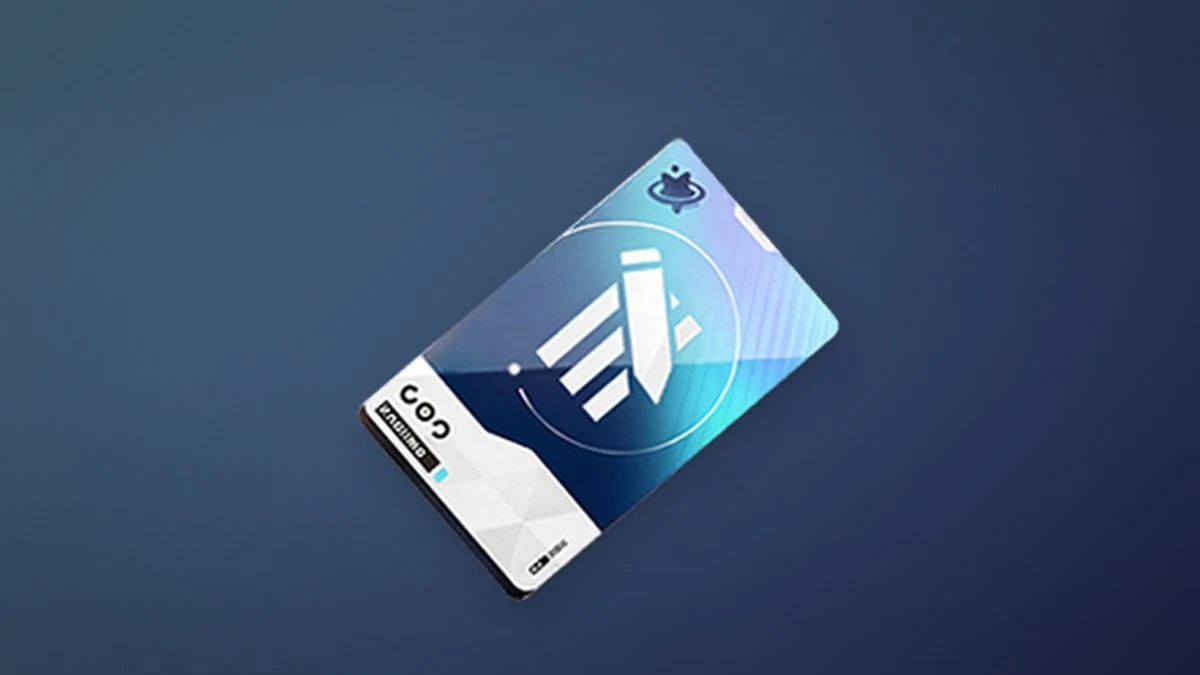
Renaming your character requires one Name Change Card. The card is sold in the Item Store under the Glimmer tab for 300 Glimmer, and it is consumed the moment you confirm a new nickname.
Glimmer is a currency you earn through normal play, exploration, and quests, so you do not need to spend premium Lumin Crystals to afford the card. Glimmer accumulates slowly, though, so it is worth keeping a reserve rather than emptying it on cosmetic changes.
- Required item: Name Change Card
- Price: 300 Glimmer
- Where to buy: Item Store, Glimmer tab
- Nickname limit: up to 14 characters
The shop does not appear until you have progressed past your first alpha battle. If you cannot find the shop button in the menu, keep playing the main story until it unlocks.
How to change your name in Aniimo
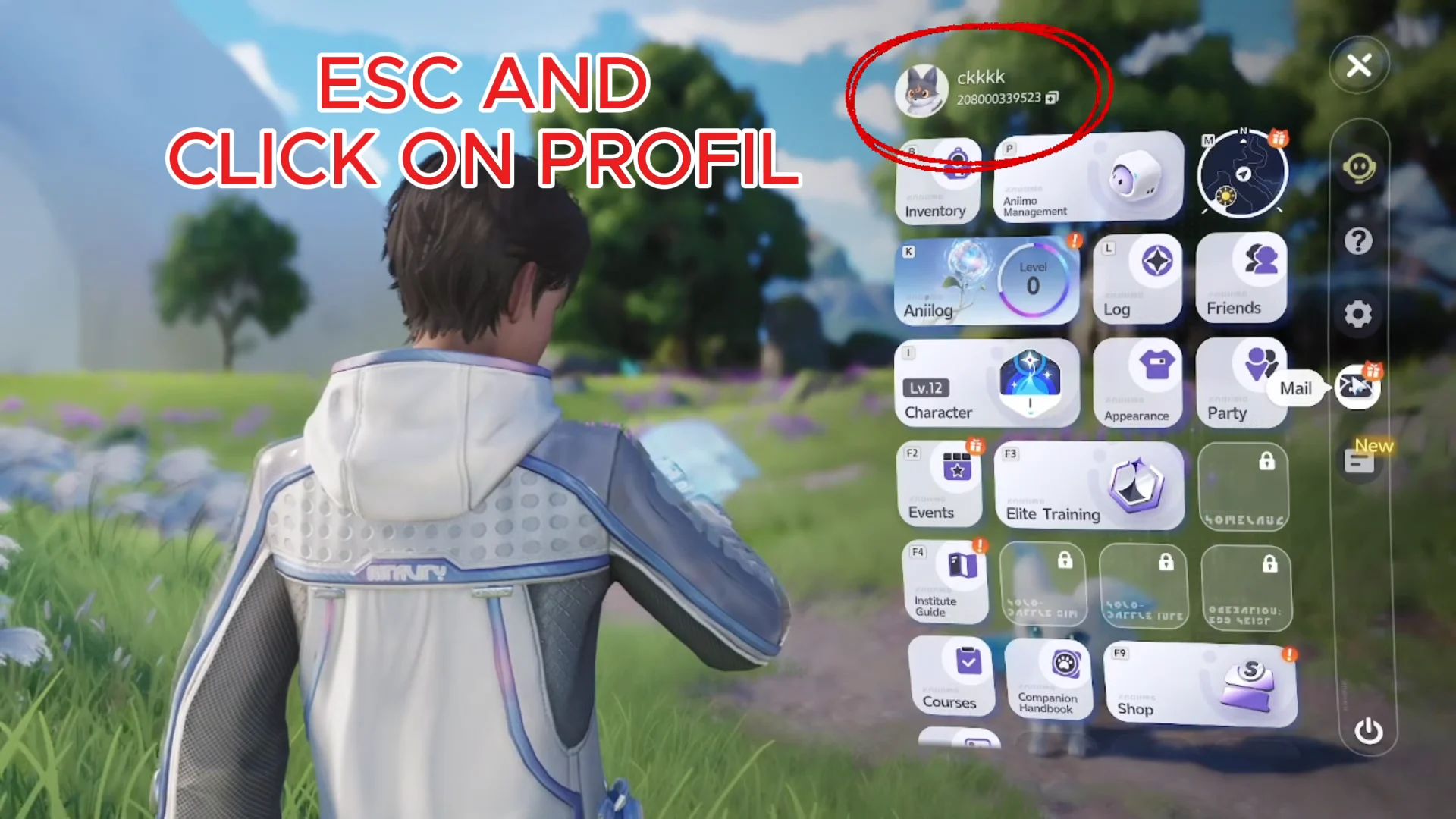

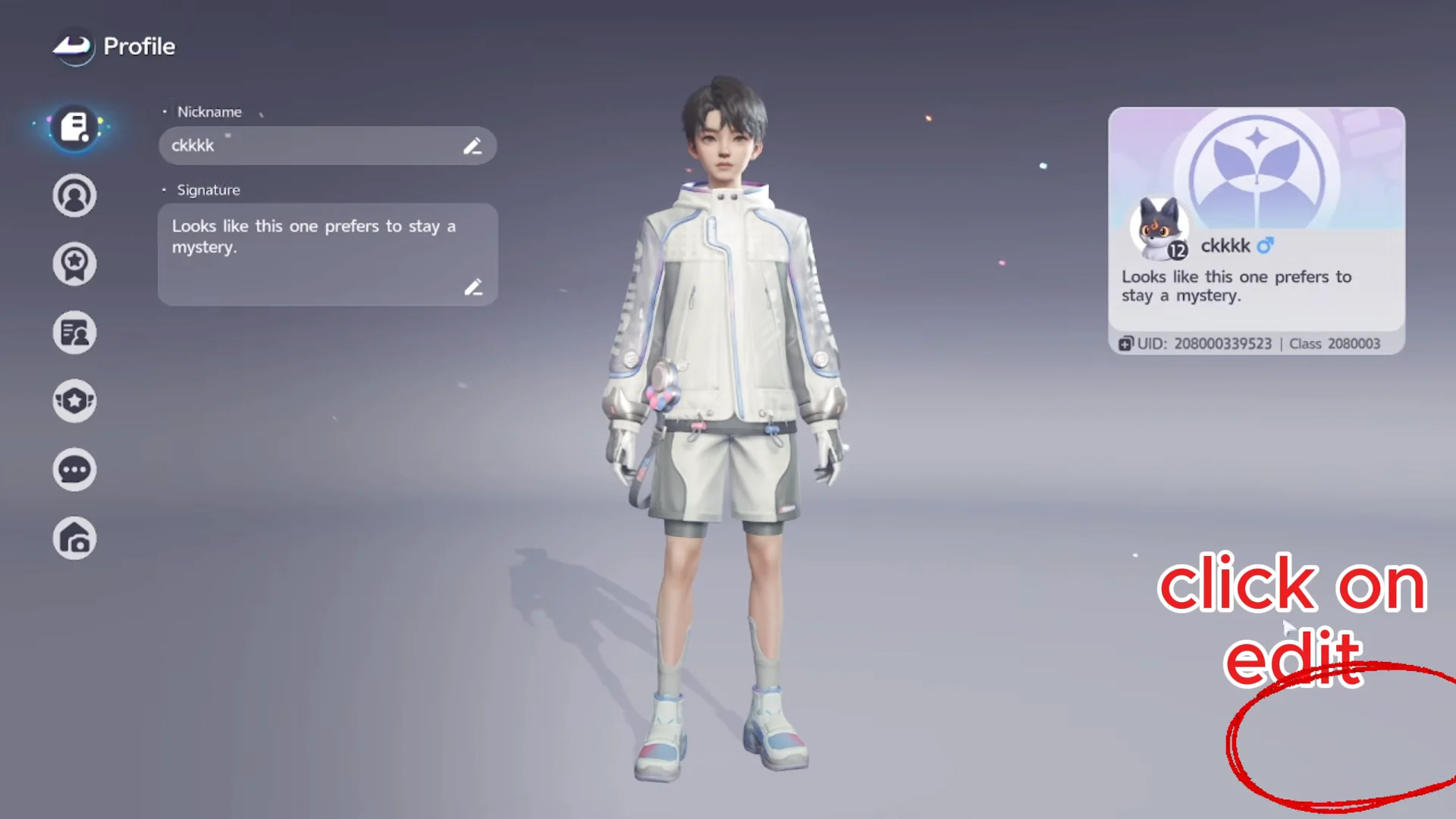
How to confirm the name change worked
Once you confirm, your updated nickname appears on the Profile screen and on your profile card in the main menu. Your Name Change Card count drops by one in your inventory, which is the clearest sign the change registered. If the new name shows and the card is gone, the swap is complete.
Renaming your Aniimo is separate
The Name Change Card only applies to your own character nickname. There is currently no way to rename an individual Aniimo. Pressing the pencil icon next to an Aniimo’s name shows a message that renaming, along with Aniimo Affinity, is planned for a future update. Until then, the card you buy is strictly for your player profile.