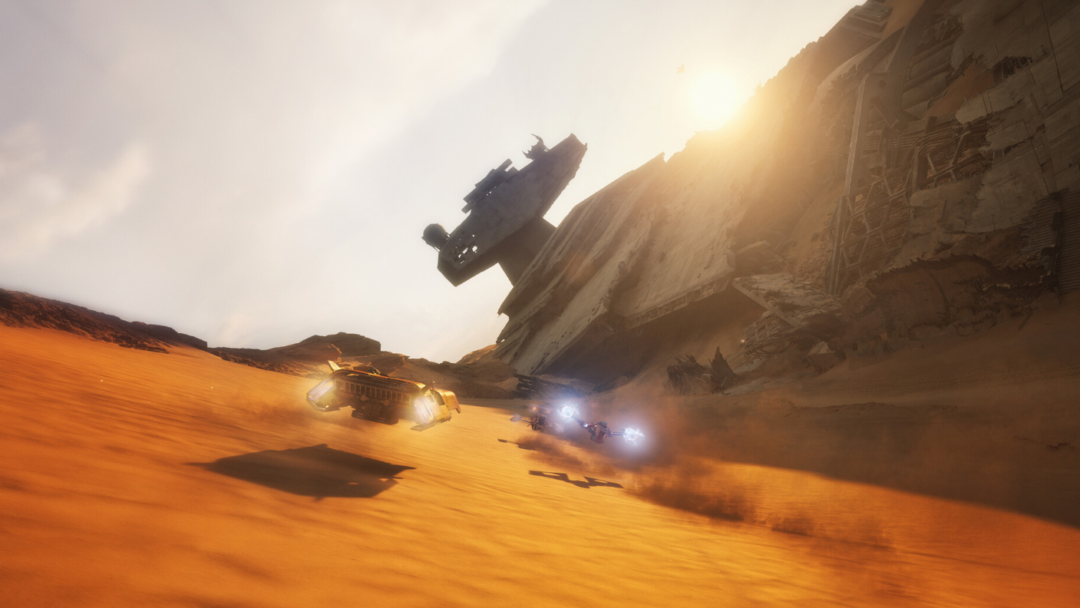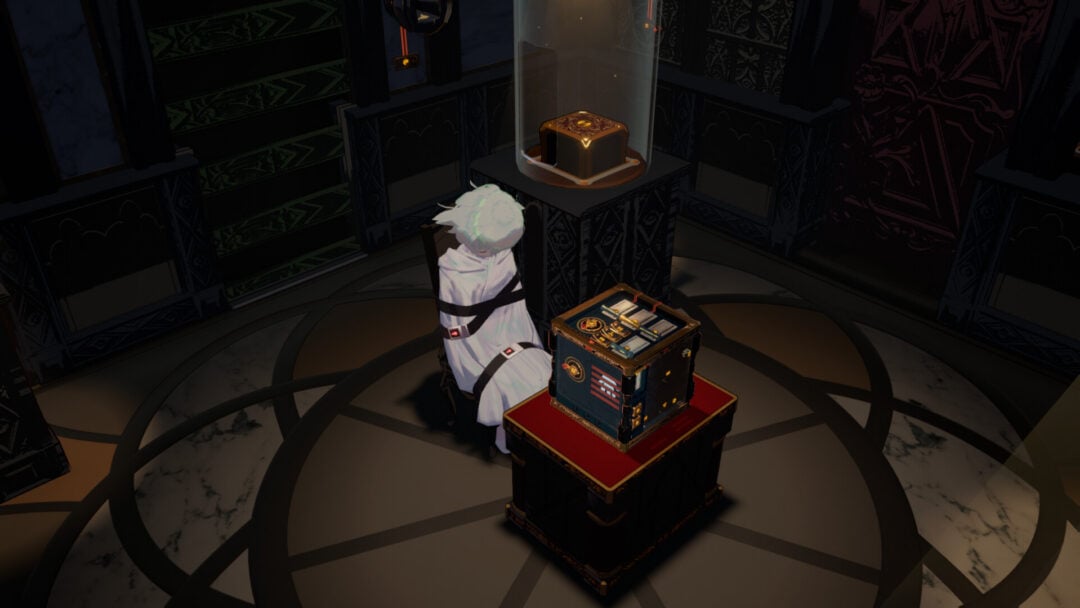
Star Wars: Galactic Racer ships with three camera views, and the first-person cockpit view sits at the end of the cycle. The game never prompts you to try it, so most pilots finish entire tours without knowing it exists. It is a single button press away.
Quick answer: Press R1 on PlayStation, RB on Xbox, or Insert on keyboard to cycle cameras, and tap it until the view sits on the front of your speeder.
Button to change the camera in Star Wars: Galactic Racer
The camera control is a single toggle that cycles through the three views in order. Each press moves you one step forward, and the cycle loops back to the first view after the cockpit. There is no dedicated “first-person” button, so you reach it by pressing the toggle until the view lands on the front of the vehicle.
| Input type | Change camera | Move camera |
|---|---|---|
| PlayStation | R1 | Right Stick |
| Xbox | RB | Right Stick |
| Keyboard | Insert / Page Up | End / Delete / Page Down |
You cannot rebind controls in Star Wars: Galactic Racer. There is an alternate controller scheme, but the camera toggle stays on the same buttons listed above.
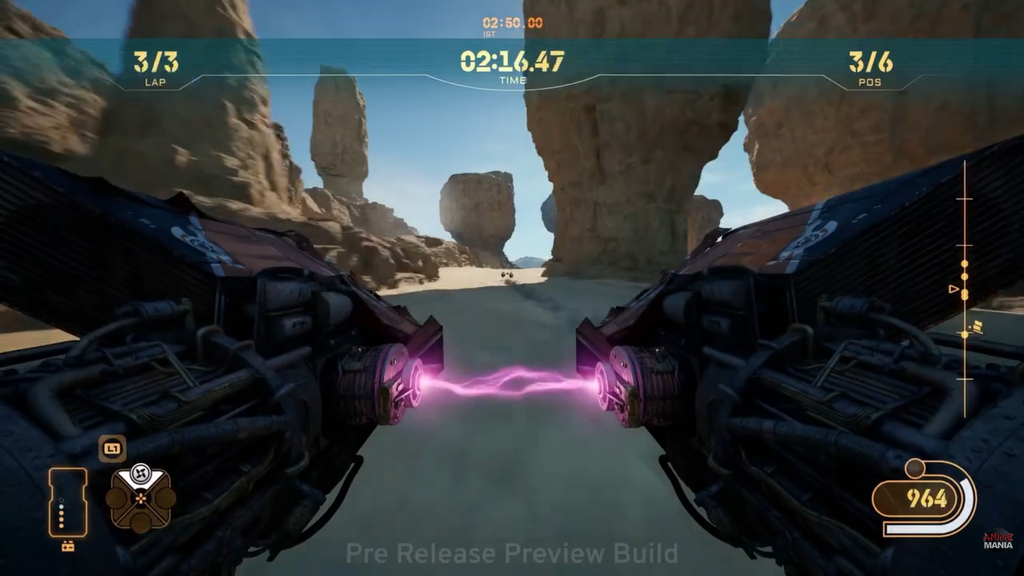
The three camera views and what each one shows
Pressing the toggle steps through the cameras in a fixed order. Knowing where each one sits lets you stop on the one you want without overshooting.
- Camera 1 sits furthest behind the speeder and gives the widest read on the track and nearby racers.
- Camera 2 pulls in close behind your pilot for a tighter frame and a stronger sense of speed.
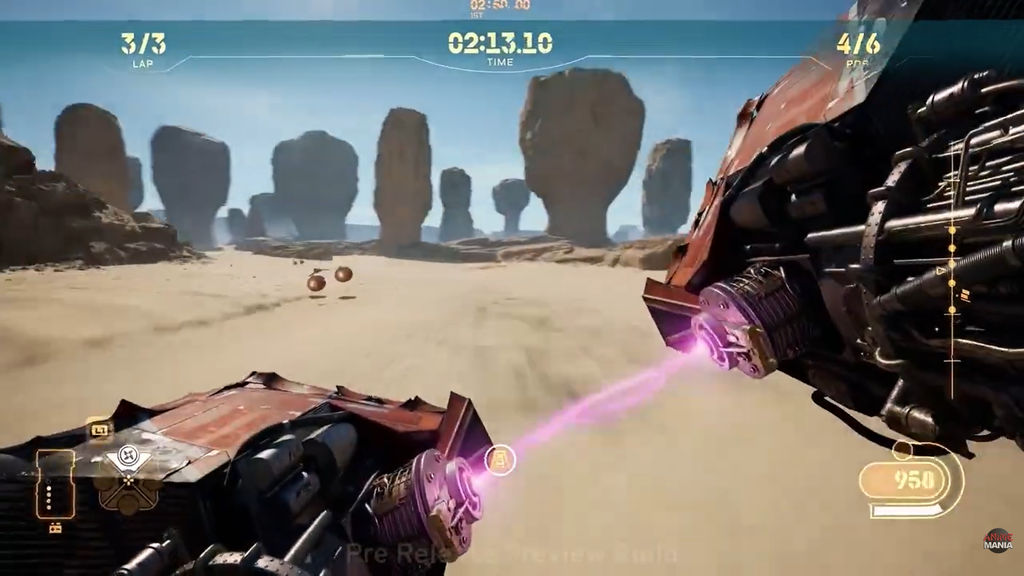
- Camera 3 is the first-person view, mounted on the front of the vehicle so you ride inside the cockpit.
Camera 1 remains the most forgiving choice for reading what is ahead when the pace climbs. The first-person view trades that wide awareness for a far more frantic ride, since you can no longer glance directly at what sits behind or around your speeder, and judging how long to hold a drift through a corner gets harder.
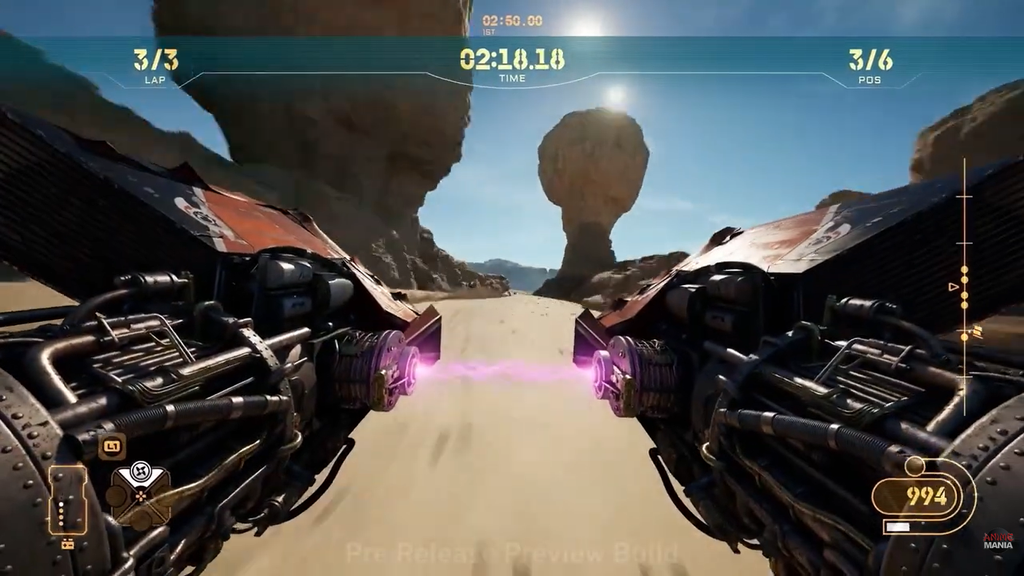
Switch to the first-person camera
The setting holds for the rest of the run, so you can play a full roguelite campaign in first-person once you switch. If you ever want to step back out, keep tapping the toggle and the cycle loops around to Camera 1.
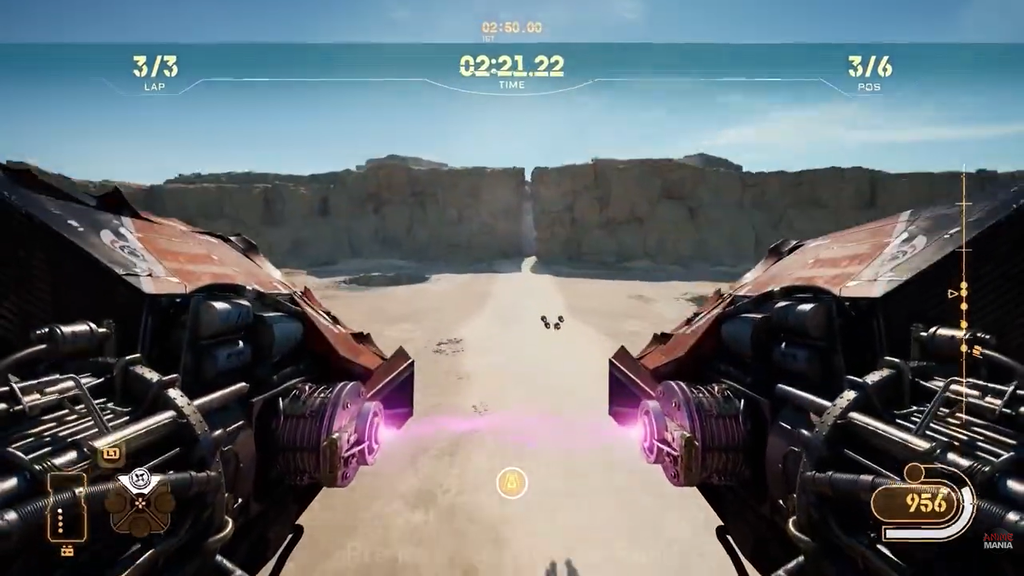
Move the camera and check behind you
The right stick swings the camera around so you can scan your surroundings mid-race. Pulling the right stick up spins the view a full 180 degrees, which lets you see what is coming up behind your speeder. That rear check matters more in first-person, where racers directly behind you stay out of frame until you turn to look.
Learn each track and settle on a favorite speeder in third-person first, then switch to the cockpit view for the rest of your run. The landspeeder, speeder bike, and skim speeder each feel more distinct from one another in first-person, with the skim speeder’s sideways reorientation especially noticeable from inside the cockpit.