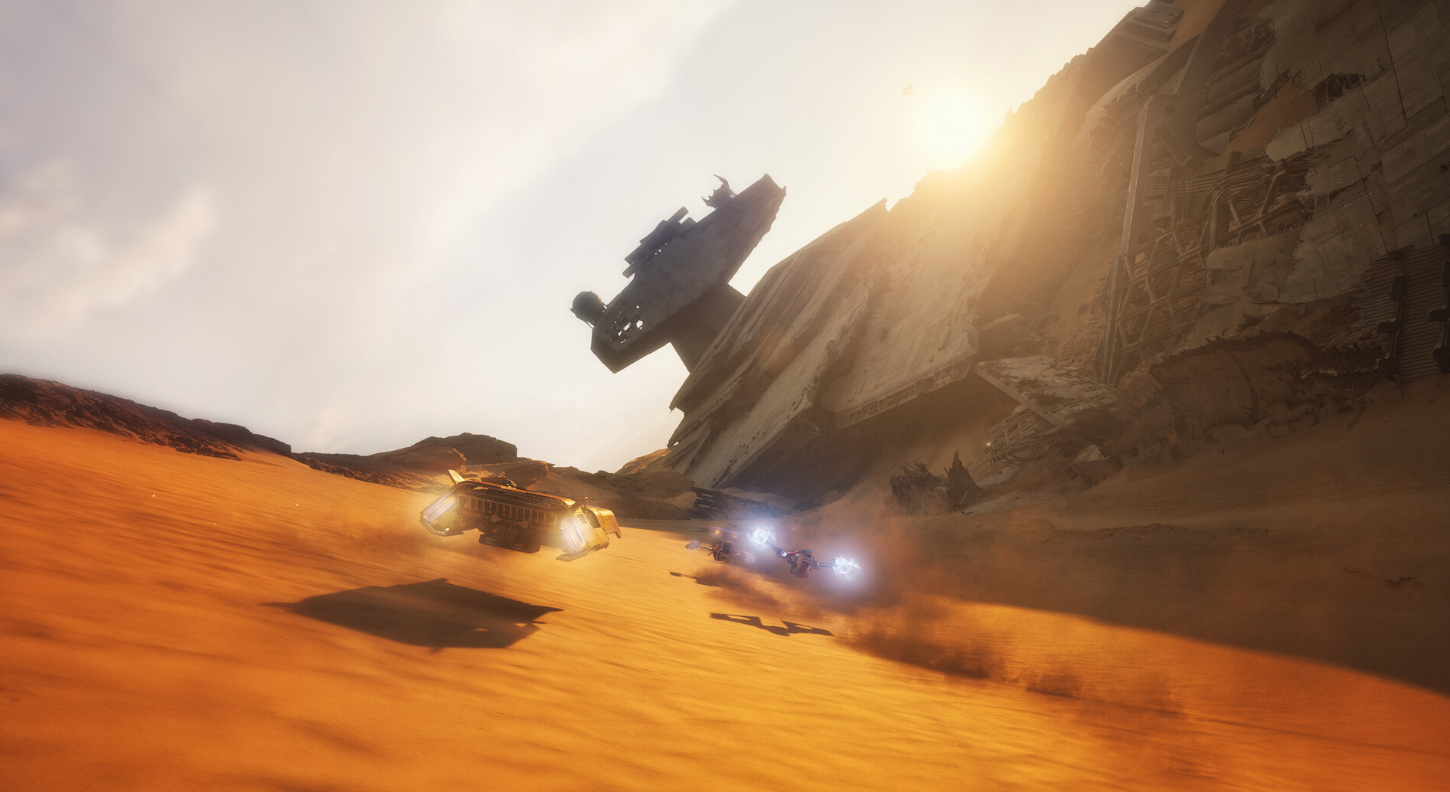
Preordering Star Wars: Galactic Racer unlocks a set of cosmetics for your vehicle and multiplayer profile. They give no racing advantage, and because none of them carry an obvious name in the menus, they are easy to walk right past. Here is exactly where they live and how to put them on.
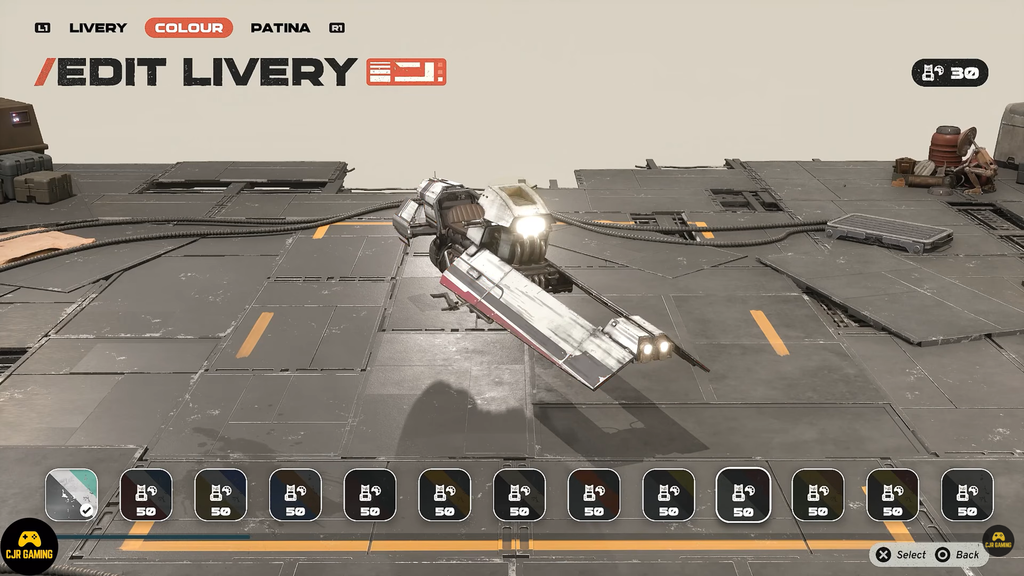
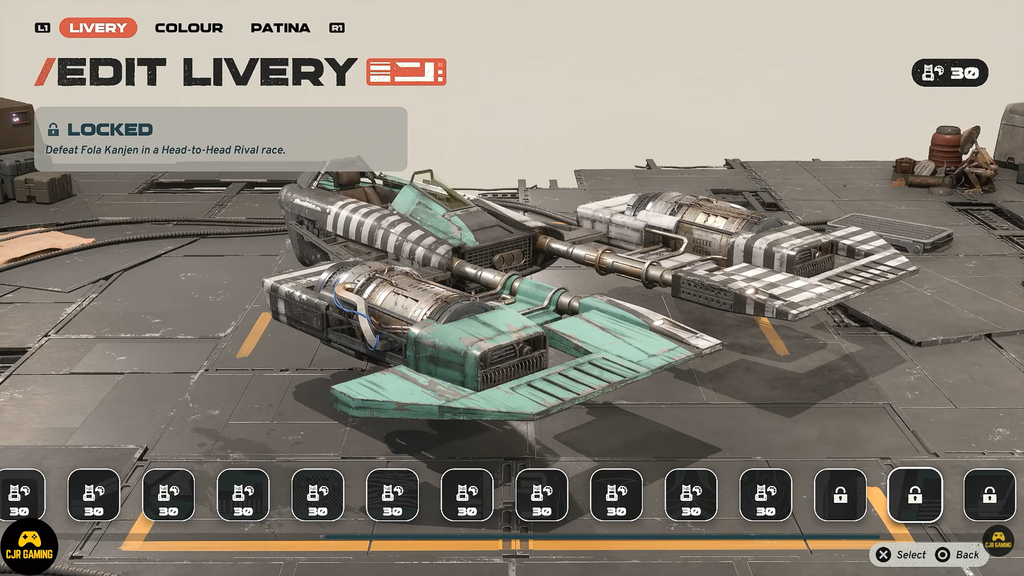
Quick answer: Open the vehicle Customization menu and pick the second default livery under Edit Livery for the car paint. For your profile, go to Multiplayer, then Customize, then Customize Player Banner, and scroll to the bottom of both the Background and Insignia tabs.
What the preorder unlocks
Every preorder, regardless of edition, grants three cosmetic items. They are purely visual and do not touch your vehicle stats or abilities.
- An extra paint scheme for your repulsorcraft, compatible with the Landspeeder, Skim Speeder, and Speeder Bike.
- A player banner for multiplayer modes.
- A player icon for multiplayer modes.
The livery and banner carry a color tied to the platform you bought the game on.
| Platform | Preorder color |
|---|---|
| PlayStation | Blue |
| Xbox | Green |
| PC | Orange / red |
Equip the preorder livery
Equip the player banner and icon
Because none of these items are named in the UI, the fastest way to find each one is simply to jump to the very end of each list, where the preorder entries are placed.
Deluxe Edition extras
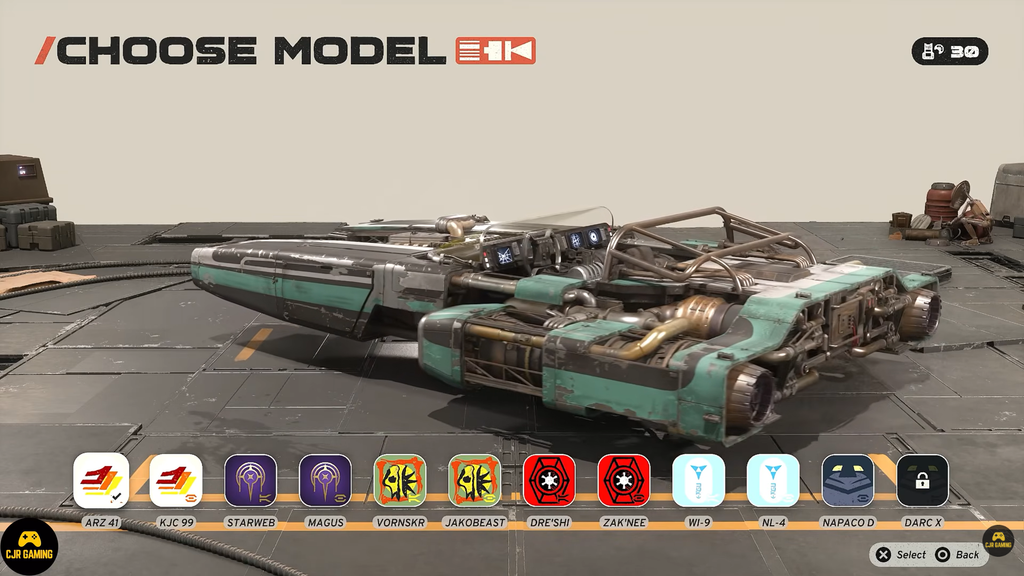
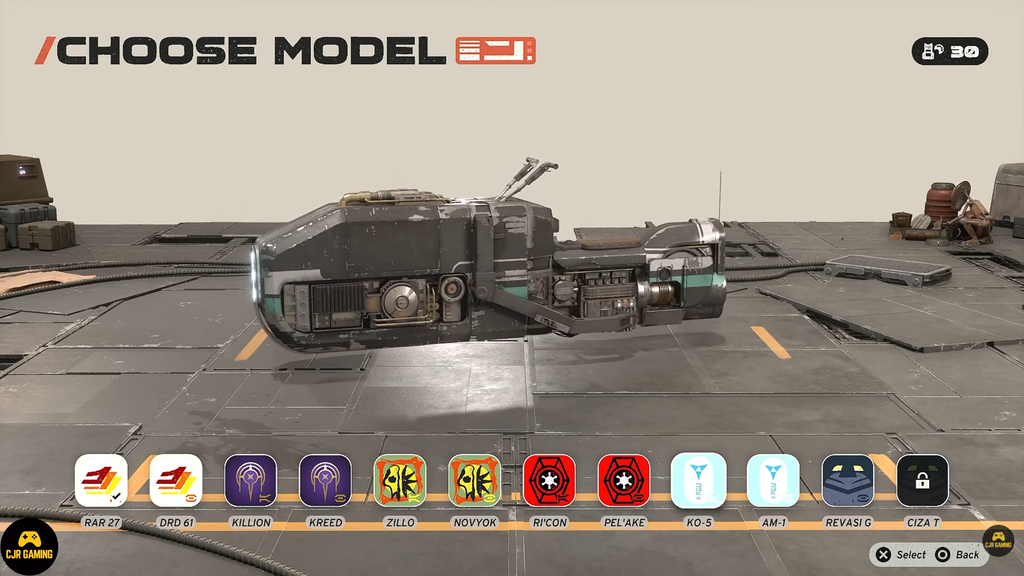
If you own the Deluxe Edition, its cosmetic items show up in these same livery and banner menus alongside the preorder set. The edition also includes a vehicle model, which is not found with the cosmetics. Open the vehicle customization menu and use the Choose Model option to select it.
These options are purely visual. Your livery, banner, icon, or Deluxe model affects your appearance on the track and in lobbies, but grants no stat increases or abilities.