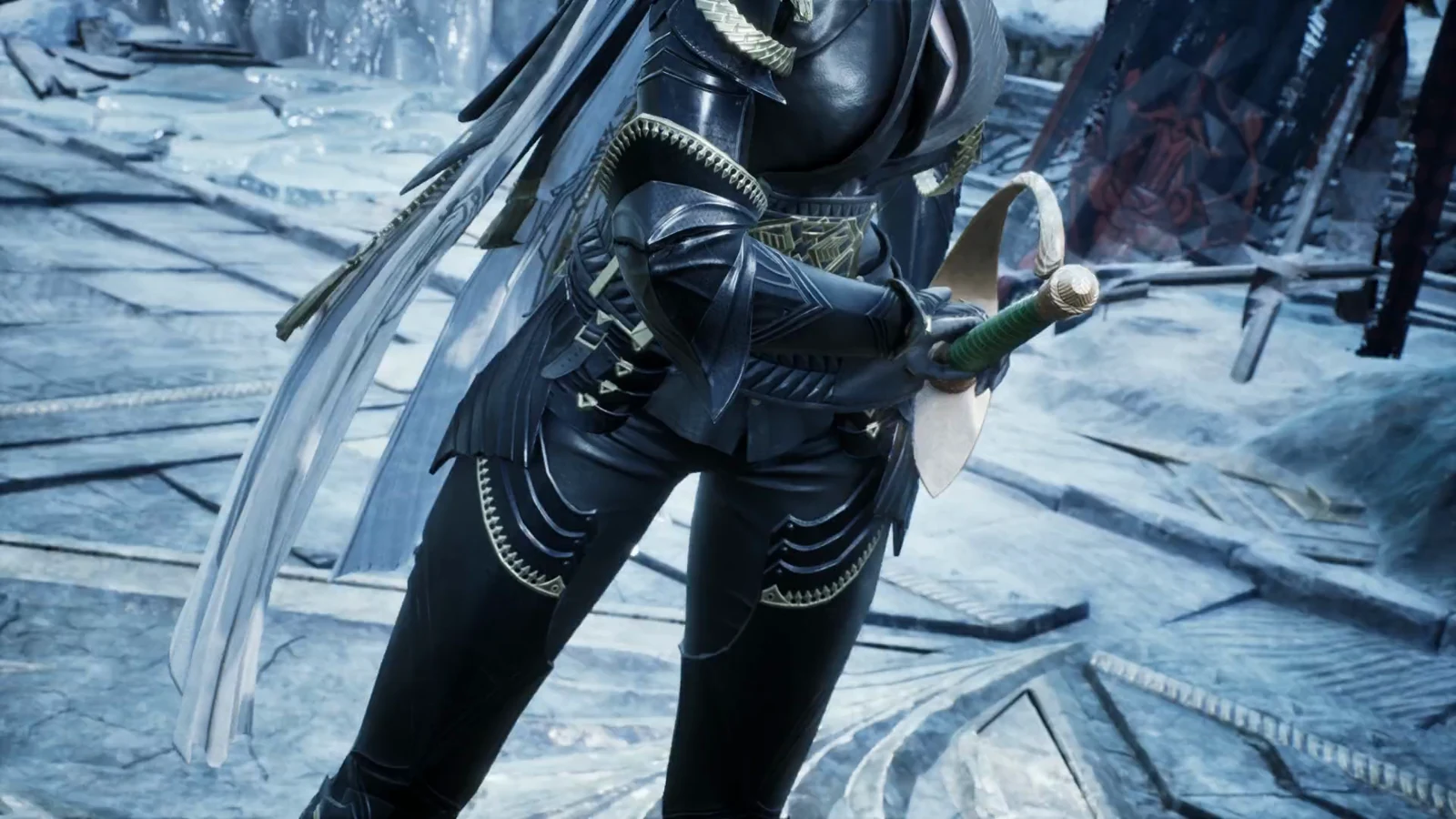
Dyeing in AION 2 happens entirely through the Closet, the same menu that holds your cosmetic skins. You can repaint most armor pieces, swap their surface finish, and lay patterns over them without touching a single combat stat. The visual layer sits on top of whatever gear you actually have equipped.
Quick answer: Open the Closet (Alt+O), select the piece you want to recolor, click the Customize palette icon, adjust the Dye, Materials, and Patterns tabs, then confirm with one Customization Voucher (Bound) or 200 Quna per piece.
Open the Closet to start dyeing
The Closet unlocks after you finish the Make Yourself Useful quest, one of the earliest tasks in the game, so most players already have access. Once it is open, dyeing is a short sequence.
Alt + O shortcut to jump straight there. The Closet is split into Armor, Weapons, and Decoration tabs.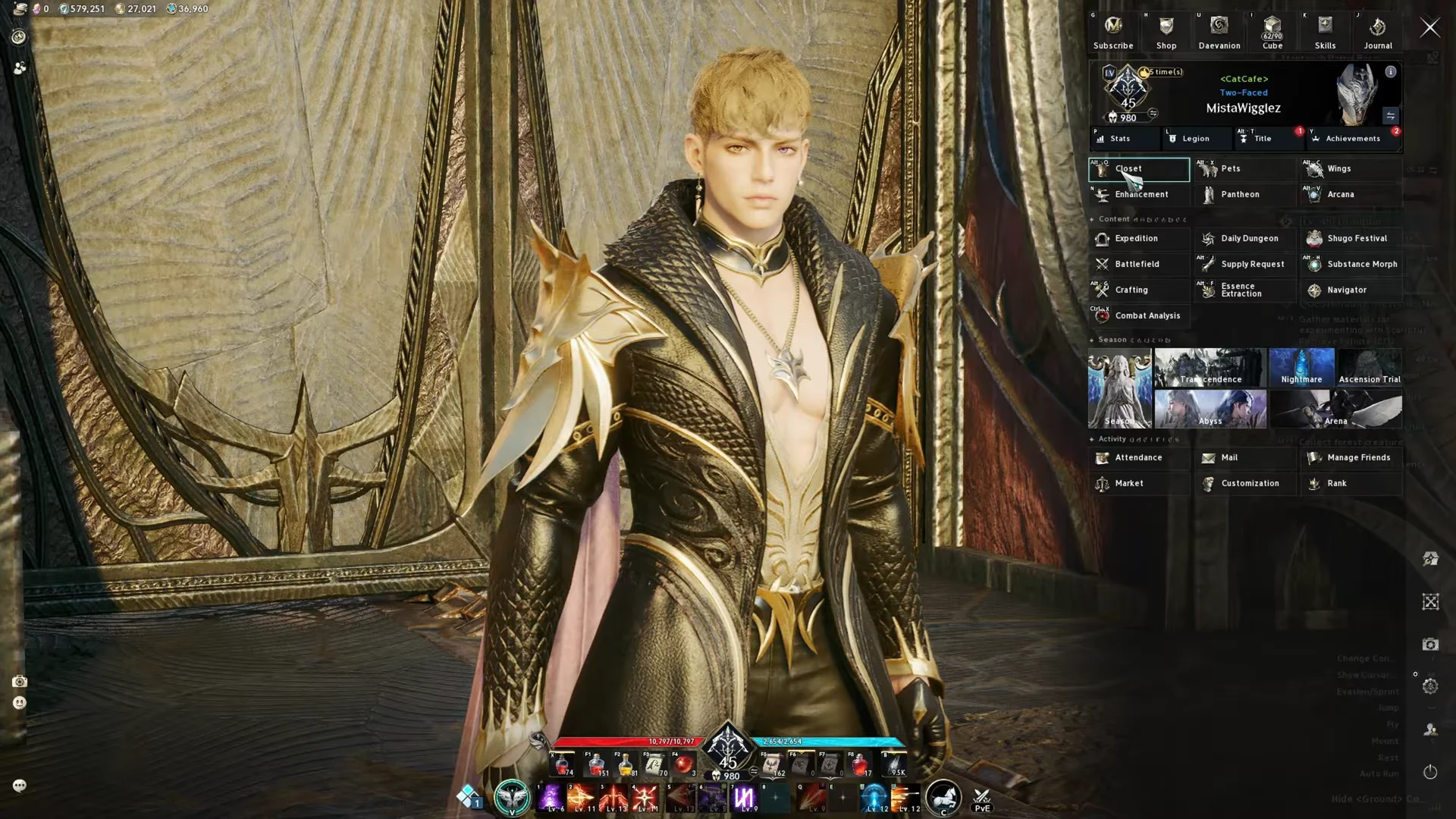
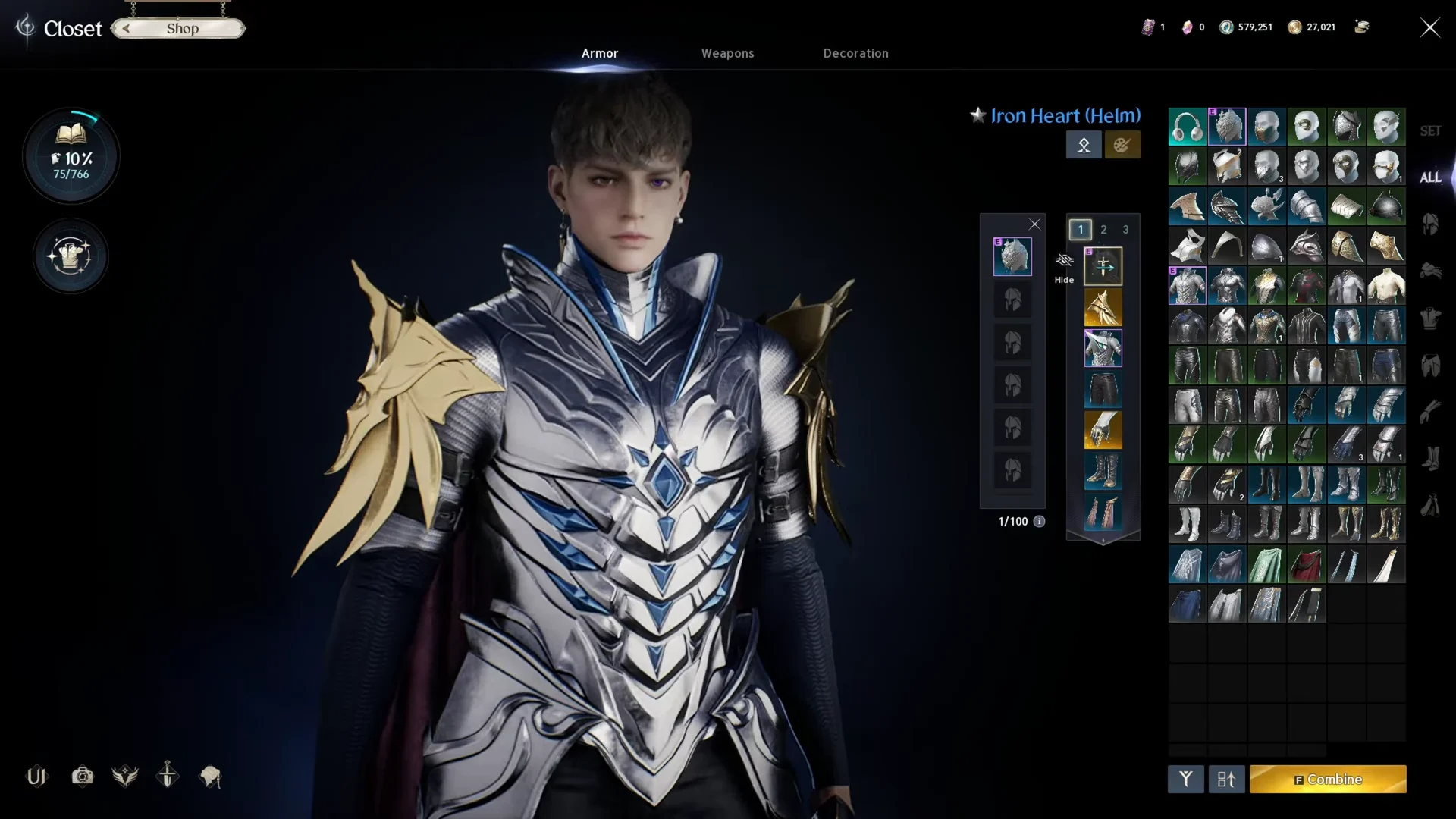
If you prefer not to see the headpiece, use the eye symbol beside its gear slot to hide it, and use it again to show it.
Dye, materials, and patterns: what each tab changes
The customization window gives you three layers of control over a piece. You can stack changes across all three before paying, so experimenting with combinations on the same part costs nothing extra until you confirm.
- Dye recolors up to four separate index regions on the piece using a color palette, a hue slider, or a hex code.
- Materials changes the surface finish; the available choices are Suede, then Carbon Fiber, followed by Chrome, then Metal, then Fabric, next Leather, and finally Stainless Steel.
- Patterns lays an overlay such as stripes or checkers, with controls for pattern size, aspect ratio, opacity, embossing or engraving, and separate pattern colors.
Changing a color is as simple as selecting one of the four index slots and dragging the picker or sliders until the region looks right.
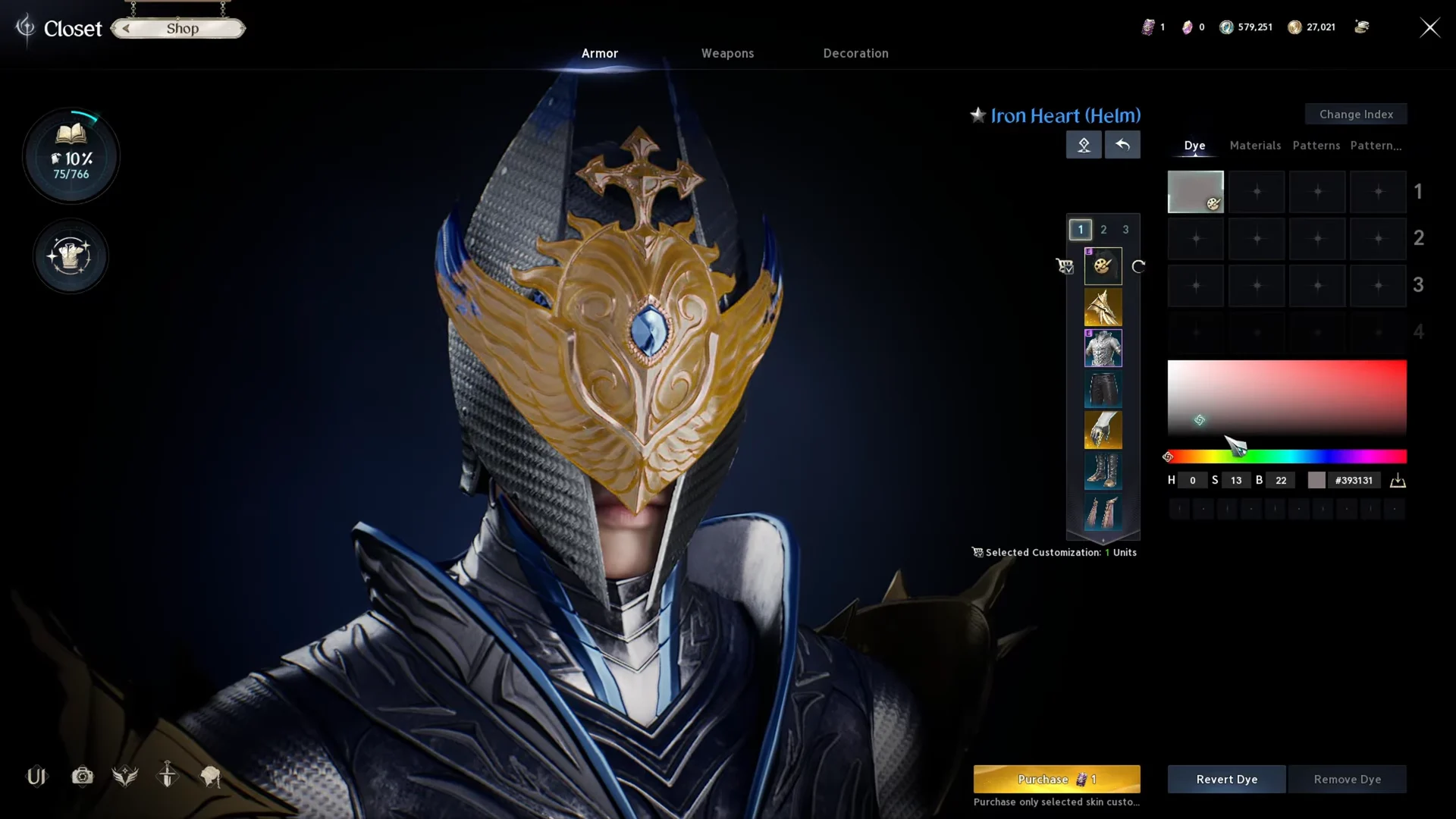
The Patterns tab adds another dimension once the base color and finish are set. You choose a pattern type, then fine-tune how large it appears and how strongly it shows through with the opacity slider.
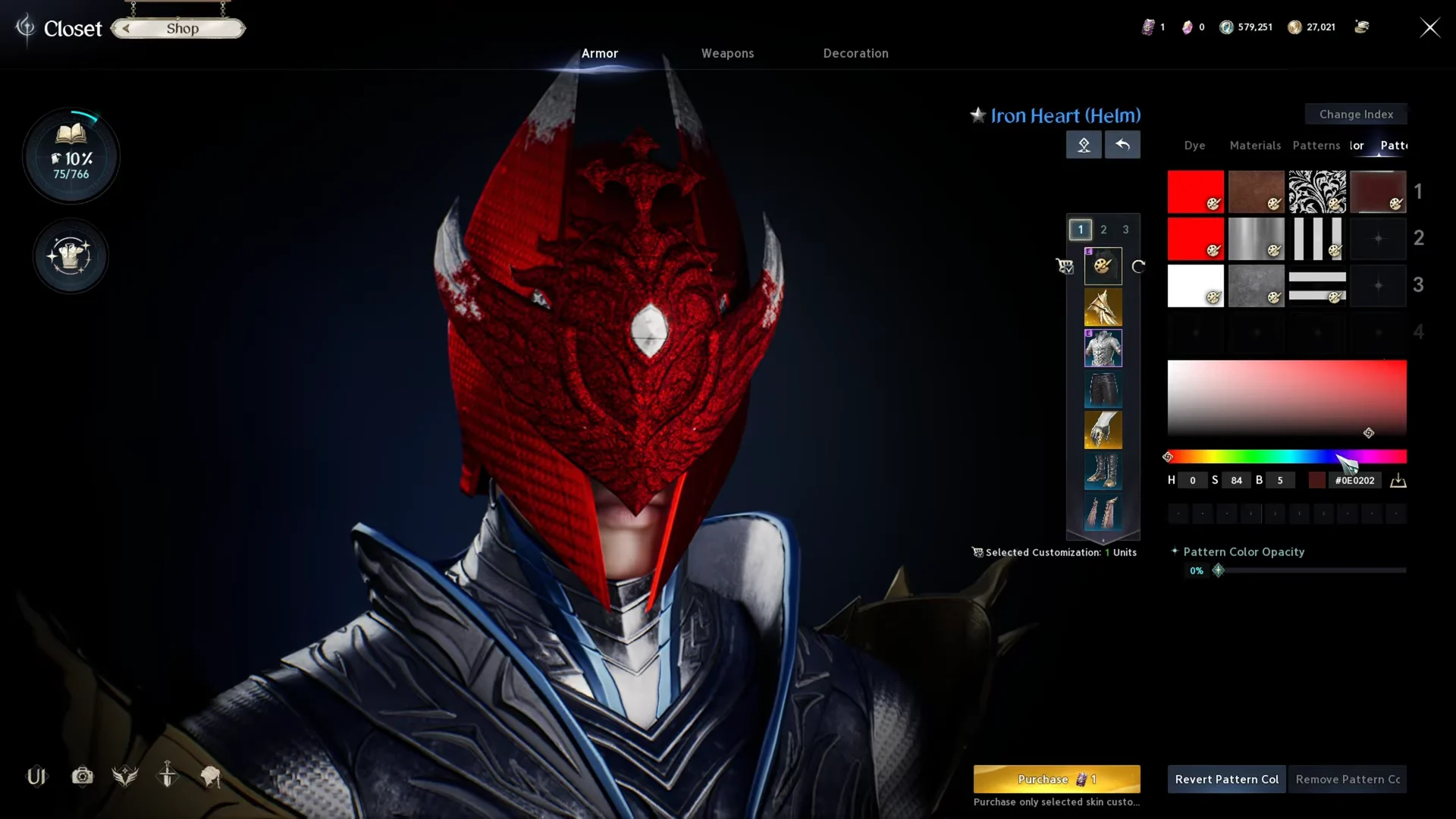
Each tab also carries Revert and Remove buttons, so you can undo a single layer without scrapping the whole look.
What dyeing costs
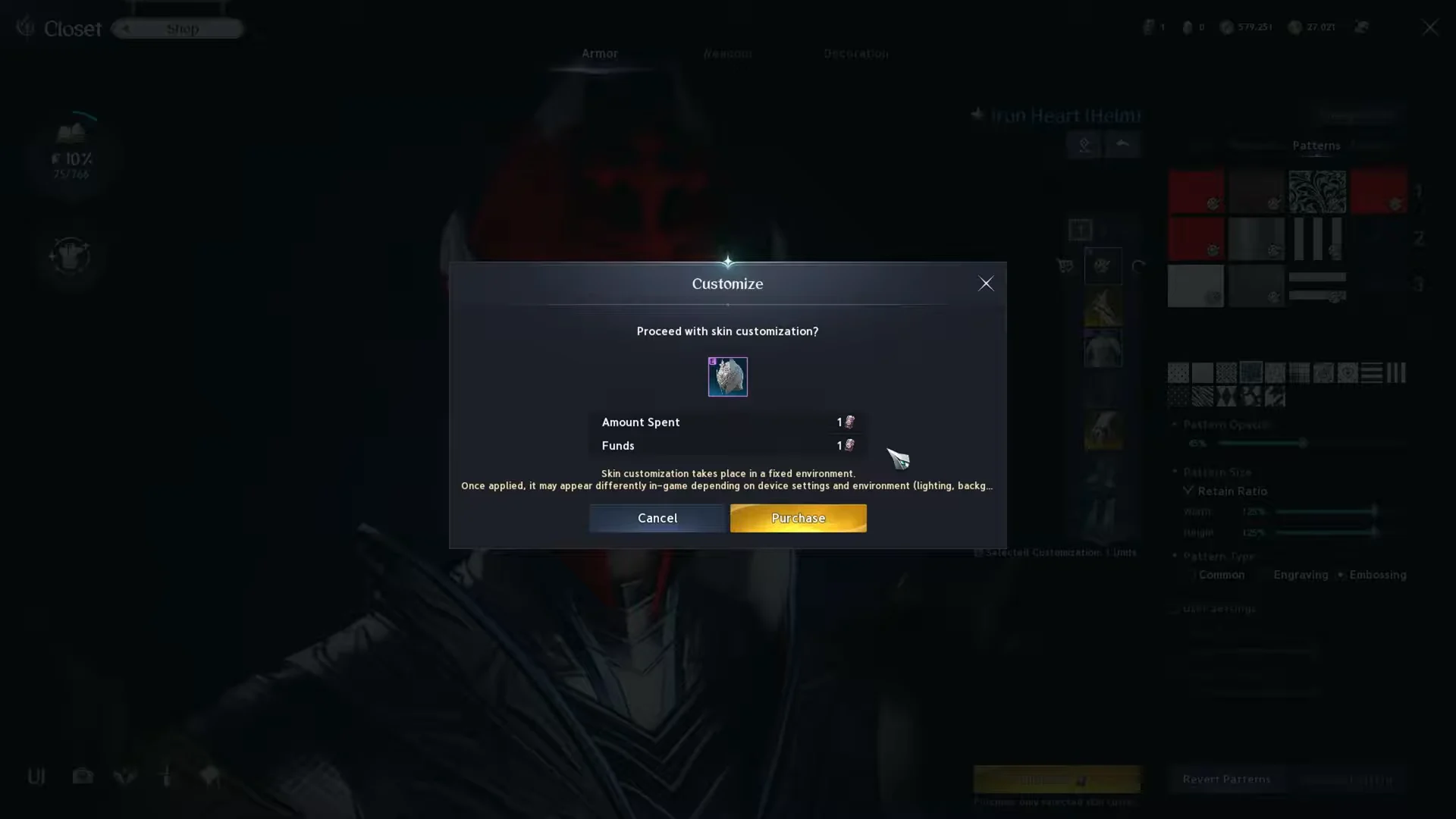
Customization is not free in most cases. When you press Purchase, a confirmation popup appears asking you to proceed with the skin customization, and it draws from one of two payment options.
| Payment | Cost per piece | How you get it |
|---|---|---|
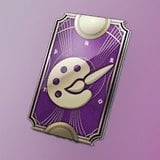 Customization Voucher (Bound) Customization Voucher (Bound) | 1 voucher | Reward boxes and Twitch Drop events |
 Quna Quna | 200 Quna | Quna Shop (smallest bundle is 400 Quna) |
Each use of a Customization Voucher (Bound) pays the fee for one customization. Since the item is bound and cannot be traded, collect them whenever reward boxes or Twitch drops provide them. After your vouchers are gone, each dye job costs 200 Quna, so recoloring an entire armor set costs considerably more than changing a single piece.
Watch for discount events. Daeva Look Change Week has previously cut appearance customization by 50 percent, dropping the price to 100 Quna per part, which is the moment to recolor several pieces at once.
Unlock more appearances by extracting gear
If the look you want to dye is not in your Closet yet, you can register it by breaking down the gear that carries that appearance. This frees you from keeping the original item in your bags.
In the Cube, choose Extract and select the item to dismantle. Extraction charges a small Kina fee, gives you Enhance Stone for awakening a gear item’s hidden potential, and permanently records its appearance in your Closet wardrobe. Once registered, equip that appearance in the Closet to access the same Dye, Materials, and Patterns controls.
Weapons, accessories, and which pieces can be dyed
Weapons and facial decorations open the same customization panel as armor. Select a weapon skin such as a bow, or a facial piece like eyewear, and the Dye, Materials, and Patterns tabs work identically.
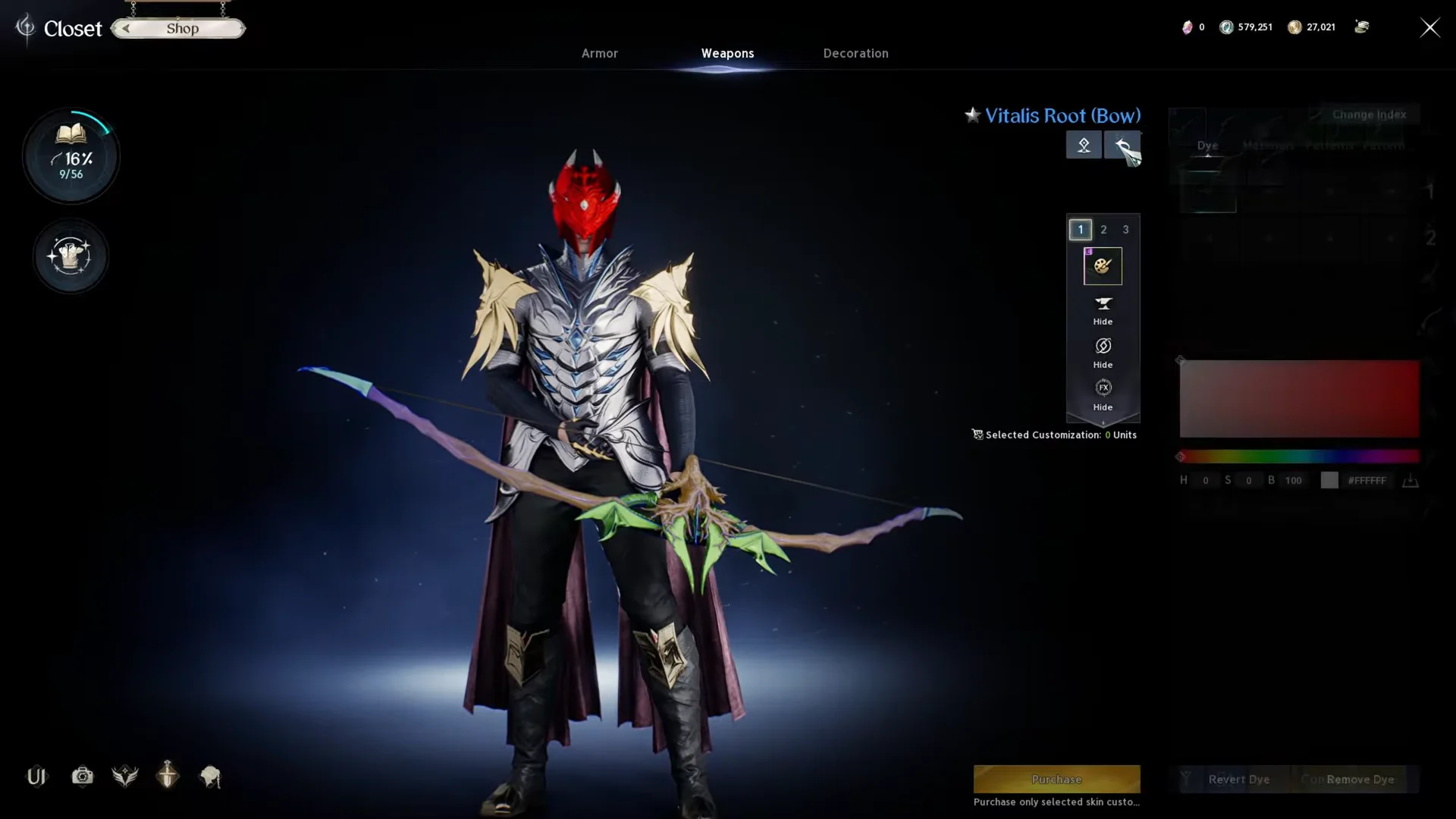
Not every appearance supports dyeing. The feature only works on eligible pieces in your Closet, and if an item has no Customize option, you will need to pick an alternative appearance that supports it. The Closet Shop lists additional dyeable appearances if your current set is limited.
You know the dye applied when the confirmation popup clears and the piece shows your new colors, finish, and pattern on the character model in the Closet. Because the change lives on the cosmetic layer, your equipped gear stats remain exactly as they were.