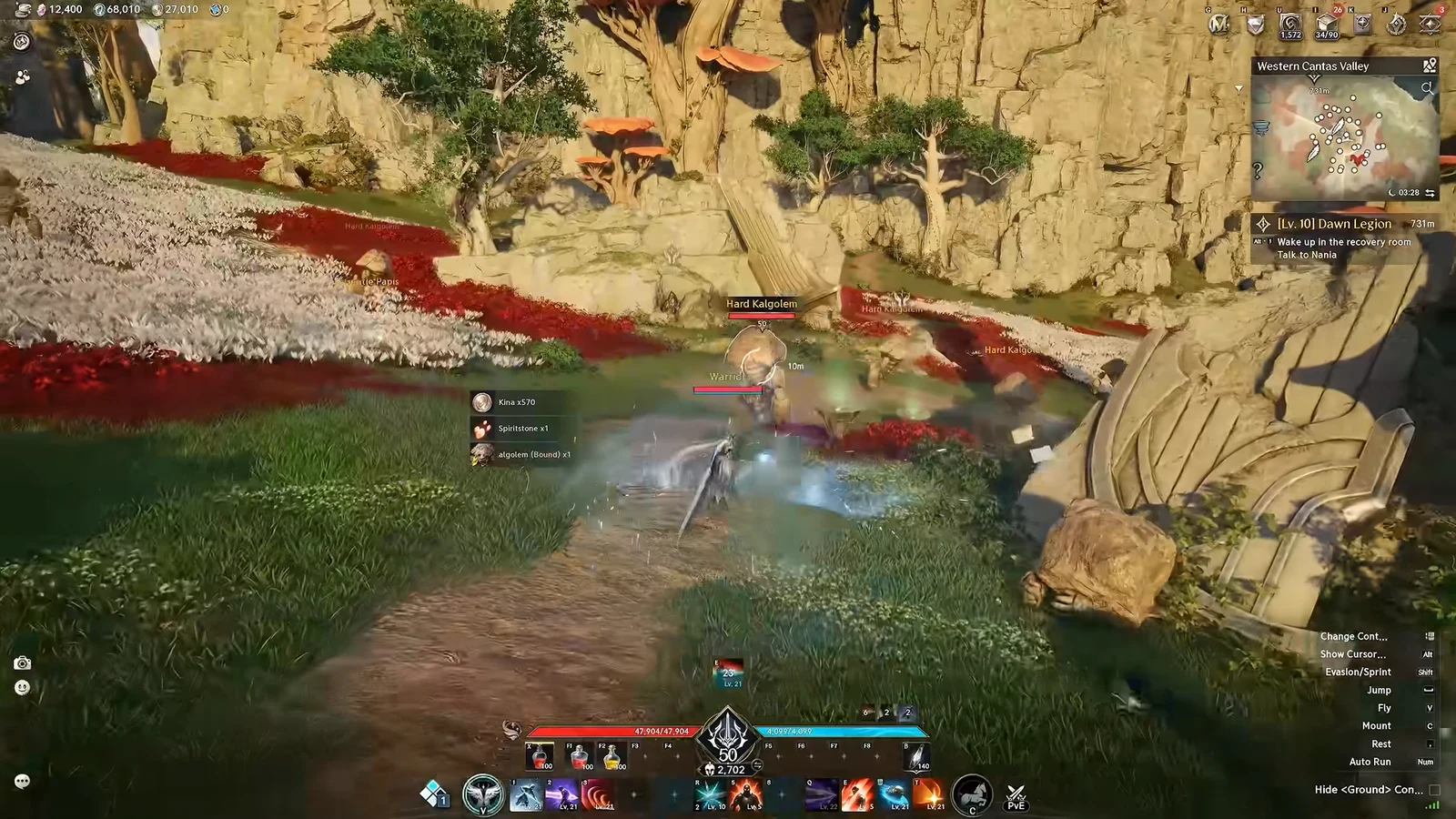
Combat in Aion 2 leans on timing. Dodges, skill chains, and Abyss PvP all depend on how quickly your inputs reach the server and come back, so a high or unstable connection shows up directly in how the game feels. The client includes its own connection indicator, which means you do not need to install anything extra just to keep an eye on latency while you play.
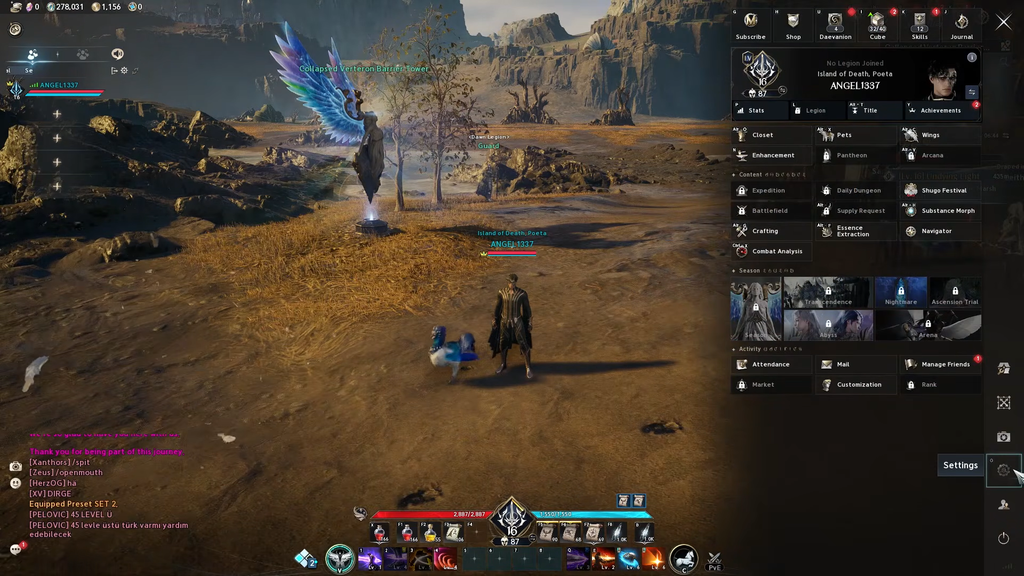
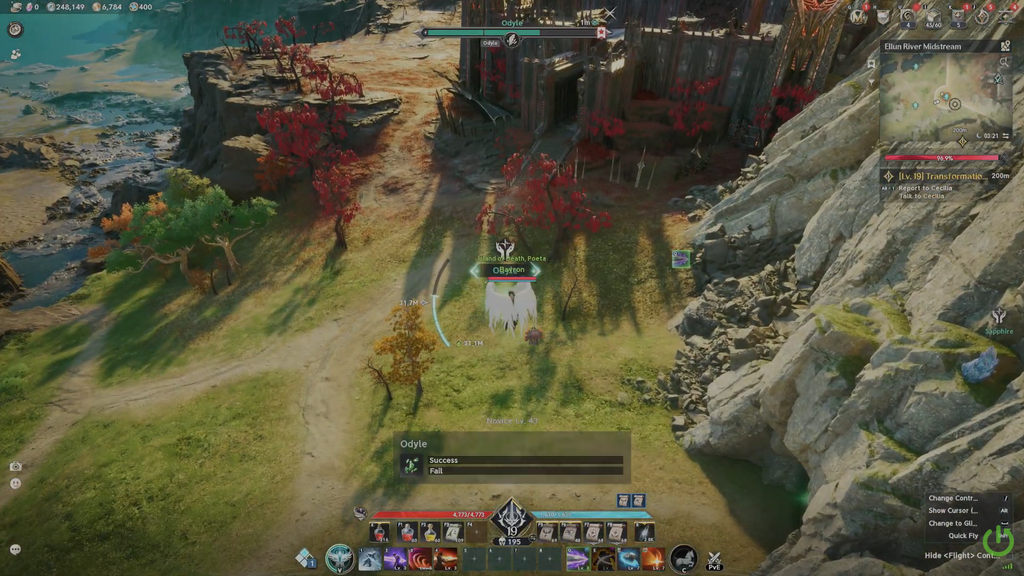
Quick answer: Open Settings, select Information Display, and enable Display Network Status. During play, a status marker with color coding is shown at the screen’s lower-right.
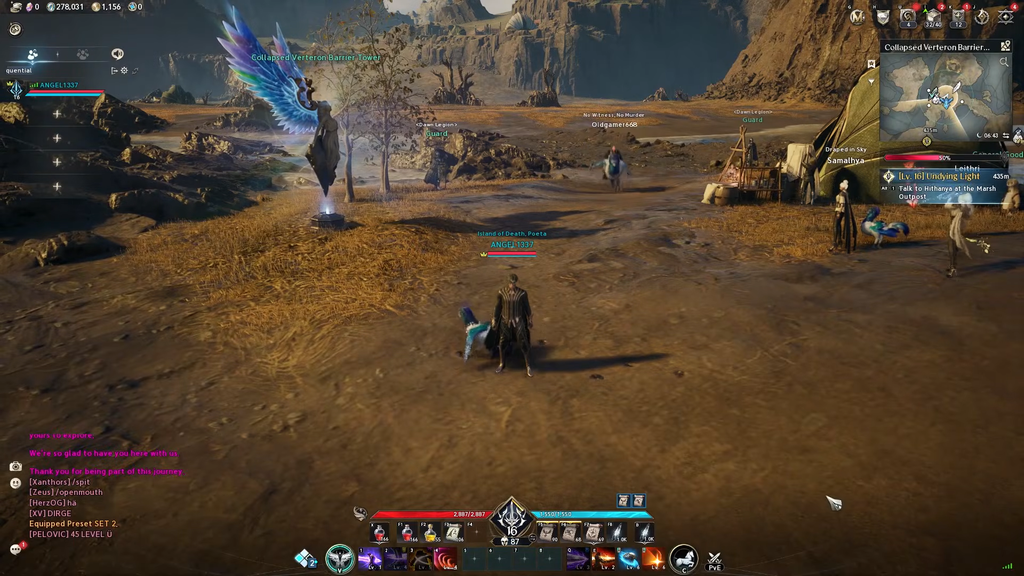
Turn on the Network Status indicator
The connection indicator is off by default. Once you switch it on, it stays visible on the HUD and behaves much like the signal bars you see on a phone, giving you a quick read on your current connection quality.
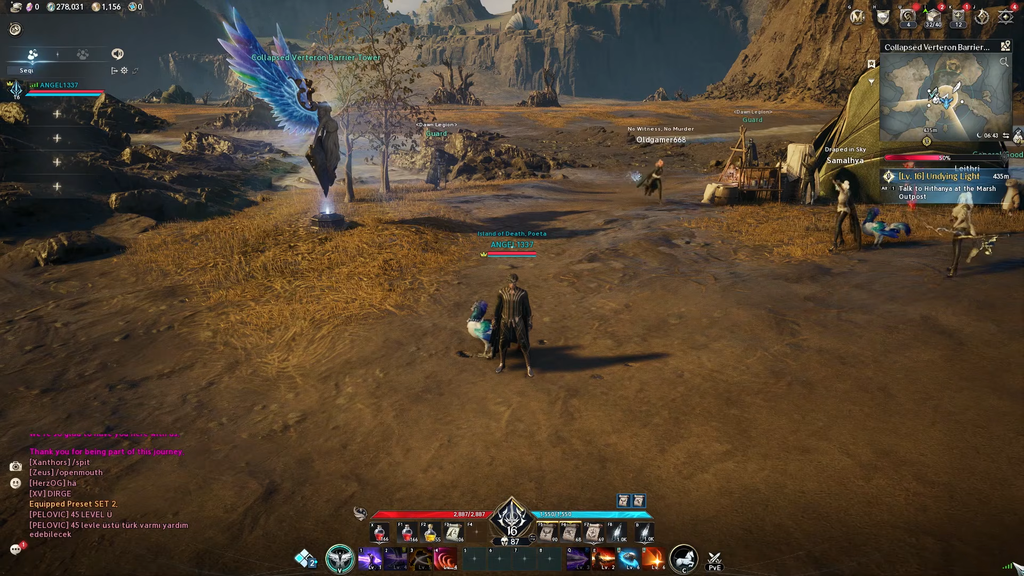
The option used to sit inside the graphics and optimization menus in earlier builds, so instructions written for the Korean, Taiwanese, beta, or pre-launch versions may point you to the wrong place. On the current global client it lives under Information Display.
Leave the indicator on for a while instead of checking one reading and switching it off. A connection that mostly sits low but spikes occasionally is a different problem from one that stays high the whole time, and you only catch that by watching it over several minutes.
Get the exact latency with Windows Resource Monitor
The in-game indicator shows connection status but not a precise number. When you want the actual latency in milliseconds, Windows Resource Monitor can read it from the game’s live connection without closing Aion 2.
Use Resource Monitor mainly to diagnose issues, not as an everyday ping readout. By contrast, the HUD marker remains visible during movement, combat, and transitions into fresh zones, showing connection behavior in live gameplay.
What your ping number means in Aion 2
Ping measures, in milliseconds, the time for information to make a complete trip from your PC to the server and back. With less latency, your actions take effect sooner; more latency increases the interval between using a skill and the server confirming it. Since combat relies on dodging, positioning, and chained abilities, that extra wait can make ordinary fights feel sluggish even if your frame rate remains completely steady.
The raw number isn’t the only thing that matters; consistency counts too. Predictable skill timing is easier when your connection remains steady instead of repeatedly swinging from low readings to high ones. These ranges offer a general idea of how different levels tend to feel:
| Ping range | How it feels |
|---|---|
| Under 50ms | Instant response, fully competitive in PvP |
| 50–80ms | Barely noticeable delay, fine for all content |
| 80–120ms | Slight delay in fast exchanges |
| 120–150ms | Clear delay in skill chains, weaker in duels |
| 150–200ms | Unreliable dodges and timing |
| Above 200ms | Rubberbanding and skills that fail to register |
If a fight suddenly feels delayed, watch the Network Status indicator at the same moment. That tells you whether latency is genuinely climbing or whether the problem is something unrelated, such as a frame-rate drop in a crowded area.
If the indicator does not show up
If the option is missing, check under Information Display and General; don’t follow older instructions that point to the Graphics or Performance menus. The setting had been moved before the current global release.
If Display Network Status is already on but nothing appears, toggle it off and back on, then check the corners of the HUD. Restarting Aion 2 after changing the setting can also force the interface to refresh if it did not update correctly.
A browser-based speed test is not a substitute here. Those tools measure the latency between your connection and a nearby test node, not the live route your character is using to the game server. The built-in indicator and Resource Monitor both read the connection that actually matters, which is why they are the two methods worth relying on.