Quick answer: Open Options > Graphics, turn FidelityFX Super Resolution 3 Off, set DLSS SUPER RESOLUTION to Quality, keep Ray Tracing Off, and raise Texture Quality only to the highest step before the Graphics Memory reading turns red.
Open the Graphics menu and read the memory panel
From the title screen, select Options, then move down to Graphics. A panel on the right shows Graphics Memory as a figure over 5.81 GB, with bars for This Game’s Usage and This Game’s Usage Limit, plus a Processing Load bar. There is no built-in frame-rate counter, so the memory figure is your main reference while tuning.
On first launch the game picks Prioritize Performance, Window mode, your desktop resolution, FSR 3 Performance, Ray Tracing Off, and Texture Quality High (0.25 GB). At 3840×2160 that reads 4.8 GB; dropping to 1920×1080 brings it to 4.61 GB. The figure turns orange and then red as it rises.
The first launch also spends about four and a half minutes compiling shaders before you reach the menu. HDR Mode lives under Options > Display and sits greyed out at Off, switching automatically based on your setup.
What the orange and red warnings mean
As Graphics Memory usage increases, the indicator changes color. On this card, readings from 4.57 GB through 5.04 GB appeared orange, while readings of 5.37 GB or more appeared red. The first time each color range is reached during a visit to the Graphics page, its message appears.
| Color | Message | What it means |
|---|---|---|
| Orange | “Graphics Memory has been colored orange due to high usage. Minor bugs may occur.” | Usage is high but usable |
| Red | “Graphics Memory has been colored red due to high usage. Serious bugs may occur.” | Over budget; serious bugs warned |
Both warnings have a single Yes button, and the game lets you keep the setting either way. Even Texture Quality High (3 GB), which pushes the reading to 7.36 GB against a 5.81 GB limit, can still be selected. The orange message reappears when the figure drops back from red to orange, so expect to see it more than once while you tune.
Treat red as a hard stop on a 6 GB card. Back off to the last orange value rather than committing a red one.
Pick one upscaler: DLSS or FSR 3
FidelityFX Super Resolution 3 (FSR 3) and DLSS SUPER RESOLUTION cannot be enabled together. With FSR 3 active, the DLSS SUPER RESOLUTION, Dynamic Resolution, Rendering Mode, Image Quality and Anti-aliasing rows are greyed out, alongside a note saying FSR 3 must be turned off before you can use them. Enable DLSS instead, and the FSR 3 row becomes greyed out.
On an RTX 2060 the DLSS path is the one to use. Set FidelityFX Super Resolution 3 to Off, then set DLSS SUPER RESOLUTION to a quality level. Here is how each mode moves the reading at 1920×1080 with Texture Quality at High (0.25 GB).
| DLSS mode | Graphics Memory | FSR 3 mode | Graphics Memory |
|---|---|---|---|
| Off | 4.8 GB | Off | 4.8 GB |
| Auto / Quality | 4.67 GB | Quality | 4.66 GB |
| Balanced | 4.64 GB | Balanced | 4.63 GB |
| Performance | 4.61 GB | Ultra Performance | 4.57 GB |
This card cannot use DLSS FRAME GENERATION. Its row is disabled and says GPU Scheduling is disabled or the option is incompatible with your setup. FSR 3 Frame Generation (Off / On) can be enabled on the same GPU, with no effect on the Graphics Memory reading.
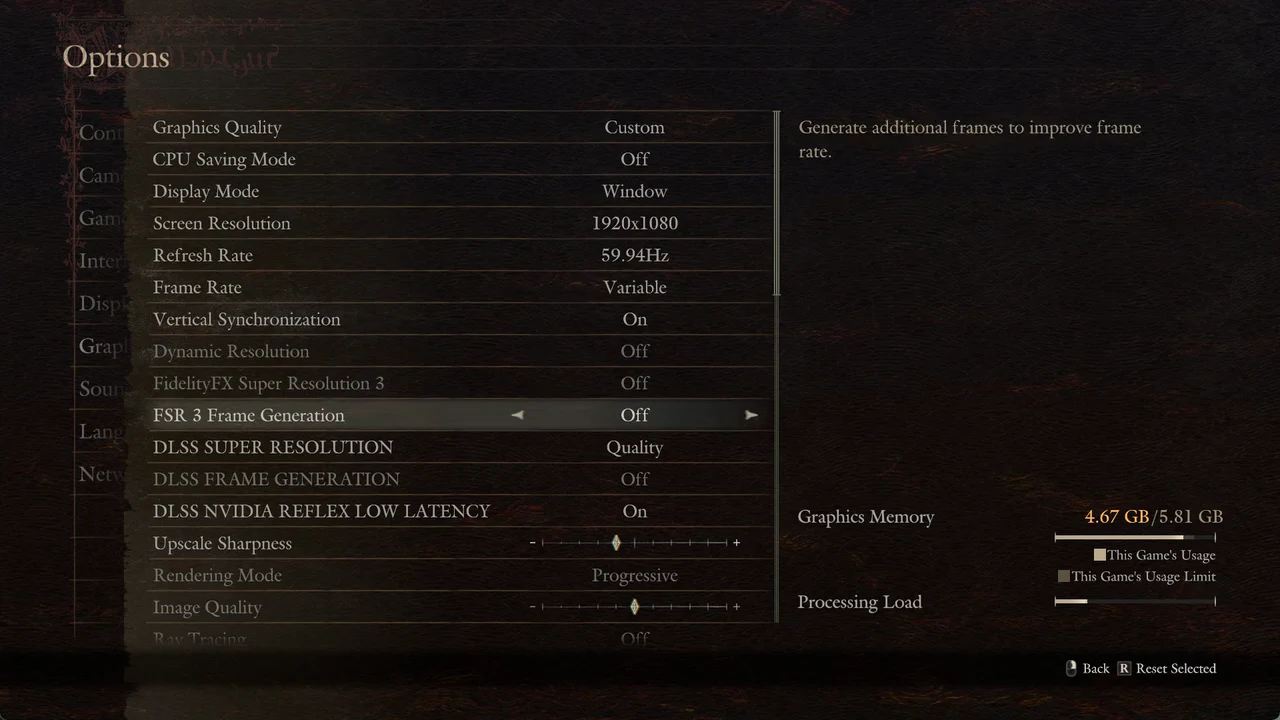
Pair DLSS with DLSS NVIDIA REFLEX LOW LATENCY set to On to reduce input delay. That row also leaves the memory reading unchanged.
Set Texture Quality to fit the VRAM budget
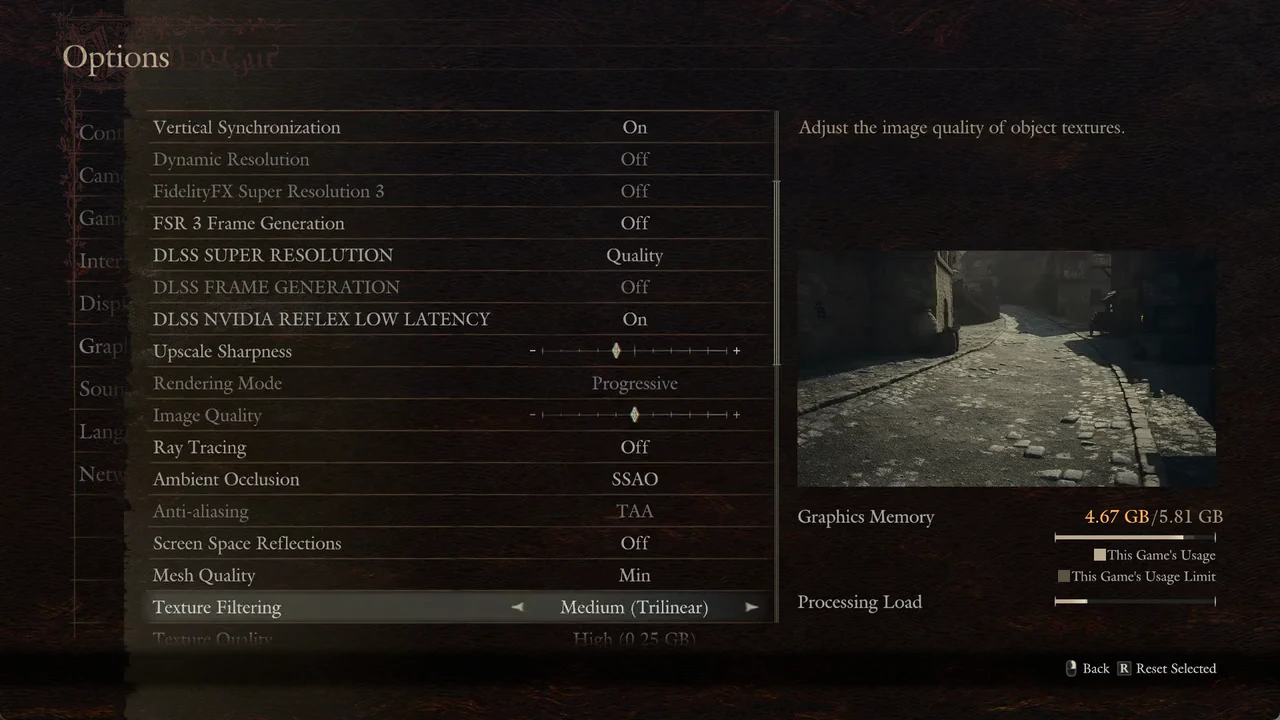
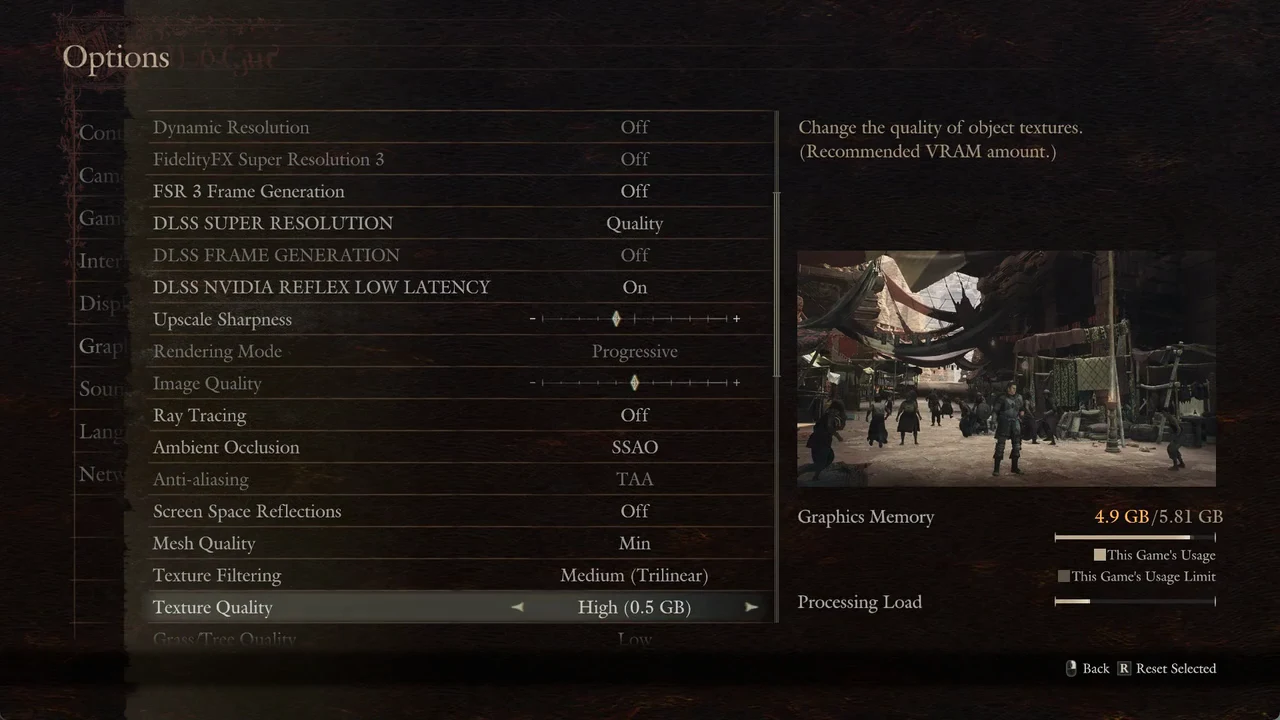
Texture Quality moves the Graphics Memory figure more than any other row, and the label next to each option is a recommended VRAM amount, not the total usage. This is a pure memory decision, so calibrate it against the meter rather than guessing.
| Texture Quality | No upscaler | DLSS Quality |
|---|---|---|
| Low (0 GB) | 4.57 GB | — |
| Medium / High (0.25 GB) | 4.8 GB | 4.67 GB |
| High (0.5 GB) | 5.03 GB | 4.9 GB |
| High (1 GB) | 5.5 GB (red) | 5.37 GB (red) |
| High (2 GB) / High (3 GB) | 6.43–7.36 GB | — |
Keep Ray Tracing off on this card
Ray Tracing adds about 0.25 GB to the reading. With no upscaler it moves the figure from 4.8 GB to 5.04 GB; with DLSS Quality it goes from 4.67 GB to 4.92 GB. Turning it on also greys out the Ambient Occlusion row.
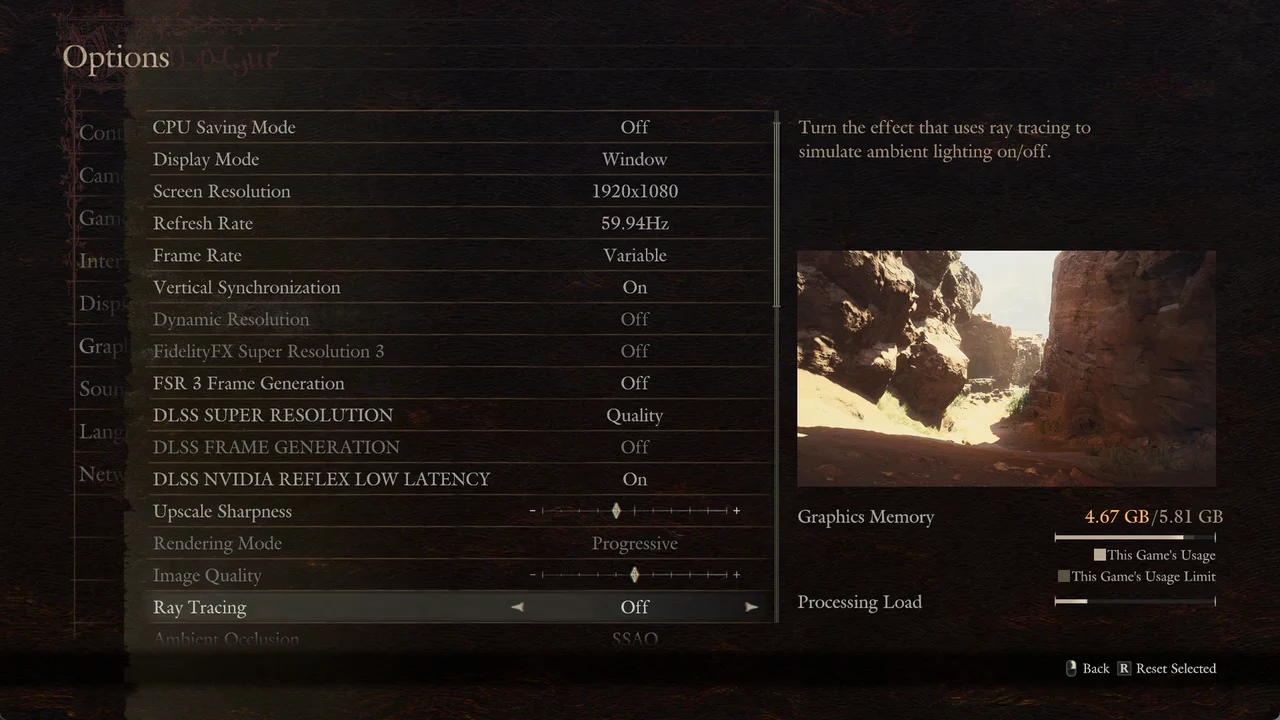
On a 6 GB card the sensible choice is Off. Ambient Occlusion barely moves the reading (Off 4.78 GB, SSAO 4.8, SDFAO 4.8 with no upscaler), so leave it on SSAO. The Ray Tracing GI Quality and GI Shading Quality rows stay greyed out until Ray Tracing is on.
A safe starting configuration
Starting from the Prioritize Performance preset, these values hold the reading at 4.67 GB / 5.81 GB and keep the figure in the orange band rather than the red.
- Display Mode: Window
- Screen Resolution: 1920×1080
- CPU Saving Mode: Off
- FidelityFX Super Resolution 3: Off
- DLSS SUPER RESOLUTION: Quality
- DLSS NVIDIA REFLEX LOW LATENCY: On
- Frame Rate: Variable, Vertical Synchronization: On
- Ray Tracing: Off, Texture Quality: High (0.25 GB)
CPU Saving Mode is On in the Prioritize Performance preset, and its own description notes in red that it also lowers the frame rate. Switching it to Off, as above, removes that penalty.
Changing Screen Resolution brings a confirmation prompt that reads “Do you want to keep this resolution? (Reverting to previous resolution in 10 seconds.)” with No preselected, so answer Yes within the window or the game reverts on its own.
Save and confirm the changes stuck
Back out of the Graphics list. The game asks “Save changes?” with Yes and No. Choose Yes and it reports “Changes saved.” with an OK button, then returns you to the title menu. Once you see that confirmation, your values are committed.
With DLSS Quality, Ray Tracing Off and Texture Quality High (0.25 GB), the menus, the character creator and the opening area run without a visible problem at a 4.67 GB reading. If you later raise textures to High (0.5 GB), expect the orange message on the way in and a 4.9 GB figure once applied, both of which are fine to keep on this card.