
Fishing Master keeps every adjustable option behind one gear-shaped button on the left side of the screen. From that single panel you can lower graphics, hide fishing effects, mute the soundtrack, and paste in a code, all without leaving your fishing spot. The controls are a mix of on/off switches and sliders, and each change takes effect the moment you set it.
Quick answer: Click the gear-shaped Settings icon on the left-side HUD, then flip the toggles or drag the sliders you want and close the window with the red X in the top-right corner.
Open the Settings menu in Fishing Master
The Settings button sits in a vertical stack of HUD buttons on the left edge of the screen, alongside Rewards, Store, Index, Equip, and Trade. You can open it at any time while you are standing on an island or near the water.
Graphics and fishing visual options
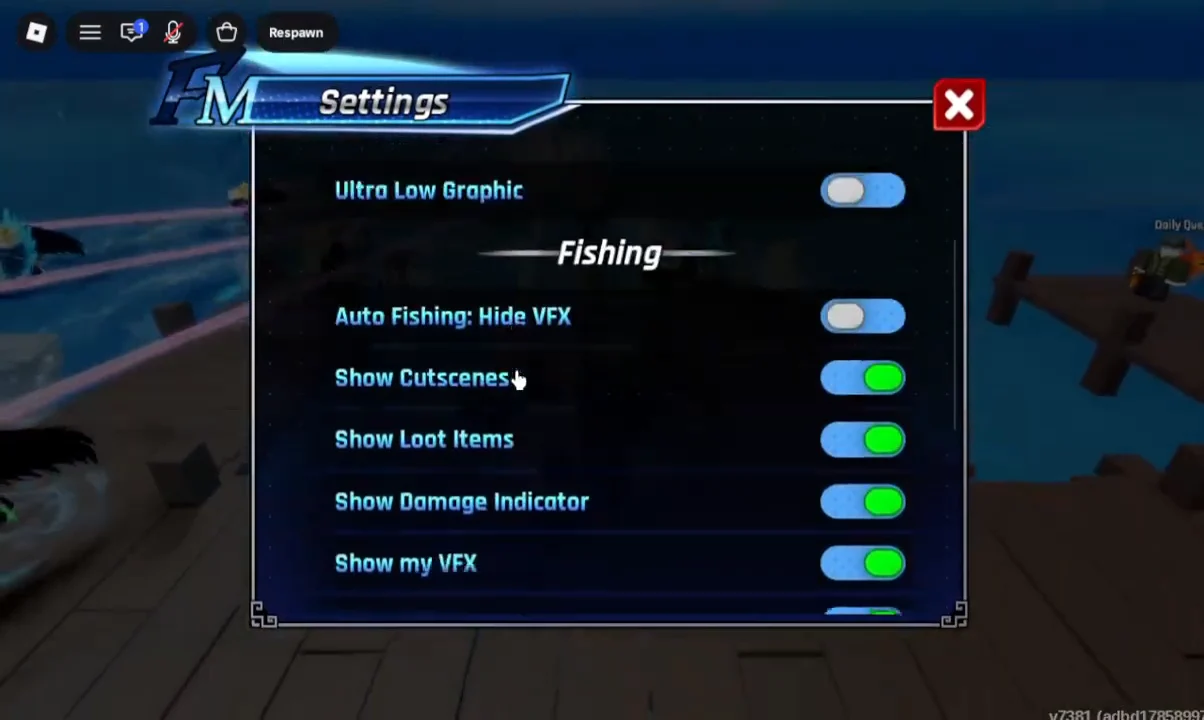
Graphics quality lives under the Mix category, where an Ultra Low Graphic toggle lets you drop the visual detail for better performance on weaker devices.
The Fishing category holds a set of toggles that control what you see during a catch. Turning these off can reduce on-screen clutter and strain during long fishing sessions:
- Auto Fishing: Hide VFX — hides the visual effects while auto fishing runs.
- Show Cutscenes — toggles the fishing cutscenes on or off.
- Show Loot Items — shows or hides dropped loot.
- Show Damage Indicator — displays the damage numbers during a fight.
- Show my VFX — controls your own ability effects.
- Show others’ VFX — controls effects from other players on the server.
- Camera shaking — turns the camera shake on or off.
Each toggle shows its state through color. A green switch means the option is enabled, and a gray switch means it is turned off. Click a switch once to flip it.
Audio, music, and volume sliders
Scroll down past the fishing toggles to reach the Audio section. Here you set the music mood, pick a track, and control volume with three sliders.
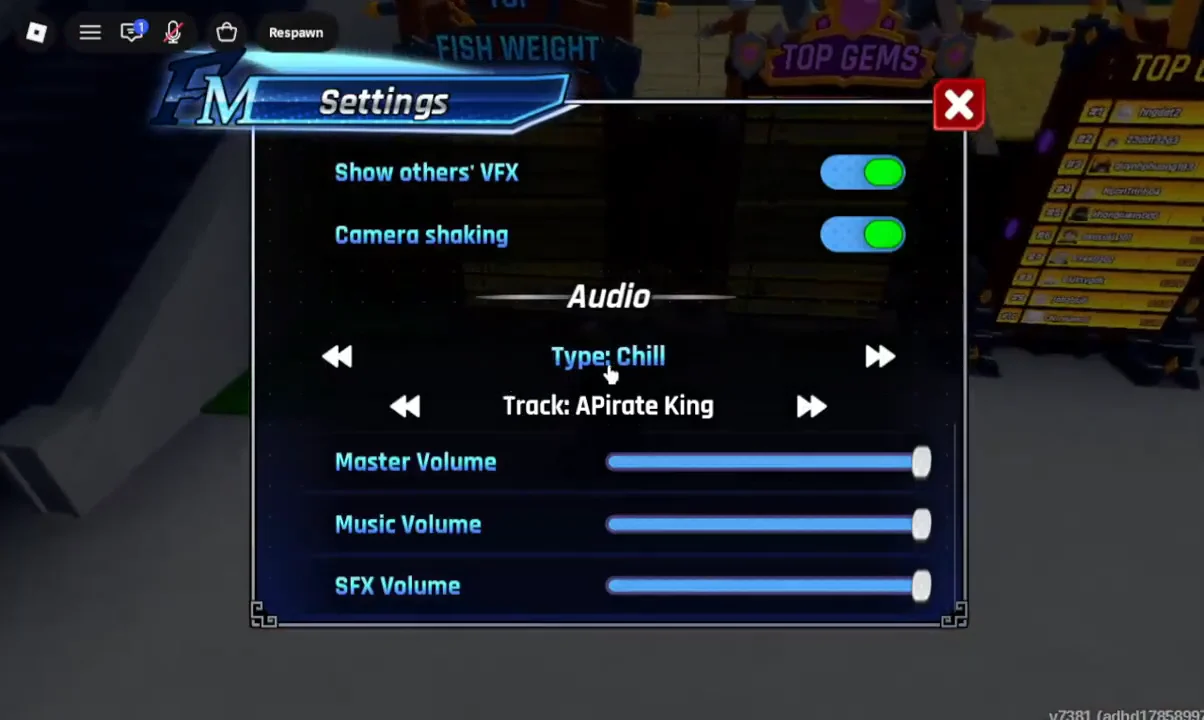
- Type — selects the music mood, such as Chill.
- Track — chooses the current song.
- Master Volume — sets the overall game volume.
- Music Volume — adjusts the soundtrack independently.
- SFX Volume — controls sound effects like fishing and combat.
Drag any slider left to lower it or right to raise it. To silence a single layer without muting the rest, pull just that slider down to zero.
Redeem codes from the Settings panel
The same Settings window holds the Code Redemption field, so code entry does not need a separate menu. Type or paste a code into the input box, then press the green REDEEM button to claim its reward.
If a code is rejected, keep the exact capitalization and punctuation and remove any spaces that slipped in while copying. A code that still fails may already be expired, or you may have redeemed it before, since each code works once per account.
Confirm your changes applied
Toggle and slider changes take effect right away, so there is no separate save button. You can confirm a toggle by its color, since a green switch is on and a gray switch is off, and confirm a volume change by the slider handle moving to its new position.
For a code, a successful redemption delivers its reward immediately after you press REDEEM. Once everything looks right, close the panel with the red X and return to fishing with your new settings in place.